

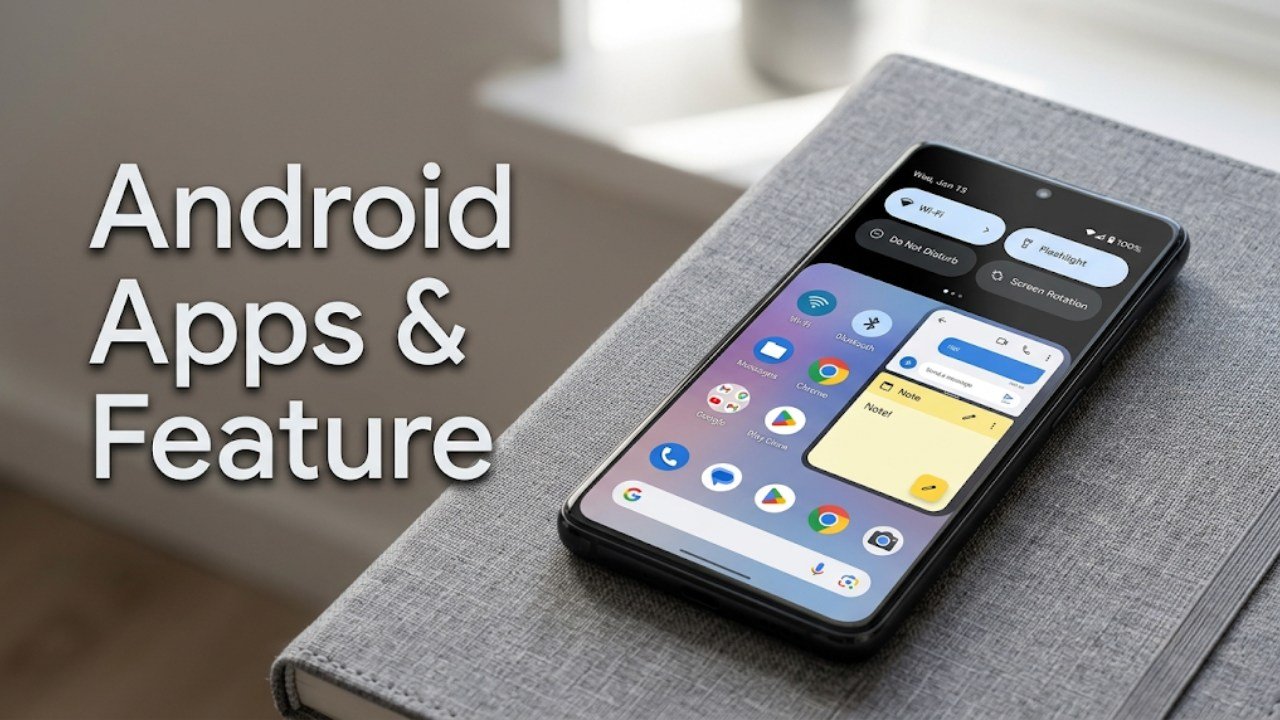
Android apps & features cover an enormous range of capabilities that most users never fully explore. Your Android phone ships with powerful built-in tools, supports thousands of apps across every category, and contains hidden settings that dramatically improve how you use the device daily.
The challenge is knowing where to start. Android’s depth can feel overwhelming for new users and even experienced ones discover features they never knew existed.
This guide covers the most important Android apps and feature categories — explaining what each one does, how to find it, and how to use it effectively. Whether you are setting up a new phone, switching from iOS, or simply want to use your current Android better, this guide gives you a practical foundation.
Understanding Android Apps & Features
Before diving in, clarifying the distinction between Android apps & features helps you navigate the system more confidently.
Android features are built into the operating system itself. They do not need to be downloaded and are available on every Android device — though specific implementations vary by manufacturer. Examples include Quick Settings, Digital Wellbeing, Split Screen, and the notification system.
Android apps are software packages that extend what your phone can do. Some come pre-installed. Others are downloaded from the Google Play Store. Apps can be updated, uninstalled, and replaced with alternatives.
Most powerful Android workflows combine both — using built-in Android features alongside carefully chosen apps to create a personalised experience.
Essential Built-In Android Features Every User Should Know
Quick Settings Panel
The Quick Settings panel is one of the most used Android features and one that many users only partially understand.
Pulling down the notification shade once shows a condensed view of your most-used toggles. Pulling it down a second time — or pulling with two fingers — reveals the full Quick Settings grid.
What you can do with Quick Settings:
- Enable or disable Wi-Fi, mobile data, Bluetooth, and airplane mode
- Control screen brightness directly
- Toggle flashlight, Do Not Disturb, and screen rotation
- Enable hotspot with a single tap
- Access battery saver
Customising Quick Settings:
Tap the pencil or edit icon in the Quick Settings panel to rearrange tiles. Drag frequently used toggles to the top positions and remove ones you never use. This small customisation saves seconds on every interaction throughout the day.
Split Screen Multitasking
Android supports running two apps simultaneously in split-screen mode — particularly useful on larger phones and tablets.
How to enable split screen:
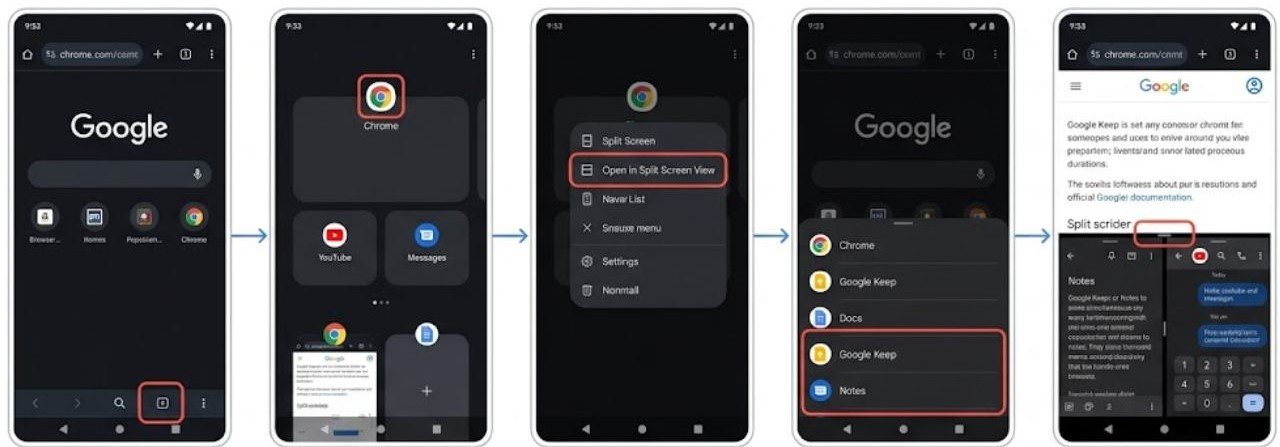
- Open the first app you want to use
- Tap the square or recent apps button
- Long-press the app’s icon at the top of the card
- Select Split Screen or Open in Split Screen View
- Choose the second app from the recent apps list or home screen
Split screen is genuinely useful for reading an article while taking notes, watching a video while messaging, or comparing information across two apps.
Digital Wellbeing
Digital Wellbeing is Android’s built-in screen time management system. It tracks how long you spend in each app and provides tools to limit usage.
How to find Digital Wellbeing:
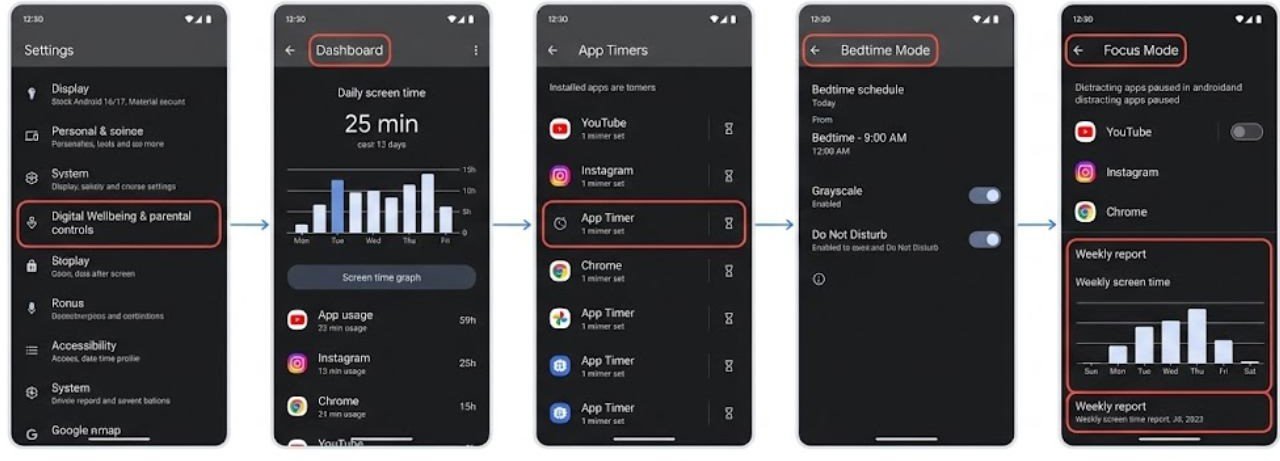
Go to Settings → Digital Wellbeing and Parental Controls
Key features within Digital Wellbeing:
- Dashboard — shows daily screen time broken down by app
- App Timers — set daily limits for specific apps that grey out the icon when the limit is reached
- Bedtime Mode — schedules a grayscale screen and Do Not Disturb for sleep hours
- Focus Mode — pauses distracting apps temporarily while you work or study
- Screen Time — weekly usage reports
Notification Management
Android’s notification system is one of its most powerful features when properly configured — and one of the most disruptive when left at default settings.
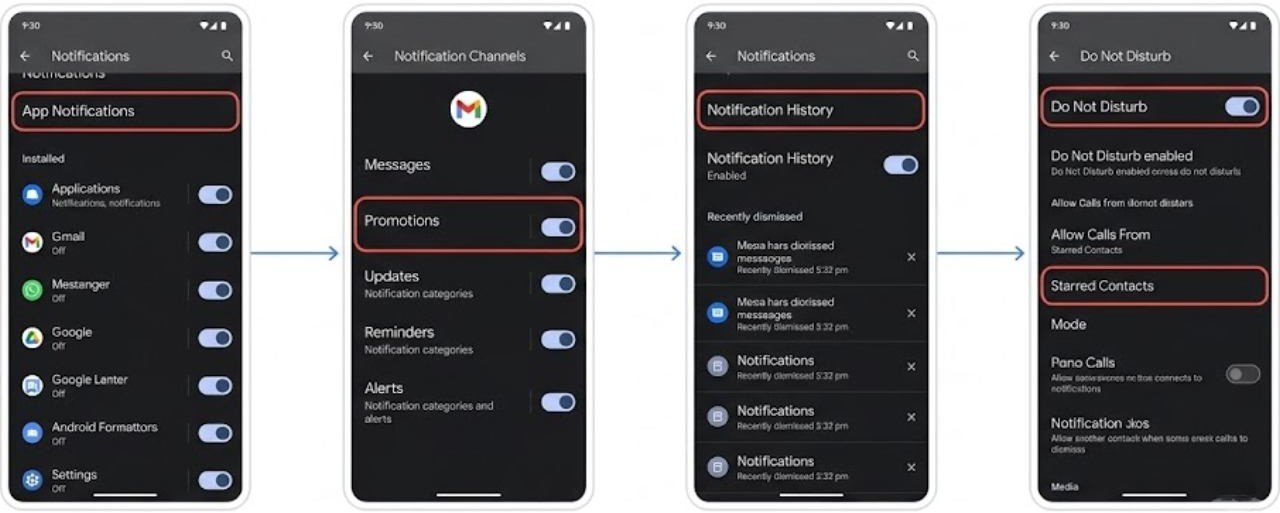
Key notification controls:
- Per-app notification settings — go to Settings → Notifications → App Notifications and review each app individually
- Notification channels — many apps offer separate notification channels for different alert types, allowing you to control exactly which types of notifications you receive from each app
- Notification history — Settings → Notifications → Notification History shows every notification received in the past 24 hours, even ones you dismissed too quickly
- Do Not Disturb — allows calls from starred contacts while silencing everything else
Developer Options
Developer Options is a hidden settings menu that unlocks additional controls for power users.
How to enable Developer Options:
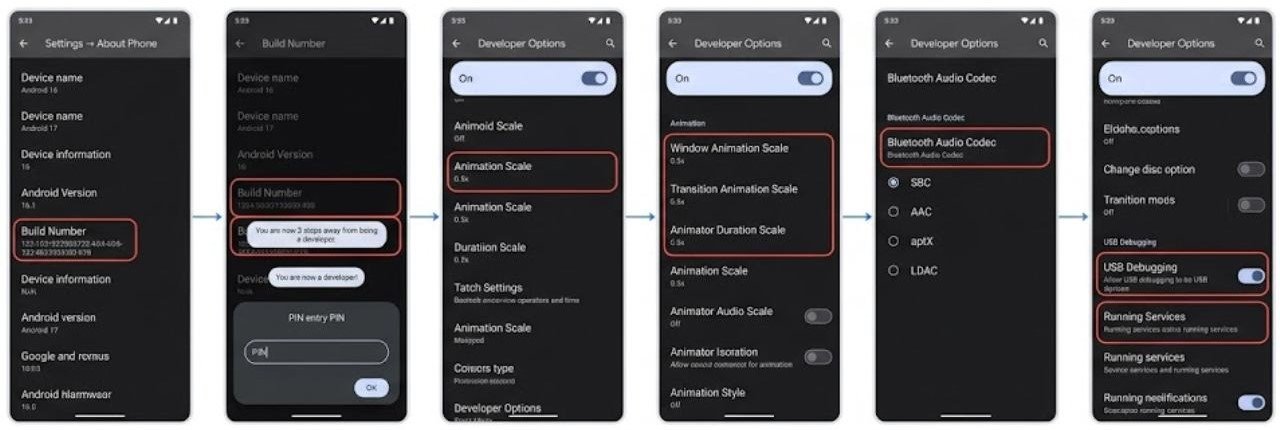
Go to Settings → About Phone and tap Build Number seven times. Enter your PIN if prompted.
Useful Developer Options for everyday users:
- Animation scale — set to 0.5x for a noticeably faster-feeling interface
- Bluetooth Audio Codec — select lower-latency codecs for wireless earbuds
- USB debugging — required for certain backup and transfer tools
- Running Services — see which apps are actively using memory
Essential Android Apps by Category
Productivity Apps
Google Keep — a simple, fast note-taking app that syncs across all devices. Supports text notes, checklists, voice notes, and image notes. Integrates with Google Docs for expanding notes into full documents.
Google Tasks — a clean task manager that integrates directly with Gmail and Google Calendar. Tasks appear as reminders on your calendar automatically.
Microsoft OneNote — for users who need structured note organization with notebooks, sections, and pages. Particularly useful for students and professionals managing large volumes of information.
Files by Google — the best file manager for Android. Shows storage usage clearly, finds duplicate files automatically, and provides fast file transfer between devices.
Communication Apps
Google Messages — the default SMS and messaging app on many Android phones. Supports RCS (Rich Communication Services) which delivers read receipts, typing indicators, and high-quality media sharing over mobile data between Android users.
Google Phone — provides caller ID, spam protection, and call screening. On supported devices, the call screen feature answers suspected spam calls automatically.
Photography Apps
Google Camera — available on Pixel devices natively and as an unofficial port for other Android phones. Known for exceptional computational photography including Night Sight for low-light photos and Photo Unblur.
Snapseed — a free, professional-grade photo editing app from Google. Provides precise control over exposure, color, sharpening, and local adjustments without a subscription.
Open Camera — a free open-source camera app with advanced manual controls including manual focus, ISO, shutter speed, and RAW capture support.
Security and Privacy Apps
Google Authenticator — generates two-factor authentication codes for accounts secured with 2FA. More secure than SMS verification for account protection.
Bitwarden — a free, open-source password manager that stores and autofills passwords across apps and browsers. Significantly more secure than reusing passwords.
DuckDuckGo Privacy Browser — a browser that blocks trackers automatically and provides privacy grades for websites you visit.
Hidden Android Features Worth Knowing
One-Handed Mode
Most large Android phones include a one-handed mode that shifts the interface down for easier thumb access.
How to enable one-handed mode:
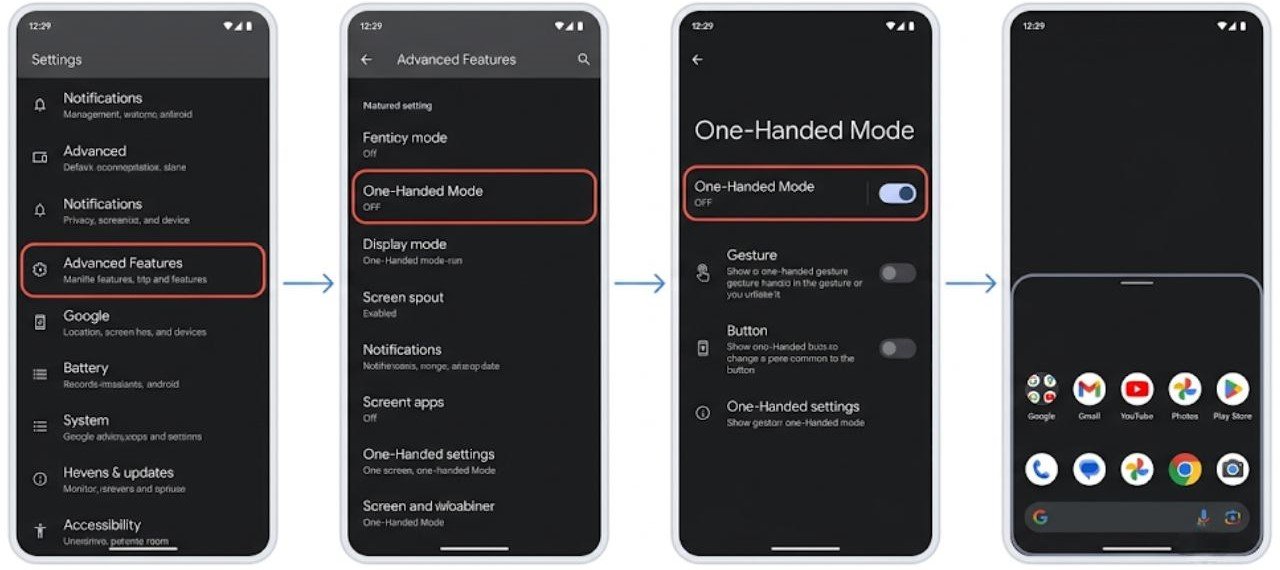
Samsung: Settings → Advanced Features → One-Handed Mode
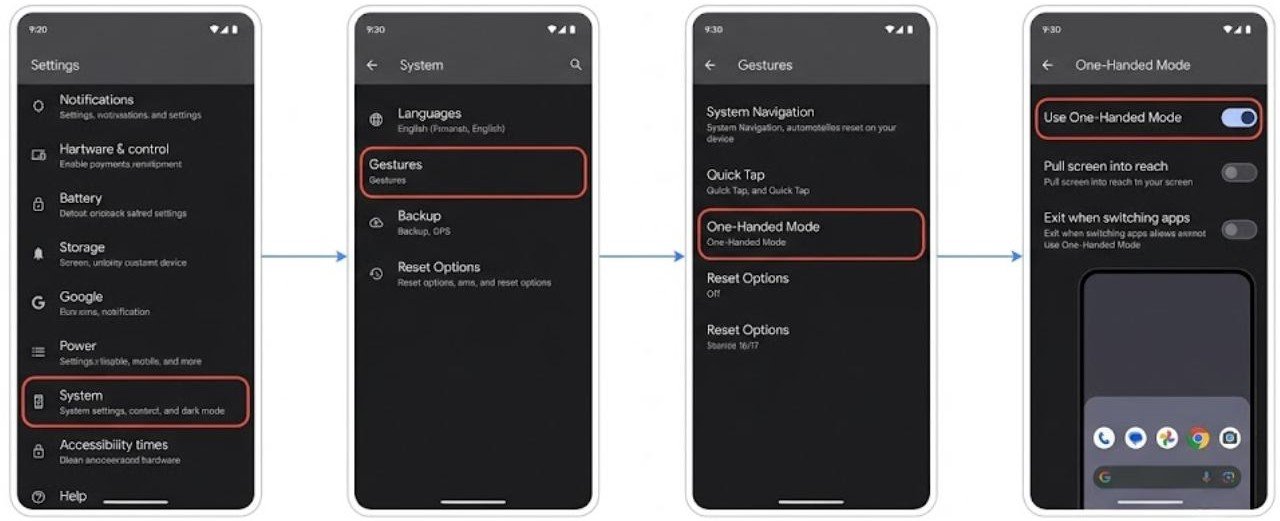
Google Pixel: Settings → System → Gestures → One-Handed Mode
Swipe down on the gesture bar at the bottom of the screen to activate
Second Space or Work Profile
Android supports separate user profiles that keep personal and work apps completely isolated.
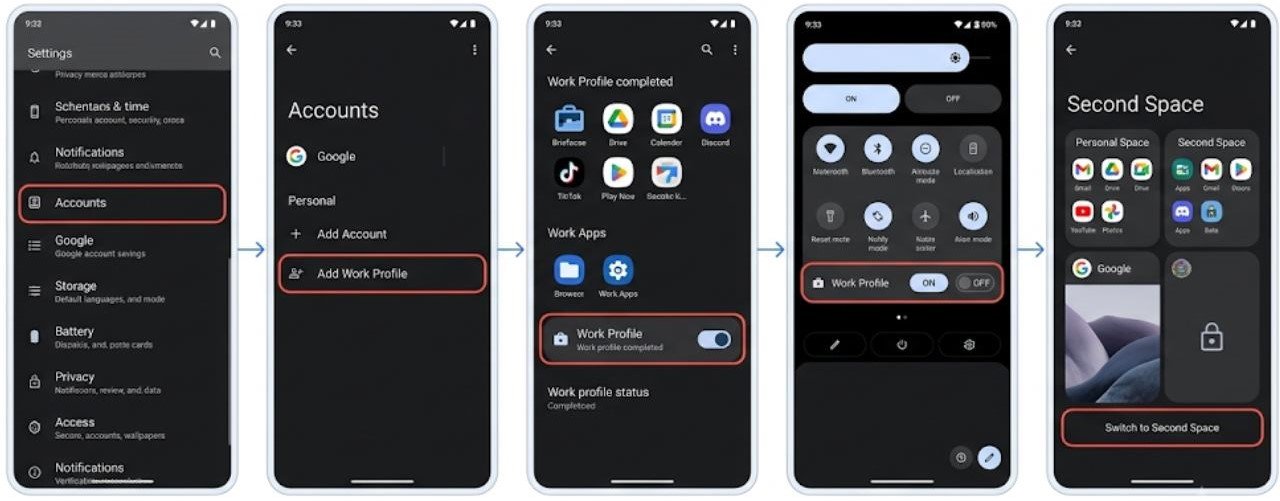
Work Profile — set up through your employer’s MDM software or manually through Settings → Accounts → Add Work Profile. Work apps run in a separate encrypted space. A simple toggle in Quick Settings turns the entire work profile on or off.
Second Space (available on some manufacturers like Xiaomi and OnePlus) — creates a completely separate phone environment with different apps, accounts, and data, accessible via fingerprint or PIN.
Live Caption
Live Caption automatically generates real-time subtitles for any audio playing on your Android phone — videos, podcasts, phone calls, and even voice messages.
How to enable Live Caption:
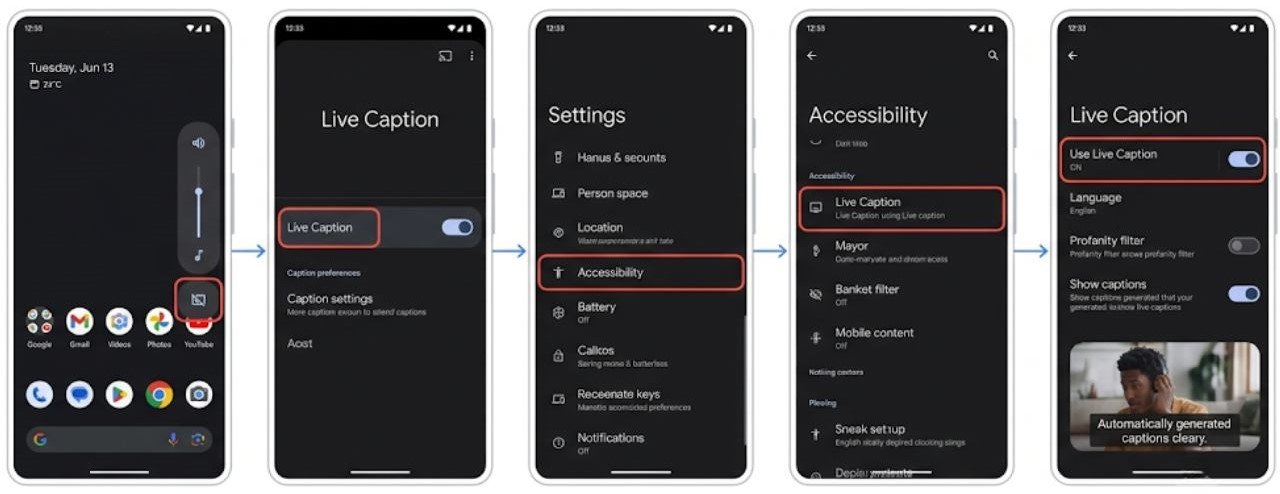
- Press a volume button and tap the Live Caption icon below the volume slider
- Or go to Settings → Accessibility → Live Caption
Live Caption works completely on-device without an internet connection, meaning your audio never leaves the phone for processing.
Sound Amplifier
Sound Amplifier is an accessibility feature that boosts audio through connected earbuds — making it easier to hear conversations, videos, and audio content.
How to find Sound Amplifier:
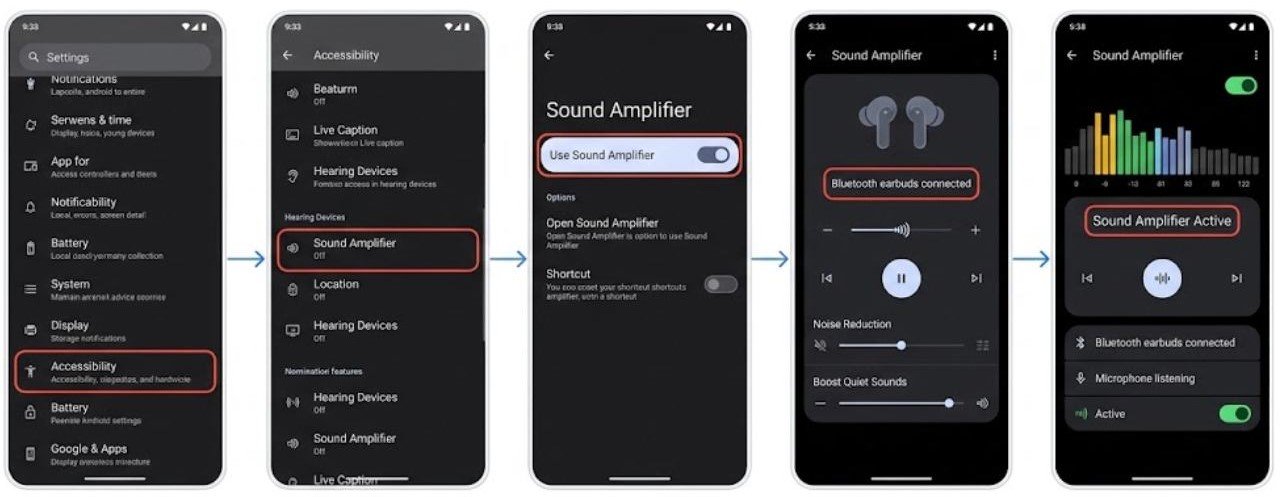
Go to Settings → Accessibility → Sound Amplifier and connect wired or Bluetooth earbuds.
The feature provides frequency-specific amplification, allowing you to boost the frequencies where your hearing needs the most support without affecting others.
Scheduled Dark Mode
Dark Mode reduces screen brightness and changes the colour scheme to dark backgrounds, reducing eye strain in low light and saving battery on AMOLED screens.
How to schedule Dark Mode:
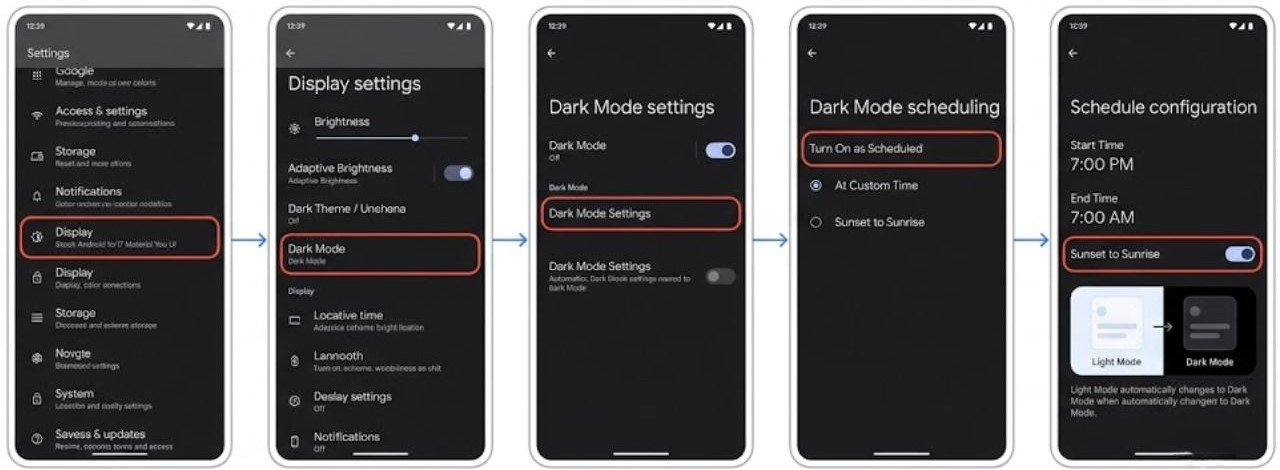
Go to Settings → Display → Dark Mode → Dark Mode Settings → Turn On as Scheduled. Set custom times or link it to sunset and sunrise automatically.
Android Feature Tips for Specific Use Cases
For Better Battery Life
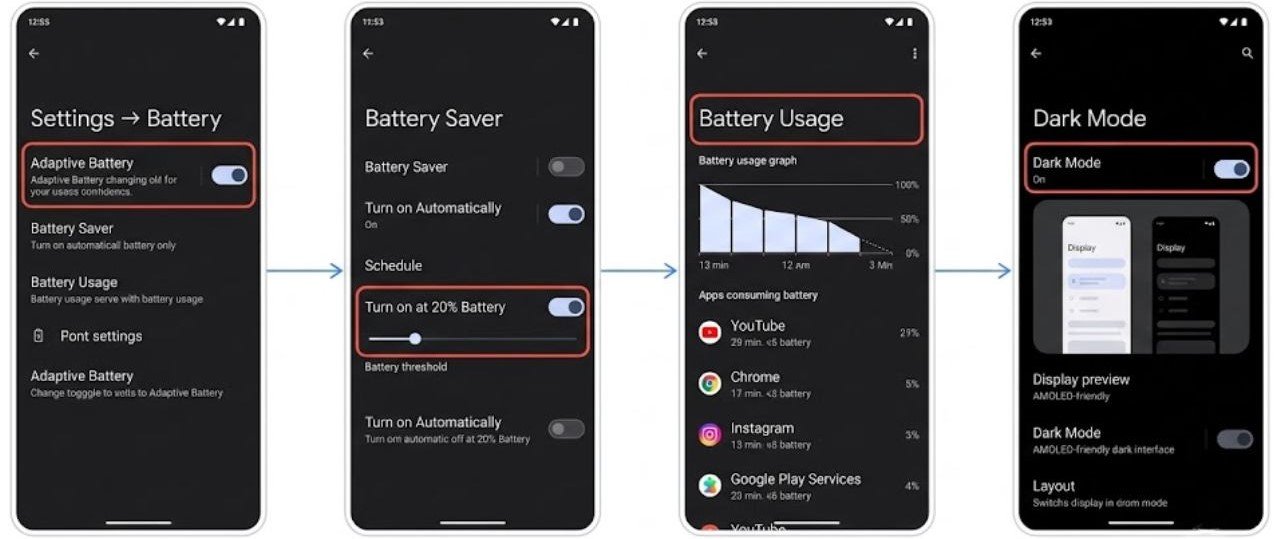
- Enable adaptive battery via Settings → Battery → Adaptive Battery
- Set up battery saver to activate automatically at 20 percent
- Review battery usage at Settings → Battery → Battery Usage weekly to identify drain sources
- Enable dark mode for AMOLED screens
For Better Privacy
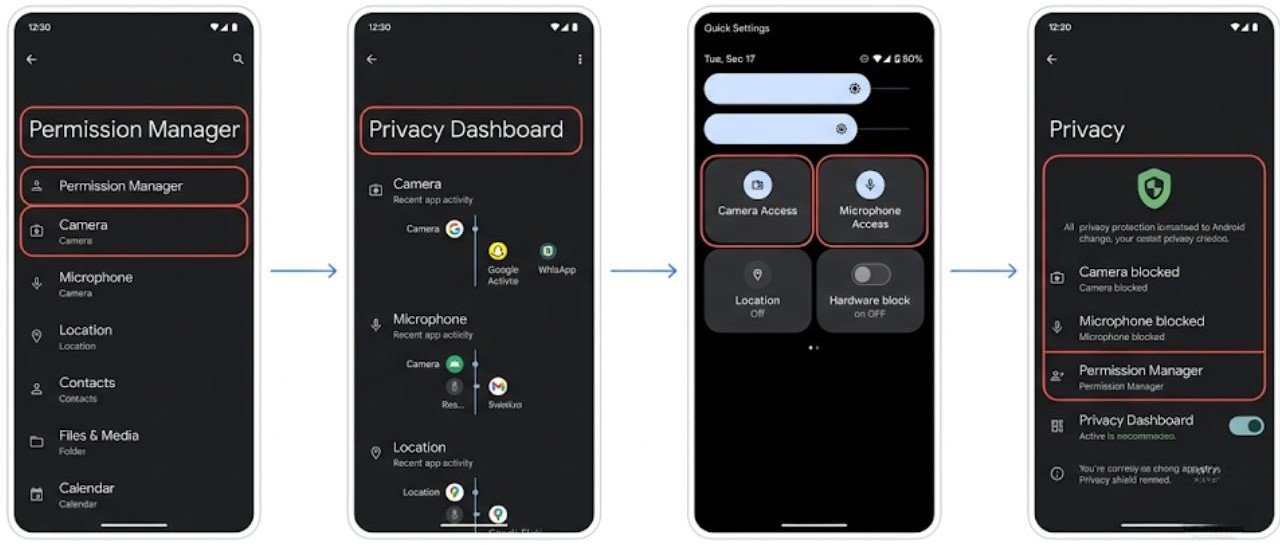
- Review app permissions quarterly via Settings → Privacy → Permission Manager
- Use the privacy dashboard — Settings → Privacy → Privacy Dashboard — to see which apps accessed your camera, microphone, and location recently
- Enable the microphone and camera toggles in Quick Settings to instantly block all apps from accessing these hardware components
For Better Performance
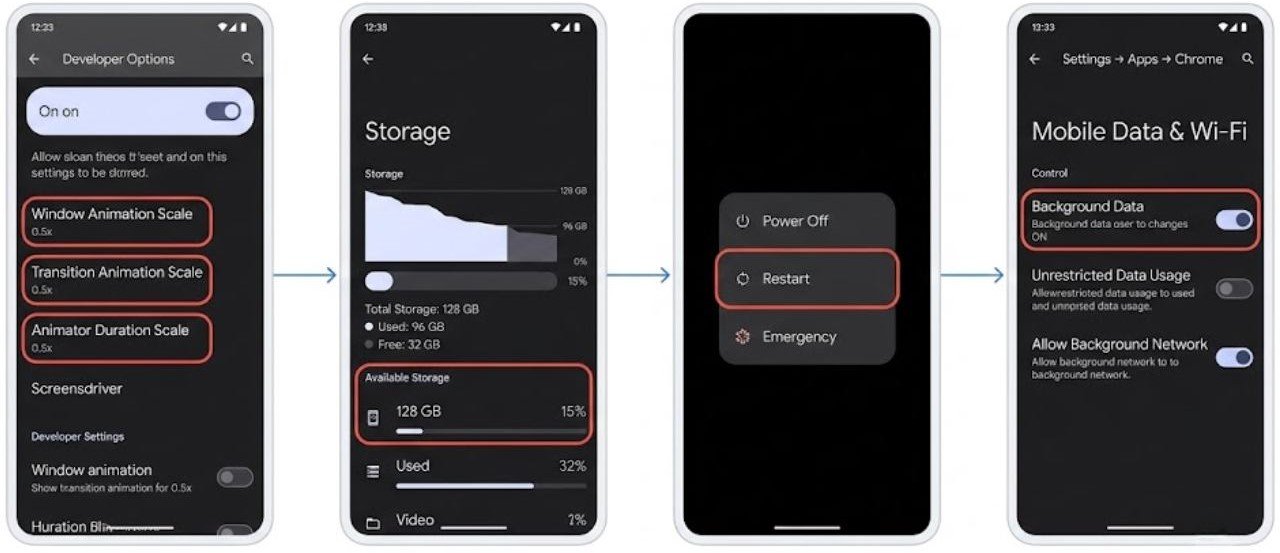
- Reduce animation scales in Developer Options to 0.5x
- Keep storage above 15 percent of total capacity
- Restart the device once weekly to clear accumulated memory
- Disable background data for apps you do not need syncing via Settings → Apps → Select App → Mobile Data
For Tablet and Large Screen Users
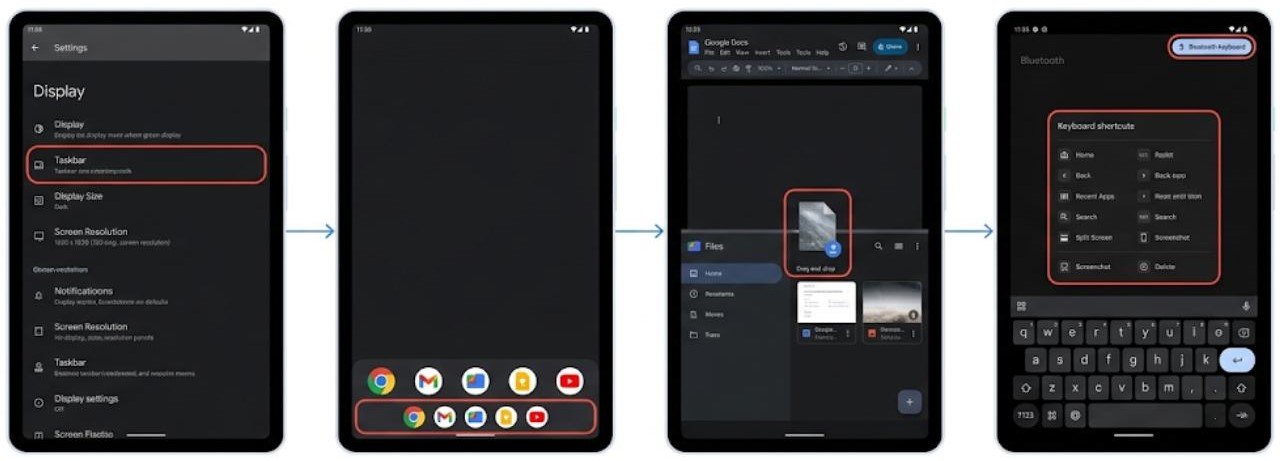
- Enable taskbar via Settings → Display → Taskbar for quick app switching
- Use drag-and-drop between apps in split screen to transfer content
- Enable keyboard shortcuts by connecting a Bluetooth keyboard and holding the Meta key to see available shortcuts
FAQs
What are the most useful hidden Android features?
The most valuable hidden Android apps & features include Live Caption for automatic subtitles, Developer Options for animation speed control, scheduled Dark Mode, Sound Amplifier for hearing assistance, and the Privacy Dashboard for monitoring app permission usage. All are built into modern Android versions.
How do I find all the apps installed on my Android phone?
Go to Settings → Apps to see a complete list of all installed apps including system apps. Tap the three-dot menu and select Show System Apps to include built-in Android system components in the list.
What is the difference between Android features and Android apps?
Android features are built into the operating system — they are always available without downloading. Android apps are separate software packages that extend phone capabilities. Both work together to create the complete Android experience.
How do I get the most out of my Android phone?
Customise Quick Settings for your most-used toggles, review and restrict app permissions, enable Digital Wellbeing for screen time awareness, set up notification channels to control alerts, and explore Developer Options for performance tweaks. These five areas cover the highest-impact Android apps & features for daily improvement.
Are all Android features available on every phone?
Core Android features are available across all Android phones, but specific implementations vary by manufacturer. Samsung adds One UI features, Google Pixel adds exclusive features like Call Screen and Photo Unblur, and OnePlus adds OxygenOS-specific tools. The underlying Android platform features are consistent across all brands.
Final Thoughts
Android apps & features represent one of the most capable mobile computing platforms available, and most users only use a fraction of what is available to them.
The Quick Settings panel, Digital Wellbeing, split screen multitasking, notification management, and Developer Options are the built-in Android features that deliver the most daily value once properly configured. Live Caption, scheduled Dark Mode, and the Privacy Dashboard are the hidden Android features most worth discovering.
On the app side, the best strategy is choosing quality over quantity — a small number of well-chosen apps that cover your actual daily needs outperforms a phone cluttered with rarely used downloads.
Spend thirty minutes exploring the Settings app systematically, enable Developer Options, and customise Quick Settings for your specific use patterns. These simple steps unlock the full practical potential of your Android phone and make every interaction faster and more useful.
