

Android updates break apps more often than most users expect, and it almost always happens at the worst possible time — right after you finish installing what was supposed to make your phone better.
You update your phone, restart it, and suddenly your banking app crashes on launch, your favorite game refuses to open, or your messaging app stops sending notifications. Nothing changed on your end. The app was working perfectly an hour ago.
This guide explains exactly why Android updates break apps, which types of apps are most affected, and gives you clear practical steps to fix every common problem without losing your data.

Why Android Updates Break Apps in the First Place
The short answer is that Android updates change how the operating system works internally, and apps that were built to work with the old system sometimes struggle to adapt to the new one.
To understand this properly, it helps to think of Android as a set of rules that every app must follow. These rules are called APIs — Application Programming Interfaces. When Android updates those rules, apps that relied on the old rules may stop working correctly until their developers update them too.
This is not a flaw in the update process. It is an unavoidable consequence of a platform that evolves continuously. The real question is why some apps break immediately while others never seem affected at all.
APIs Change With Every Android Update
Every major Android update introduces changes to how apps are allowed to interact with the system.
Some of these changes are additions — new tools and capabilities that developers can use. Others are restrictions — things that previously worked freely but now require explicit permission or have been removed entirely for security or privacy reasons.
When Android updates tighten a permission — like restricting which apps can run freely in the background — every app that relied on that unrestricted background access will immediately start behaving differently. Some will crash. Some will stop sending notifications. Some will simply feel slower or less responsive.
Apps whose developers anticipated these changes and updated their code in advance will work perfectly. Apps whose developers did not update in time will break.
Target SDK Requirements
Every Android app is built to target a specific Android version, known as the target SDK level.
Google requires apps on the Play Store to target a minimum SDK level. When Android updates raise this requirement, older apps that target outdated SDK versions may be blocked from installing or may behave unpredictably on newer Android versions.
This is one of the most common reasons Android updates break apps — especially older apps or apps from smaller developers who update their code infrequently.
System-Level Behavior Changes
Beyond API changes, Android updates sometimes change fundamental system behaviors that affect apps indirectly.
For example, an Android update might change how memory is allocated to background processes, how the system handles deep sleep states, or how location data is shared between apps. An app that was not tested against these new behaviors may react unexpectedly — not because its code is wrong, but because the environment it was designed for no longer exists in exactly the same form.
Which Apps Break Most Often After Android Updates
Not all apps are equally vulnerable when Android updates break apps. Some categories consistently experience more problems than others.
Banking and Financial Apps
Banking apps are among the most frequently affected when Android updates break apps.
These apps use strict security checks to verify that the device has not been tampered with. When an Android update changes system-level security parameters — even for legitimate security improvements — banking apps sometimes interpret those changes as a security threat and refuse to open.
Google Play Integrity checks and SafetyNet attestation failures are common culprits. The banking app’s security layer sees the post-update device differently and blocks access until the developer releases a compatible update.
Gaming Apps
Games frequently break after Android updates, particularly games that use advanced graphics rendering or audio processing.
Android updates sometimes change how the system handles graphics APIs, audio output, or controller input. A game that rendered perfectly on the previous Android version may experience crashes, visual glitches, or audio issues after an update changes one of these underlying systems.
Older games that are no longer actively maintained are especially vulnerable because their developers are not releasing updates to address new Android compatibility requirements.
Apps With Background Processes
Android has progressively tightened restrictions on background app behavior with each major update.
Apps that relied on running continuously in the background — alarm apps, health tracking apps, automation tools, and some messaging apps — frequently break when Android updates strengthen these restrictions. The app either stops running in the background entirely, fails to trigger at the right time, or loses data it was supposed to collect while the screen was off.
Apps Using Deprecated Permissions
Some apps still request permissions that older Android versions allowed but newer versions have restricted or removed.
When Android updates break apps that rely on deprecated permissions, the app either loses access to the data it needs or crashes when it tries to request a permission that no longer exists in the same form. Location access, storage access, and microphone handling have all undergone significant permission changes across recent Android versions.
7 Fixes When Android Updates Break Apps
When Android updates break apps on your device, these fixes resolve the most common problems. Work through them in order before trying more drastic solutions.
Fix 1 — Update All Apps Immediately
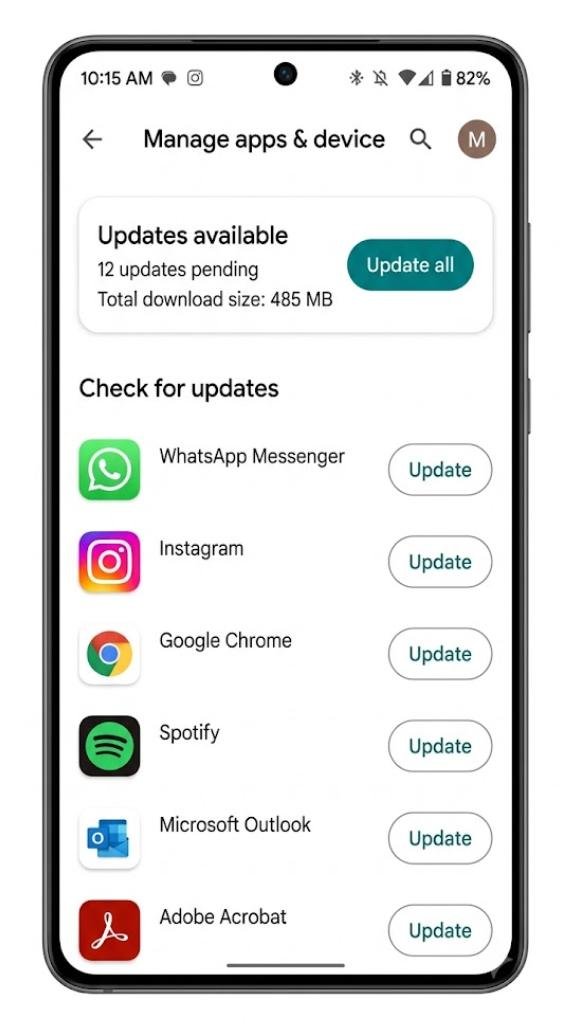
The fastest fix when Android updates break apps is to update every installed app through the Google Play Store.
Developers release compatibility updates within hours or days of a major Android release. Most app crashes and failures caused by system changes resolve themselves as soon as you install the developer’s updated version.
Open the Google Play Store, tap your profile icon, select Manage Apps and Device, and tap Update All to apply every pending update at once.
Fix 2 — Clear the App Cache
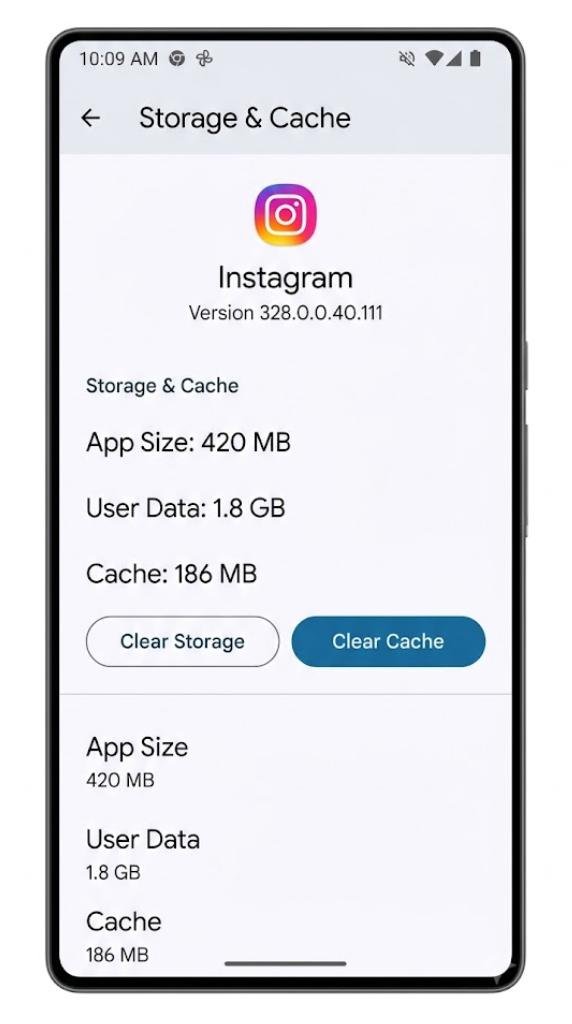
A corrupted cache is one of the most common causes of app crashes after an Android update.
The update changes system files that the app’s cached data references. When the app tries to read that cached data, it finds a mismatch and crashes.
Go to Settings → Apps → Select the affected app → Storage → Clear Cache. Relaunch the app and check whether the problem is resolved. Clearing the cache does not delete your account data or saved progress.
Fix 3 — Clear App Data
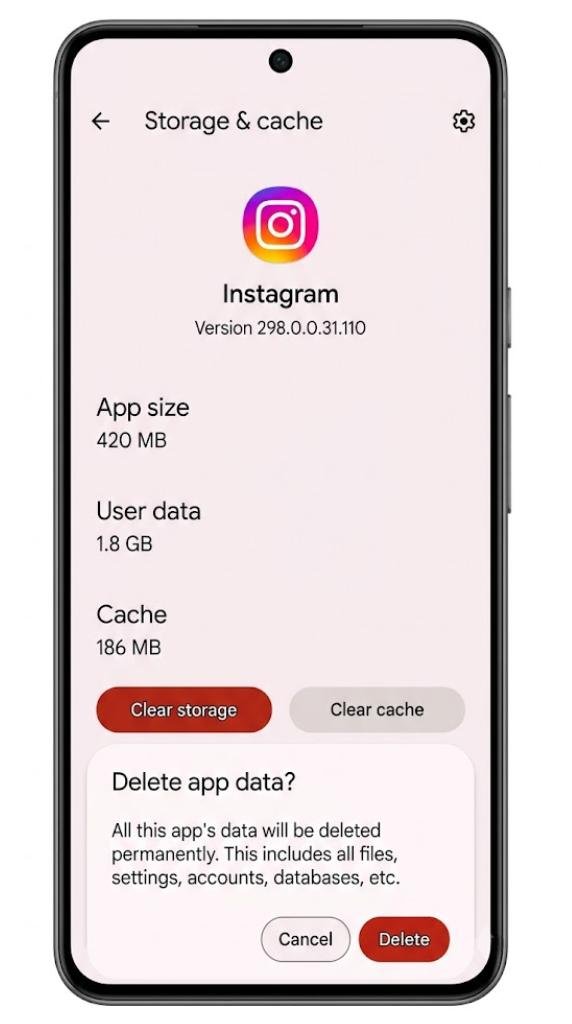
If clearing the cache does not resolve the crash, clearing the full app data often will.
Go to Settings → Apps → Select the affected app → Storage → Clear Data. This resets the app to a fresh state. You will need to sign back in and reconfigure any settings, but your account data stored on the developer’s servers remains intact.
Fix 4 — Check and Reset App Permissions

Android updates sometimes reset app permissions or change which permissions are required for certain features to work.
Go to Settings → Apps → Select the affected app → Permissions. Check that every permission the app needs — location, camera, microphone, storage, notifications — is set to the appropriate access level. Grant any permissions that were reset or are showing as denied.
Fix 5 — Uninstall and Reinstall the App

If the app continues to crash after clearing cache and data, a clean reinstall often resolves deeper compatibility issues.
Uninstall the app completely from Settings → Apps → Select the app → Uninstall. Then reinstall it fresh from the Google Play Store. This removes any old installation files that may have conflicts with the updated Android system.
Fix 6 — Check for a System Patch Update
When Android updates break apps across many devices simultaneously, manufacturers typically release a patch update within days.
Go to Settings → System → Software Update → Check for Updates. If a patch is available, install it. Patch updates often fix the most common compatibility problems that emerge after major Android releases.
Fix 7 — Contact the App Developer
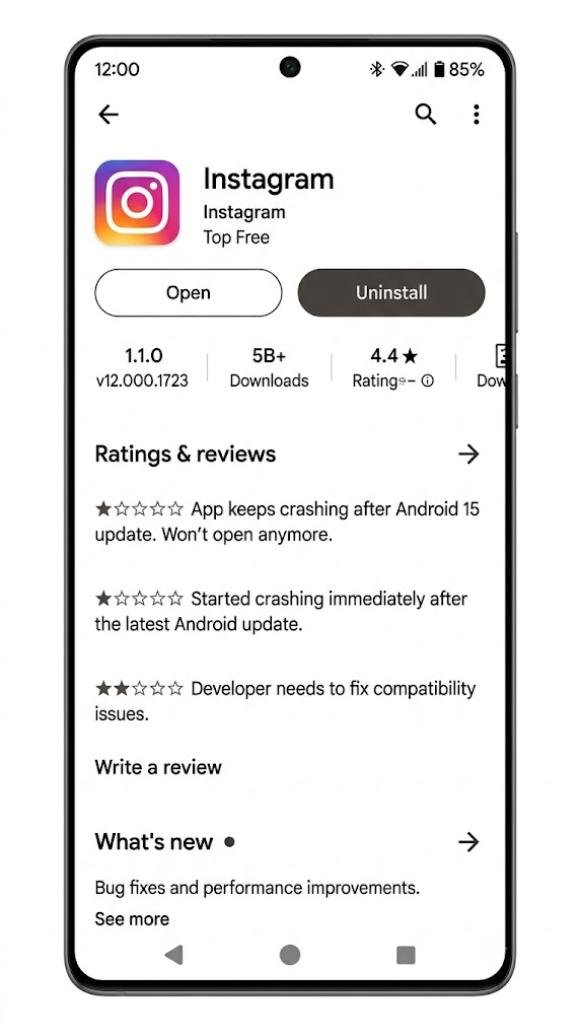
If none of the above fixes work and the app is still broken after an update, the problem likely requires a fix from the developer rather than from your end.
Check the app’s page on the Google Play Store for recent reviews mentioning the same problem. If other users are reporting the same crash, the developer is almost certainly already working on a fix. Leave a review describing the issue and check back in a few days for an updated version.
How to Prevent App Breakage Before Future Android Updates
You cannot prevent Android updates from breaking apps entirely, but you can reduce how often it affects you.
Wait a Few Days Before Installing Major Updates
The first few days after a major Android update reveal the most widespread compatibility problems. Manufacturers and developers respond quickly once reports start coming in.
Waiting three to five days before installing a major update means you benefit from early patch fixes and developer compatibility updates before you ever experience the problems yourself.
Keep Apps Updated Regularly
Apps that are updated regularly are far less likely to break after an Android update. Regular updates mean the developer is actively maintaining the app and tracking Android compatibility requirements.
Apps that have not been updated in over a year are at significantly higher risk of breaking when Android changes its underlying systems.
Back Up App Data Before Updating
Before installing any major Android update, back up the data from your most important apps.
Most apps store their core data on the developer’s servers, so reinstalling them recovers everything. But some apps — particularly offline games and note-taking apps — store data locally. Backing up before updating protects you from data loss if something goes wrong.
FAQs
Why do Android updates break apps?
Android updates change internal system rules called APIs. Apps built for older rules may crash or malfunction when those rules change. Developers must update their app code to match the new Android requirements.
Which apps break most often after Android updates?
Banking apps, games, background process apps, and older apps that have not been recently updated are most likely to break when Android updates change system behavior or permission requirements.
Will broken apps fix themselves after an Android update?
Most broken apps fix themselves once the developer releases a compatibility update. Checking the Google Play Store for app updates immediately after an Android update resolves the majority of problems within a few days.
Is it safe to clear app data to fix crashes after an update?
Yes. Clearing app data resets the app to a fresh state. Your account information stored on the developer’s servers remains safe. You will need to sign back in and reconfigure settings after clearing data.
Should I avoid Android updates to prevent app breakage?
No. Skipping Android updates leaves your device exposed to security vulnerabilities. Instead, wait a few days after a major update before installing it, and update all apps immediately after updating Android.
Final Thoughts
Android updates break apps because the platform evolves faster than every developer can keep pace with simultaneously. This is an unavoidable part of how a living, improving operating system works across thousands of different apps and devices.
The good news is that most breakage is temporary. Developers release compatibility fixes quickly, and the fixes covered in this guide resolve the vast majority of problems that appear in the first days after an update.
The most important habits to develop are simple — keep your apps updated regularly, wait a few days before installing major Android updates, and back up your most important app data before any significant system change.
When Android updates break apps on your device, start with the simplest fixes first. Clear the cache, update the app, check permissions, and reinstall if needed. In most cases, one of these steps will have everything working again before you need to dig any deeper.
