

The Google Play system updates vs OTA updates comparison helps Android users understand how different update systems work on modern Android smartphones. Many users see two types of updates in Android settings but often do not know the difference between them.
Android devices receive updates through two main channels:
- Google Play system updates
- OTA (Over-The-Air) system updates
Both update types improve security, performance, and device stability. However, they work in different ways and update different parts of the operating system.
The Google Play system updates vs OTA updates model was introduced when Google redesigned the Android update architecture. With modular components and faster update delivery systems, Android smartphones can now receive improvements more frequently.
Many modern devices from Samsung, OnePlus, Xiaomi, and Nothing rely on both update methods.
This Google Play system updates vs OTA updates guide explains how these update systems work, why Android uses both methods, and how they improve the Android ecosystem.
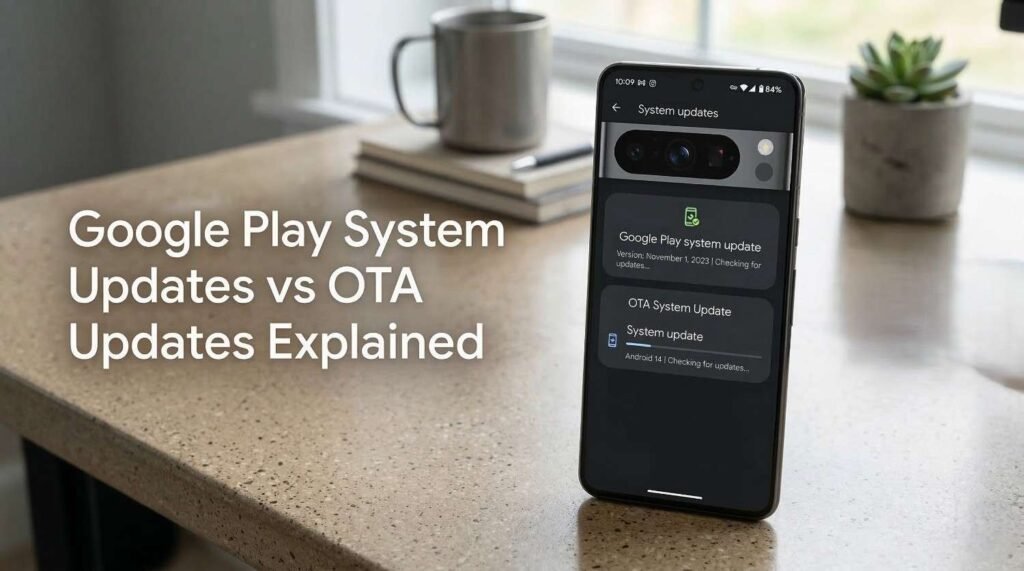
What Are Google Play System Updates
Definition of Google Play System Updates
Google Play system updates are modular updates that improve specific Android system components. These updates come directly from Android Project Mainline, a modular architecture introduced by Google.
Instead of updating the entire operating system, Google updates individual modules through the Google Play Store infrastructure.
This allows faster delivery of security improvements and system fixes.
What Components Do Google Play System Updates Modify
Google Play system updates target core Android services and frameworks.
Examples include:
- media frameworks
- permission controller
- network security modules
- DNS resolver
- cryptographic libraries
These components influence Android privacy settings, networking, and app security.
The Google Play system updates vs OTA updates architecture enables these modules to update without requiring manufacturer approval.
Advantages of Google Play System Updates
Benefits include:
- faster security patches
- smaller update downloads
- automatic background installation
- reduced dependency on manufacturers
These improvements significantly strengthen the Android security model.
What Are OTA Updates
This YouTube video below from Rakshit Khanna explains what an OTA update is and how it works on Android devices. It shows how updates download and install directly over the internet. The video serves as a quick reference for understanding the Android update process.
OTA updates refer to complete Android operating system upgrades delivered wirelessly to devices.
OTA stands for Over-The-Air updates.
These updates install full system upgrades including:
- Android OS version changes
- manufacturer UI updates
- system kernel improvements
- device driver updates
OTA updates modify large portions of the operating system.
What OTA Updates Include
OTA updates can include several major system changes.
Examples include:
- Android version upgrades (Android 14, Android 15, etc.)
- security patches
- new system features
- user interface updates
Manufacturers package these updates before releasing them to devices.
Role of Manufacturers in OTA Updates
Unlike Google Play system updates, OTA updates require collaboration between multiple parties.
These include:
- smartphone manufacturers
- chipset vendors
- mobile carriers
This complex process often delays OTA update delivery.
The Google Play system updates vs OTA updates system helps reduce this delay by separating modular updates from full system upgrades.
Google Play System Updates vs OTA Updates
Key Differences Between Update Types
The Google Play system updates vs OTA updates comparison highlights major differences between the two systems.
| Feature | Google Play System Updates | OTA Updates |
|---|---|---|
| Update type | Modular component updates | Full system upgrade |
| Update size | Small | Large |
| Delivery method | Google Play infrastructure | Manufacturer OTA server |
| Installation time | Quick | Longer |
| Frequency | Frequent | Less frequent |
Google Play system updates focus mainly on security and stability.
OTA updates focus on major operating system changes.
Example Scenario
Consider a security vulnerability discovered in the Android media framework.
Without modular updates, manufacturers would need to release a full OTA patch.
With Google Play system updates vs OTA updates, Google can update the affected module directly through the Play system update mechanism.
This drastically speeds up patch distribution.
How Android Delivers Updates
Update Architecture in Modern Android
Modern Android uses multiple update channels.
These include:
- Google Play system updates
- OTA system updates
- app updates through the Play Store
Each channel updates different parts of the device software.
This layered architecture improves device stability and security.
Why Android Uses Multiple Update Systems
The Google Play system updates vs OTA updates approach provides several advantages.
Benefits include:
- faster security updates
- improved system reliability
- reduced manufacturer delays
By separating system modules from the core OS, Android becomes easier to maintain.
Impact on Android Security
This YouTube video below from 9to5Google explains important Android security settings users should update immediately. It highlights privacy controls, app permissions, and protection features. The video serves as a quick reference for improving Android device security.
Faster Security Patch Deployment
One of the most important benefits of Google Play system updates vs OTA updates is improved security patch delivery.
Google can release updates immediately when vulnerabilities appear.
Users receive security improvements much faster than before.
Improved Privacy Protection
Google Play system updates also improve Android privacy protections.
Modules related to permissions, encryption, and networking can receive improvements quickly.
This helps protect personal data stored on Android smartphones.
Impact on Android Performance
Google Play system updates usually do not affect device performance significantly.
They focus mainly on backend system components.
OTA updates, however, may introduce performance improvements or feature changes.
For example, OTA updates can improve:
- battery optimization
- device performance
- system stability
Both update systems work together to improve the Android experience.
How to Check for Google Play System Updates
Steps to Check Play System Updates
Users can check Google Play system updates through Android settings.
Follow these steps:
- Open Android Settings
- Tap Security and Privacy
- Select Google Play system update
- Check for available updates
Most devices install these updates automatically.
How to Check OTA Updates
To check OTA system updates:
- Open Settings
- Tap System
- Select Software Update
- Tap Check for Updates
OTA updates usually require a reboot to complete installation.
Which Update Type Matters More
Both update systems are essential for Android smartphones.
Google Play system updates focus on:
- security patches
- modular system components
OTA updates focus on:
- major Android upgrades
- manufacturer interface changes
The Google Play system updates vs OTA updates system ensures Android devices receive improvements from multiple sources.
Future of Android Update Systems
Google continues expanding the modular update architecture.
Future Android versions may include additional components updated through Play system updates.
This trend will likely result in:
- faster updates
- stronger security
- improved device longevity
The Google Play system updates vs OTA updates architecture represents the future of Android software maintenance.
FAQ
What are Google Play system updates?
Google Play system updates are modular updates delivered through the Play Store infrastructure that update specific Android system components.
What are OTA updates?
OTA updates are full Android operating system updates delivered wirelessly by smartphone manufacturers.
Which update type installs faster?
Google Play system updates install faster because they update smaller modular components.
Do all Android devices support Google Play system updates?
Most Android smartphones running Android 10 or later support Google Play system updates.
Should users install both update types?
Yes. Installing both update types ensures the device receives the latest security patches and system improvements.
Final Thoughts
The Google Play system updates vs OTA updates architecture represents a major advancement in Android software management. By separating modular system components from full operating system updates, Android delivers faster security patches and more reliable system improvements.
Understanding how these update systems work helps Android users keep their smartphones secure, optimized, and up to date with the latest improvements in the Android ecosystem.
