

WhatsApp backup failed is an error that stops millions of users cold, often appearing at the worst possible moment — right before switching phones, after a software update, or during a routine overnight backup. One moment everything seems fine, and the next you see a failure notification with no clear explanation of what went wrong.
What makes this error particularly unsettling is the uncertainty it creates. Did any of your recent messages get saved? Is your existing backup still intact? Can you safely upgrade to a new phone? These questions pile up fast, and WhatsApp’s vague error messages rarely provide the clarity users need.
The good news is that WhatsApp backup failed errors almost always have a fixable cause. Storage conflicts, authentication issues, corrupted files, and connectivity problems are responsible for the overwhelming majority of cases — and none of them require advanced technical knowledge to resolve.
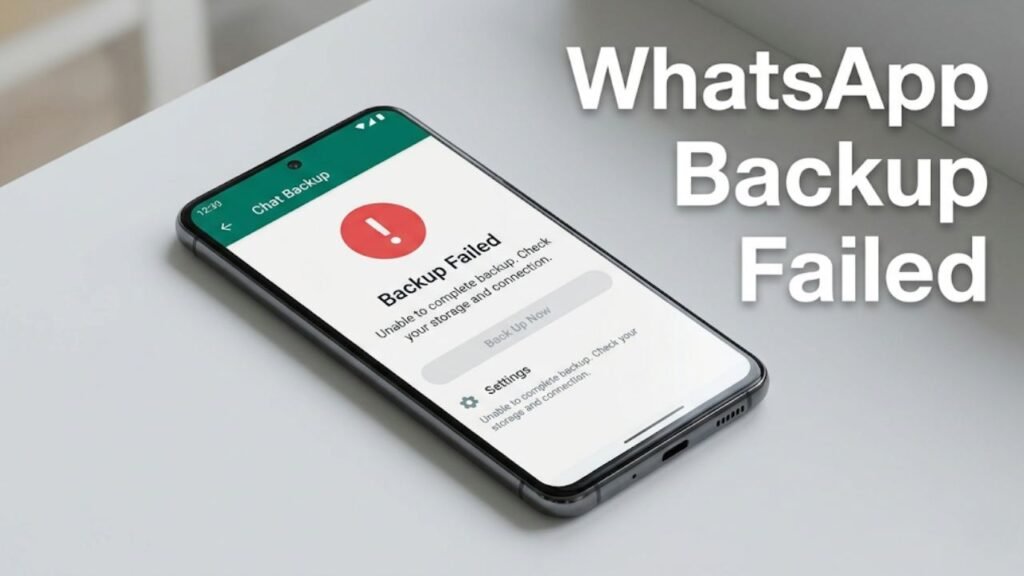
What a WhatsApp Backup Failure Actually Means
A WhatsApp backup failure occurs when the app cannot complete the process of saving your chat data to Google Drive on Android or iCloud on iPhone. The failure can happen at any stage — during local file compression, during the cloud upload, or during the final verification handshake with the server.
Importantly, a WhatsApp backup failed notification does not mean your existing chats have been deleted. Your messages, photos, and voice notes remain on your device. The failure simply means the most recent backup attempt did not complete, leaving your newest data unprotected in the cloud.
What users need to understand is that a failed backup and a missing backup are two different things. Your last successful backup remains available on Google Drive or iCloud. The problem is that anything added to WhatsApp since that last successful backup is not yet saved remotely.
Why Fixing a WhatsApp Backup Failure Matters
Ignoring a WhatsApp backup failed error creates compounding risks that grow more serious over time.
Recent data sits unprotected. Every day you go without a successful backup, more messages, photos, documents, and voice notes accumulate on your device with no cloud copy. A phone failure during this window means permanent data loss.
Phone upgrades become high-risk. Attempting to set up a new phone while your backup has failed means either restoring from outdated data or losing your most recent conversations entirely. Neither outcome is acceptable when important contacts and documents are involved.
Automatic backups silently stop working. Many users assume their scheduled backup is running successfully in the background. A failed backup error can prevent all future automatic backups from triggering, leaving users unprotected for weeks without realizing it.
Common Reasons WhatsApp Backup Failed
Identifying the specific cause behind a WhatsApp backup failed error points you directly to the right solution. Here are the most frequent culprits:
- Full Google Drive or iCloud storage – When cloud storage is exhausted, the upload has nowhere to go and fails immediately upon attempting to write the backup file.
- Weak or dropped internet connection – An unstable Wi-Fi signal causes the upload to fail mid-process, triggering a backup failed notification even when the local file was prepared successfully.
- Google account authentication error – Expired or conflicted Google account credentials prevent WhatsApp from accessing Google Drive, causing the backup to fail at the authentication stage.
- Insufficient device storage – Without enough free internal storage to create the local backup archive, the process fails before the upload even begins.
- Corrupted existing cloud backup – A damaged previous backup file on Google Drive can prevent WhatsApp from overwriting it with a new one, causing repeated failures.
- Outdated WhatsApp version – Older app versions may contain bugs that cause backup failures, particularly after Google Drive or iCloud updates their API.
- Battery saver or data restriction settings – Aggressive battery optimization or background data restrictions on Android can interrupt the backup process and trigger a failure.
- WhatsApp server-side issues – Occasional temporary outages on WhatsApp or Google Drive servers cause backup failures that resolve themselves without any action required from the user.
8 Fixes When WhatsApp Backup Failed
1. Check and Free Up Google Drive Storage

A full Google Drive is the single most common reason WhatsApp backup fails. Open Google Drive on your phone or browser and navigate to the Storage section. Check how much space remains.
Delete old WhatsApp backups you no longer need, empty the Drive trash, and remove large files from other categories. Google Drive provides 15 GB of free storage shared across Gmail, Drive, and Photos — a limit that fills up faster than most users expect. If storage is a persistent issue, Google One plans offer additional quota at a reasonable monthly cost.
2. Verify Your Internet Connection

WhatsApp backup failed errors frequently trace back to an unstable or slow Wi-Fi connection rather than the app itself. Move closer to your router, restart it, and reconnect your phone before retrying the backup.
Run a speed test at Fast.com to confirm your upload speed is sufficient. WhatsApp recommends backing up over Wi-Fi rather than mobile data. A minimum upload speed of 3–5 Mbps is needed for a reliable backup, with larger files requiring faster connections to complete without timing out.
3. Re-Authenticate Your Google Account

An authentication conflict between WhatsApp and your Google account is a frequently overlooked cause of backup failures. On Android, go to Settings → Accounts → Google → Remove Account, then re-add the same account.
After re-adding, open WhatsApp → Settings → Chats → Chat Backup and confirm the correct Google account is selected. Tap Back Up Now and check whether the backup completes successfully. Refreshing the authentication token often resolves failures that appear immediately without any visible error.
4. Free Up Internal Device Storage

WhatsApp creates the entire backup archive locally before uploading it to the cloud. If your device storage falls below 10%, the local compression process fails and triggers a WhatsApp backup failed notification before the upload even starts.
Go to Settings → Storage and review what is consuming space. Delete unused apps, clear cached data, and move photos or large downloads to an external SD card. Creating at least 2–3 GB of breathing room ensures the local backup phase completes without interruption.
5. Clear the WhatsApp Cache

Corrupted cache data can interfere with the backup process at multiple stages, causing WhatsApp backup to fail without an obvious reason. Go to Settings → Apps → WhatsApp → Storage → Clear Cache.
Clearing the cache removes temporary files only. Your messages, media, and settings remain completely intact. Restart WhatsApp after clearing and trigger a manual backup from Settings → Chats → Chat Backup → Back Up Now.
6. Disable Battery Saver and Background Data Restrictions

Android’s battery optimization features can interrupt WhatsApp backup mid-process, particularly on devices from manufacturers like Xiaomi, Huawei, OnePlus, and Samsung that apply aggressive power management.
Go to Settings → Battery → Battery Optimization and set WhatsApp to Not Optimized. Also check Settings → Apps → WhatsApp → Data Usage and ensure background data is not restricted. These two changes allow WhatsApp to complete backup uploads without being interrupted by the system.
7. Update WhatsApp to the Latest Version

Running an outdated version of WhatsApp is a consistent but avoidable reason for backup failures. WhatsApp regularly releases updates that fix backup-related bugs and maintain compatibility with Google Drive and iCloud API changes.
Open the Google Play Store or Apple App Store, search for WhatsApp, and install any available update. After updating, restart the app and attempt a manual backup to confirm whether the update resolved the failure.
8. Delete the Corrupted Cloud Backup and Start Fresh

If WhatsApp backup failed repeatedly despite resolving storage, connectivity, and authentication issues, a corrupted existing backup file on Google Drive is likely the root cause. The corrupted file blocks WhatsApp from overwriting it successfully.
Open Google Drive → Backups → WhatsApp → Delete. Then open WhatsApp and trigger a new manual backup immediately. Starting from a clean slate bypasses all conflicts caused by the damaged previous file and typically resolves persistent backup failure errors.
WhatsApp Backup Failed — Cause and Fix Overview Table
| Cause of Failure | Recommended Fix | Difficulty |
|---|---|---|
| Google Drive storage full | Delete old files, empty trash | Easy |
| Unstable Wi-Fi connection | Restart router, move closer to it | Easy |
| Google account auth error | Remove and re-add Google account | Easy |
| Low device internal storage | Free up 2–3 GB of storage | Easy |
| Corrupted app cache | Clear WhatsApp cache in App Settings | Easy |
| Battery optimization blocking backup | Set WhatsApp to Not Optimized | Moderate |
| Outdated WhatsApp version | Update via Play Store or App Store | Easy |
| Corrupted existing cloud backup | Delete Drive backup, start fresh | Moderate |
Habits That Lead to Repeated WhatsApp Backup Failures
- Ignoring low storage alerts – Dismissing Drive or device storage warnings allows the conditions for a backup failure to develop silently over time.
- Never checking backup timestamps – Most users never look at the last successful backup date. Checking it monthly ensures failures are caught early before data accumulates unprotected.
- Using mobile data for large backups – Mobile data connections are less stable and more prone to interruptions that trigger WhatsApp backup failed errors. Always use Wi-Fi for large backup files.
- Leaving battery optimization enabled for WhatsApp – This is one of the most common causes of backup failures on Android that users never identify because it happens silently in the background.
- Not verifying the Google account linked to WhatsApp – If you have multiple Google accounts, WhatsApp may be attempting to back up to an account that has no storage or has expired credentials.
- Attempting backups while heavily using the phone – Active phone use during a backup competes for processor resources and bandwidth, increasing the likelihood of a mid-process failure.
Expert Perspective on Backup Failures
WhatsApp backup failed errors are almost always environmental rather than fundamental app problems. The app itself is not broken — something in the surrounding conditions, whether storage, authentication, connectivity, or system settings, is preventing it from completing the process.
The most reliable approach is to address the three core requirements before every backup attempt: confirm Google Drive has sufficient free space, ensure Wi-Fi is stable with adequate upload speed, and verify WhatsApp is not being restricted by battery optimization or background data limits.
For users who experience repeated backup failures without a clear cause, reinstalling WhatsApp is sometimes recommended online as a fix. However, this carries genuine data loss risk if no complete backup exists. Exhaust all eight fixes listed above before considering reinstallation, and always confirm your most recent local backup exists in the WhatsApp Databases folder before taking any drastic action.
FAQs About WhatsApp Backup Failed
Will I lose my chats if WhatsApp backup failed?
No. Your existing chats remain on your device. A failed backup means your newest messages are not yet saved to the cloud, but nothing already on your phone is deleted.
How do I know when my last successful WhatsApp backup was?
Open WhatsApp → Settings → Chats → Chat Backup. The screen displays the date and time of the last successful backup along with the backup file size.
Why does WhatsApp backup keep failing every time I try?
Repeated failures usually point to a corrupted existing cloud backup, a persistent Google account authentication issue, or an ongoing storage problem on the device or in Google Drive. Fix all three areas systematically before retrying.
Can I fix a WhatsApp backup failed error without losing messages?
Yes. All eight fixes described above resolve backup failures without touching your existing chat data. Your messages are safe throughout the troubleshooting process.
Does a WhatsApp backup failure affect my contacts or call history?
No. WhatsApp backup covers chat messages, media, and voice notes. Contacts are managed separately through your phone’s contacts app and Google Contacts sync. Call history is not included in WhatsApp backups.
How often should I check that my WhatsApp backup is working?
Once a month is a reasonable frequency for casual users. Check the timestamp under WhatsApp → Settings → Chats → Chat Backup to confirm backups are completing successfully on schedule.
Conclusion
WhatsApp backup failed errors are almost always caused by one of a handful of identifiable issues — full storage, weak connectivity, authentication conflicts, or corrupted backup files. Working through the eight fixes above, starting with the simplest ones, resolves the problem for the vast majority of users without any risk to existing chat data.
The most important habit to develop is checking your backup status monthly rather than assuming everything is working correctly. A failed backup that goes unnoticed for weeks leaves a growing window of unprotected messages and media that cannot be recovered if something goes wrong with your device.
For deeper guidance on WhatsApp data management, Android cloud storage, and protecting your phone data effectively, browse the related articles on TheAndroidPortal.com. Staying informed and proactive keeps your WhatsApp data safe and your backups running reliably every time.
