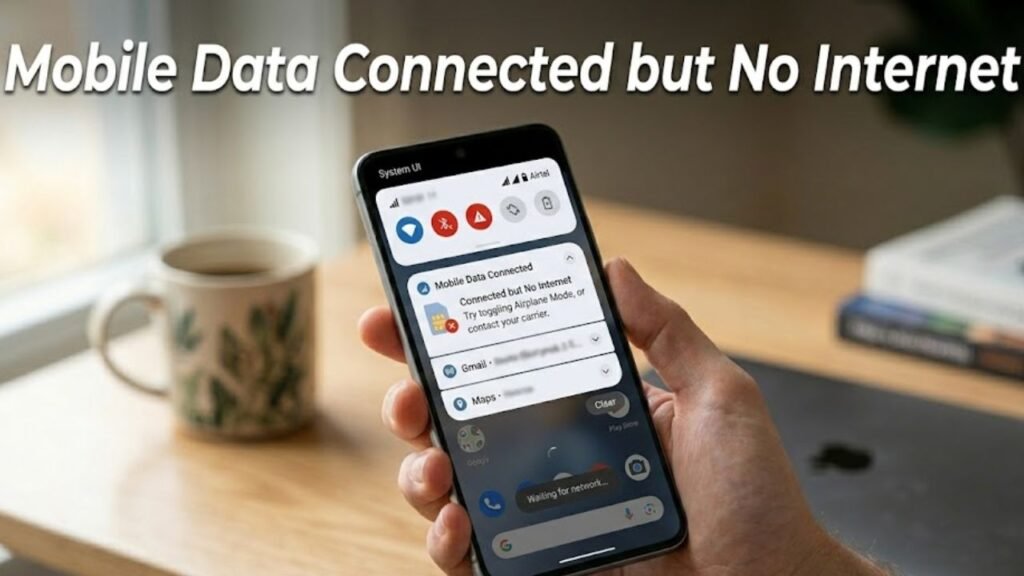
Mobile data connected but no internet is one of the most baffling Android problems because everything appears to be working — the signal bars are present, mobile data is switched on, and your phone shows it is connected — but nothing actually loads. Browsers time out, apps refuse to refresh, and messages will not send.
The phone is not lying to you. The distinction is that mobile data connected but no internet means your device has a connection to the cellular network, but that connection is not successfully routing internet traffic. Those are two different things, and understanding that difference points directly to where the problem sits.
This guide explains every common cause of mobile data connected but no internet on Android and gives you nine fixes that address each one specifically.

Understanding Why Mobile Data Connected but No Internet Happens
When your phone connects to a mobile network, it completes a two-step process. First, it registers on the cellular network — this gives you signal bars and the ability to make calls and send SMS. Second, it establishes a data session through the carrier’s internet gateway — this gives you internet access.
Mobile data connected but no internet means the first step succeeded but the second failed. Your phone is on the network but cannot get through to the internet beyond it.
| Cause | How Common |
|---|---|
| Temporary network session failure | Very common |
| Incorrect APN settings | Very common |
| Data cap reached or account issue | Very common |
| Carrier network outage or congestion | Common |
| VPN blocking data routing | Common |
| Background data restricted | Common |
| Corrupted network settings | Moderate |
| SIM card issue | Moderate |
| Phone software bug | Moderate |
Fix 1 — Toggle Mobile Data Off and Back On
The fastest and most effective first step for mobile data connected but no internet is toggling the mobile data switch off and back on.
This forces the phone to drop the current data session and establish a completely fresh one with the carrier’s gateway. Many mobile data connected but no internet situations are caused by a session that established incorrectly or became stuck, and a simple toggle resolves them immediately.
How to toggle mobile data:

- Pull down the notification shade from the top of the screen
- Tap the Mobile Data icon to turn it off
- Wait a full 15 seconds
- Tap the Mobile Data icon again to turn it back on
- Wait up to 30 seconds for the new data session to establish
- Test internet access by opening a browser or app
If mobile data connected but no internet resolves after this, the data session had a temporary failure. Note whether the problem recurs — if it happens frequently, a more persistent cause needs addressing.
Fix 2 — Toggle Airplane Mode On and Off
Toggling airplane mode goes further than toggling mobile data alone. It completely disconnects the phone from all wireless networks — cellular, Wi-Fi, and Bluetooth — and then reconnects from scratch.
This resets both the network registration and the data session simultaneously, clearing any stuck state in the modem or network stack.
How to toggle airplane mode:

- Pull down the notification shade
- Tap the Airplane Mode icon to enable it
- Wait a full 30 seconds — this is important, do not rush
- Tap Airplane Mode again to disable it
- Wait up to 60 seconds for the phone to find the network, register, and establish a data session
- Test internet access
The 30-second wait is important because it ensures the modem fully powers down before reconnecting. A shorter wait sometimes means the connection re-establishes using the same broken session state.
Fix 3 — Restart the Device
A full device restart goes beyond toggling network settings by restarting the entire modem firmware alongside the Android system.

The radio modem — the component that handles all cellular communication — has its own software layer that can develop temporary errors affecting data routing. A restart resets the modem completely and forces a fresh network registration and data session from a clean starting point.
Hold the Power button, select Restart, and allow the phone to complete the full boot cycle. After the phone loads completely, wait up to two minutes before testing internet access. This accounts for the time needed for network registration and data session establishment.
Fix 4 — Check and Fix APN Settings
APN — Access Point Name — settings are the configuration values that tell your phone how to connect to your carrier’s internet gateway. They specify the address, protocol, authentication type, and connection parameters the phone needs to route data correctly.
Incorrect APN settings are one of the most common causes of mobile data connected but no internet — particularly after switching carriers, swapping SIM cards, performing a factory reset, or installing a system update that reset network settings.
How to check APN settings:

- Go to Settings
- Tap Connections or Network and Internet
- Select Mobile Networks
- Tap Access Point Names
You should see one or more APN profiles. The correct APN for your carrier should be listed. Compare what you see against your carrier’s published APN settings — these are available on your carrier’s website or by calling their customer support.
How to reset APN to default:

- In the APN settings screen, tap the three-dot menu in the top right corner
- Select Reset to Default or Restore Default APNs
- Confirm the reset
- Restart the device and test internet access
If resetting to default does not apply the correct settings automatically, contact your carrier for the exact APN values and enter them manually by tapping Add in the APN settings screen.
Fix 5 — Check Your Data Plan and Account Status
Mobile data connected but no internet frequently occurs when the data plan has been exhausted or the account has an issue preventing data service.
When a prepaid data allowance is used up, many carriers throttle data to a speed so slow that internet access appears non-functional, or they block data entirely while keeping the voice and SMS registration active — which explains why the phone shows as connected with signal but cannot load anything.
How to check your data usage:

- Go to Settings → Network and Internet → Data Usage or Settings → Connections → Data Usage
- Check how much data has been used in the current billing period
- Compare against your plan’s data allowance
Contact your carrier if:
- Data usage shows near or at your plan limit
- You recently changed plans or payment methods
- Your account payment may have been missed
- You are on a prepaid plan that may have expired
Account-related mobile data connected but no internet issues resolve immediately once the account status is corrected — no device changes are needed.
Fix 6 — Disable VPN
A VPN routes your internet traffic through a remote server. When the VPN server is experiencing problems, is overloaded, or has a configuration mismatch with your carrier, it can cause mobile data connected but no internet — your phone reaches the VPN server but the VPN cannot route traffic to the internet beyond it.
How to disable VPN:

- Go to Settings → VPN or Settings → Network and Internet → VPN
- Tap the active VPN connection
- Toggle it off or select Disconnect
Alternatively, open your VPN app directly and disconnect from the current server.
After disabling the VPN, test internet access immediately. If the internet works without the VPN, the VPN service or configuration is the cause. Try connecting to a different VPN server location, or check the VPN app for updates and configuration issues.
Fix 7 — Check Background Data Settings
Android allows you to restrict background data for individual apps or for the entire system when mobile data is active. If a broad data restriction was accidentally enabled, it can cause mobile data connected but no internet — the connection exists but data is blocked from reaching apps and the browser.
Check Data Saver mode:

- Go to Settings → Network and Internet → Data Saver or Settings → Connections → Data Usage → Data Saver
- Check whether Data Saver is enabled
- If it is on, toggle it off and test internet access
Data Saver mode restricts background data for all apps and can severely limit internet access in ways that feel like mobile data connected but no internet.
Check per-app background data restrictions:

- Go to Settings → Apps
- Select your browser or the app showing no internet
- Tap Mobile Data or Data Usage
- Ensure Background Data is enabled for that app
Fix 8 — Clear Network Settings
When multiple fixes have not resolved mobile data connected but no internet, clearing all network settings returns the phone to factory network configuration. This removes all Wi-Fi passwords, Bluetooth pairings, and cellular network settings — but it also eliminates any corrupted network configuration that may be blocking data routing.
How to reset network settings:

- Go to Settings
- Tap General Management or System
- Select Reset or Reset Options
- Choose Reset Network Settings or Reset Wi-Fi, Mobile and Bluetooth
- Confirm the reset
What this resets:
- All saved Wi-Fi networks and passwords
- All Bluetooth paired devices
- All mobile network settings including APN
- VPN configurations
What this does NOT affect:
- Apps, photos, contacts, or personal data
- System settings unrelated to networking
After the network reset, reconnect to Wi-Fi and allow the phone to automatically configure APN settings for your SIM card. If automatic APN configuration does not work, enter your carrier’s APN settings manually as described in Fix 4.
Fix 9 — Check Carrier Network Status and Contact Support
If all previous fixes have been applied without resolving mobile data connected but no internet, the problem may be on the carrier’s side rather than with your device.
Network outages affect all users in a geographic area simultaneously. If mobile data stopped working suddenly and your fixes have had no effect, check whether others on the same carrier are experiencing the same problem.
How to check carrier network status:
- Visit your carrier’s website from another device or Wi-Fi connection
- Search social media for your carrier name plus “outage” or “no internet”
- Call your carrier’s customer support line — this is accessible even without mobile data by using a Wi-Fi call or another phone
What to tell carrier support:
- Your phone shows mobile data connected but no internet
- Signal bars are present
- You have tried toggling data, airplane mode, and restarting
- You have checked APN settings
- The problem persists across multiple apps and browsers
Carrier support can check your account status, verify network registration on their side, push a fresh network profile to your SIM, or identify whether a local network issue is responsible.
Mobile Data vs Wi-Fi — Quick Diagnostic
If you are unsure whether the problem is mobile data or something else, this quick check clarifies the situation.
| Test | Result | What It Means |
|---|---|---|
| Wi-Fi works, mobile data does not | Mobile data issue confirmed | Apply fixes 1 to 9 |
| Both mobile data and Wi-Fi fail | Device network stack issue | Reset network settings |
| Mobile data works on another device with same SIM | Phone settings issue | Apply APN and network reset fixes |
| Mobile data fails on multiple devices with same SIM | SIM or account issue | Contact carrier |
FAQs
Why does my phone show mobile data connected but no internet?
Mobile data connected but no internet means your phone registered on the cellular network but cannot route internet traffic. Common causes include incorrect APN settings, a temporary data session failure, a data cap being reached, or a VPN blocking traffic.
How do I fix mobile data connected but no internet quickly?
Toggle mobile data off and back on, then toggle airplane mode on for 30 seconds and off again. These two steps reset the data session and resolve most temporary mobile data connected but no internet situations within seconds.
Can wrong APN settings cause no internet with mobile data connected?
Yes. APN settings tell your phone how to connect to your carrier’s internet gateway. Incorrect or missing APN settings prevent data routing even when the phone shows full signal and mobile data as connected. Resetting APN to default or entering carrier settings manually resolves this.
Does a data cap cause mobile data connected but no internet?
Yes. When a prepaid data allowance is exhausted, many carriers stop routing data traffic while keeping the voice and SMS connection active. The phone shows connected with signal but nothing loads. Topping up data or changing plan restores access immediately.
Will resetting network settings delete my photos or apps?
No. Resetting network settings only removes Wi-Fi passwords, Bluetooth pairings, and cellular network configurations. Photos, apps, contacts, messages, and all personal data remain completely unaffected.
Final Thoughts
Mobile data connected but no internet is a problem that can feel permanent but almost always has a specific, fixable cause. The key insight is that connection and internet access are separate things — your phone can register on the network without successfully routing internet traffic, and each failure point has a different solution.
Start with the fast fixes — toggle data, toggle airplane mode, restart the device. These resolve the majority of temporary mobile data connected but no internet situations within minutes.
If quick fixes do not work, check APN settings and your account data balance — these two causes account for a large portion of persistent mobile data connected but no internet problems. Disable VPN, check Data Saver mode, and reset network settings to cover the remaining software causes.
If the problem persists after all fixes, contacting your carrier with the diagnostic information gathered during troubleshooting is the most efficient path to resolution. They can identify account issues, network problems, and SIM-related causes that no device-side fix can address.