

Android storage full but no files is one of the most confusing problems Android users face. Your phone tells you storage is nearly gone, but when you check your photos, videos, and downloads, everything looks normal. There are no obvious large files taking up space, yet the storage meter shows red.
This is not a glitch in how the storage is displayed. The space is genuinely being used — just not by files you can easily see. Hidden data, system files, app caches, residual installation packages, and background processes all consume storage silently without appearing in your regular file manager.
This guide explains exactly where that hidden storage goes, why it happens, and gives you 8 clear steps to reclaim your space without losing important data.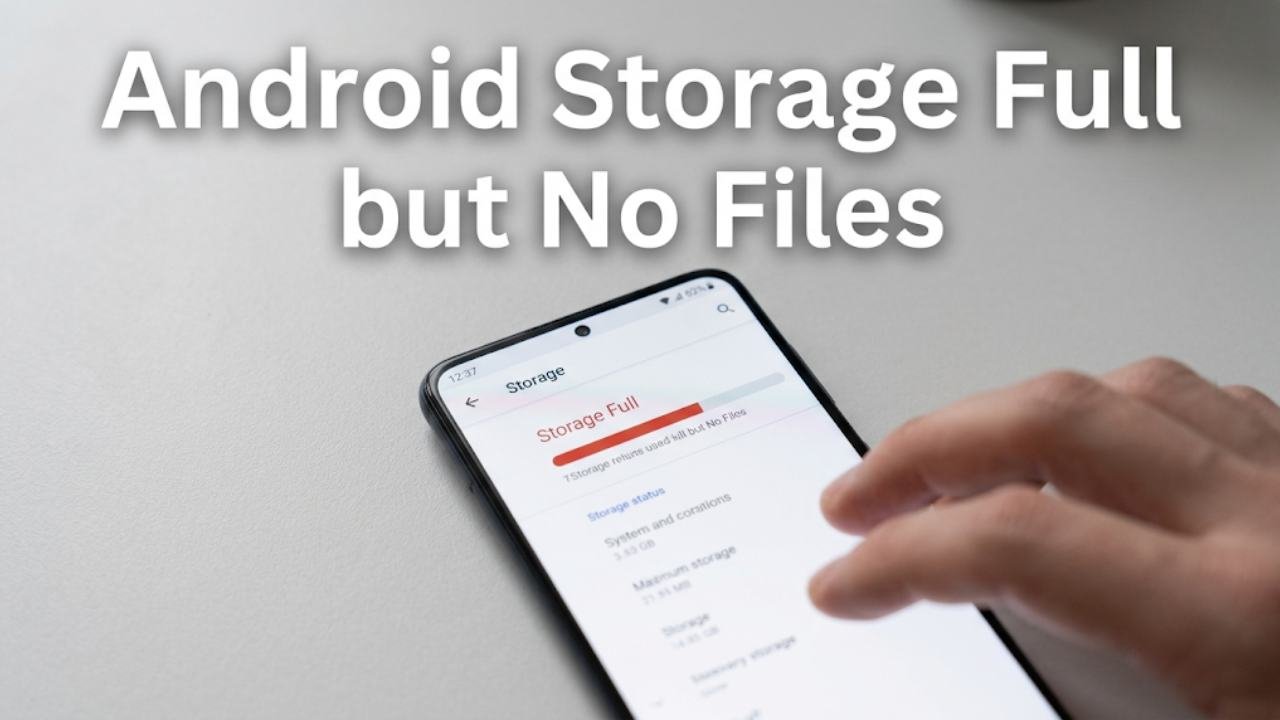
Why Android Shows Storage Full but No Files Are Visible
The Android storage full but no files problem happens because Android stores data in multiple locations, and not all of them are visible through the standard Files app or gallery.
Here are the main categories of hidden storage consumers:
|
Storage Consumer |
Typical Size |
Visible in Files App? |
|
App cache data |
Hundreds of MB to several GB |
No |
|
App residual data |
Varies by app |
No |
|
System cache |
Hundreds of MB |
No |
|
Android system files |
Several GB |
No |
|
Downloaded OTA update packages |
1 to 4 GB |
Rarely |
|
Thumbnails and media cache |
Hundreds of MB |
No |
|
WhatsApp and messenger media |
Several GB |
Sometimes |
|
Offline maps and downloads |
Several GB |
Sometimes |
|
Crash logs and bug reports |
Varies |
No |
When all of these categories accumulate simultaneously, it is entirely possible to have several gigabytes of storage consumed by data that does not appear anywhere in your normal file browsing.
What Is Actually Taking Up Your Storage
App Cache Data
Every app on your Android device creates a cache — a collection of temporary files stored locally to make the app load faster.
When you browse social media, the app stores images and videos locally so they load instantly on your next visit. When you stream music, the app may cache recently played tracks. When you use navigation, the app stores recent map data locally.
These caches grow continuously. A social media app you use daily can accumulate hundreds of megabytes of cache data within weeks. A streaming app can build up gigabytes of cached content over months.
Cache data is the most common cause of the Android storage full but no files problem because it is large, invisible to regular users, and never cleaned automatically by default on most Android versions.
App Residual and Data Files
App data is different from app cache. While cache is temporary, app data includes user preferences, login states, locally stored content, and history files that the app considers important to retain.
Messaging apps store entire conversation histories and media files within their own app data folders. Navigation apps store offline maps. Podcast apps store downloaded episodes. Gaming apps store save files and downloaded game content.
These data files often live in app-specific directories that do not appear in your standard Files app, which is why storage shows full but no files appear when you look manually.
System Files and Android OS Storage
Android itself requires storage for the operating system, system apps, and ongoing system processes.
After major system updates, residual files from the previous Android version sometimes remain on the device. These installation packages and leftover system files can consume several gigabytes of storage without appearing in user-accessible directories.
Security certificates, system fonts, language packs, and accessibility resources also occupy system storage that counts toward your total usage but cannot be managed by users directly.
Downloaded OTA Update Packages
When your phone downloads a system update, it stores the entire update package locally before installation begins. These packages typically range from one to four gigabytes depending on the update size.
After installation completes, the update package should be automatically deleted. However, failed or interrupted installations sometimes leave the package behind without cleaning it up. This orphaned update file consumes significant storage while being completely invisible in your file manager.
8 Fixes for Android Storage Full but No Files
Work through these fixes in order. Each step is safe and will not delete your personal photos, contacts, or important app data unless specifically noted.
Fix 1 — Check the Detailed Storage Breakdown
Before clearing anything, find out exactly where your storage is going.
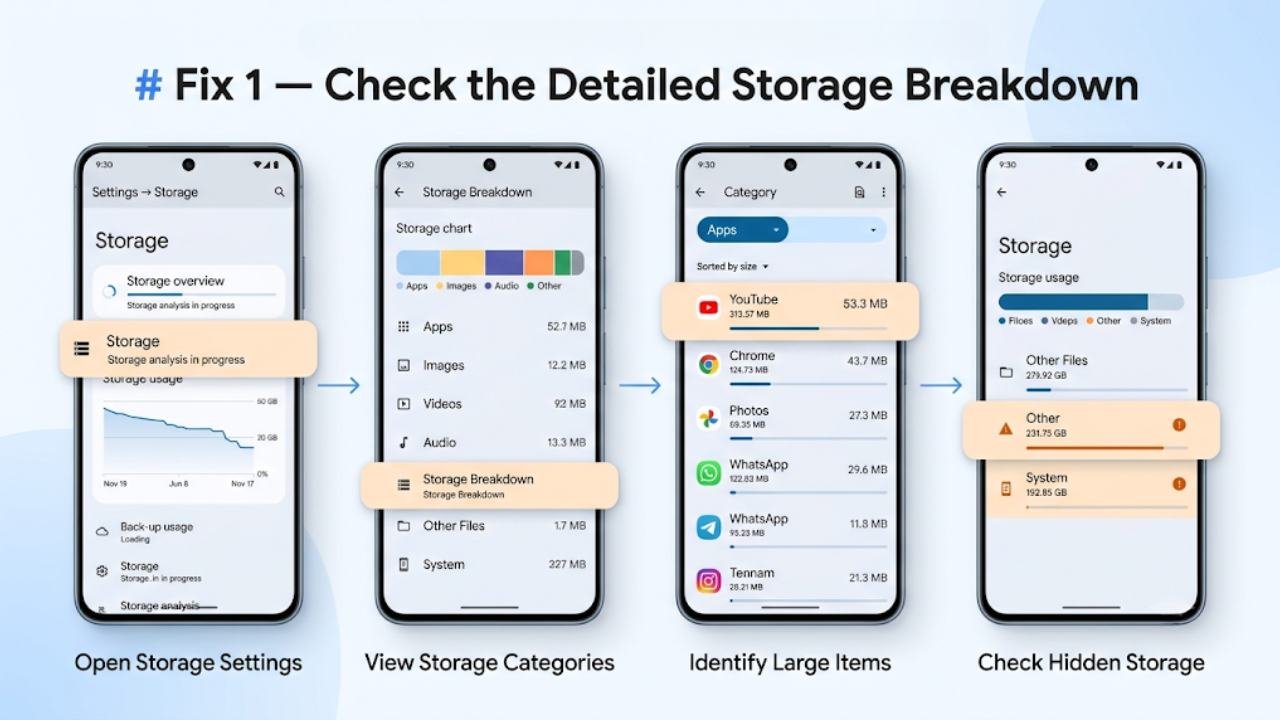
Go to Settings → Storage and wait for the full storage analysis to load. Android will show you a breakdown by category — Apps, Images, Videos, Audio, Documents, Other Files, and System.
Tap each category to see which specific items are consuming the most space. This step turns the Android storage full but no files mystery into a specific list of targets to address.
Pay particular attention to the Other or System category, as this often contains the hidden files responsible for the problem.
Fix 2 — Clear App Cache for All Apps
App cache is the fastest and safest storage to clear because it contains only temporary data that apps regenerate automatically when needed.
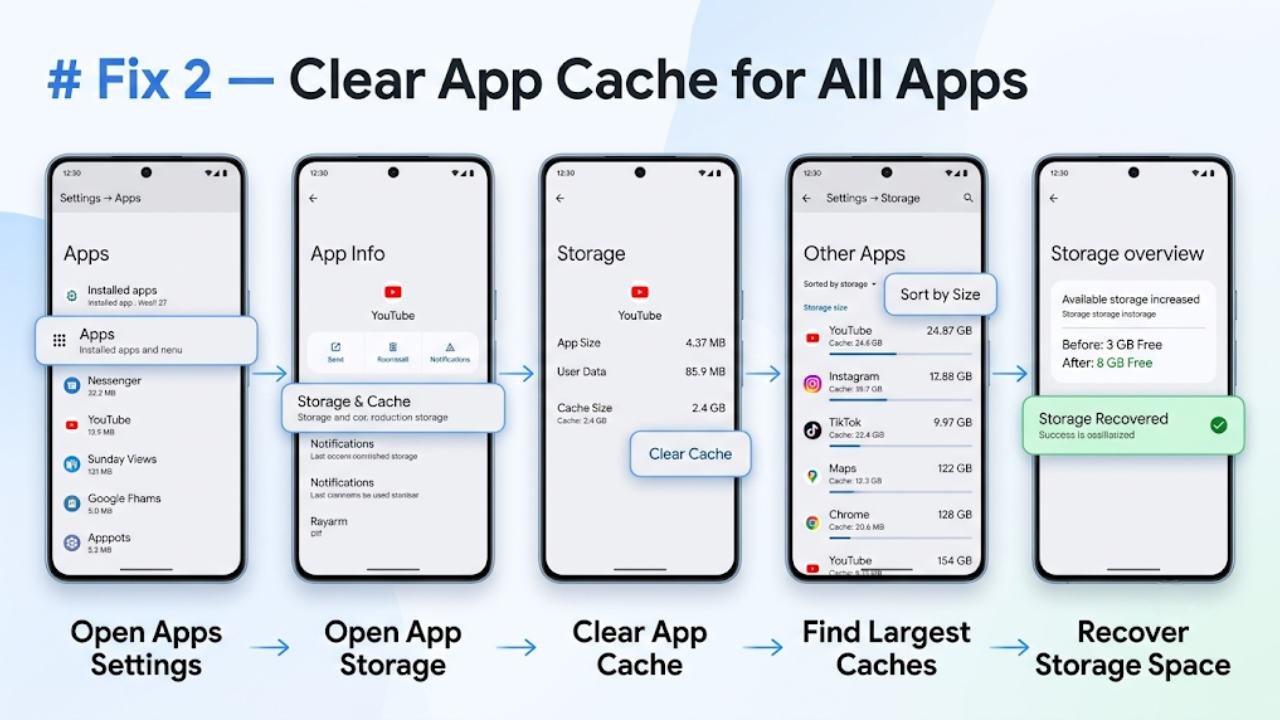
On Android 13 and newer:
- Go to Settings → Apps
- Tap each app individually
- Select Storage
- Tap Clear Cache
For a faster bulk approach:
Some Android versions allow bulk cache clearing. Go to Settings → Storage → Other Apps and sort by size to identify the largest caches first.
Focus on apps you use frequently — social media, streaming, navigation, and messaging apps typically have the largest caches and produce the most immediate storage recovery.
Clearing cache on even five or six heavy apps can recover multiple gigabytes when the Android storage full but no files problem is cache-related.
Fix 3 — Use Android’s Built-In Storage Manager
Android’s built-in storage manager identifies files it considers safe to delete and presents them in one place.
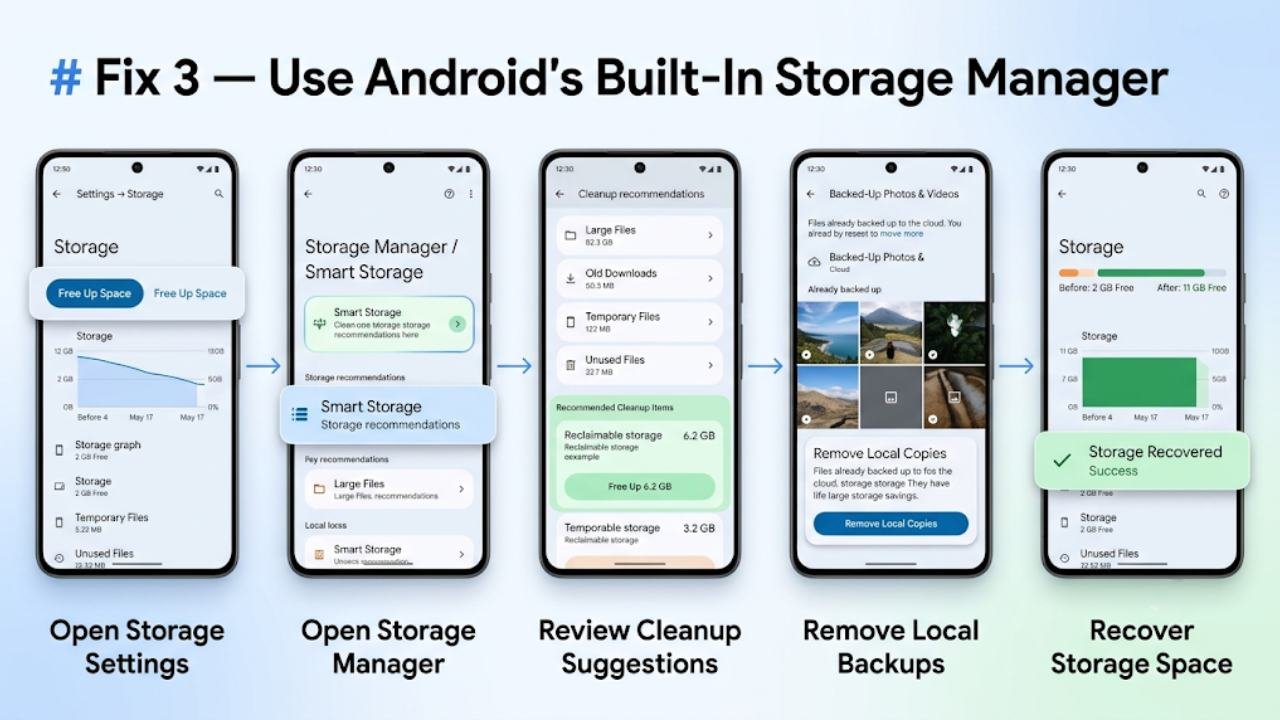
Go to Settings → Storage → Free Up Space or Settings → Storage → Smart Storage.
The system will show you:
- Large files you have not accessed recently
- Backed-up photos and videos that can be removed from local storage
- Downloaded files no longer in use
- Temporary files ready for removal
Review each category carefully before deleting. This tool makes the Android storage full but no files problem easy to address without manually hunting through directories.
Fix 4 — Clear WhatsApp and Messenger Media
Messaging apps are among the biggest hidden storage consumers and a very common cause of Android storage full but no files situations.

WhatsApp alone stores every image, video, voice note, and document sent or received in your chats — automatically, without asking. After months of active use, this media folder can consume five to ten gigabytes or more.
To clear WhatsApp media:
- Open WhatsApp
- Go to Settings → Storage and Data → Manage Storage
- Review large files and forwarded content
- Delete media you no longer need
Alternatively, navigate to your internal storage through the Files app and look for the WhatsApp folder. Inside you will find separate folders for Images, Videos, Audio, and Documents — review and delete what you no longer need.
The same approach applies to Telegram, which also downloads media automatically by default.
Fix 5 — Remove Offline Maps and Offline Content
Navigation apps and content apps that support offline use store large data packages locally.

Google Maps offline areas can consume several gigabytes per region. Spotify downloaded playlists, YouTube Premium downloaded videos, and podcast episodes stored for offline listening all add significant hidden storage.
For Google Maps:
- Open Google Maps
- Tap your profile icon
- Select Offline Maps
- Delete any offline areas you no longer need
For streaming apps, check the downloads or offline content section and remove content you have already consumed or no longer need offline.
Fix 6 — Delete Thumbnail Cache
Android creates thumbnail previews for every image and video in your gallery. These thumbnails accumulate in a hidden cache folder that grows proportionally with your media collection.
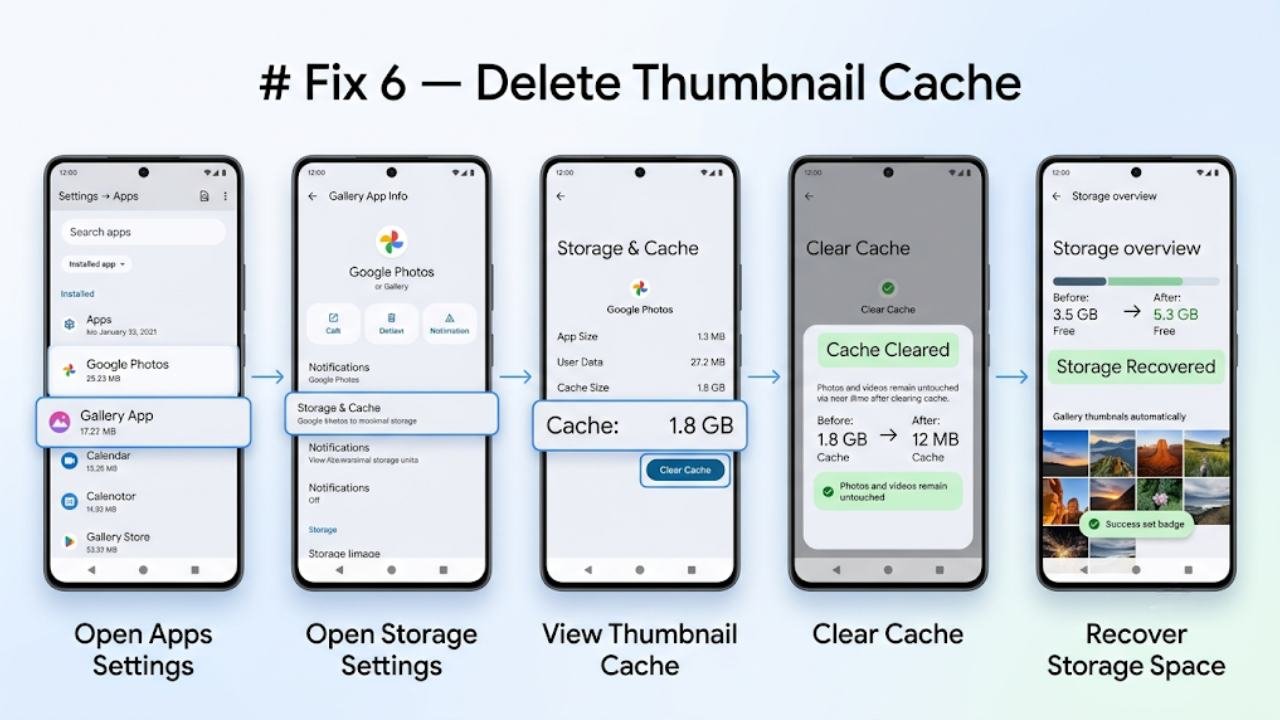
On older Android versions, a dedicated thumbnail cache folder exists at the system level. On newer versions, thumbnail data is managed within app-specific storage for gallery and media apps.
To clear thumbnail cache:
- Go to Settings → Apps
- Find your gallery app (Google Photos, Samsung Gallery, or similar)
- Select Storage → Clear Cache
This does not delete your photos or videos. It only removes the preview thumbnails, which rebuild automatically the next time you browse your gallery.
Fix 7 — Check and Remove Downloaded App Installation Files
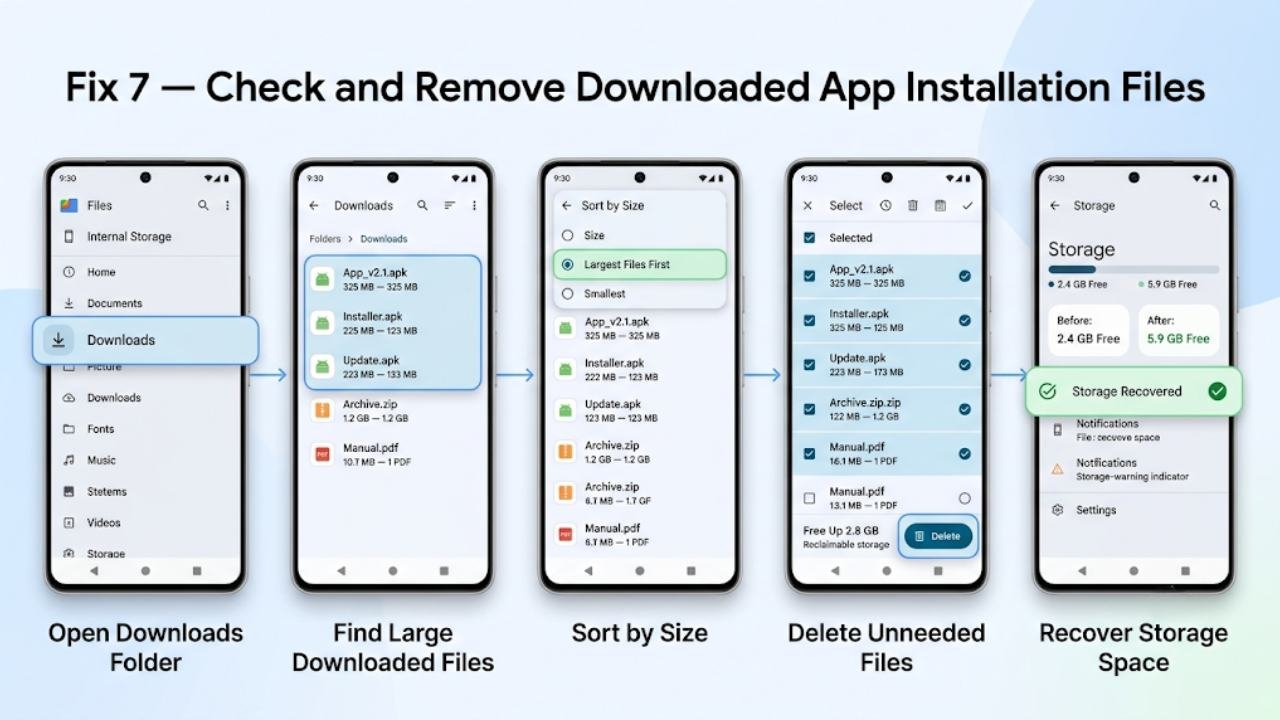
Sideloaded apps and manually downloaded APK files sometimes remain in the Downloads folder after installation completes.
Open the Files app, navigate to Downloads, and sort by size. Look for any APK files — these are app installation packages — that you no longer need after installation. They can safely be deleted.
Also check for any large ZIP, PDF, or document files in your Downloads folder that were downloaded for one-time use and never removed.
This is a frequently overlooked source of hidden storage in the Android storage full but no files scenario.
Fix 8 — Move Photos and Videos to Cloud Storage
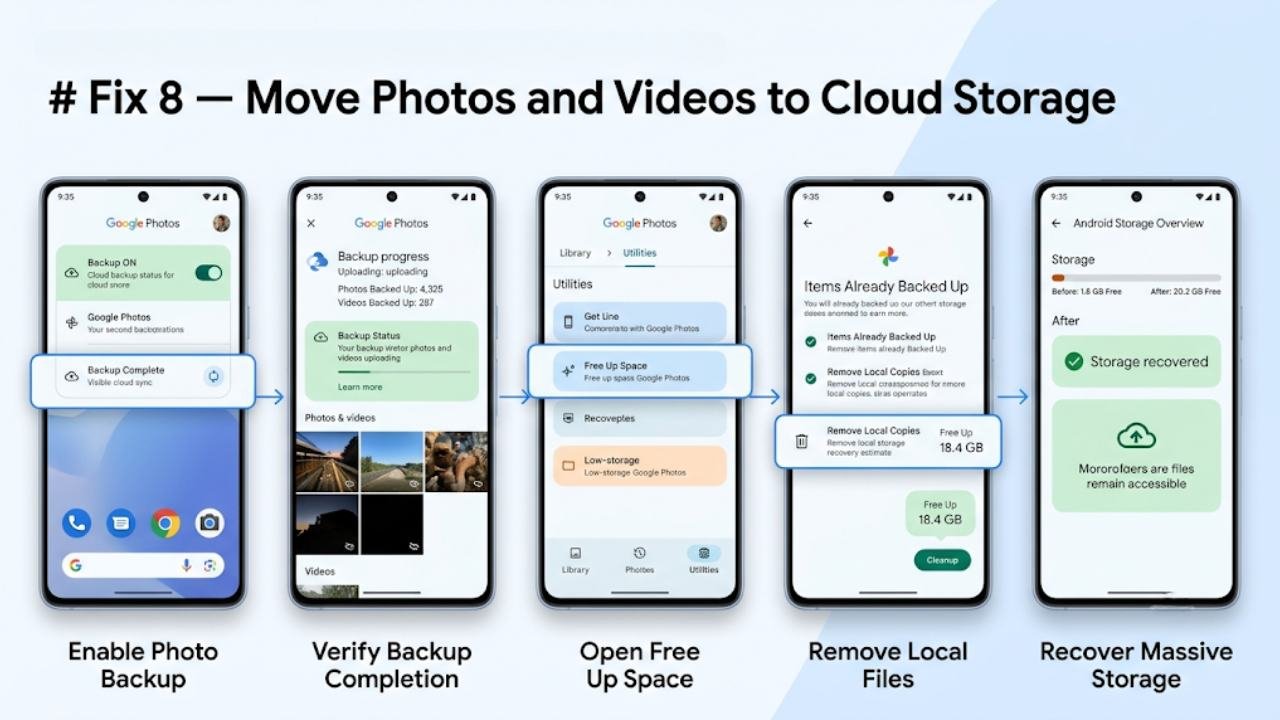
If all of the above fixes have been applied and storage remains critically low, the most effective long-term solution is moving photos and videos to cloud storage and removing local copies.
Google Photos offers free unlimited storage for photos up to a standard quality level. After enabling backup:
- Open Google Photos
- Confirm backup is enabled and completed
- Go to Library → Utilities → Free Up Space
- Google Photos will delete locally stored photos that have been successfully backed up to the cloud
This can recover many gigabytes of storage while keeping every photo and video fully accessible through the cloud.
How to Prevent Android Storage Full but No Files in the Future
Once you have resolved the current storage problem, a few habits prevent it from returning.
Enable automatic photo backup
Set Google Photos or your preferred cloud service to back up photos automatically. Once backed up, local copies can be safely removed without losing anything.
Review app caches monthly
A quick monthly check of your largest app caches prevents them from accumulating into the multi-gigabyte problem that triggers the Android storage full but no files issue.
Set messaging apps to not auto-download media
Go into WhatsApp, Telegram, or your preferred messaging app settings and disable automatic media download. Download only the content you actually want to keep.
Clear the Downloads folder regularly
Make it a habit to review and clear your Downloads folder weekly. Most downloaded files are used once and then forgotten, but they remain in storage indefinitely.
FAQs
Why does my Android show storage full but no files when I check?
Android storage full but no files appears because much of the used space consists of hidden data — app caches, system files, messaging app media, thumbnail caches, and residual update packages — that do not appear in your standard file manager view.
Is it safe to clear app cache to fix storage full issues?
Yes. Clearing app cache is completely safe. Cache contains only temporary data that apps recreate automatically. Clearing it does not delete your account, settings, saved data, or personal files.
What is the fastest way to free up Android storage?
The fastest approach is clearing cache for your largest apps and checking WhatsApp or Telegram media storage. These two steps commonly recover several gigabytes within minutes without affecting any personal data.
Will clearing storage delete my photos?
Clearing app cache and system cache does not delete photos. However, if you use the Delete function in Google Photos’ Free Up Space feature, it removes local photo copies. Ensure cloud backup is complete and confirmed before using that specific feature.
How much free storage should I keep on my Android phone?
Keeping at least 15 to 20 percent of your total storage free is recommended. Below this threshold, Android performance degrades noticeably because the system needs free space for temporary files, system processes, and app operations.
Final Thoughts
Android storage full but no files is a frustrating problem precisely because the cause is invisible to regular file browsing. But now that you know where the hidden data accumulates — app caches, messaging media, offline downloads, thumbnail files, and system residuals — the problem becomes manageable with a systematic approach.
Work through the 8 fixes in order. Start with the storage breakdown check, clear app caches, review messaging app media, and address offline content. In most cases, these steps recover significant storage without touching a single personal file.
The best long-term strategy is building habits that prevent the problem from returning — automatic cloud backup for photos, regular cache clearing, and disciplined management of your Downloads folder. These simple habits keep Android storage full but no files from becoming a recurring issue on any Android device.
