

Android memory usage profiling is one of the most useful built-in diagnostics tools on your phone—and most people never touch it. It lives inside Developer options, and it can show you which apps are quietly consuming RAM over hours or an entire day, even when you’re not actively using them. If your Android phone feels sluggish, runs hot, or loses battery while sitting idle, this tool can help you identify the real culprits instead of guessing.
The reason it matters is simple: background apps that repeatedly wake up, cache aggressively, or misbehave under memory pressure can trigger a chain reaction. Android keeps clearing and reloading data, the CPU works harder, heat goes up, and battery life drops. Android memory usage profiling doesn’t magically fix that by itself, but it gives you the one thing you need to solve the problem intelligently: visibility.
Below is how the tool works, how to turn it on, how to interpret the results, and what to do next—without deleting apps you actually need.
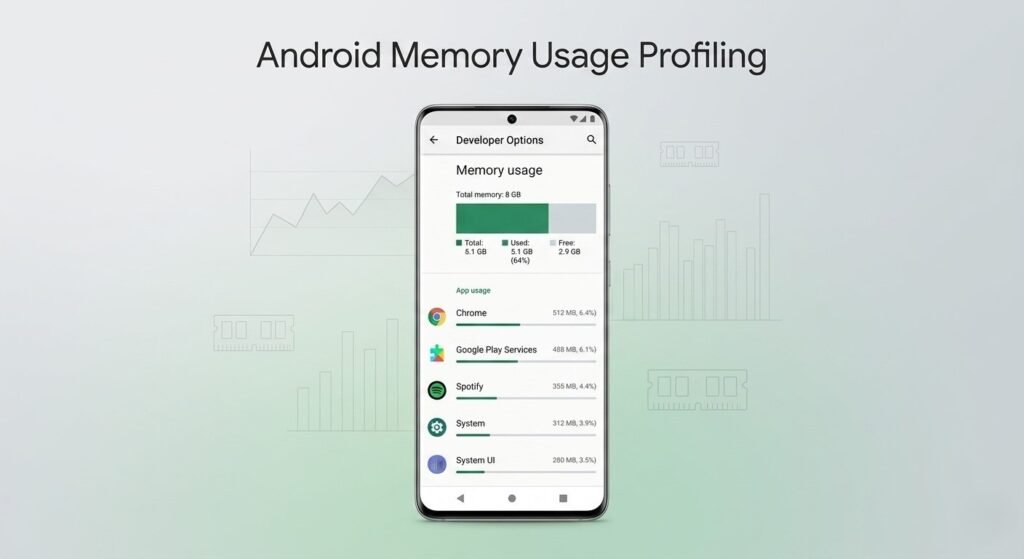
What Android memory usage profiling actually shows
RAM (random access memory) is your phone’s short-term working space for the operating system and apps. When you open an app, parts of it sit in RAM so the phone can switch back quickly without reloading everything from storage.
That’s normal. What’s not normal is when an app you barely use keeps burning through RAM and causing repeated memory churn.
Android memory usage profiling provides a breakdown of memory usage by app over a time window (commonly 3 hours by default, with options like 12 hours and 24 hours depending on device). It helps answer questions like:
- Which apps consistently use the most memory?
- Which apps spike to a high “maximum” RAM use?
- Which apps you don’t use still consume memory?
- Is system usage unusually high compared to your typical baseline?
This is particularly valuable on older phones or on devices loaded with apps you no longer need.
Why this can improve battery life (yes, RAM affects power)
It’s tempting to think RAM is only about speed, but it can affect battery life too—indirectly.
When RAM use is out of control, Android may:
- kill background apps more often
- reload them more often when needed
- trigger extra CPU work for garbage collection and caching
- generate more heat, which hurts efficiency
- keep the device awake longer than necessary
The point of Android memory usage profiling is to spot patterns that lead to that waste. If you identify and remove or restrict a bad actor, your phone may run cooler, smoother, and last longer—especially overnight.
How to enable Android memory usage profiling (step-by-step)
Because it lives in Developer options, you first need to unlock those settings.
Step 1: Turn on Developer options
- Open Settings
- Go to About phone
- Find Build number
- Tap Build number seven times
- Enter your PIN/password if prompted
Developer options should now appear in your settings menu (the location varies by brand).
Step 2: Enable Android memory usage profiling
On many phones, you can now do:
- Go to Settings
- Open System (or search for “Developer options”)
- Tap Developer options
- Find and enable Memory usage profiling (wording can vary)
Some devices may reboot or refresh system services after you toggle this. That’s normal.
Where to find the RAM hog list
Once Developer options are enabled:
- Open Developer options
- Tap Memory
- Tap Memory used by apps
This is where Android memory usage profiling becomes useful. You’ll typically see a list of apps and their memory consumption.
Most devices show:
- Average usage (how much RAM the app used on average)
- A time window selector (3 hours, 12 hours, 1 day)
- A menu option to sort by maximum usage
How to read the results: average vs maximum (and which matters more)
This is where many people misinterpret what they’re seeing.
“Average use” is good for spotting constant background drain
If an app you rarely use appears high on average usage, it may be hanging around in memory constantly.
“Maximum use” is better for catching spikes and weird behavior
Switching the sort to maximum helps you find apps that occasionally explode in memory use—often the ones that cause stutters, overheating, and battery drops.
The best approach is to use both views:
- Start with 1 day and sort by average
- Then switch to sort by maximum
- Compare the top apps to what you actually use daily
If a high-ranking app is something you never open, that’s your first cleanup candidate.
What to do when you find a suspicious app
Once Android memory usage profiling points you toward an offender, don’t immediately uninstall everything. Use a measured approach.
Option 1: Update the app
Sometimes poor RAM behavior is a bug fixed in a recent update.
- Open Play Store → update the app
Option 2: Restrict background activity
On most Android phones:
- Settings → Apps → select the app → Battery → set to Restricted (or “Optimized”)
Option 3: Clear cache (not data)
Clearing cache can reduce bloat without wiping logins.
- Settings → Apps → Storage → Clear cache
Option 4: Uninstall it (best fix if you don’t need it)
If it’s a forgotten app—an old fitness tracker, a carrier tool, an unused shopping app—remove it.
Option 5: Replace it with a lighter alternative
Some apps are notorious resource hogs. A lighter client or web app can help.
What you should NOT do (common mistakes)
To use Android memory usage profiling safely, avoid these traps:
- Don’t delete core system apps just because they show high RAM use
- Don’t assume “more RAM used” always means “bad” (Android uses RAM for caching)
- Don’t obsess over freeing RAM constantly—Android is designed to manage it
- Don’t use sketchy “RAM booster” cleaner apps; they often make performance worse
Also, remember that newer Android builds can use more RAM for preloading services, AI features, or smoother multitasking. System usage alone isn’t automatically a problem unless it correlates with heat and battery drain.
Bottom line
Android memory usage profiling is one of the best hidden tools for diagnosing why your phone feels slower or drains battery faster—especially if you’ve accumulated dozens or hundreds of apps over time. It won’t fix performance by itself, but it gives you a clear list of which apps are consuming RAM over hours and days, so you can take targeted action.
If you want a faster phone without factory resetting, start here: enable Developer options, open the memory-used-by-apps view, switch to the 1-day window, and look for apps you don’t use that still consume significant memory. Clean those up, restrict background activity where needed, and you’ll usually see a real difference in smoothness and standby battery life.
