

Android system storage too large is a problem that confuses and frustrates users because it seems impossible to fix. You open your storage settings, see that System is consuming an enormous amount of space — sometimes four, six, or even ten gigabytes — and realise you cannot simply delete system files the way you would delete photos or unused apps.
The system storage category in Android includes the operating system, pre-installed apps, and essential system data. Some of this is fixed and cannot be reduced. But a significant portion of what Android labels as system storage is actually accumulates over time and can be reduced through specific steps.
This guide explains exactly what is inside Android system storage too large situations, separates what can be reduced from what cannot, and gives you eight practical fixes to reclaim as much space as possible without rooting or losing important data.
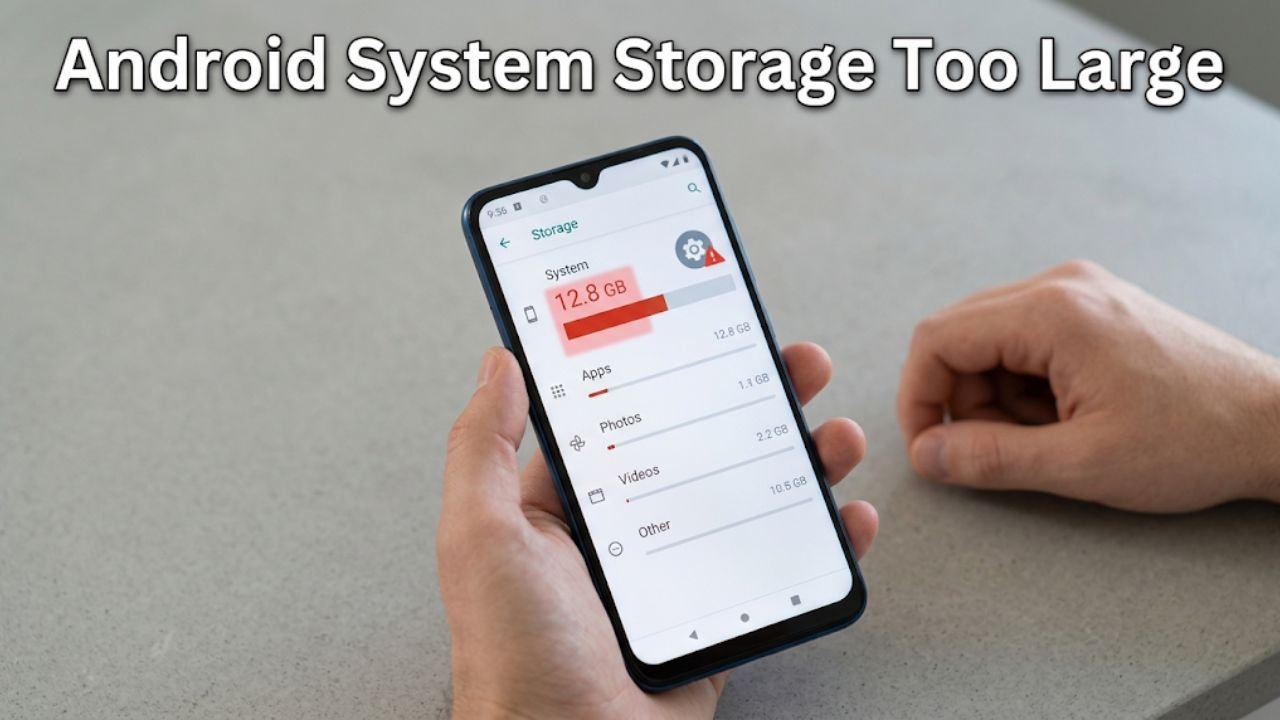
What Is Android System Storage?
Before applying any fix, understanding what Android counts as system storage helps set realistic expectations about what can and cannot be reduced.
Android system storage typically includes:
| Category | Typical Size | Reducible? |
|---|---|---|
| Android operating system core | 2 to 4 GB | No |
| Pre-installed system apps | 1 to 3 GB | Partially |
| System app data and caches | Hundreds of MB to several GB | Yes |
| OTA update packages (leftover) | 1 to 4 GB | Yes |
| System logs and crash reports | Hundreds of MB | Yes |
| Dalvik cache and ART cache | Hundreds of MB | Yes (with cache wipe) |
| System fonts, languages, certificates | Hundreds of MB | No |
| Manufacturer bloatware | 500 MB to 2 GB | Partially |
The Android OS itself and core system components cannot be removed — they are what makes the phone function. However, accumulated caches, residual update packages, system logs, and pre-installed apps that are disableable represent genuine opportunities to reduce Android system storage too large situations.
How Much System Storage Is Normal?
A common question before troubleshooting Android system storage too large is knowing what a normal system storage size looks like.
| Device Type | Normal System Storage Range |
|---|---|
| Budget Android device | 3 to 6 GB |
| Midrange Android device | 5 to 8 GB |
| Flagship Android device | 7 to 12 GB |
| After multiple major updates | Add 1 to 3 GB |
| With heavy app usage history | Add 1 to 2 GB |
If your system storage falls significantly above these ranges, accumulated data rather than the OS itself is likely inflating the number. The fixes below target that accumulated data specifically.
Fix 1 — Clear the System Cache Partition
The system cache partition stores temporary files that Android creates during boot, system updates, and app operations. These temporary files accumulate over time, and after multiple system updates, the cache partition can grow substantially and contribute to Android system storage too large readings.
Clearing the system cache partition removes all accumulated temporary system files without deleting any personal data, apps, settings, photos, or contacts. The cache rebuilds cleanly during normal use.
Samsung — Clear system cache partition:
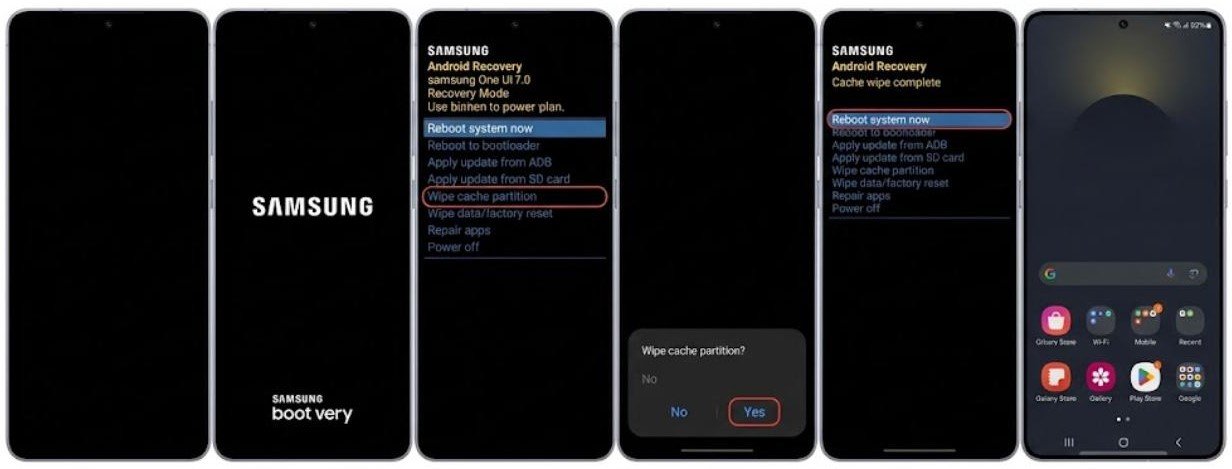
- Power off the device completely
- Hold Power + Volume Up simultaneously until the Samsung logo appears
- Release when the recovery menu appears
- Navigate to Wipe Cache Partition using Volume Down
- Select with the Power button
- Confirm and select Reboot System Now when complete
Google Pixel — Clear system cache partition:
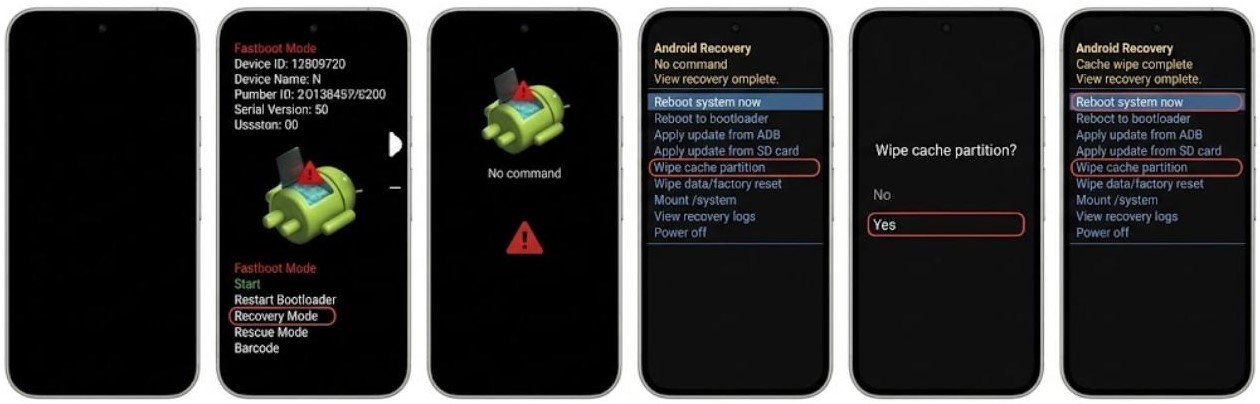
- Power off the device
- Hold Power + Volume Down to enter Fastboot mode
- Navigate to Recovery Mode and enter it
- When the Android logo appears, hold Power and briefly press Volume Up
- Navigate to Wipe Cache Partition and select it
- Select Reboot System Now when complete
OnePlus and Xiaomi:
The process is similar — power off, then hold Power + Volume Up (or Power + Volume Down depending on the specific model) to access recovery, then select Wipe Cache Partition.
This single fix often reduces Android system storage too large by several hundred megabytes to over a gigabyte on devices with heavy update history.
Fix 2 — Remove Leftover OTA Update Packages
When Android downloads a system update, it stores the complete update package locally before installation. After installation completes successfully, this package should be automatically deleted. However, failed updates, interrupted installations, or software bugs sometimes leave the full update package behind.
These leftover OTA packages typically range from one to four gigabytes and represent some of the most recoverable space in an Android system storage too large situation.
How to check for leftover update packages:
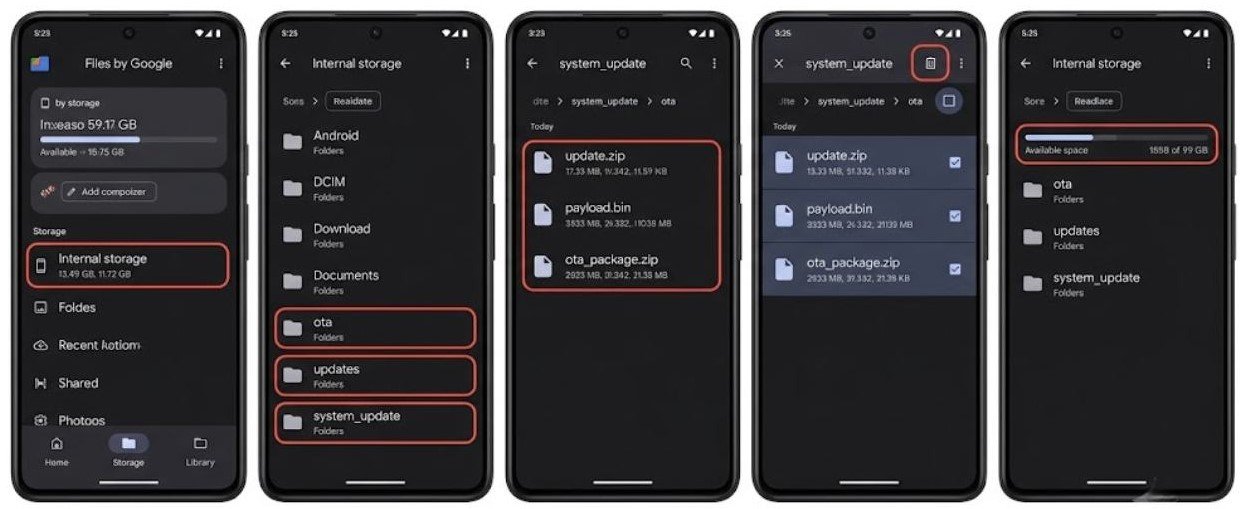
- Open the Files app on your device
- Navigate to Internal Storage
- Look for folders named ota, updates, system_update, or similar
- These folders contain residual update files that can be safely deleted after successful installation
Alternative method — use Android’s built-in storage tool:
Go to Settings → Storage → Other Files and sort by largest size. Residual system files sometimes appear here if the file manager surfaces them.
For Samsung devices specifically:
Samsung sometimes stores update-related files in a hidden folder. Using a file manager that shows hidden files — tap the three-dot menu in the Files app and enable Show Hidden Files — can reveal these residual packages.
If found, delete these update packages. They are no longer needed after a successful installation and their removal directly reduces the Android system storage too large reading.
Fix 3 — Disable or Uninstall Bloatware
Manufacturer bloatware — pre-installed apps that came with the phone that you do not use — contributes to Android system storage too large in two ways: the apps themselves occupy space, and they accumulate data and updates over time even when never opened.
You cannot fully uninstall true system apps on a non-rooted device, but you can disable them. Disabling a pre-installed app stops it from running, prevents it from accumulating further data, and in some cases allows you to clear its stored data.
How to disable bloatware:
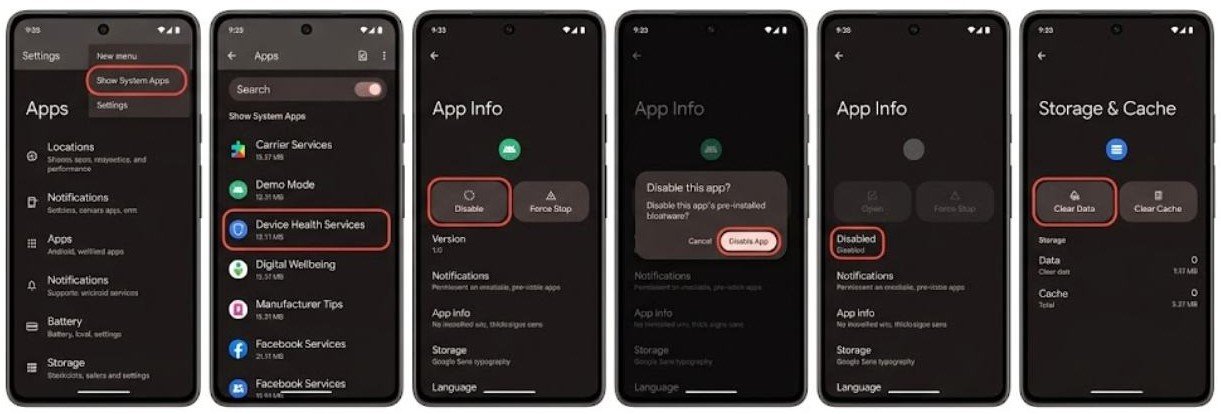
- Go to Settings → Apps
- Tap the three-dot menu and select Show System Apps to see all pre-installed apps
- Find apps you have never used — manufacturer-specific social apps, demo apps, carrier apps, duplicate apps
- Tap the app
- Select Disable if Uninstall is not available
- Also tap Clear Data to remove any data the app has accumulated
Apps that can commonly be disabled without affecting phone function include:
- Manufacturer social media apps (Facebook pre-installs, carrier apps)
- Demo or tutorial apps
- Duplicate apps where Google’s version and the manufacturer’s version both exist
- Regional apps that do not apply to your location
Disabling and clearing data for five to ten bloatware apps can recover several hundred megabytes of system storage.

Fix 4 — Clear System App Data and Caches
System apps — including the Settings app, the Phone app, the Messages app, and other built-in apps — accumulate their own caches and data over time. This data counts toward Android system storage because these apps are part of the system.
Clearing caches for system apps is safe and reduces Android system storage too large without affecting functionality.
How to clear system app caches:
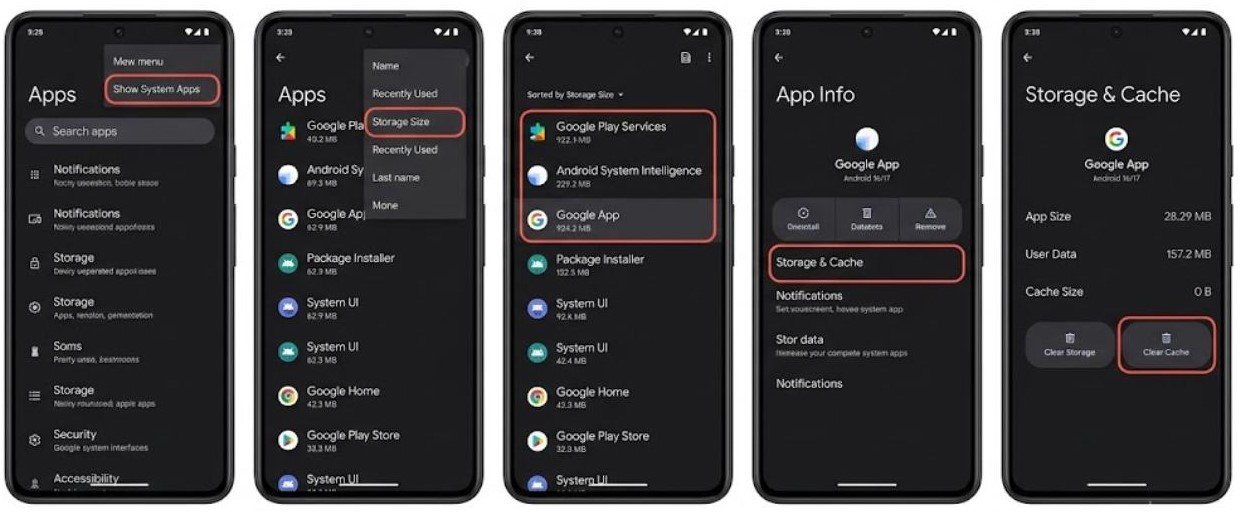
- Go to Settings → Apps
- Enable Show System Apps
- Sort by Storage to find the largest system app storage consumers
- Tap each large system app
- Select Storage → Clear Cache
Focus particularly on:
- Google Services Framework — often accumulates significant cache
- Android System — stores various system caches
- Download Manager — accumulates residual download data
- Media Storage — stores media indexing data that rebuilds automatically
- DRM Protected Content — accumulates license and content files
After clearing caches across the top ten system app storage consumers, the total reduction can be several hundred megabytes.
Fix 5 — Uninstall App Updates to Revert to Factory Version
Pre-installed system apps receive regular updates through the Google Play Store. Each update adds to the size of the original app. Over many updates, an app that was originally 50 MB may grow to 200 MB or more — and this growth counts toward system storage.
Uninstalling updates for pre-installed apps you do not use reverts them to their smaller factory-installed version, freeing the space consumed by accumulated updates.
How to uninstall app updates:
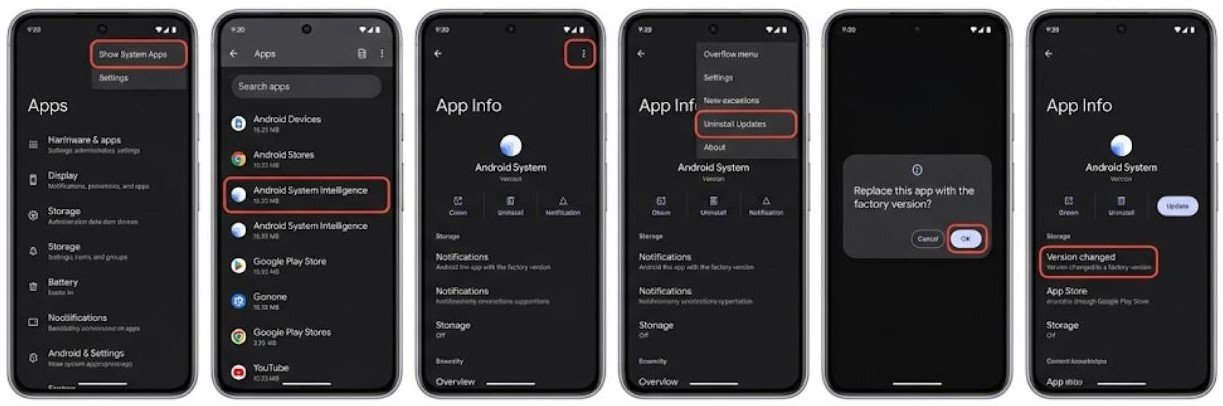
- Go to Settings → Apps
- Show System Apps
- Find a pre-installed app you do not actively use
- Tap the three-dot menu
- Select Uninstall Updates
- Confirm the action
Important: This reverts the app to its original factory version. If the app re-updates automatically, go to the Play Store, find the app, and disable automatic updates for that specific app.
Uninstalling updates for three to five heavy system apps can recover several hundred megabytes of storage that currently appears under system storage.
Fix 6 — Use Android’s Built-In Storage Management Tools
Android includes built-in storage analysis tools that identify what is consuming storage and sometimes surfaces system storage items that can be safely removed.
How to use Android’s storage tools:
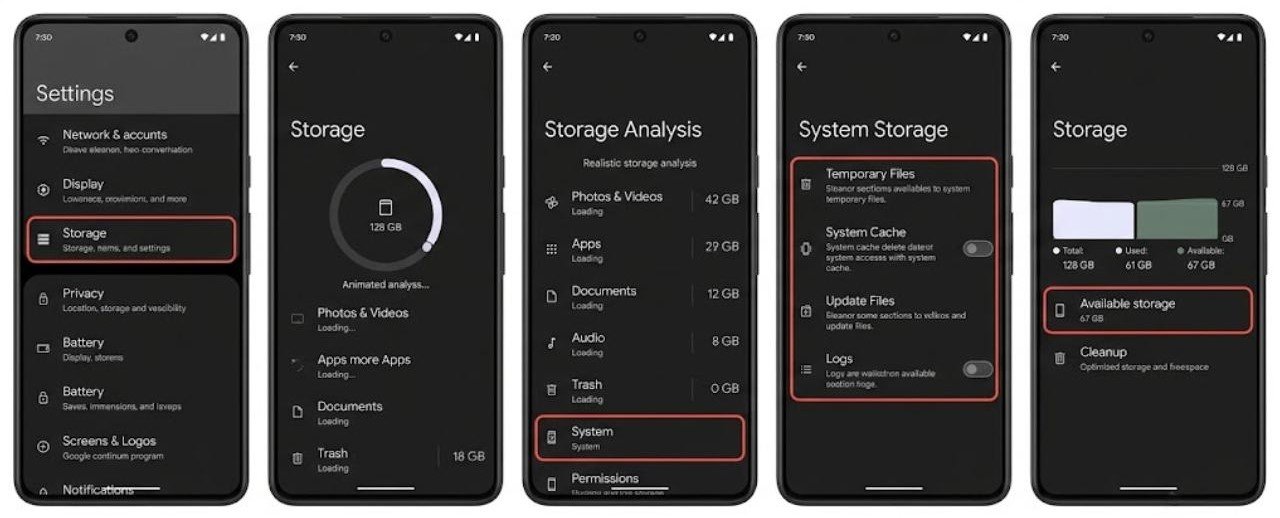
- Go to Settings → Storage
- Wait for the full storage analysis to complete — this takes a moment
- Tap each category to explore what it contains
- Look for System and tap it if the option appears on your device
- Some Android versions show subsections within system storage that can be cleared individually
On Samsung devices — use Device Care:
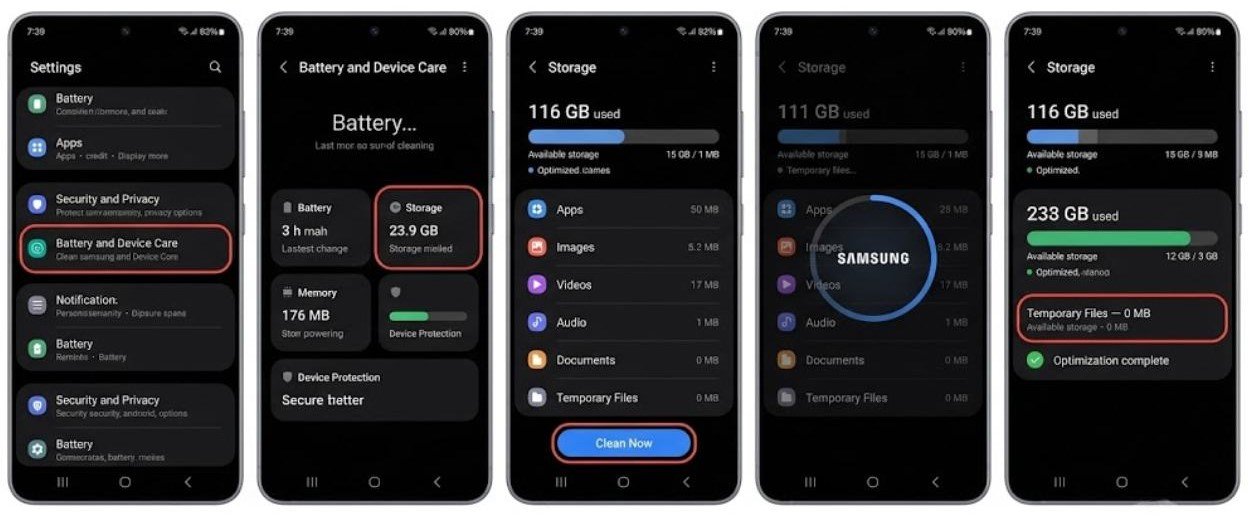
- Go to Settings → Battery and Device Care or Device Care
- Tap Storage
- Tap Clean Now to remove temporary files identified by Samsung’s system
Use the Files by Google app:
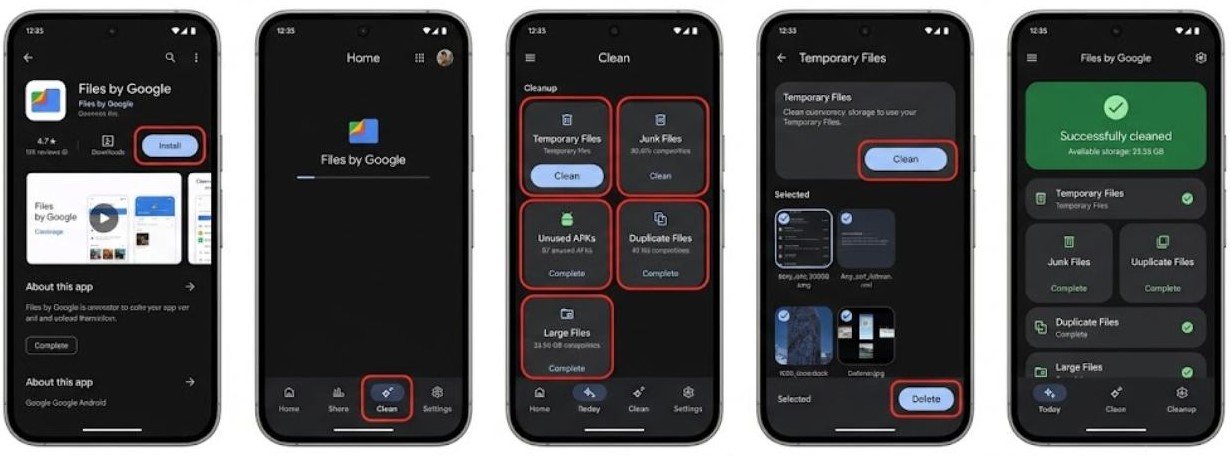
Files by Google provides a more detailed storage breakdown than the built-in Settings storage page on many devices.
- Download Files by Google from the Play Store if not installed
- Open the app and tap Clean
- The app identifies temporary files, unused APKs, duplicate files, and large files
- Review each category and delete what you no longer need
Fix 7 — Perform a System Update
Keeping your Android version current actually helps manage Android system storage too large over time. System updates often include optimizations to how the OS uses storage, improvements to automatic cleanup routines, and better management of system caches and log files.
Additionally, a system update sometimes replaces accumulated patch files with a single clean system image, which removes layers of patch data that built up over multiple smaller updates.
How to check for system updates:
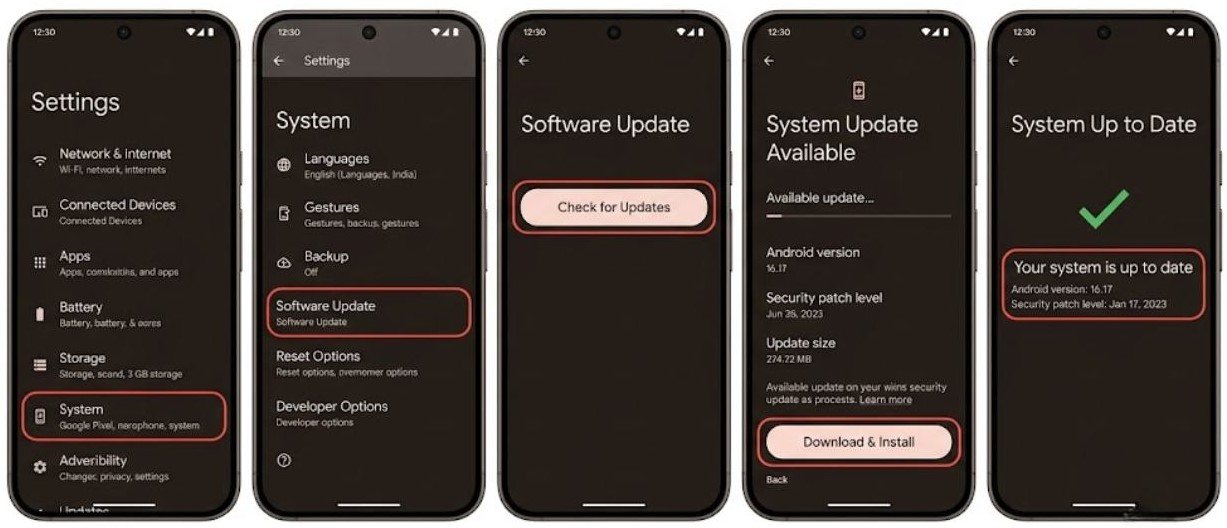
- Go to Settings → System → Software Update
- Tap Check for Updates
- Download and install any available update
After updating, restart the device and check the system storage reading in Settings. A fresh system installation through an update sometimes reduces the Android system storage too large reading by cleaning up old patch layers during the update process.
Fix 8 — Factory Reset as a Last Resort
A factory reset installs a completely fresh copy of Android, returning system storage to its original factory size. This is the most effective possible fix for Android system storage too large because it removes all accumulated system caches, logs, patch layers, and residual files simultaneously.
The significant trade-off is that a factory reset erases all personal data on the device.
Before factory resetting — back up all of these:
- Photos and videos — back up to Google Photos or a computer
- Contacts — ensure Google account sync is current
- Messages — use a backup app or note important conversations
- App list — screenshot your installed apps
- App data that does not sync automatically — game saves, notes, offline files
How to factory reset:
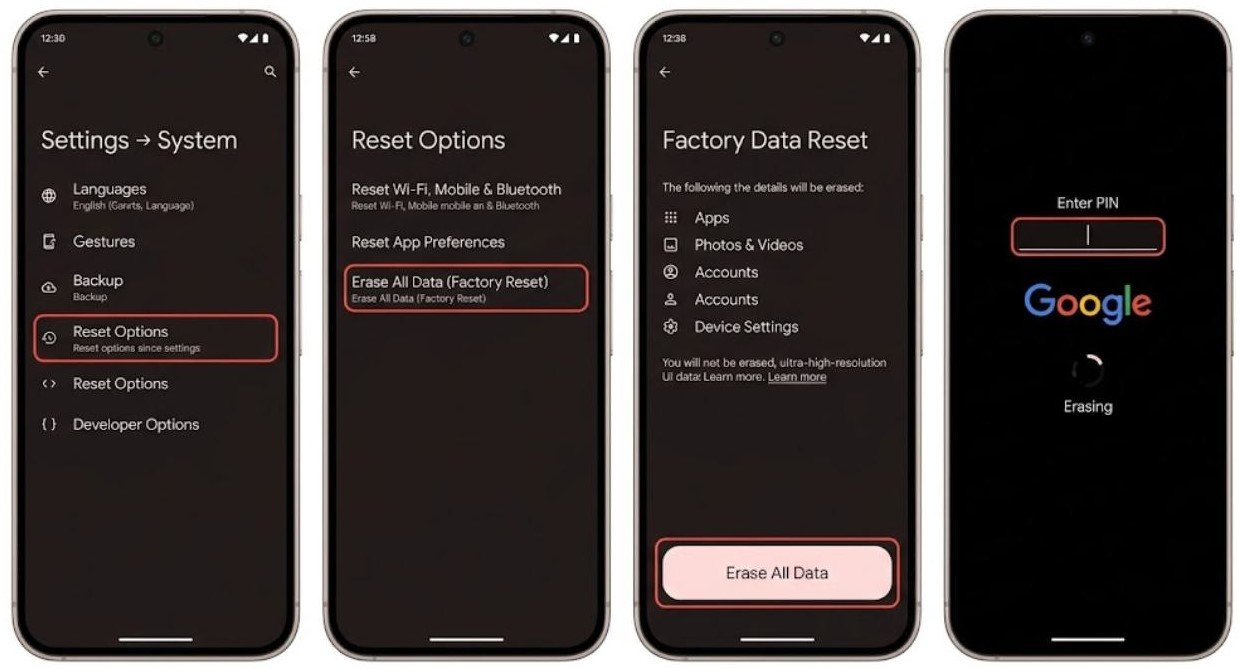
- Go to Settings → General Management or Settings → System
- Select Reset or Reset Options
- Tap Factory Data Reset
- Read the confirmation carefully
- Tap Reset and confirm with your PIN or fingerprint
- Allow the process to complete
After the factory reset, system storage returns to its original factory size. Install only the apps you actively use rather than restoring everything — this keeps system storage at the lowest sustainable level going forward.
What You Cannot Reduce in Android System Storage
Being realistic about what is fixed helps you focus on what is actually reducible.
These items cannot be reduced without rooting or flashing custom firmware:
- The Android operating system kernel and framework
- Core Google services (Google Play Services, Google Play Store framework)
- Essential device drivers for hardware
- Base system fonts, language packs, and accessibility resources
- Factory-installed system partitions
If your Android system storage too large situation is primarily these fixed components — particularly on a device with a small total storage capacity like 16 or 32 GB — the practical limit has been reached through software means. Hardware upgrade or using an SD card for media storage is the remaining option.
FAQs
Why is Android system storage so large?
Android system storage includes the operating system, pre-installed apps, accumulated system caches, OTA update residuals, system logs, and app data for built-in apps. The Android OS itself requires several gigabytes, and additional data accumulates through normal use and updates.
Can I delete Android system storage to free up space?
You cannot delete core system files, but you can reduce Android system storage too large by clearing the system cache partition, removing leftover update packages, disabling bloatware, clearing system app caches, and uninstalling pre-installed app updates. These steps recover significant space without affecting phone function.
Does clearing system cache reduce Android system storage?
Yes. Clearing the system cache partition removes temporary files accumulated during normal use and system updates. This is one of the most effective fixes for Android system storage too large and is completely safe — no personal data is affected.
How do I find leftover update files on Android?
Open the Files app and navigate to Internal Storage. Look for folders named ota, updates, or system_update. These folders contain residual update packages that remain after successful installation. Deleting them reduces system storage immediately.
Will a factory reset fix Android system storage too large?
Yes. A factory reset reinstalls a clean Android system at its original factory size, removing all accumulated caches, logs, and residual files. It is the most thorough fix available but erases all personal data. Always back up completely before proceeding.
Final Thoughts
Android system storage too large is a real but manageable problem. The OS itself requires a fixed amount of space that cannot be changed, but a significant portion of what appears as system storage is accumulated data that can be reduced through the steps in this guide.
Start with the system cache partition wipe — it is safe, effective, and requires no personal data decisions. Follow with checking for leftover OTA update packages and clearing system app caches. These three fixes together address the most common sources of inflated Android system storage too large readings.
Disabling bloatware, uninstalling app updates, and using the built-in storage tools cover the remaining recoverable space. Factory reset remains available for maximum recovery when the accumulated storage has grown beyond what individual fixes can address.
Understanding what is fixed versus what is reducible in system storage helps you set realistic expectations and focus your efforts where they will actually make a difference.
