

Android phone vibrating randomly is an unsettling experience. Your phone buzzes on the desk, in your pocket, or in your hand — but when you check the screen, there is no notification, no call, no message, and no obvious reason for the vibration. It happens again minutes later. Then again.
Random vibrations without a visible cause make users worry that something is seriously wrong — malware, a hardware fault, or a system failure. In reality, the cause is almost always far more straightforward, and the fix is something you can apply yourself in a few minutes.
This guide explains every common reason behind Android phone vibrating randomly, how to identify which one applies to your device, and eight practical fixes to stop the phantom vibrations for good.
Why Is My Android Phone Vibrating Randomly?
When an Android phone vibrates randomly, it is responding to something. Vibrations on Android are always triggered — either by a notification, a system event, a setting, or an app. The apparent randomness comes from the trigger being invisible or unexpected rather than genuinely unprompted.
| Cause | How Common |
|---|---|
| Silent or hidden notifications arriving | Very common |
| Notification vibration with sound set to silent | Very common |
| Haptic feedback enabled for system interactions | Common |
| App running background alerts or reminders | Common |
| System update or sync completing | Common |
| Charging connection vibration alert | Common |
| Accessibility or scheduled event triggering | Moderate |
| Third-party app sending background notifications | Moderate |
| Vibration motor hardware fault | Less common |
The most important thing to understand about Android phone vibrating randomly is that a vibration always has a source. Finding that source is the entire troubleshooting process.

Fix 1 — Check for Hidden or Silent Notifications
The most common cause of Android phone vibrating randomly is silent or partially hidden notifications arriving without displaying on screen.
Many apps set notifications to vibrate only with sound turned off. When these notifications arrive, the phone vibrates but no sound plays and the notification may appear only briefly in the status bar — or not at all if the screen stays off.
How to find hidden notifications:
- Pull down the full notification shade from the top of the screen
- Look for any notifications from apps you may not have noticed
- Check whether the notification light is blinking or the status bar has any icons you do not recognise
Check the notification history:
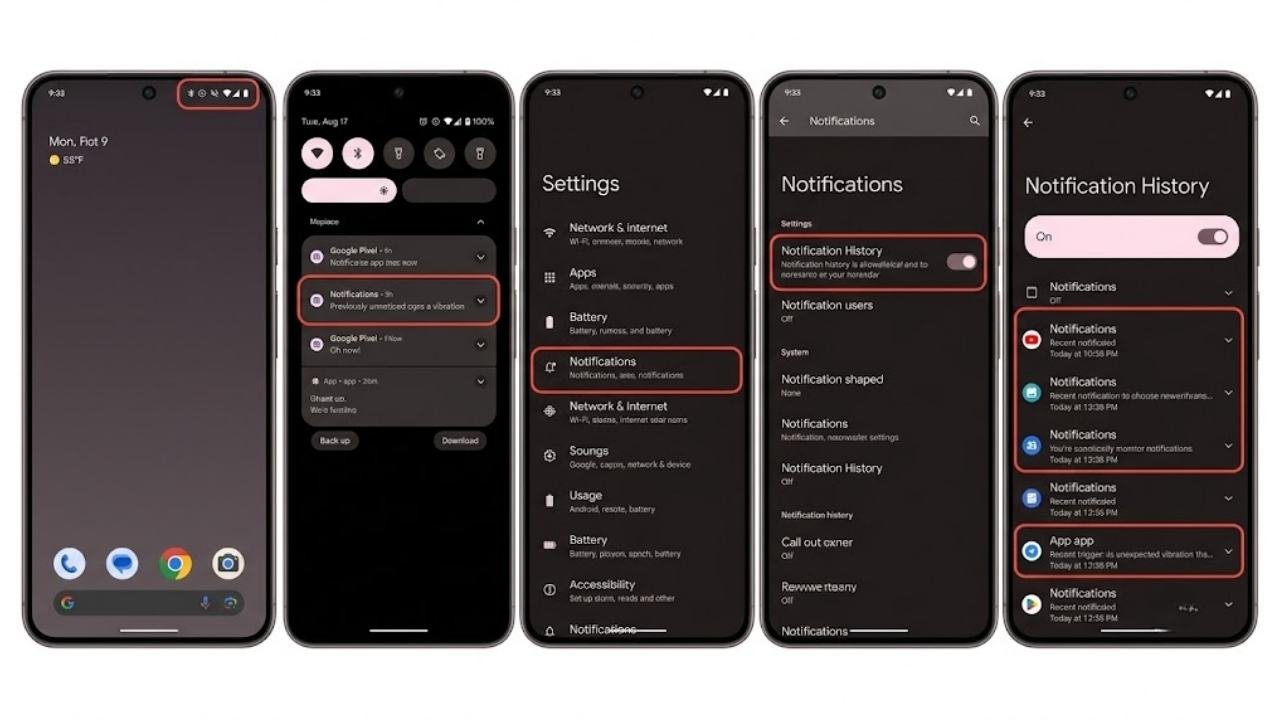
On Android 11 and newer, you can access notification history:
- Long-press on an empty area of the home screen
- Tap Widgets
- Find the Settings widget and add the Notification History shortcut
- Alternatively, go to Settings → Notifications → Notification History and enable it if not already on
- Review recent notifications to see which app triggered vibrations during times you noticed the Android phone vibrating randomly
Identifying the specific app responsible immediately points you to the solution — adjusting that app’s notification settings.
Fix 2 — Review and Audit App Notification Settings
Once you identify which apps are sending vibration-only notifications, reviewing and adjusting their notification settings resolves the Android phone vibrating randomly problem at its source.
How to audit app notification settings:
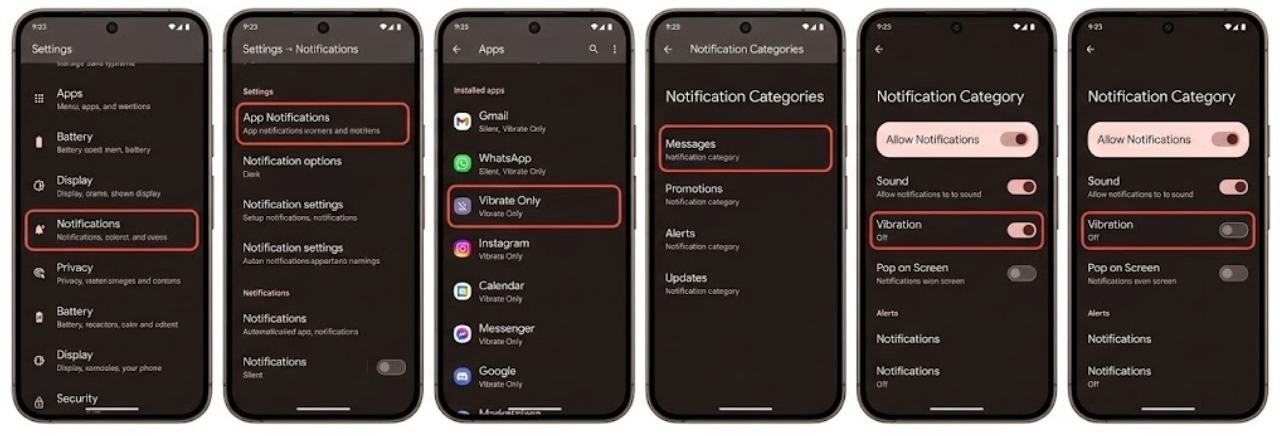
- Go to Settings → Notifications or Settings → Apps → Notifications
- Review the list of apps — look for apps set to Silent or Vibrate Only
- Tap each app to see its notification categories
- For each category, check whether vibration is enabled
- Disable vibration for notification categories that do not require physical alerts
Common apps that send silent vibration notifications:
- Social media apps with activity alerts (likes, comments, follows)
- Email apps with sync notifications
- Fitness and health apps with movement reminders
- Shopping apps with promotional alerts
- News apps with breaking news alerts
- Gaming apps with event or energy reminders
Turning off vibration for non-essential notification categories stops the Android phone vibrating randomly problem caused by these background alerts.
Fix 3 — Disable Haptic Feedback for System Interactions
Haptic feedback — vibrations that confirm physical interactions — is enabled by default on most Android devices. Every time you tap the keyboard, press a button, touch the fingerprint sensor, or navigate using gesture controls, the phone vibrates briefly.
For some users, these haptic confirmation vibrations feel random because they happen frequently during use and the pattern is not always consciously associated with the tap that triggered them.
How to disable haptic feedback:
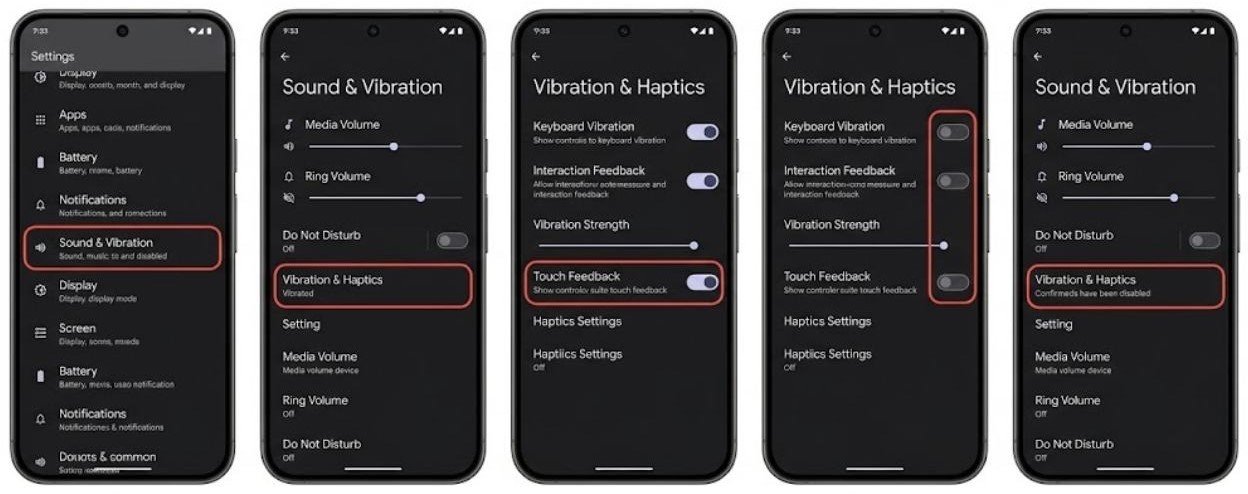
- Go to Settings → Sound and Vibration or Settings → Sound
- Look for Vibration and Haptic Strength, Haptic Feedback, or Touch Feedback
- Disable Touch Vibration, Keyboard Vibration, and Interaction Feedback as needed
After disabling haptic feedback, the Android phone vibrating randomly problem caused by touch interaction confirmation stops immediately.
Fix 4 — Check Charging Connection Vibration
Android vibrates briefly when a charger is connected or disconnected. This is a normal system behavior that confirms the charging connection.
If your charging cable is loose — due to a worn connector, compacted lint in the charging port, or a frayed cable — the connection may repeatedly make and break contact. Each time the connection breaks and re-establishes, Android triggers a vibration alert. This creates the appearance of Android phone vibrating randomly when the actual cause is an intermittent charging connection.
How to confirm this is the cause:
Disconnect the charger completely and observe whether the random vibrations stop. If they do, the charging connection is the trigger.
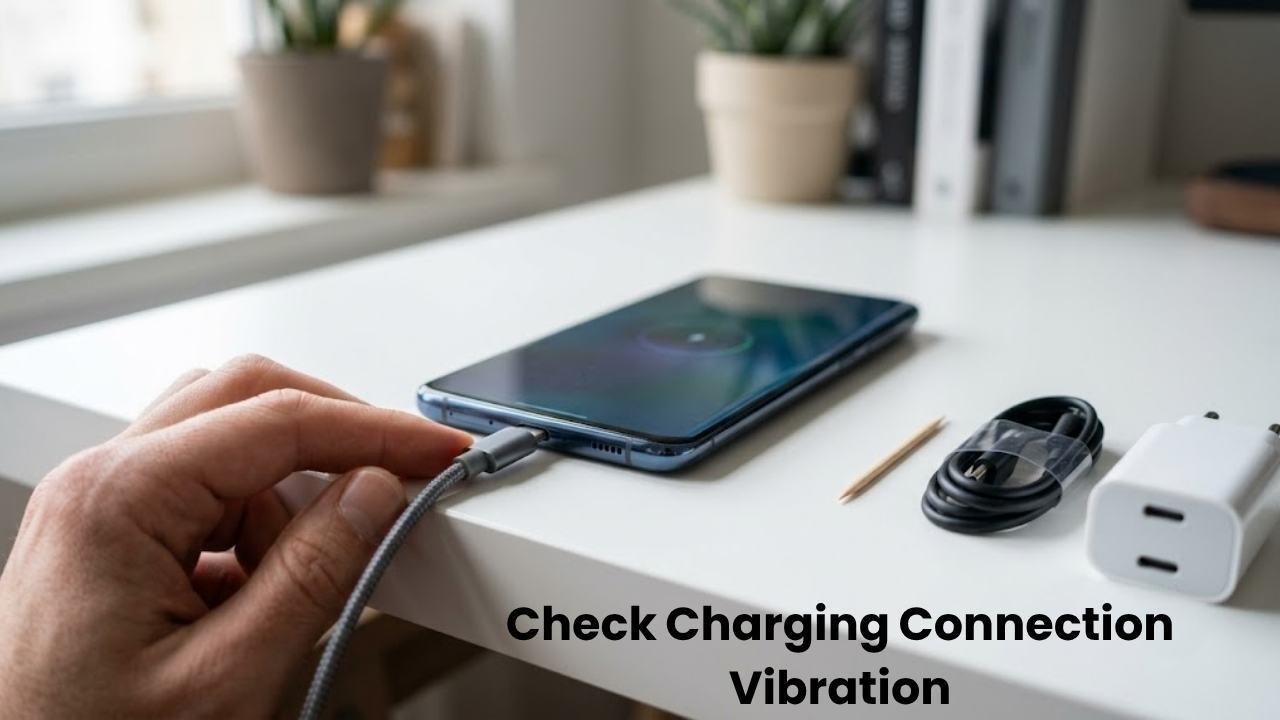
How to fix the intermittent charging connection:
- Clean the charging port by removing compacted lint with a wooden toothpick
- Try a different charging cable — worn cables with loose connectors are a common cause
- Try a different power adapter
- Check whether the port feels loose or the cable wobbles when connected
After resolving the charging connection issue, the Android phone vibrating randomly problem caused by the intermittent power connection stops.
![How to Turn On/Off Charging Sounds and Vibration on Android [Guide]](https://i.ytimg.com/vi/JpJfmZ5sp4M/hqdefault.jpg)
Fix 5 — Review Scheduled Alerts and Reminders
Android phone vibrating randomly at specific times — rather than at completely unpredictable intervals — is almost always caused by a scheduled reminder, alarm, or recurring event.
Check these scheduled items:
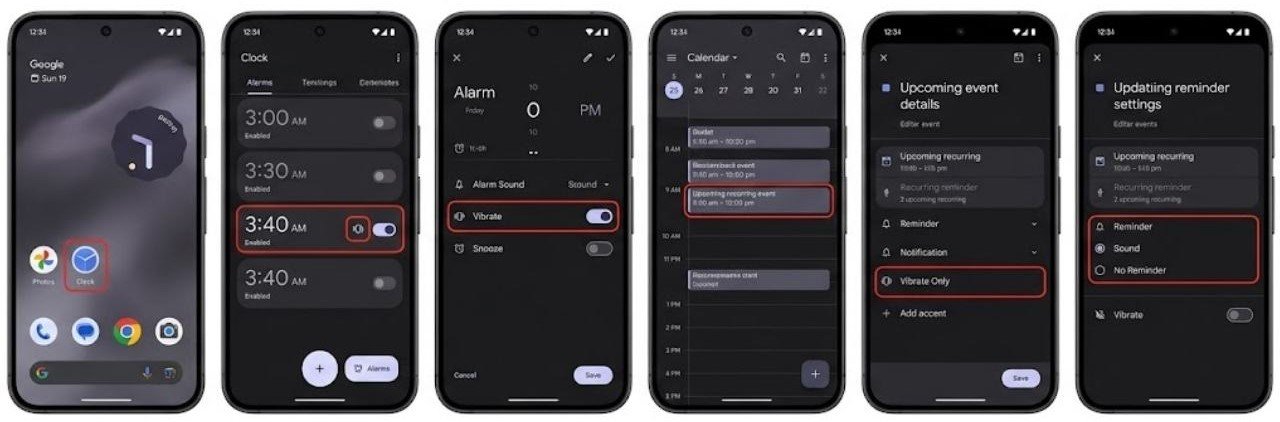
Alarms:
- Open the Clock app
- Review all alarms — look for any active alarm set at unusual times or with vibrate-only mode enabled
Calendar events:
- Open the Calendar app
- Check for recurring events with vibration reminders you may have forgotten
- Look particularly for events with reminders set to vibrate only, without sound
Reminder apps and health apps:
Fitness apps often set hourly movement reminders that vibrate. Hydration apps, medication reminder apps, and mindfulness apps also schedule regular vibration alerts.
How to find scheduled notifications from all apps:
Go to Settings → Apps and review apps with notification permissions enabled. Open each app individually and check their internal schedule or reminder settings. Health and wellness apps in particular often have active schedules that users set up once and forget.
Fix 6 — Boot Into Safe Mode to Test Third-Party Apps
If the Android phone vibrating randomly continues without an obvious notification source, a third-party app running background processes or sending background notifications is a strong possibility.
Safe Mode disables all third-party apps temporarily, running Android with only system apps. If vibrations stop completely in Safe Mode, a third-party app is definitively the cause.
How to enter Safe Mode:
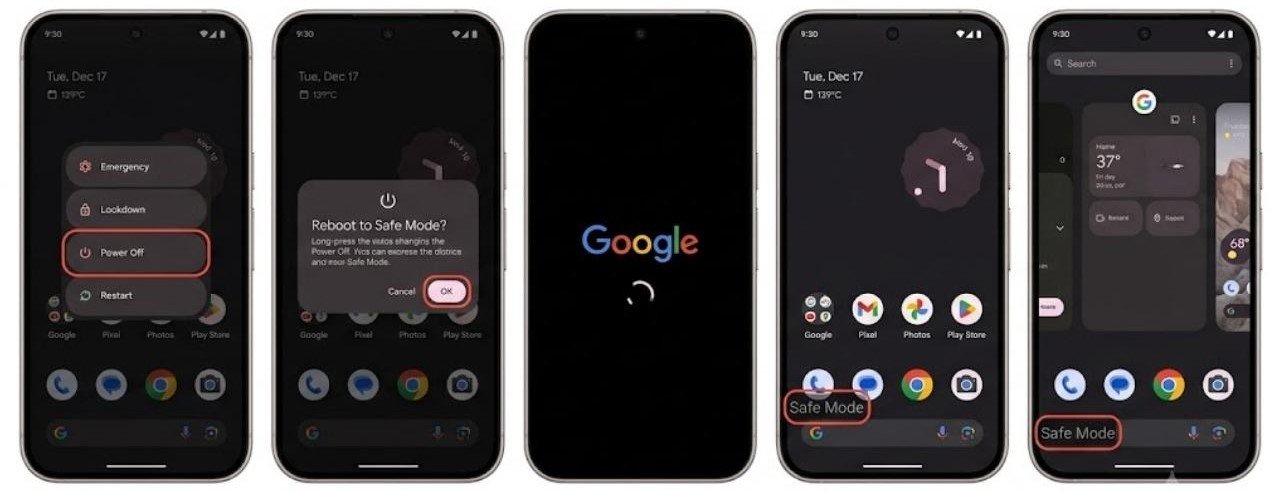
- Hold the Power button until the power menu appears
- Long-press the Power Off option until a Safe Mode prompt appears
- Tap OK to restart in Safe Mode
Use the phone in Safe Mode for 30 to 60 minutes during a period when Android phone vibrating randomly typically occurs.
If vibrations stop in Safe Mode: Restart normally and uninstall recently installed apps one by one, monitoring for vibrations after each removal. The app removed just before the vibrations stop is the cause.
If vibrations continue in Safe Mode: The cause is a system-level setting, a scheduled system event, or hardware. Continue to the remaining fixes.
Fix 7 — Check Accessibility Features and Special Modes
Accessibility features can trigger vibrations as part of their intended function. If an accessibility feature was accidentally enabled, it may be causing the Android phone vibrating randomly experience.
Accessibility features that use vibration:
TalkBack: Uses vibration to confirm navigation and selections.
Vibration Feedback for Accessibility: Some manufacturers include vibration cues for accessibility navigation that trigger frequently during normal use.
Notification Reminders: An accessibility feature on some Android versions that re-vibrates for unread notifications at set intervals — typically every one, three, or five minutes.
How to check accessibility vibration settings:
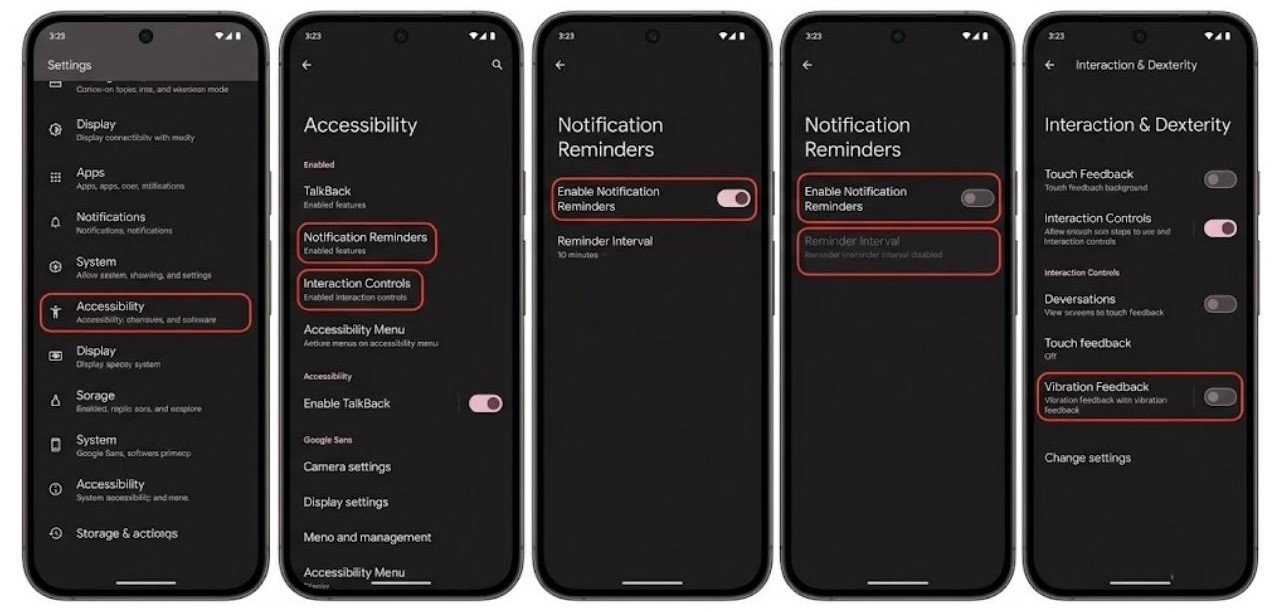
- Go to Settings → Accessibility
- Review all enabled accessibility features
- Look specifically for:
- Notification Reminders — disable or adjust the interval
- TalkBack — disable if not intentionally enabled
- Interaction and Dexterity features that include vibration feedback
On Samsung devices specifically:
Go to Settings → Accessibility → Advanced Settings → Notification Reminders and check whether it is active. This feature re-alerts you to unread notifications through vibration at regular intervals — which feels exactly like Android phone vibrating randomly if you were unaware the feature was enabled.
Disabling Notification Reminders resolves this specific pattern of random vibrations immediately.
Fix 8 — Update Apps and System Software
Buggy app versions and system software issues sometimes cause unexpected vibration behavior. An app that enters an incorrect state, triggers incorrect system calls, or mishandles notification scheduling can cause Android phone vibrating randomly through a software bug rather than intentional behavior.
Update all apps:
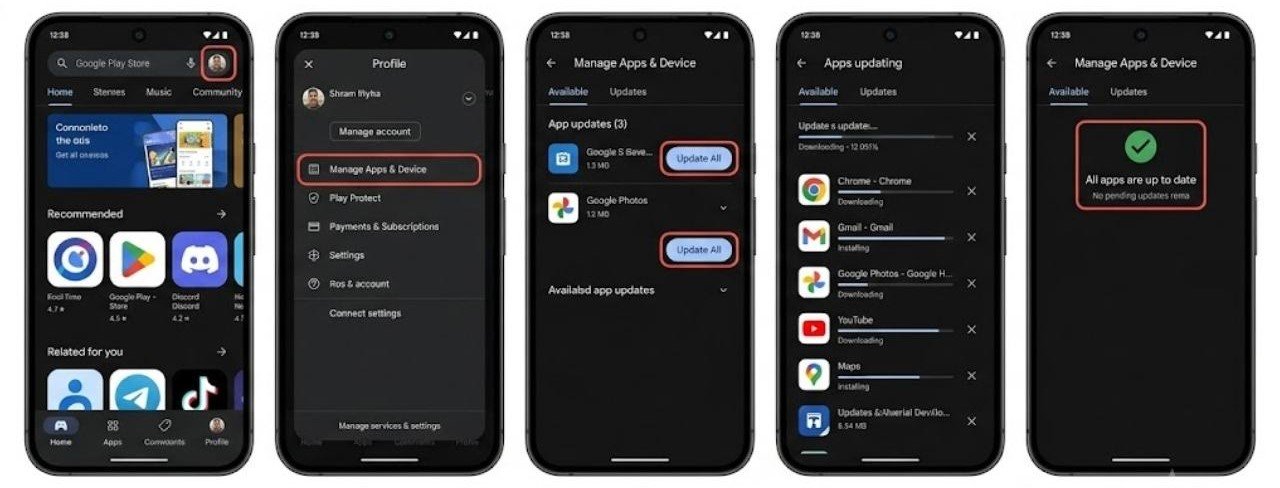
- Open the Google Play Store
- Tap your profile icon
- Select Manage Apps and Device
- Tap Update All to install all available app updates
Developers fix bugs including notification and vibration behavior issues through app updates. Keeping all apps updated eliminates vibration bugs that specific app versions may have introduced.
Update system software:
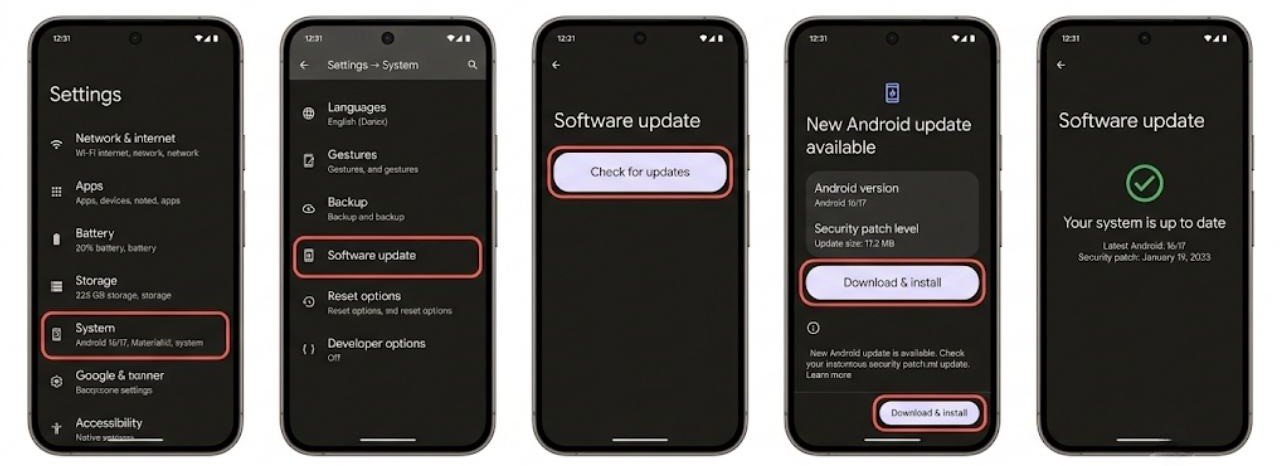
- Go to Settings → System → Software Update
- Tap Check for Updates
- Install any available update
System updates include fixes for vibration management issues including bugs that cause excessive haptic feedback or incorrect notification vibration behavior.
After updating both apps and system software, monitor whether the Android phone vibrating randomly problem continues over the next 24 to 48 hours.
Additional Steps for Persistent Random Vibrations
If working through all eight fixes has not stopped the Android phone vibrating randomly problem, these additional steps address less common causes.
Check Google Assistant and Digital Wellbeing
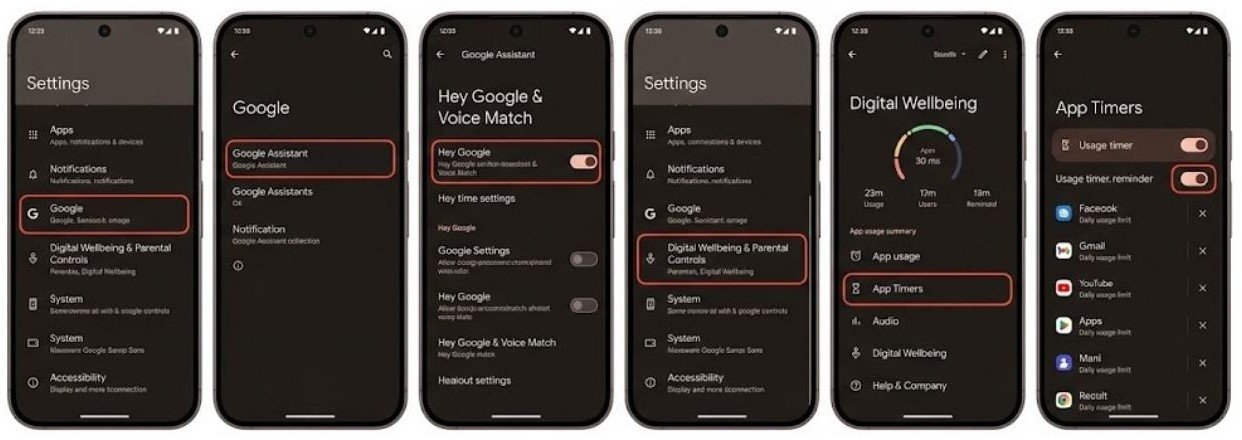
Google Assistant sometimes vibrates when activated by an accidental voice trigger. Go to Settings → Google → Google Assistant → Hey Google and Voice Match and check whether accidental activations are occurring.
Digital Wellbeing app usage reminders can also vibrate when daily usage limits for specific apps are reached. Go to Settings → Digital Wellbeing and Parental Controls and review any active usage timers with alerts enabled.
Clear Notification Service Cache
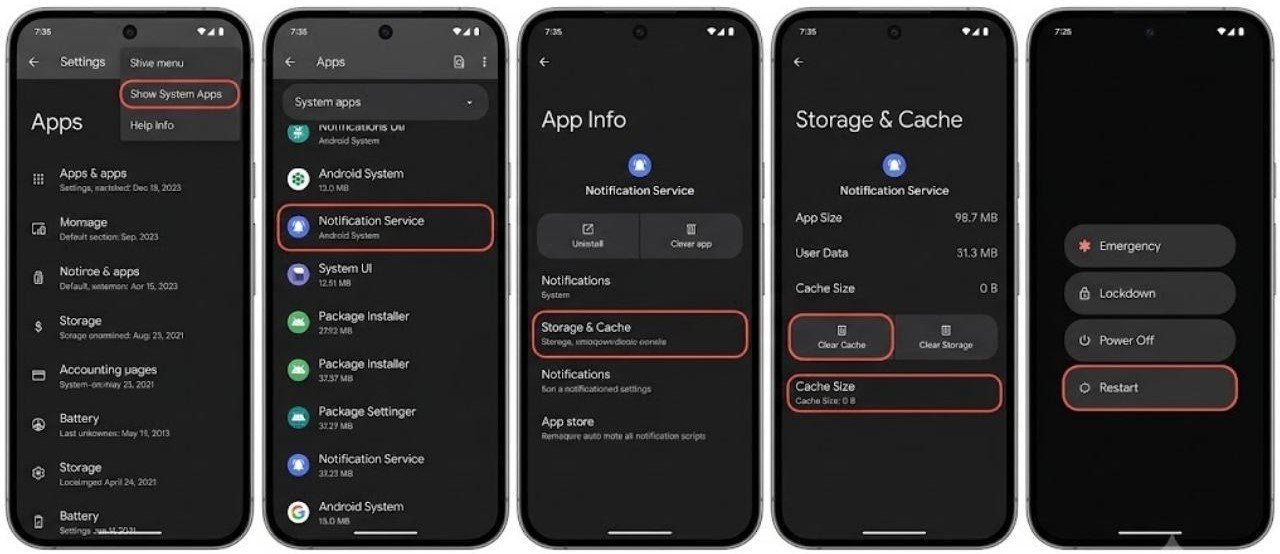
- Go to Settings → Apps → Show System Apps
- Find Notification Service or Android System
- Clear cache for these system services
- Restart the device
Factory Reset as Last Resort
If Android phone vibrating randomly persists through all fixes including Safe Mode testing and a system update, a factory reset eliminates all app conflicts and software corruption.
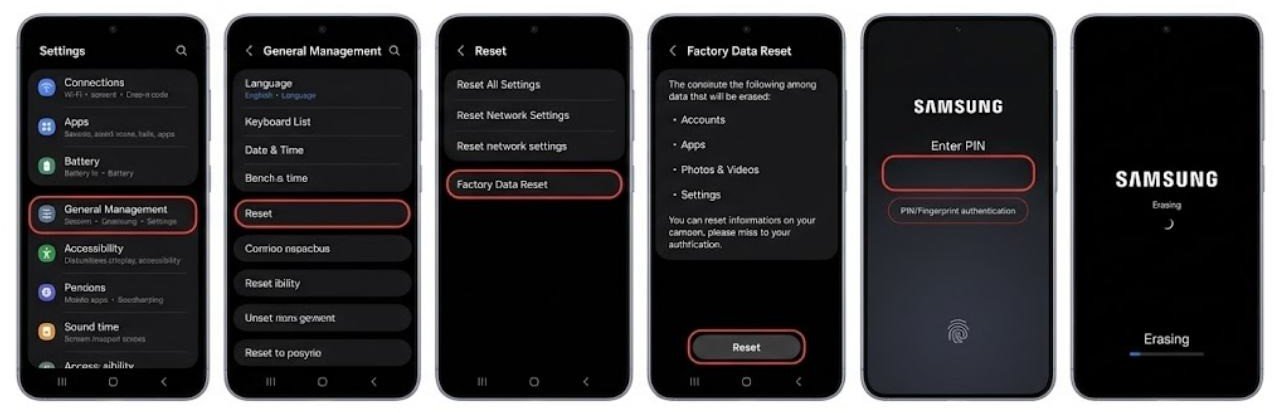
Back up all data first. Go to Settings → General Management → Reset → Factory Data Reset and follow the prompts.
If random vibrations continue after a factory reset, the vibration motor hardware is the likely cause and professional assessment is appropriate.
When Android Phone Vibrating Randomly Indicates Hardware Issues
Hardware vibration motor issues are the least common cause of Android phone vibrating randomly. Signs that suggest a hardware fault include:
- Vibrations continue in Safe Mode and after a factory reset
- The vibration has an unusual pattern, intensity, or physical feel compared to normal notifications
- The phone was recently dropped or exposed to moisture before the vibrations started
- The vibration pattern is completely irregular with no time-based pattern
A failing or intermittently shorting vibration motor can trigger on its own without a software instruction. This requires professional assessment and motor replacement.
FAQs
Why is my Android phone vibrating randomly with no notifications?
Android phone vibrating randomly with no visible notifications is usually caused by silent or vibrate-only notifications arriving from background apps, scheduled reminders, haptic feedback settings, or accessibility features like Notification Reminders. Checking notification history identifies the source quickly.
How do I stop my Android from vibrating for no reason?
Check notification history to identify the triggering app, review haptic feedback settings, check for scheduled reminders in the Clock and Calendar apps, and boot into Safe Mode to test whether a third-party app is responsible. These steps resolve most Android phone vibrating randomly cases.
Can haptic feedback cause random vibrations?
Haptic feedback responds to physical touch interactions — keyboard taps, button presses, fingerprint sensor contacts. While not truly random, these frequent small vibrations can feel unexpected if you are not consciously associating each vibration with the specific touch that caused it.
Does a loose charging cable cause random vibrations?
Yes. When a charging cable makes intermittent contact, Android vibrates each time the connection is established. A loose cable, lint in the charging port, or a worn connector creates repeated make-break cycles that feel like Android phone vibrating randomly.
Can malware cause an Android phone to vibrate randomly?
Malware can send background notifications that trigger vibrations. Boot into Safe Mode and run a Google Play Protect scan. If vibrations stop in Safe Mode, a problematic app is responsible. Google Play Protect identifies and helps remove malicious apps.
Final Thoughts
Android phone vibrating randomly always has a source — finding that source is the entire solution. The apparent randomness almost always resolves into a pattern once you know where to look.
Start with the notification history to identify which app is triggering vibrations. Check haptic feedback settings if vibrations seem tied to phone interaction. Review the Accessibility settings — particularly Notification Reminders — if vibrations seem to occur at regular intervals.
Safe Mode testing definitively confirms or rules out third-party app causes. If the app is identified, removing or updating it stops the Android phone vibrating randomly problem immediately.
Hardware causes are rare but possible after physical damage or in older devices. If all software fixes fail to resolve random vibrations, professional assessment of the vibration motor is the appropriate next step. For the vast majority of users, however, the solution will be found well before reaching that point.
