

Android phone lagging suddenly is one of those problems that catches you completely off guard. Your phone was running perfectly fine yesterday — apps opened instantly, scrolling was smooth, everything felt responsive — and then without any obvious change, performance dropped noticeably. Taps feel slow to register, animations stutter, apps take longer to load, and the whole experience feels sluggish.
This kind of sudden performance drop has specific causes. It almost never happens without a reason. Something changed — a background process, a storage threshold, an app update, a system setting — and identifying that change is the key to fixing it quickly.
This guide explains every common cause of an Android phone lagging suddenly and gives you nine fixes that address each one directly.

Why Does an Android Phone Start Lagging Suddenly?
Sudden lag on an Android phone is not gradual wear — it is a specific event or condition that pushed the phone past a performance threshold.
| Cause | How Common |
|---|---|
| Storage space critically low | Very common |
| Background apps consuming RAM | Very common |
| System update installing in background | Very common |
| App update introduced a bug | Common |
| Overheating causing thermal throttling | Common |
| Corrupted system cache | Common |
| Malware or adware activity | Moderate |
| Animated wallpaper or heavy launcher | Moderate |
| Aging battery reducing peak performance | Moderate |
The sudden nature of the lag is actually helpful for diagnosis. If performance dropped after a specific event — installing an app, running an update, or a storage notification appearing — that event is almost certainly the direct cause.
Fix 1 — Restart the Device First
When an Android phone is lagging suddenly, a full restart is always the correct first step.
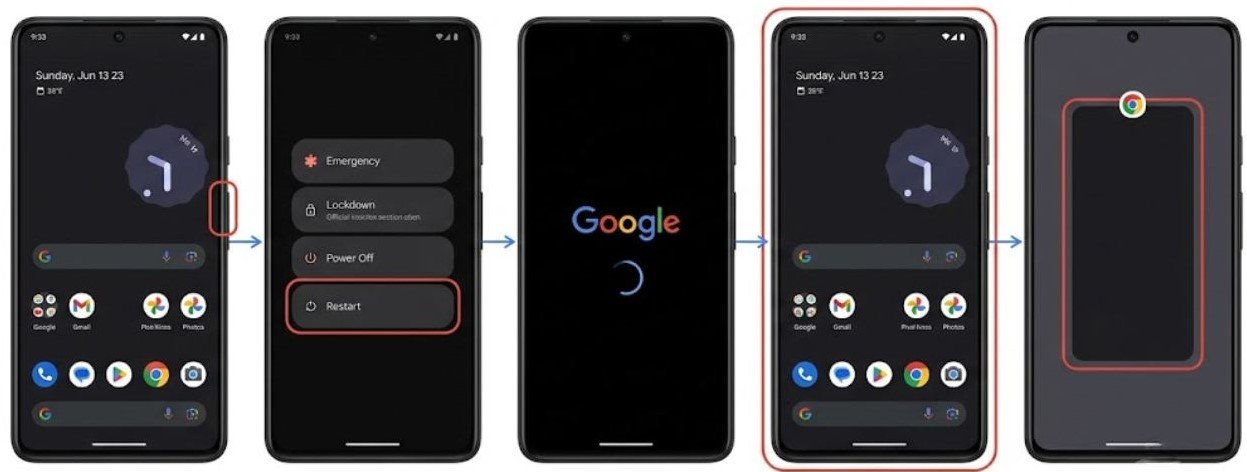
Over days or weeks of continuous use without restarting, RAM fills with cached app data, background processes accumulate, and the system’s memory management becomes less efficient. A restart clears all active memory, closes every background process, and gives the system a completely fresh start.
Many users report that their Android phone lagging suddenly resolves completely after a restart — particularly if the phone has not been restarted in several days.
Hold the Power button and select Restart. Allow the phone to complete the full boot cycle. After it fully loads, test performance before opening any apps. This gives you a baseline reading of how the phone runs immediately after a clean restart.
If performance is good immediately after restarting but deteriorates again within hours, the problem is a specific background process or app that accumulates resource usage over time.
Fix 2 — Check and Free Up Storage Space
Low storage space is the single most common cause of an Android phone lagging suddenly. Android needs free space to function properly — not just to store new files, but to create temporary working files, manage virtual memory, and process data efficiently.
When available storage drops below approximately 10 to 15 percent of total capacity, Android begins struggling. The system cannot create the temporary files it needs, and performance degrades significantly and suddenly once that threshold is crossed.
Check your storage immediately:
Go to Settings → Storage and check available free space. If you see less than 1 to 2 GB free on a 32GB device, or less than 3 to 4 GB free on a larger device, storage is almost certainly causing the Android phone lagging suddenly problem.
Free up space quickly:
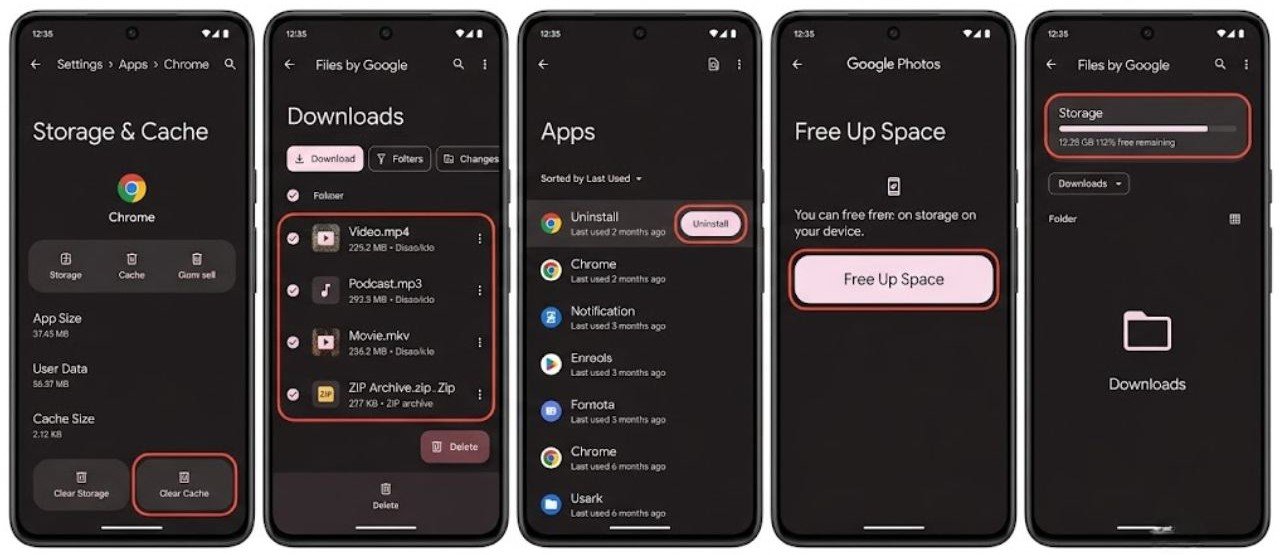
- Clear app caches for your largest apps via Settings → Apps → Select App → Storage → Clear Cache
- Delete downloaded videos, music, and offline content no longer needed
- Remove apps you have not used in the past month along with their data
- Transfer photos and videos to Google Photos and use Free Up Space to remove local copies
- Clear the Downloads folder of files downloaded for one-time use
After freeing at least 2 to 3 GB of storage, restart the phone and test performance. Storage-related lag resolves immediately once sufficient space is available.

Fix 3 — Identify the RAM-Hungry Background App
When an Android phone is lagging suddenly during normal use, a background app consuming an abnormal amount of RAM is often the cause.
Every app you open stays partially loaded in RAM when you switch away from it. This is intentional — it makes switching between apps faster. But when one app consumes a disproportionate amount of RAM and does not release it, other apps and system processes are squeezed out, causing lag.
How to identify the problem app:
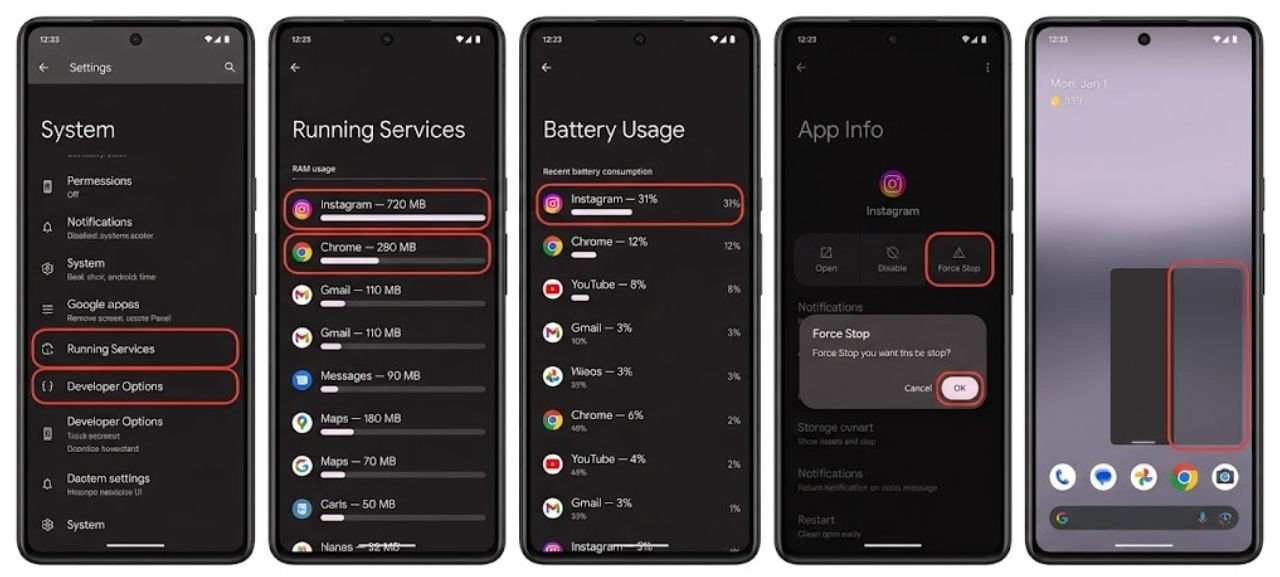
- Go to Settings → Developer Options (enable via tapping Build Number seven times in About Phone)
- Tap Running Services or Process Stats
- Look for any app consuming unusually high memory compared to others
Alternative quick method:
Check Settings → Battery → Battery Usage and look for apps showing high usage in the recent timeframe. High battery usage correlates strongly with high RAM and CPU usage.
Once identified, force stop the problematic app via Settings → Apps → Select App → Force Stop and restart the device. If the Android phone lagging suddenly problem resolves after removing that app from memory, you have identified the cause.
Fix 4 — Reduce or Disable Animations
Android system animations — the transitions between apps, the home screen effects, and interface animations — consume GPU resources. On phones with limited processing headroom, these animations can contribute significantly to an Android phone lagging suddenly, particularly if a background process has already claimed significant resources.
Reducing or disabling animations makes the phone feel dramatically faster with minimal setup.
How to reduce animations:
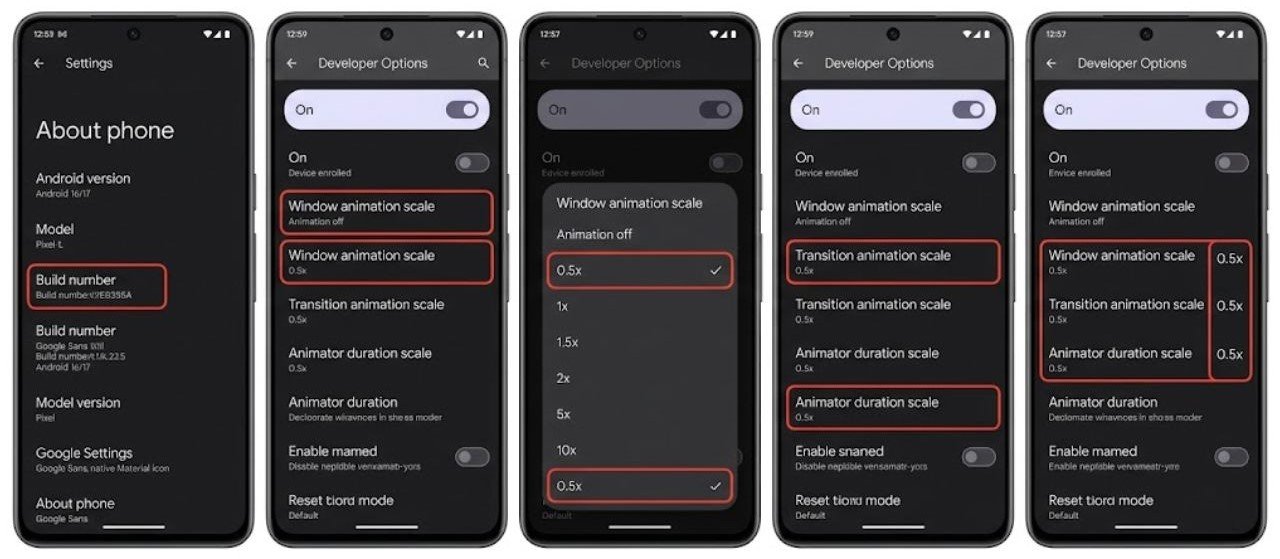
- Enable Developer Options via Settings → About Phone → tap Build Number seven times
- Open Developer Options
- Find Window Animation Scale, Transition Animation Scale, and Animator Duration Scale
- Change all three from 1x to 0.5x for noticeably faster transitions
- Setting all three to Off disables animations entirely for maximum perceived speed
Reducing animations to 0.5x often makes a lagging phone feel significantly more responsive immediately, even before addressing the underlying cause.
Fix 5 — Check for Overheating and Thermal Throttling
Thermal throttling is a safety mechanism that deliberately reduces processor performance when the phone’s internal temperature exceeds safe operating limits. When the phone overheats, it slows down to prevent hardware damage — and this slowdown is experienced as sudden severe lag.
If your Android phone lagging suddenly is accompanied by the device feeling warm or hot to the touch, thermal throttling is almost certainly involved.
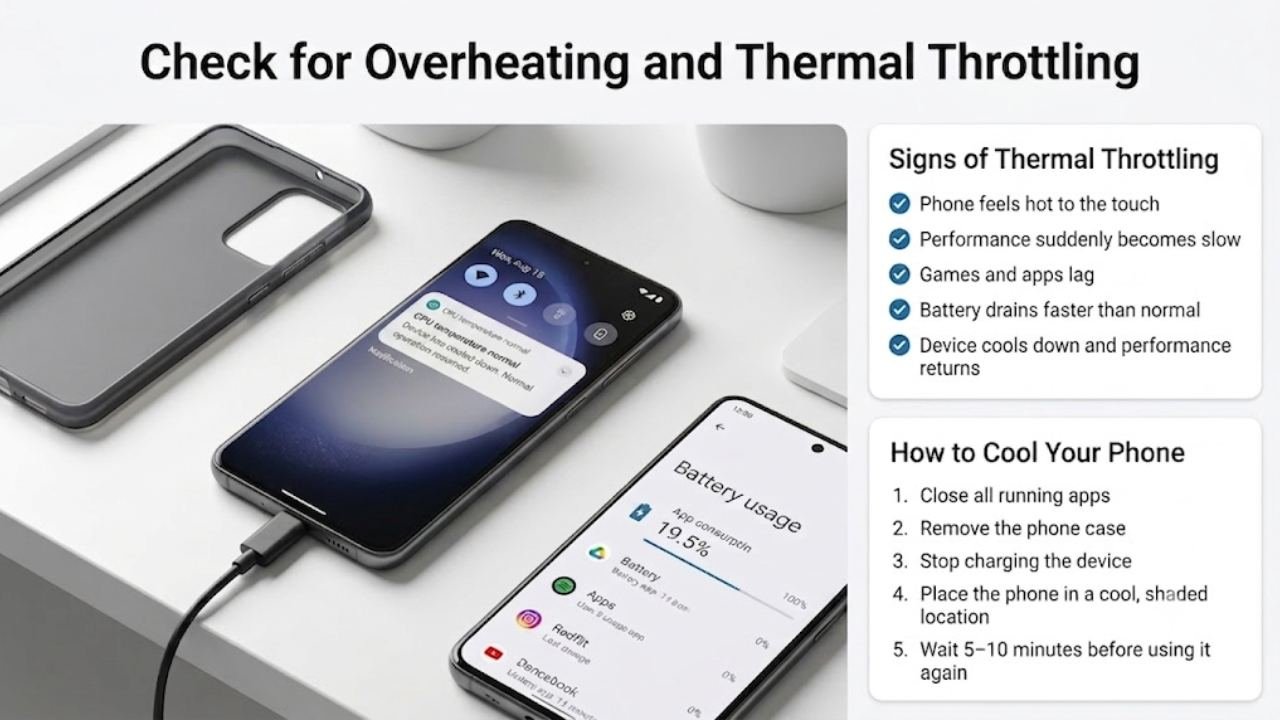
Common causes of smartphone overheating:
- Prolonged gaming or video streaming in a warm environment
- Direct sunlight exposure
- Charging while using the phone intensively
- A background app running a continuous high-CPU process
- A malfunctioning app in an infinite processing loop
How to address thermal throttling:
- Close all apps and set the phone down in a cool location
- Remove any case that may be trapping heat
- Do not use the phone for five to ten minutes until it cools
- Check battery usage for any app showing unusually high consumption — this identifies runaway processes causing heat
Once the phone cools, performance returns to normal. If overheating recurs regularly, the root cause — whether an app or usage pattern — needs to be addressed to prevent recurring Android phone lagging suddenly episodes.

Fix 6 — Clear the System Cache Partition
The system cache partition stores temporary files that Android uses during boot and app loading. When this cache becomes corrupted — often after a system update or after extended use — it can cause system-wide performance problems including an Android phone lagging suddenly.
Clearing the system cache removes these corrupted temporary files without affecting any personal data, apps, or settings. The cache rebuilds cleanly during the next boot cycle.
How to clear the system cache partition:
Samsung devices:
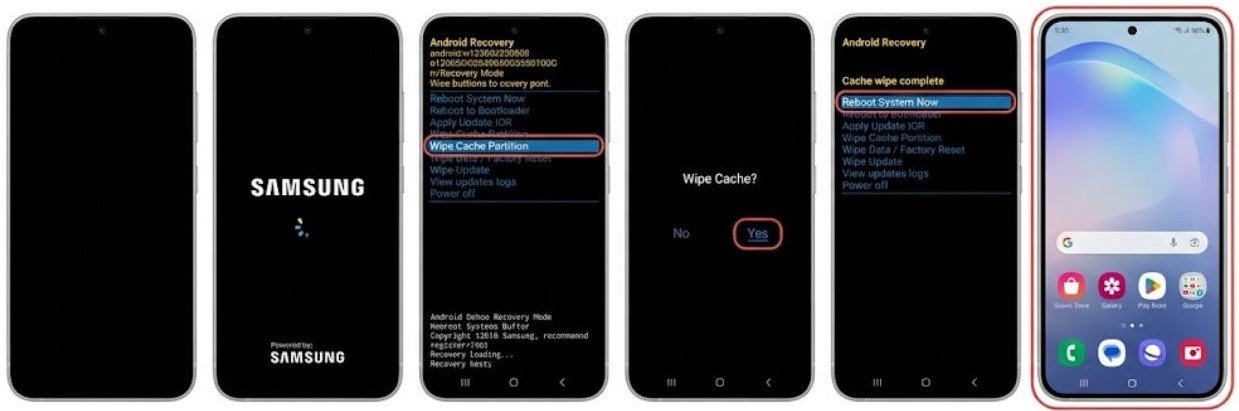
- Power off completely
- Hold Power + Volume Up until the Samsung logo appears
- Release and wait for the recovery menu
- Navigate to Wipe Cache Partition with Volume Down
- Select with Power button
- Select Reboot System Now when complete
Google Pixel:
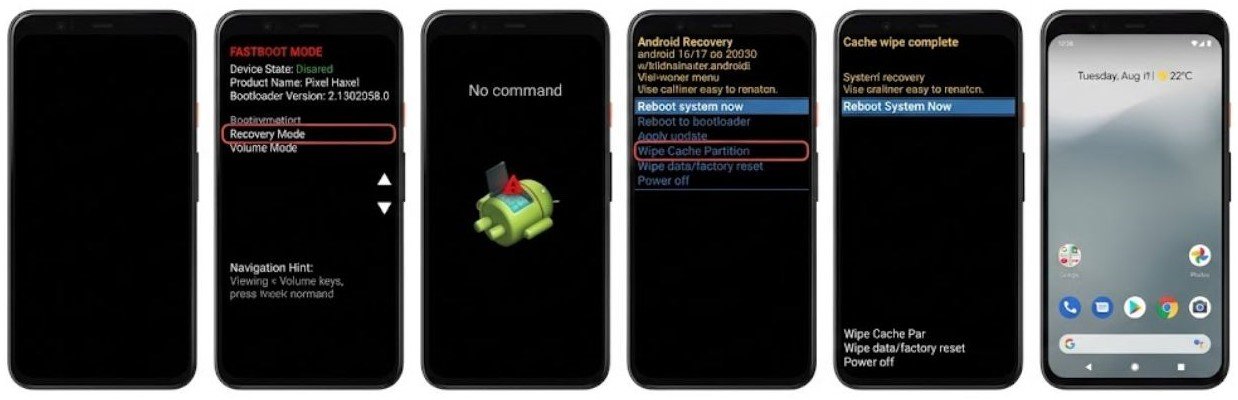
- Power off completely
- Hold Power + Volume Down to enter Fastboot
- Navigate to Recovery Mode and enter it
- Hold Power briefly and press Volume Up when the Android logo appears
- Navigate to Wipe Cache Partition
- Select it and reboot
After clearing the system cache and rebooting, test whether the Android phone lagging suddenly problem has resolved before continuing to other fixes.
Fix 7 — Uninstall Recently Added or Updated Apps
If your Android phone started lagging suddenly immediately after installing or updating a specific app, that app is the most likely cause.
Some apps run intensive background processes, claim system resources aggressively, or contain bugs in specific versions that consume excessive CPU or RAM. Even a well-known, reputable app can introduce performance issues through a specific version update.
How to identify and address app-related lag:
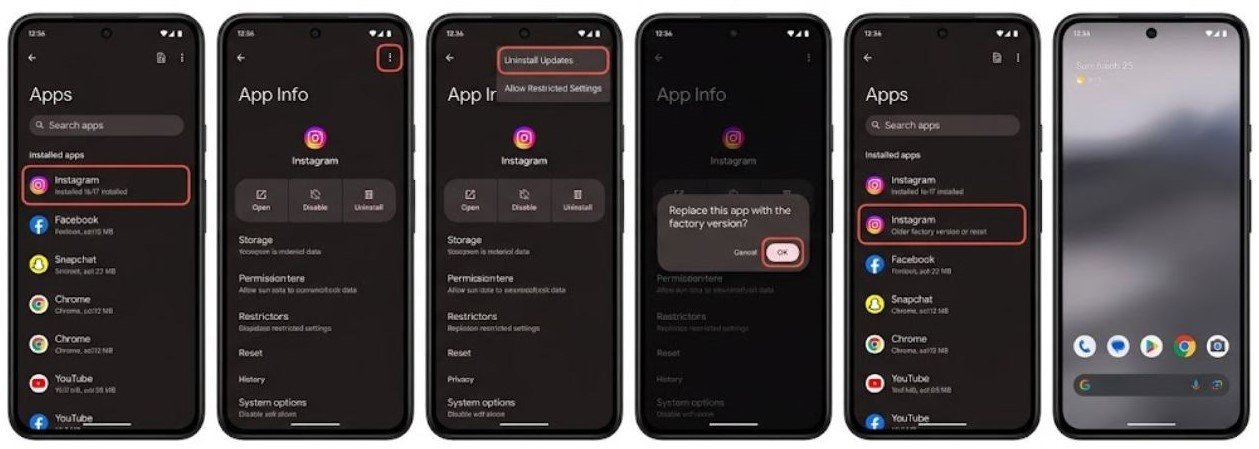
- Think back to when the sudden lag started — did you install or update any app around that time?
- If yes, uninstall that app and test performance
- If you updated an app, you can sometimes downgrade by uninstalling the update via Settings → Apps → Select App → three-dot menu → Uninstall Updates
To check for recent installs:
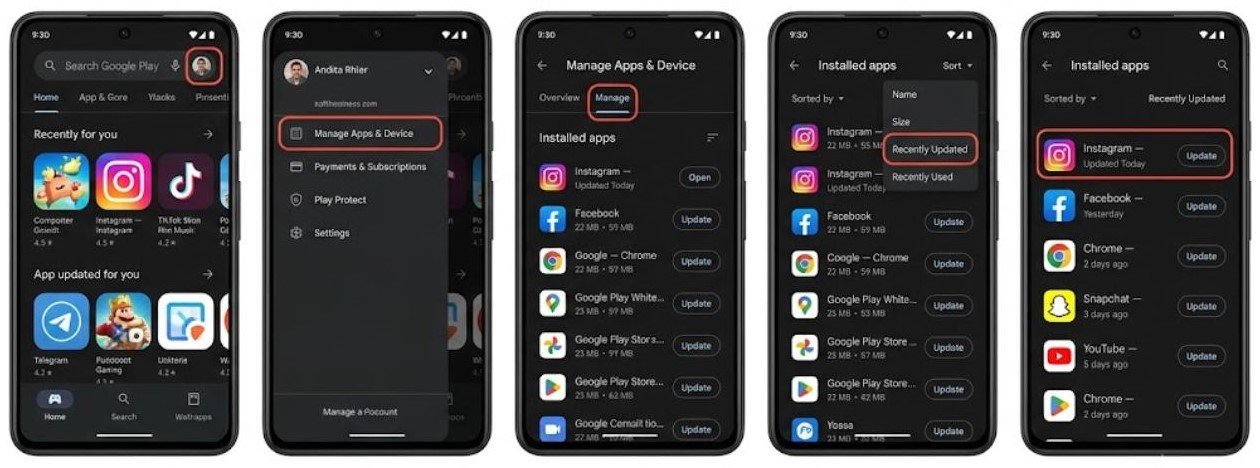
Go to the Google Play Store → profile icon → Manage Apps and Device → Installed → sort by Recently Updated to see what changed recently.
If removing a recently added or updated app resolves the Android phone lagging suddenly problem, the issue is confirmed and you can decide whether to reinstall that app once a fixed version is released.
Fix 8 — Disable or Change Live Wallpaper and Heavy Launchers
Live wallpapers and third-party launchers that use complex animations, particle effects, or continuous rendering consume GPU and CPU resources continuously — even when you are not actively using the phone.
If you changed your wallpaper or launcher around the time your Android phone started lagging suddenly, this is worth investigating immediately.
How to switch to a standard wallpaper:
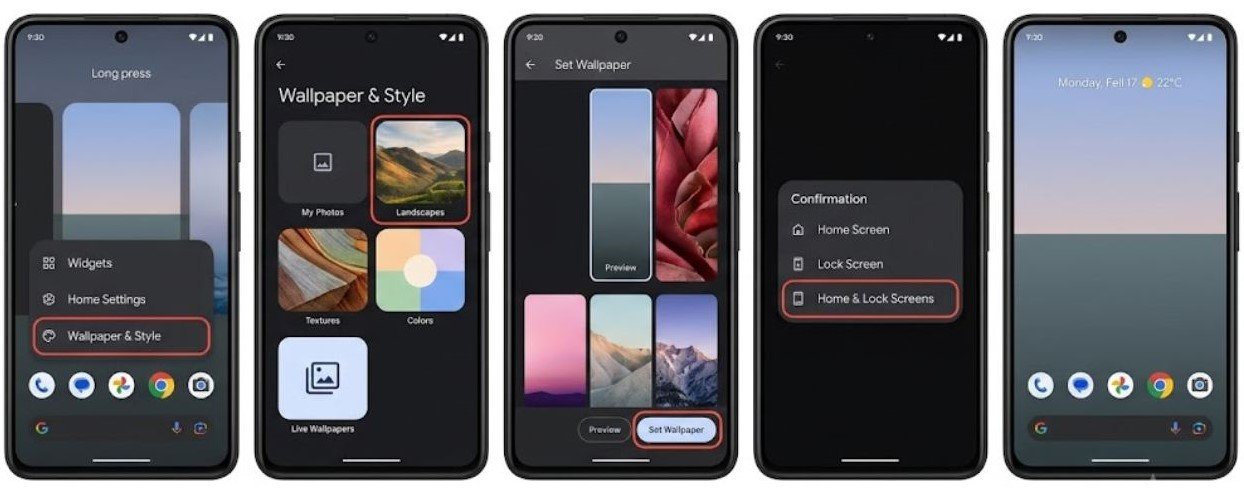
- Long-press on your home screen
- Select Wallpaper or Wallpapers
- Choose a static image rather than a live wallpaper
- Apply and test performance
If using a third-party launcher:
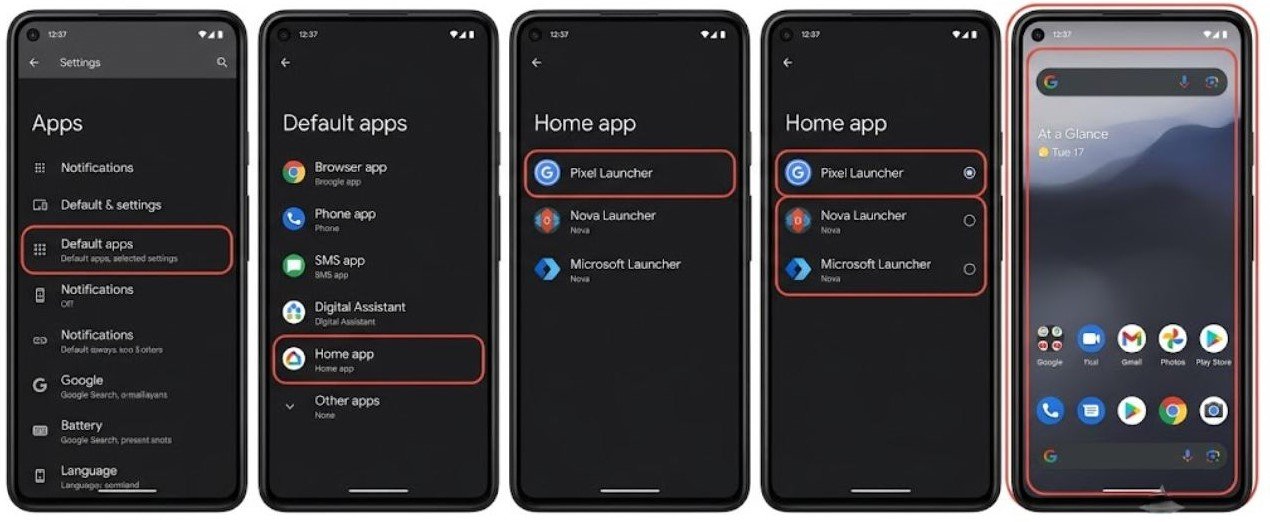
- Go to Settings → Apps → Default Apps → Home App
- Switch back to the default system launcher temporarily
- Test whether the Android phone lagging suddenly problem improves
If performance improves with a static wallpaper and default launcher, the third-party options were causing the lag. You can search for a lighter alternative launcher or stick with the system default.
Fix 9 — Check for Malware or Adware
While less common than other causes, malware and adware are known to cause sudden performance degradation on Android devices. These malicious apps run hidden background processes — serving ads, mining data, or performing other resource-intensive tasks — that consume CPU, RAM, and battery without your knowledge.
Signs that suggest malware as a cause of Android phone lagging suddenly:
- Performance drops appeared suddenly with no obvious trigger
- Battery drain also increased suddenly
- Unfamiliar apps appeared that you did not install
- Pop-up ads appear outside of normal app usage
- Data usage increased unexpectedly
How to scan for malware:
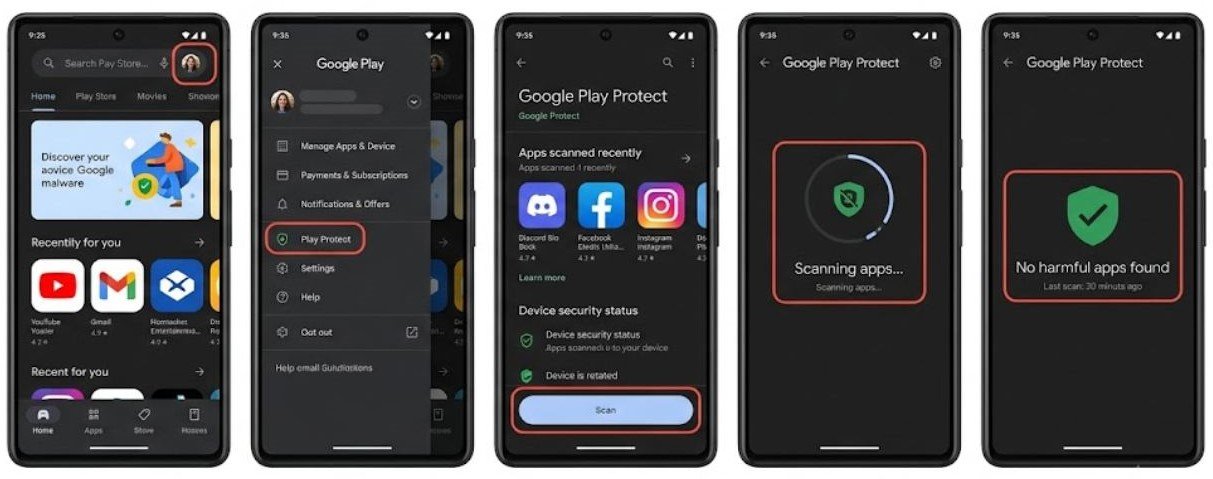
- Open the Google Play Store
- Tap your profile icon
- Select Play Protect
- Tap Scan to run a full device scan
If Play Protect identifies a problematic app, follow the removal instructions provided.
Additionally, review your installed app list in Settings → Apps and look for anything unfamiliar — particularly apps without icons or with generic names. Uninstall anything you do not recognize or did not deliberately install.

When Should You Consider a Factory Reset?
If you have worked through all nine fixes and your Android phone is still lagging suddenly with no improvement, a factory reset is the most thorough software solution available.
A factory reset removes all apps, data, and settings and reinstalls a clean Android system. This eliminates any software corruption, problematic app, or configuration issue that all other fixes failed to address.
Before factory resetting:
- Back up all photos and videos
- Note your installed app list
- Ensure Google account backup is complete and current
After the reset, set up the phone and test performance before reinstalling any apps. If the phone runs smoothly on a clean install, reinstall apps gradually to identify if any specific app causes the lag to return.
If the phone lags even on a completely clean factory reset with no apps installed, the problem may involve hardware — either a failing storage chip or processor thermal issues — and professional assessment is recommended.
FAQs
Why is my Android phone lagging suddenly?
Android phone lagging suddenly is most commonly caused by critically low storage space, a background app consuming excessive RAM, system cache corruption, or overheating causing thermal throttling. A restart and storage check resolve the majority of sudden lag cases.
Does low storage cause sudden phone lag?
Yes. When available storage drops below 10 to 15 percent of total capacity, Android cannot create the temporary files it needs to function efficiently. Performance degrades suddenly and noticeably at this threshold. Freeing storage resolves the lag immediately.
Can an app update cause an Android phone to lag suddenly?
Yes. A buggy app update can introduce background processes that consume excessive CPU or RAM. If your phone started lagging immediately after an app update, uninstalling that update or the app itself typically resolves the problem.
Does overheating cause Android phones to lag?
Yes. Thermal throttling deliberately reduces processor performance when the device overheats to prevent hardware damage. The resulting slowdown is experienced as sudden severe lag. Allowing the phone to cool restores performance immediately.
Will a factory reset fix sudden Android phone lag?
A factory reset resolves software-caused lag in virtually all cases. It removes corrupted files, problematic apps, and accumulated system issues. Only hardware-related performance problems persist after a factory reset.
Final Thoughts
When an Android phone is lagging suddenly, the cause is always specific and almost always fixable. The suddenness of the lag is a clue in itself — something changed, and identifying that change leads directly to the solution.
Start with a restart and storage check. These two steps alone resolve the majority of sudden Android phone lagging cases. Move through the remaining fixes — clearing system cache, force stopping background apps, reducing animations, and addressing overheating — based on what the battery usage report and recent history tell you.
The nine fixes in this guide cover every common cause of Android phone lagging suddenly. Work through them systematically, test performance after each step, and the phone will be running smoothly again. Factory reset remains available as a last resort if software fixes do not resolve the problem.
Understanding what caused the sudden lag also helps prevent it from recurring. Keep storage above 15 percent, restart regularly, update apps carefully, and monitor battery usage to catch resource-heavy apps before they cause performance problems.
