

Android phone freezing randomly is one of the most disruptive problems a smartphone user can experience. The screen locks up mid-scroll, an app becomes completely unresponsive, or the entire phone stops reacting to touches for several seconds. Sometimes it recovers on its own. Sometimes it requires a force restart to unfreeze.
The word randomly is important here. Unlike a phone that freezes consistently in one specific app — which points immediately to that app — random freezing across different situations suggests a broader underlying cause that affects the whole system.
This guide identifies every common reason an Android phone freezes randomly, explains how to narrow down the cause on your specific device, and gives you nine proven fixes to stop the freezing completely.
Why Is My Android Phone Freezing Randomly?
Random freezing happens when the Android system cannot complete a task fast enough to keep the interface responsive. The cause can be hardware resource pressure, software conflicts, or corrupted system data.
| Cause | How Common |
|---|---|
| Insufficient RAM from too many background apps | Very common |
| Storage space critically low | Very common |
| Corrupted system cache | Common |
| Overheating causing thermal throttling | Common |
| Buggy or incompatible third-party app | Common |
| System update conflict or incomplete update | Common |
| Animated wallpaper or heavy launcher | Moderate |
| Aging battery reducing peak performance | Moderate |
| Hardware storage chip beginning to fail | Less common |
The pattern of freezing often reveals the cause. Freezing that happens only in specific apps points to those apps. Freezing that happens during charging suggests battery or temperature. Freezing that started immediately after an update points to a software conflict. Truly random freezing across all situations usually points to RAM pressure, storage issues, or corrupted system cache.

How to Force Restart a Frozen Android Phone
Before working through fixes, knowing how to unfreeze a completely locked phone is essential.
When an Android phone freezing randomly results in a completely unresponsive screen:
- Samsung: Hold Power + Volume Down for 10 to 15 seconds until the screen goes dark and restarts
- Google Pixel: Hold the Power button for 30 seconds
- OnePlus and Xiaomi: Hold the Power button for 10 to 15 seconds
- Most other Android devices: Hold the Power button for 10 seconds or longer
After the force restart, the phone returns to normal. This does not fix the underlying cause — the freezing will return — but it gets you back to a functional state immediately.
Fix 1 — Restart the Device Properly
A proper full restart is different from a force restart. While a force restart is a recovery tool for a frozen phone, a deliberate restart during normal operation clears accumulated RAM, closes background processes, and gives the system a clean starting point.
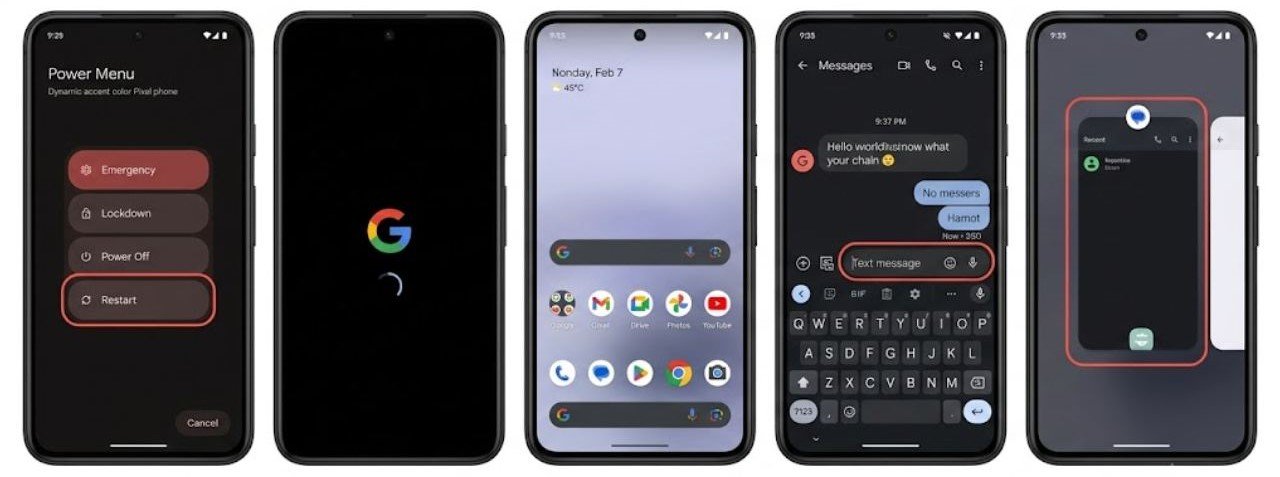
Android phones that run for days without restarting accumulate memory fragmentation, stuck processes, and accumulated system cache that collectively cause an Android phone freezing randomly. Regular restarts prevent this buildup.
Hold the Power button, select Restart, and allow the full boot cycle to complete. Test the phone for several hours after restarting and note whether the frequency of random freezing decreases.
If the phone runs well immediately after a restart but freezing returns after hours or a day of use, the cause is a process or app that gradually consumes resources over time rather than an immediate system-level problem.
Fix 2 — Free Up Storage Space
Low storage space is a primary driver of Android phone freezing randomly. Android uses free storage space as working memory for system processes — a function called virtual memory paging. When storage drops critically low, the system cannot create the temporary files it needs to manage running processes, causing freezes and crashes.
The threshold varies by device, but below approximately 10 percent of total storage capacity, Android begins experiencing significant performance degradation. Below 500MB to 1GB free, random freezing becomes common.
Check your storage:
Go to Settings → Storage and check available free space immediately.
Free up space to stop the freezing:
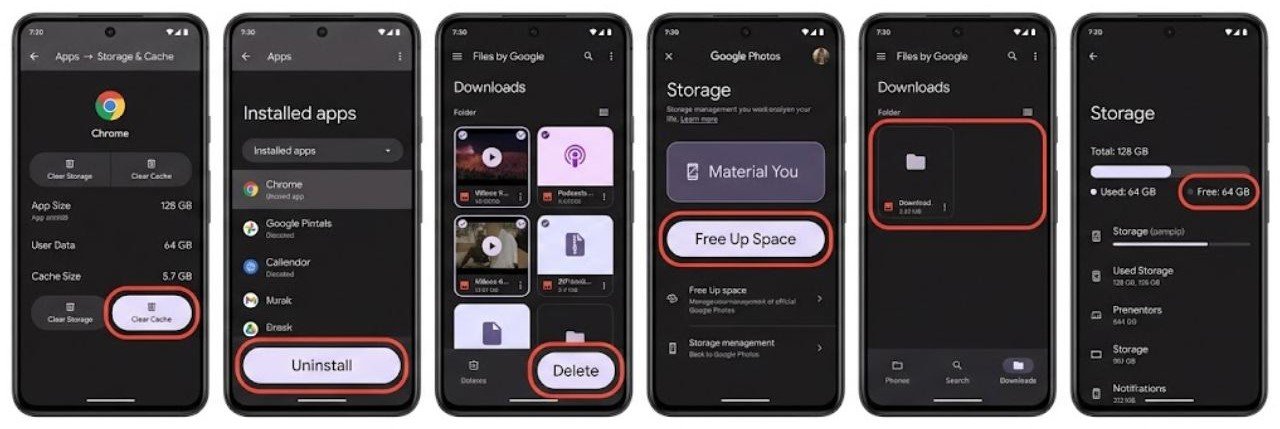
- Clear app caches for your largest apps via Settings → Apps → select app → Storage → Clear Cache
- Delete unused apps along with their data
- Remove downloaded videos, podcasts, and offline content
- Transfer photos and videos to Google Photos and remove local copies using Free Up Space
- Clear the Downloads folder of files no longer needed
After freeing at least 2 to 3 GB of storage, restart the device and monitor whether Android phone freezing randomly decreases. Storage-related freezing often resolves immediately once adequate space is available.
Fix 3 — Identify and Force Stop Resource-Heavy Background Apps
Background apps that consume excessive RAM force Android’s memory management system to work harder. When RAM pressure becomes extreme, Android must constantly shuffle app data in and out of memory — a process that causes noticeable freezes during normal use.
How to identify RAM-heavy background apps:
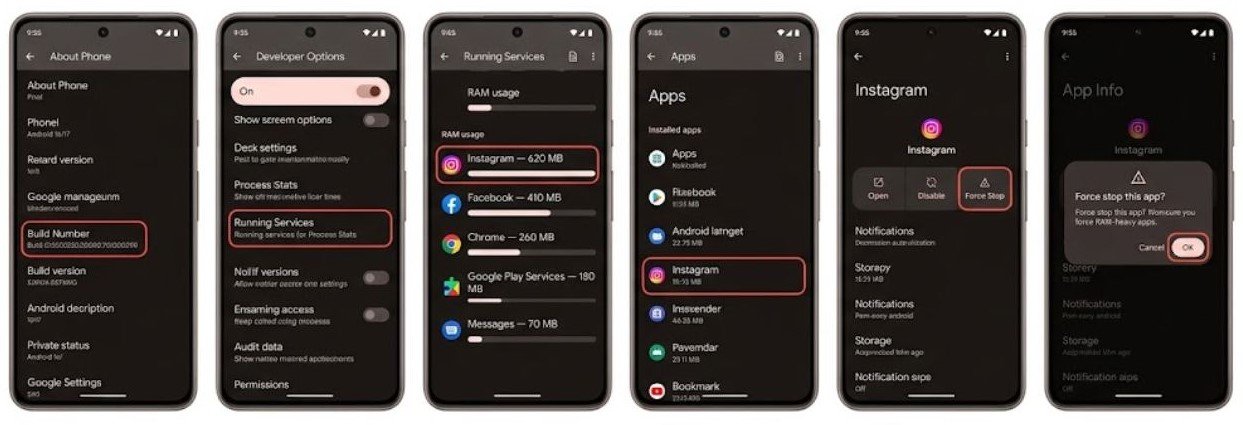
- Enable Developer Options by going to Settings → About Phone → tap Build Number seven times
- Open Developer Options → Running Services or Process Stats
- Look for any app consuming unusually high memory relative to others
How to force stop identified apps:
- Go to Settings → Apps
- Select the high-memory app
- Tap Force Stop
- Confirm when prompted
Repeat for any app showing abnormal resource consumption. Restart the device afterward and test whether the Android phone freezing randomly improves.
Common culprits include social media apps left running in background, GPS navigation apps not properly closed, video calling apps holding active processes, and game apps that do not fully release memory when minimised.
Fix 4 — Clear the System Cache Partition
The system cache partition stores temporary files that Android uses during boot and system operations. Over time — particularly after system updates — this cache can contain outdated or corrupted files that conflict with current system processes.
When the system cache is corrupted, Android phone freezing randomly often results because the system encounters errors when accessing these files during normal operations.
Clearing the system cache partition removes all temporary system files without deleting personal data, apps, photos, or settings. The cache rebuilds cleanly during the next boot cycle.
How to clear system cache partition:
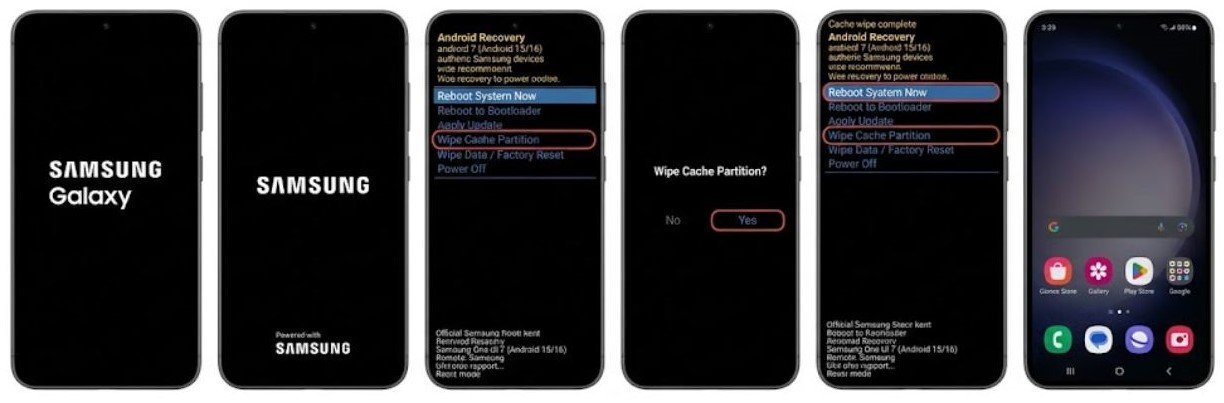
- Power off the device completely
- Hold Power + Volume Up simultaneously until the Samsung logo appears
- Release when the recovery menu loads
- Use Volume Down to navigate to Wipe Cache Partition
- Press Power to select it
- Select Reboot System Now when complete
After the reboot, test the device for several hours to assess whether Android phone freezing randomly has improved.
Fix 5 — Boot Into Safe Mode to Test for App Conflicts
Safe Mode is the most reliable diagnostic tool for random freezing caused by third-party apps. Safe Mode starts Android with only built-in system apps running — every app you downloaded and installed is temporarily disabled.
If Android phone freezing randomly stops completely in Safe Mode, a third-party app is definitively the cause.
How to boot into Safe Mode:
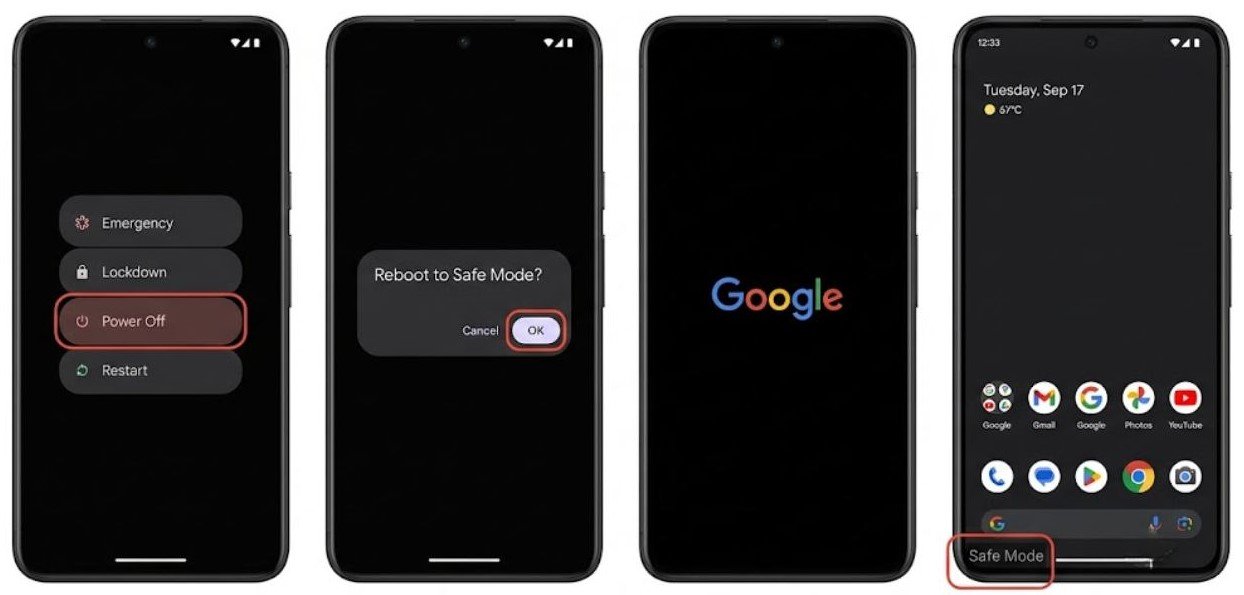
- Hold the Power button until the power menu appears
- Long-press the Power Off option until the Safe Mode prompt appears
- Tap OK to restart in Safe Mode
Use the phone normally in Safe Mode for one to two hours. Perform the activities that typically trigger freezing — browsing, scrolling, switching between apps.
If freezing stops in Safe Mode: Restart normally and uninstall recently installed apps one by one, restarting after each removal and testing for freezing. Continue until the random freezing stops — the last app removed is the cause.
If freezing continues in Safe Mode: The cause is system-level software or hardware. Continue to the remaining fixes.
Fix 6 — Check for and Install System Updates
System updates frequently contain fixes for known performance issues including random freezing bugs. If your Android phone has been freezing randomly since a recent system update, a subsequent patch update may already be available that addresses the issue.
Check for system updates:
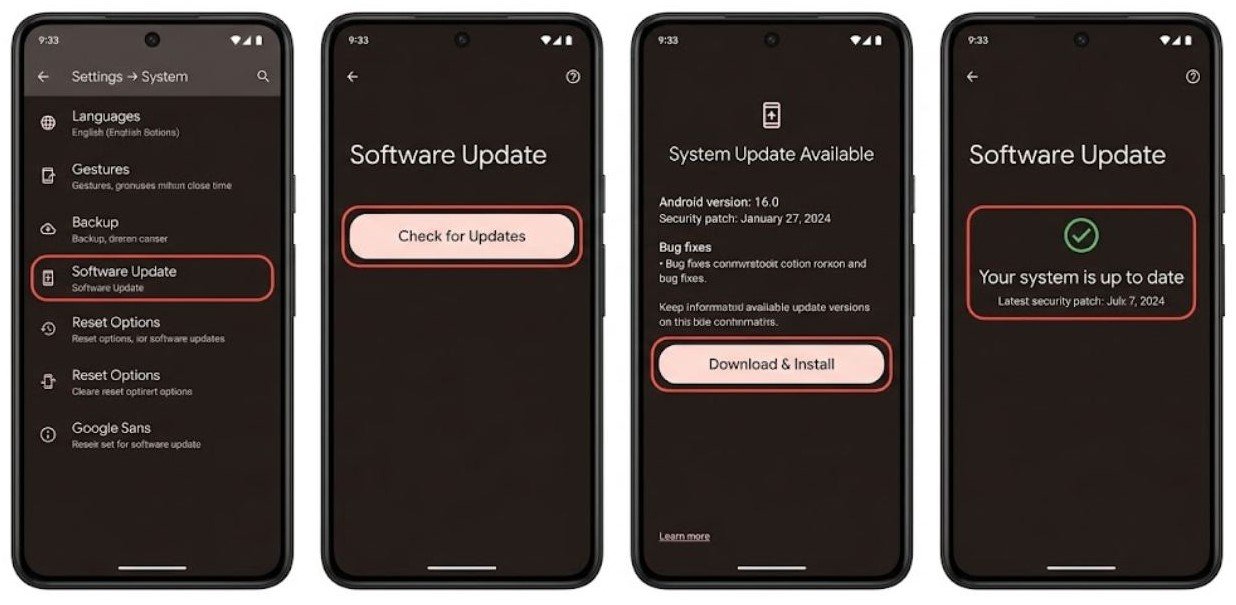
- Go to Settings → System → Software Update
- Tap Check for Updates
- Install any available update
If Android phone freezing randomly started immediately after a specific update, the update introduced a bug. Manufacturers typically release patch updates within days of widespread bug reports. Monitoring for and installing the next available update often resolves update-induced freezing.
Also check for Google Play System Updates under Settings → Security → Google Play System Update — these module-level updates sometimes fix system stability issues between major Android releases.

Fix 7 — Check for Overheating
Thermal throttling — the processor deliberately slowing down to prevent heat damage — causes sudden severe freezing that appears random but is actually tied to device temperature.
If your Android phone freezing randomly is accompanied by the device feeling warm or hot to the touch, overheating is likely involved.
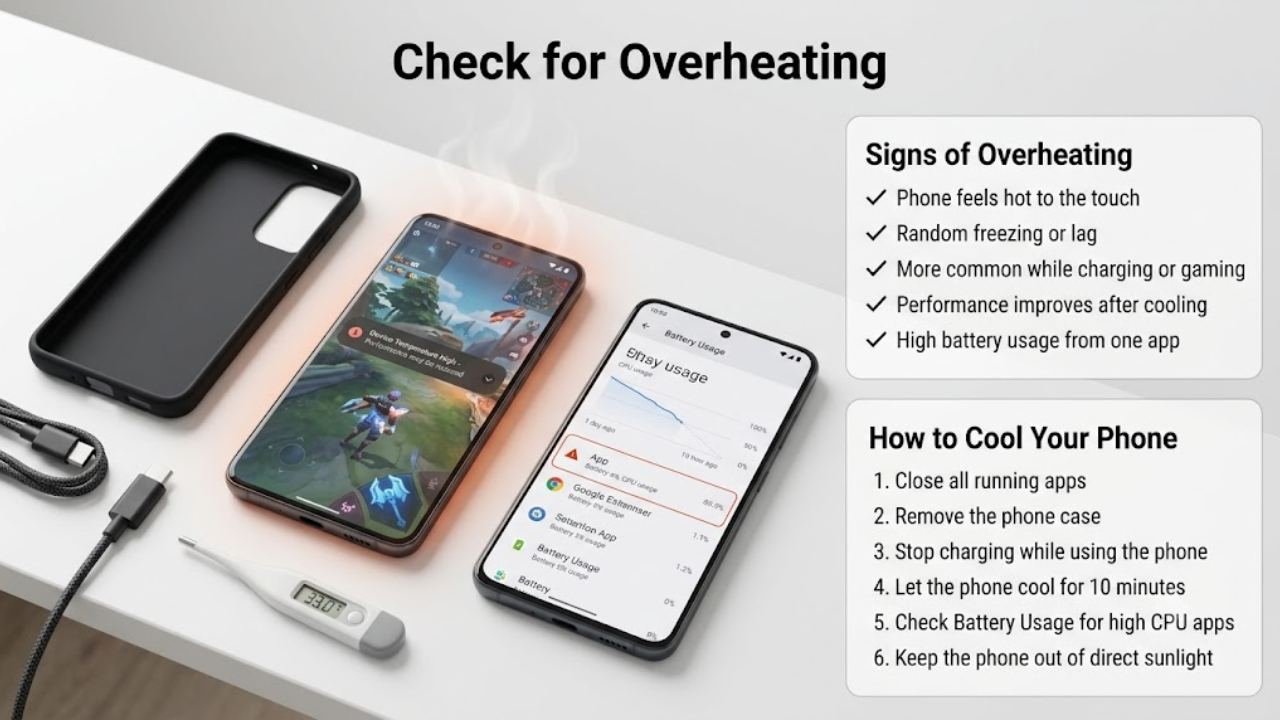
Signs of thermal throttling causing freezes:
- Phone feels warm or hot before or during freezing episodes
- Freezing is more common during charging, gaming, or extended screen-on time
- Freezing temporarily resolves after the phone is left to cool
- Battery usage report shows a specific app consuming very high power
How to address overheating:
- Close all apps and allow the phone to rest in a cool location for 10 minutes
- Remove the phone case temporarily — cases trap heat
- Avoid using the phone while charging under heavy load
- Check battery usage for any app running a continuous high-CPU process — this both drains battery and generates heat
- Avoid leaving the phone in direct sunlight or in a hot car
After the phone cools, performance returns to normal. If overheating and freezing recur regularly, the app causing the high CPU usage needs to be identified and addressed.
Fix 8 — Reduce Animations and Visual Effects
Heavy visual effects — animated wallpapers, live widgets, complex launcher transitions, and full-speed system animations — consume GPU and CPU resources continuously. On phones with limited processing headroom or under RAM pressure, these effects tip the balance into freezing territory.
Reducing animations makes the phone feel more responsive and reduces the resource load that contributes to Android phone freezing randomly.
Reduce system animations:
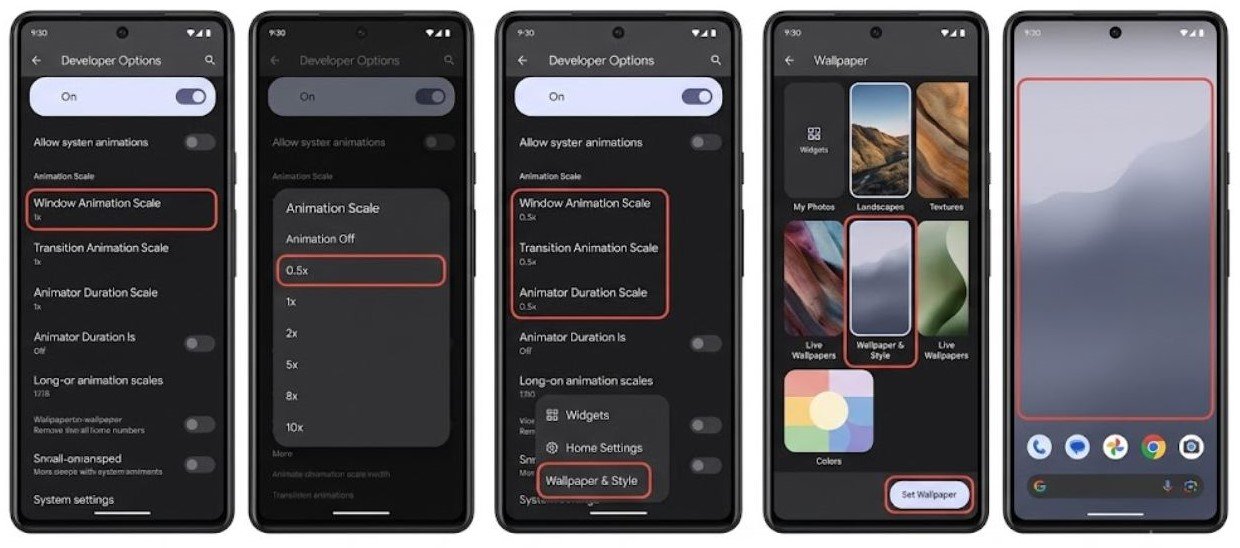
- Enable Developer Options via Settings → About Phone → tap Build Number seven times
- Open Developer Options
- Set Window Animation Scale, Transition Animation Scale, and Animator Duration Scale to 0.5x
- This makes transitions twice as fast and reduces the GPU workload during transitions
Switch to a static wallpaper:
- Long-press on the home screen
- Select Wallpapers
- Choose a standard static image rather than a live wallpaper
Simplify your launcher:
If you use a third-party launcher with heavy visual effects, switching temporarily to the default system launcher tests whether the launcher is contributing to the Android phone freezing randomly problem.
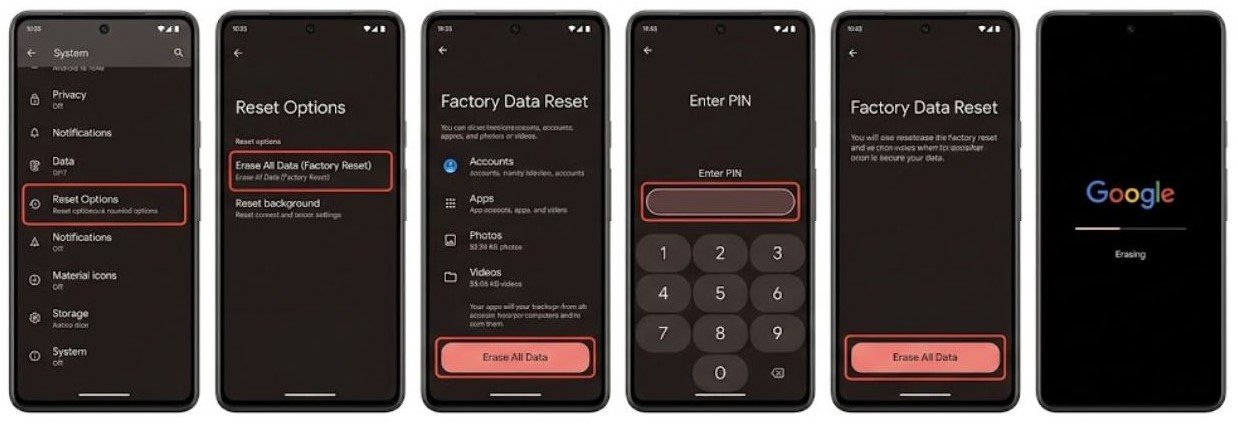
Fix 9 — Factory Reset as a Final Software Solution
If all previous fixes have been applied and Android phone freezing randomly continues, a factory reset is the most thorough software solution available.
A factory reset removes all apps, data, and settings and reinstalls a completely clean Android system. This eliminates all software corruption, app conflicts, and accumulated system issues that individual fixes could not address.
Before factory resetting — back up these items:
- Photos and videos — back up to Google Photos or a computer
- Contacts — ensure Google account sync is up to date
- App list — screenshot or note which apps you need to reinstall
- Important messages and documents
- App-specific data that does not back up automatically
How to factory reset:
- Go to Settings → General Management or Settings → System
- Select Reset or Reset Options
- Tap Factory Data Reset
- Read the confirmation screen carefully
- Tap Reset and confirm with your PIN or fingerprint
- Allow the reset to complete — this takes several minutes
After the reset, set up the phone and test for freezing before reinstalling any apps. Install apps gradually rather than all at once — this makes it easier to identify if a specific app causes the freezing to return.
When Android Phone Freezing Randomly Indicates Hardware Issues
If Android phone freezing randomly continues after a complete factory reset with no apps installed, the problem may involve hardware.
Hardware causes of random freezing include:
- Failing internal storage (NAND flash): Storage chips that begin to fail cause read and write errors that freeze the system while it waits for storage operations to complete. This worsens progressively.
- RAM chip failure: Faulty RAM causes random freezes and crashes across all system operations with no software fix possible.
- Battery degradation: A battery that can no longer deliver consistent power during peak demand causes sudden processor slowdowns that manifest as freezes.
Signs pointing to hardware causes:
- Freezing occurs on a completely clean factory reset with no apps
- Freezing is accompanied by other symptoms like random reboots or black screen events
- The phone is several years old with significant use
- Physical damage preceded the onset of freezing
Professional hardware assessment is the appropriate next step when all software fixes have been exhausted. A technician can run storage diagnostics, test RAM integrity, and assess battery health to identify the specific hardware component responsible.
FAQs
Why is my Android phone freezing randomly?
Android phone freezing randomly is most commonly caused by insufficient free storage space, excessive background apps consuming RAM, a corrupted system cache, or overheating causing thermal throttling. A restart and storage check resolve most cases within minutes.
How do I fix random freezing on Android?
Start by restarting the device and freeing up storage space. Clear the system cache partition, boot into Safe Mode to test for app conflicts, and check for system updates. These steps resolve the vast majority of Android phone freezing randomly cases.
Does low storage cause Android phones to freeze?
Yes. Android uses free storage as working memory for system processes. When storage drops critically low, the system cannot manage running processes efficiently, causing random freezes. Keeping at least 15 percent of storage free prevents storage-related freezing.
Can a third-party app cause random freezing?
Yes. Buggy apps that consume excessive RAM or CPU can cause Android phone freezing randomly across the entire system. Boot into Safe Mode to confirm — if freezing stops in Safe Mode, a third-party app is responsible.
Will a factory reset fix random freezing?
A factory reset resolves software-caused random freezing in virtually all cases by reinstalling a completely clean Android system. If freezing continues after a factory reset, the cause is hardware-related and requires professional assessment.
Final Thoughts
Android phone freezing randomly is always caused by something specific — whether it is storage pressure, a rogue background app, corrupted system cache, overheating, or a software conflict. The random nature of the freezing can make it feel impossible to pin down, but working through the causes systematically reveals the answer.
Start with the fastest fixes — restart the device and check storage space. These two steps alone resolve the majority of random freezing cases. Move through Safe Mode testing, system cache clearing, and overheating assessment to cover the remaining common causes.
Factory reset addresses any software issue that individual fixes cannot resolve. Reserve it for situations where other approaches have been exhausted, and always back up your data before proceeding.
Hardware assessment is the final step if freezing persists after a factory reset — but this situation is significantly less common than software causes, and most users will have a fully functional phone long before reaching that point.
