

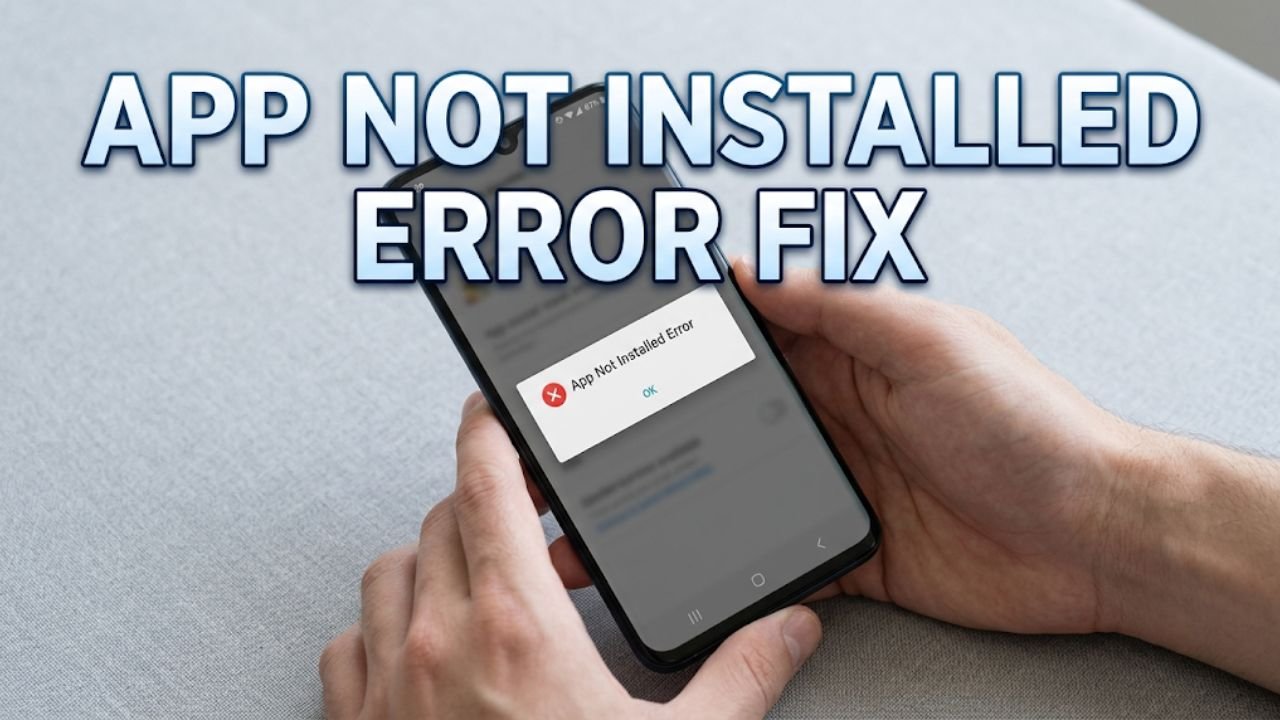
App not installed error fix is something many Android users urgently need when they try to install an app and the process fails with a frustrating “App not installed” message. The installation appears to start, then stops, and the error appears without any explanation of what went wrong or how to fix it.
This error can happen when installing from the Google Play Store, when installing an APK file directly, or when trying to reinstall an app after removal. It affects every Android brand including Samsung, Pixel, OnePlus, and Xiaomi.
This guide explains every common cause of the app not installed error, covers both Play Store and APK installation scenarios, and gives you nine clear fixes to get any app installing successfully on your Android device.
Why Does the App Not Installed Error Appear?
The app not installed error is Android’s way of telling you that something prevented the package installer from completing the installation process. Unlike a more descriptive error message, it does not specify the exact cause — which is why so many users find it confusing.
| Cause | How Common |
|---|---|
| Insufficient storage space | Very common |
| Conflicting existing app version | Very common |
| Corrupted APK download file | Common |
| Incompatible Android version or device | Common |
| Unknown sources permission not enabled | Common |
| Signature mismatch with existing install | Common |
| Google Play Store cache corruption | Common |
| Insufficient app permissions | Moderate |
| Security software blocking installation | Moderate |
Understanding which category applies to your situation helps you apply the correct app not installed error fix immediately rather than working through every option blindly.

Fix 1 — Check and Free Up Storage Space
Insufficient storage space is the most common cause of the app not installed error. Android requires enough free storage to hold the installation package, extract the app files, and maintain working space during the installation process. If storage is too low, the installation fails silently with the app not installed error.
Check available storage:
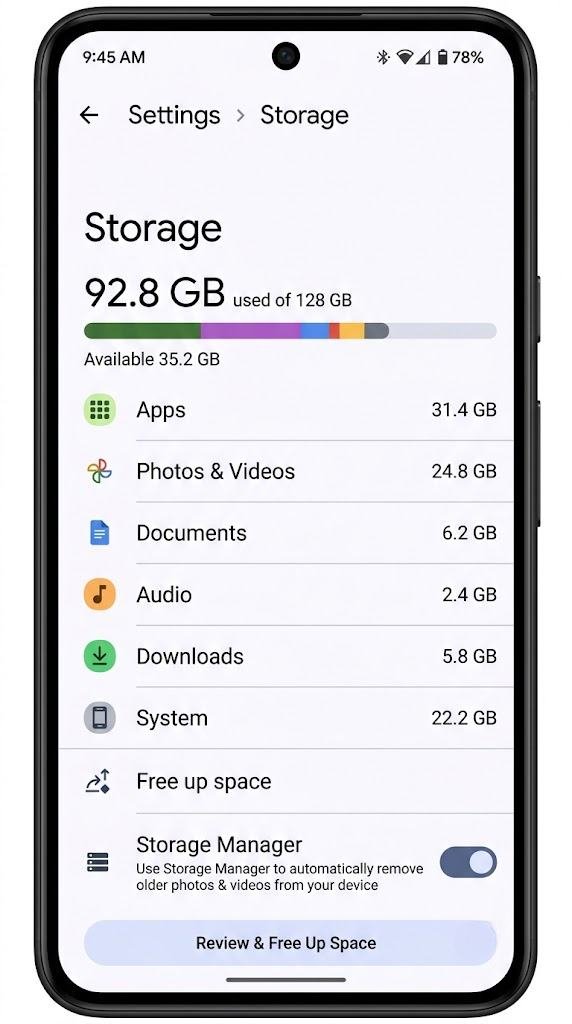
Go to Settings → Storage and check how much space is available. For a typical app installation, you need at least double the app’s size in free storage plus an additional buffer for the installation process itself. For large apps and games, aim for several gigabytes free.
Free up space quickly:
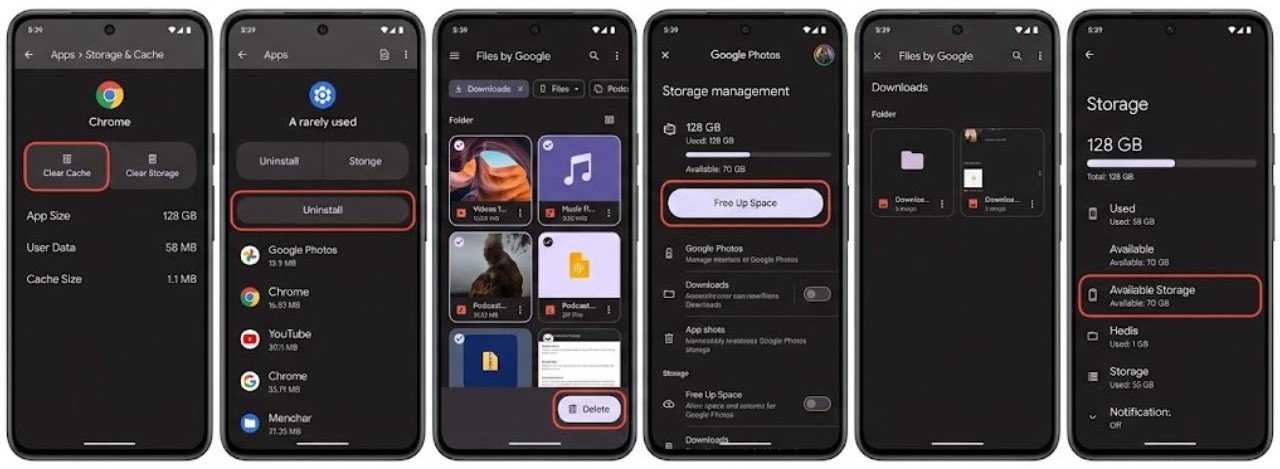
- Clear app caches for your largest apps via Settings → Apps → select app → Storage → Clear Cache
- Delete unused apps along with their data
- Remove downloaded videos, music, and offline content
- Transfer photos and videos to Google Photos and use Free Up Space to remove local copies
- Clear the Downloads folder of files no longer needed
After freeing adequate storage space, attempt the installation again. Storage-related app not installed errors resolve immediately once sufficient space is available.
Fix 2 — Uninstall the Previous Version Before Reinstalling
When an older version of an app is already installed and you try to install a different version — either newer or older — the signatures may not match. Android uses signature verification to confirm that an app update comes from the same developer as the installed version. If the signatures do not match, the app not installed error appears.
This scenario commonly occurs when:
- Installing an APK from a third-party source over a Play Store version
- Installing a Play Store update over a version installed from a different source
- Installing a modded version over an official version
How to resolve signature mismatch:
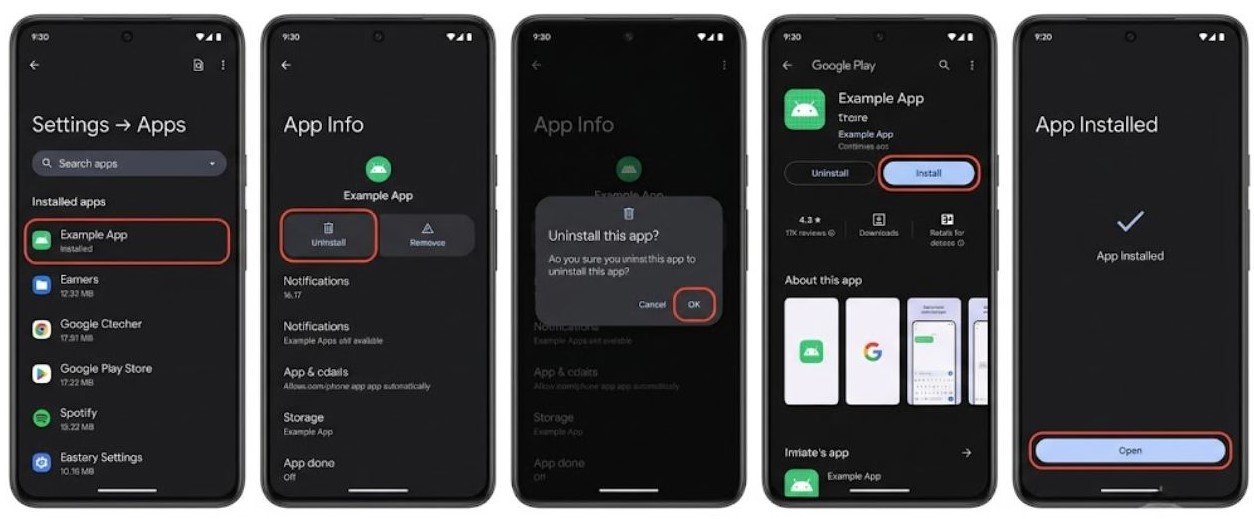
- Go to Settings → Apps
- Find the app showing the installation error
- Tap Uninstall to completely remove the existing version
- After uninstalling, attempt the fresh installation
If the existing app cannot be fully uninstalled because it is a system app, tap Uninstall Updates instead to revert it to the factory version, then try updating through the correct channel.
Fix 3 — Enable Unknown Sources for APK Installation
If you are trying to install an APK file downloaded from outside the Google Play Store, the app not installed error frequently appears because Android requires explicit permission to install apps from unknown sources.
By default, Android only allows app installation through the Google Play Store. Installing from other sources — downloaded APK files, third-party app stores, developer websites — requires enabling the unknown sources permission for the specific app you are using to open the APK.
How to enable unknown sources on Android 8 and newer:
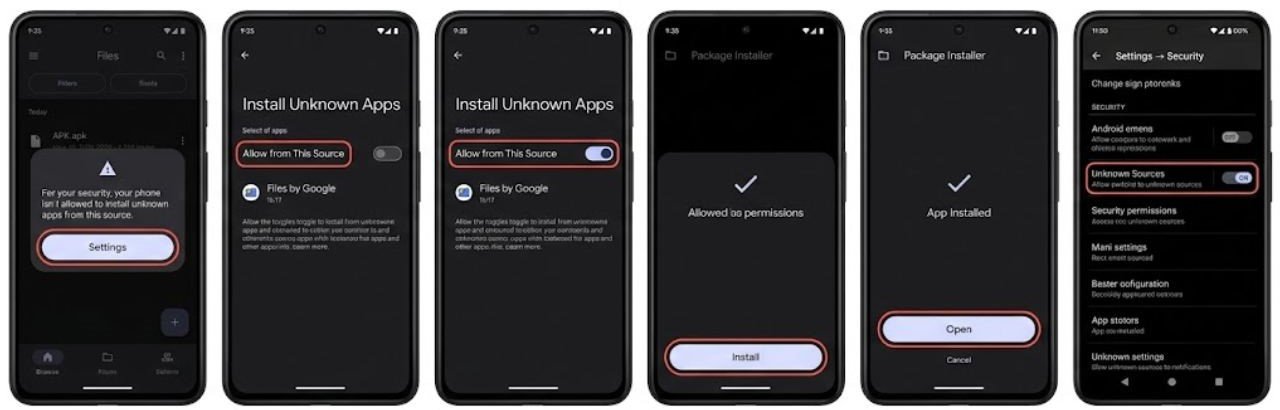
- Download the APK file using your browser or file manager
- Tap the APK file to begin installation
- If a permission prompt appears, tap Settings within the prompt
- Enable Allow from This Source for the browser or file manager app you used to download the APK
- Go back and tap the APK file again to retry installation
How to enable unknown sources on older Android:
Go to Settings → Security → Unknown Sources and toggle it on. This enables APK installation from any source.
After enabling the permission, retry the APK installation. If the app not installed error was caused by this blocked permission, the installation proceeds immediately.
Fix 4 — Clear the Package Installer Cache
The package installer is the Android system component that handles all app installations. When its cache becomes corrupted, installations fail with the app not installed error even when everything else appears correct.
Clearing the package installer cache removes corrupted temporary files and gives the installer a clean state for the next installation attempt.
How to clear the package installer cache:
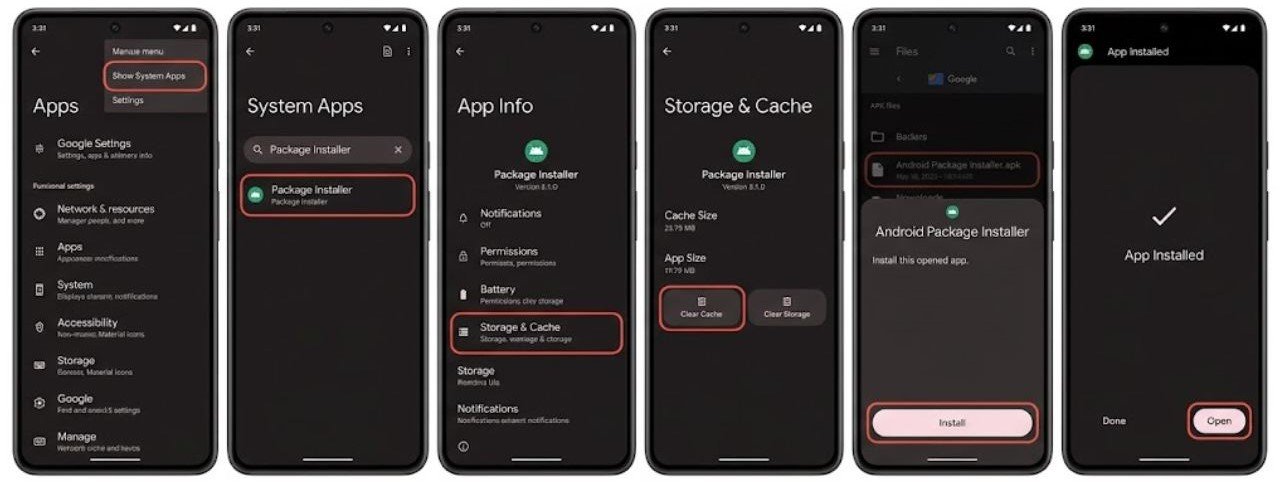
- Open Settings
- Tap Apps or Application Manager
- Tap the three-dot menu and select Show System Apps
- Find Package Installer in the list
- Tap Storage
- Tap Clear Cache
- Attempt the installation again
On some Android versions, this component may be named Google Package Installer or Android Package Installer. Clear the cache for whichever version appears on your device.
Fix 5 — Clear Google Play Store Cache and Data
For app not installed errors occurring through the Google Play Store rather than APK installation, a corrupted Play Store cache or data is frequently the cause.
Clear Play Store cache: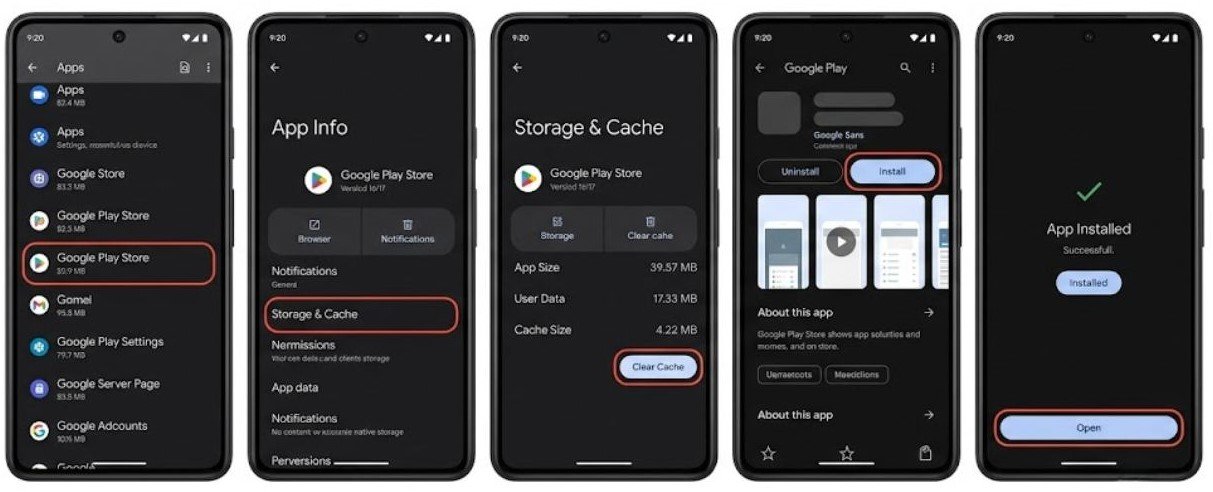
- Go to Settings → Apps → Google Play Store
- Tap Storage
- Tap Clear Cache
- Retry the installation
If cache clearing does not work, clear Play Store data:
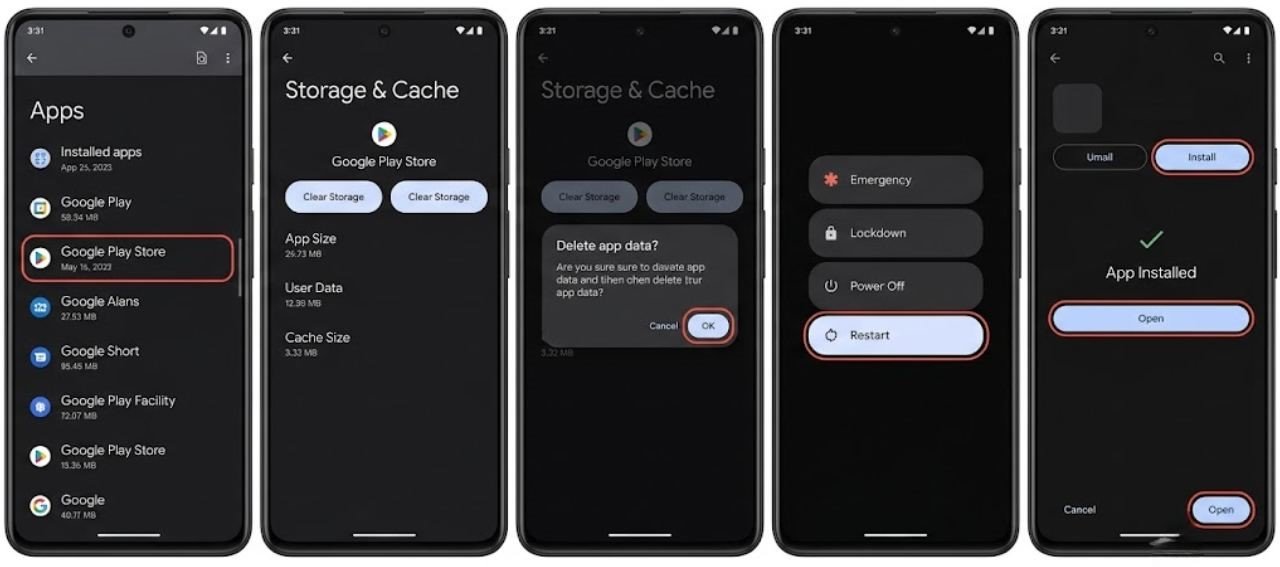
- Return to Settings → Apps → Google Play Store → Storage
- Tap Clear Data
- Confirm when prompted
- Restart the device
- Open the Play Store and retry the installation
Clearing Play Store data signs you out of the store temporarily. Sign back in with your Google account when prompted after the data clear.
Fix 6 — Download a Fresh APK File
If the app not installed error occurs with a specific APK file, the file itself may be corrupted. Incomplete downloads, interrupted connections, or file transfer errors can corrupt an APK file silently — the file appears intact but its contents are damaged.
Android verifies the integrity of APK files during installation. A corrupted APK fails this check and produces the app not installed error.
How to get a clean APK:
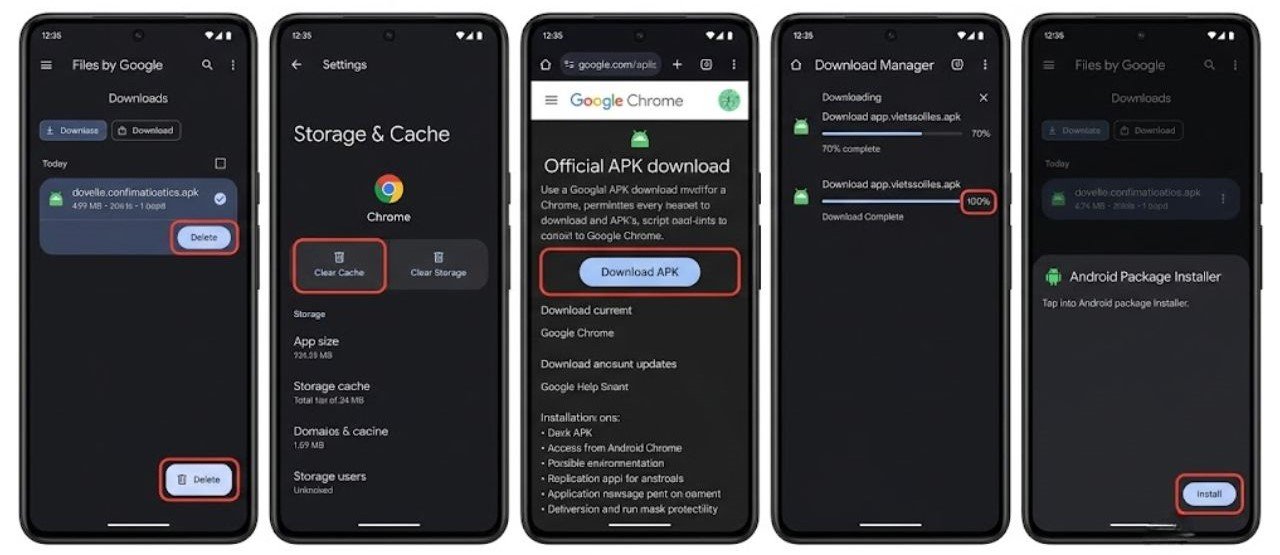
- Delete the existing APK file completely from your Downloads folder
- Clear your browser’s cache before re-downloading — go to Settings → Apps → your browser → Storage → Clear Cache
- Download the APK again from the original source
- Ensure the download completes fully before attempting installation — a progress bar that reaches 100 percent confirms the download finished
After downloading a fresh copy, attempt the installation. If the original file was corrupted, the fresh download resolves the app not installed error immediately.

Fix 7 — Check Android Version Compatibility
Every Android app specifies a minimum Android version it requires. Attempting to install an app that requires a newer Android version than what your device runs produces the app not installed error.
How to check your Android version:
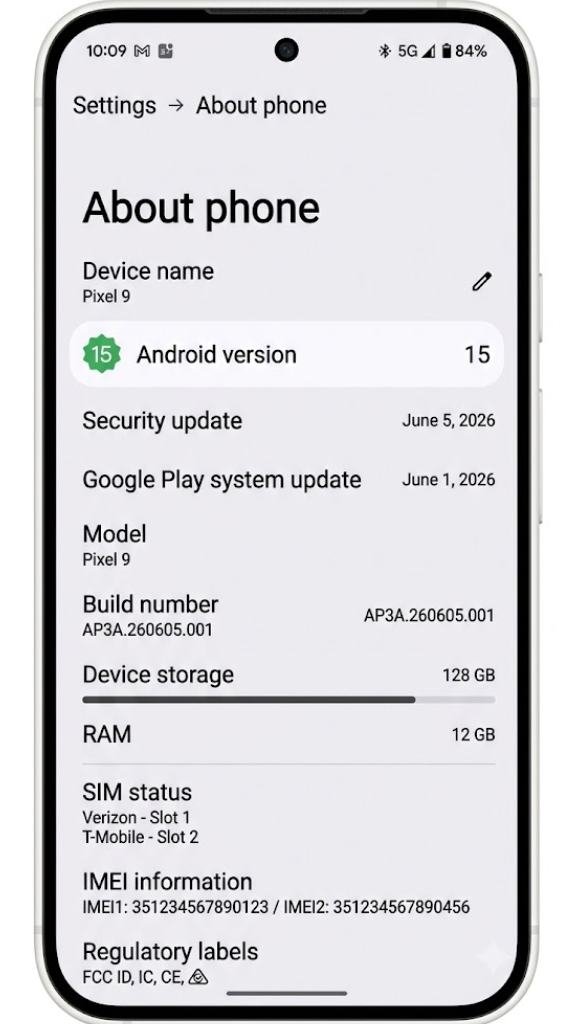
- Go to Settings → About Phone
- Find Android Version — note the number shown
How to check the app’s minimum requirement:
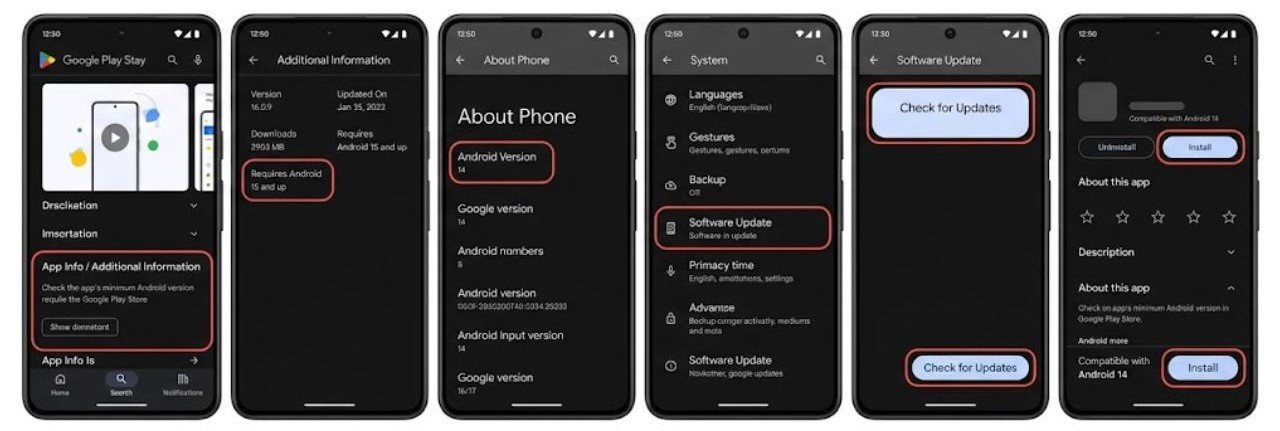
On the Google Play Store, scroll down to the App Info or Additional Information section on the app’s page. Look for Requires Android — this shows the minimum version needed.
If your device runs an older Android version than the app requires, the app not installed error fix options are:
- Update your device to a newer Android version if available via Settings → System → Software Update
- Look for an older version of the app that supports your Android version from a reputable source
- Consider that your device may genuinely not support the app at its current Android version
Fix 8 — Disable Security Apps Temporarily
Security apps, antivirus software, and device administrator tools sometimes block app installations they consider suspicious — even when the app is legitimate. This creates the app not installed error without any explanation from the security software itself.
How to test whether a security app is blocking installation:
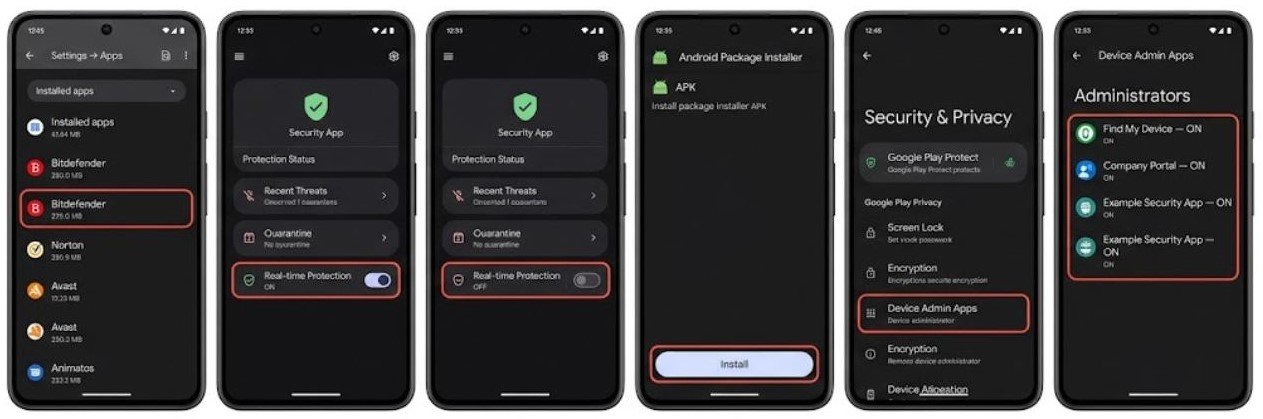
- Identify any security or antivirus apps installed on your device
- Open the security app and look for any recent block or quarantine notifications
- Temporarily disable the security app’s real-time protection
- Attempt the installation
- Re-enable security protection immediately after testing
If the installation succeeds with the security app disabled, the security software was the cause. Check the security app’s settings for a whitelist or exclusion feature and add the app you are trying to install to the allowed list.
Also check Settings → Security → Device Admin Apps for any active device administrator that may be blocking installations.
App Not Installed Error — Specific Scenarios
APK App Not Installed Error on Samsung
Samsung devices include an additional security layer through Samsung’s Knox security platform. Knox can block APK installations from unverified sources independently of Android’s own unknown sources permission.
Check Settings → Biometrics and Security → Install Unknown Apps and ensure the specific app you use to open APKs has permission enabled.
App Not Installed Error After Android Update
System updates sometimes change signature verification requirements or storage partition structures. After an update, previously working APK installations may fail with the app not installed error.
Try clearing the package installer cache (Fix 4) and freeing up storage space (Fix 1) — these two steps resolve most post-update installation errors.
App Not Installed Error — Insufficient Storage Despite Apparent Free Space
Android allocates storage across different partitions. Even when the overall storage appears to have free space, the specific partition used for app installation may be full.
Go to Settings → Storage → Internal Storage → Apps and check the Apps partition specifically. Uninstalling unused apps frees space in the correct partition for new installations.
FAQs
What causes the app not installed error on Android?
The app not installed error is most commonly caused by insufficient storage space, a signature mismatch with an existing app version, a corrupted APK file, or the unknown sources permission not being enabled for APK installation. Checking storage and clearing the package installer cache resolves most cases.
How do I fix app not installed error for APK files?
Enable the unknown sources permission for the app used to open the APK, delete and re-download the APK to rule out corruption, uninstall any existing version of the app, and clear the package installer cache. These steps cover the majority of APK-related app not installed error cases.
Does low storage cause the app not installed error?
Yes. Android requires free storage both to hold the installation files and to process the installation. When storage is critically low, installation fails with the app not installed error. Freeing at least double the app’s size in storage plus an additional buffer resolves this immediately.
Why does app not installed error appear for Play Store apps?
Play Store installation errors are usually caused by a corrupted Play Store cache, a storage space shortage, or a conflicting existing app version. Clearing the Play Store cache and data, freeing storage, and uninstalling the existing version before reinstalling resolves most Play Store app not installed errors.
Is it safe to enable unknown sources for APK installation?
Enabling unknown sources allows apps from outside the Play Store to be installed. Only do this for APK files from sources you trust completely. Disable the permission again after installation to reduce security exposure from potentially harmful files.
Final Thoughts
The app not installed error fix process is straightforward once you understand that the error is never random — something specific is preventing the installation from completing.
Start with the most common causes: check storage space, clear the package installer cache, and ensure unknown sources permission is enabled if installing an APK. These three steps resolve the majority of app not installed error situations within minutes.
For persistent errors, the signature mismatch fix — completely uninstalling the existing version before reinstalling — addresses the next most common cause. Downloading a fresh APK eliminates file corruption. Clearing Play Store cache and data covers Play Store-specific failures.
Work through the fixes in order based on your specific scenario — Play Store installation or APK installation — and the app not installed error will be resolved before you reach the more advanced steps in most cases.
