

Nearby Share is Android’s built-in wireless file transfer feature that lets you send photos, videos, documents, links, app files, and more directly to other devices without using the internet, mobile data, or a cable. It works between Android phones, Android tablets, and Chromebooks — and more recently between Android and Windows computers through a dedicated desktop application.
Nearby Share operates using a combination of Bluetooth, Wi-Fi Direct, and WebRTC depending on what connection method delivers the fastest and most reliable transfer for the specific devices involved. The system selects the appropriate protocol automatically — you do not need to configure anything manually.
Nearby Share is Google’s answer to Apple’s AirDrop, designed to give Android users an equally seamless way to transfer content between devices in close physical proximity. Understanding how Nearby Share works, where to find it, and how to get the most from it removes a friction point that too many Android users still work around using slower, more complicated alternatives.
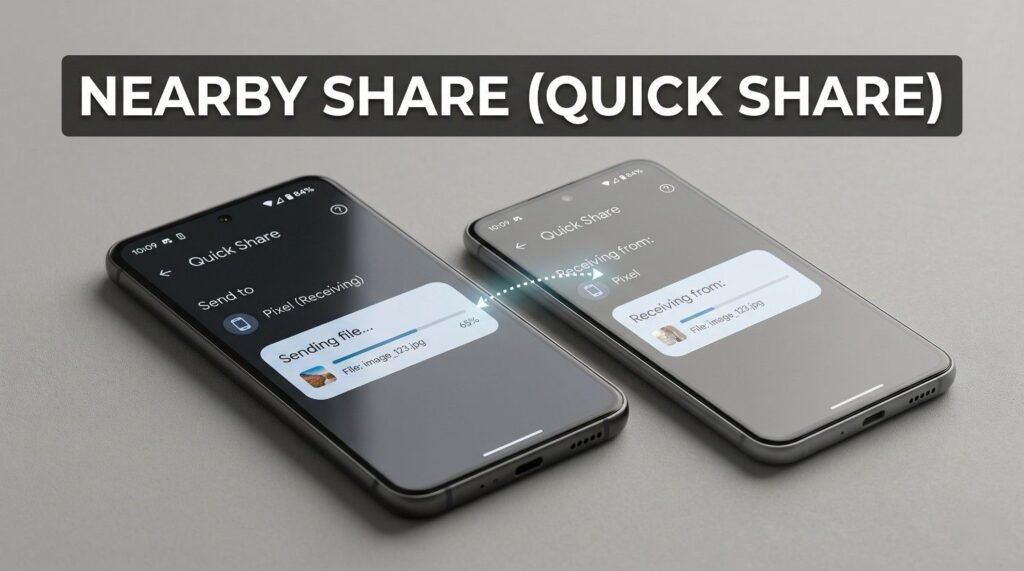
How Nearby Share Works
Nearby Share uses device discovery to identify other nearby devices that are visible and available to receive transfers. When you share something, your device broadcasts its presence using Bluetooth. Once a compatible receiving device is detected, the actual data transfer happens over the fastest available channel — Wi-Fi Direct, Bluetooth, or WebRTC — depending on device capability and network conditions.
The entire process from initiating a share to completing a transfer typically takes seconds for most file sizes. Large video files transfer faster than they would through messaging apps because Nearby Share does not compress or resize files before sending them. What you send is exactly what arrives on the other device.

Connection Modes in Nearby Share
Nearby Share gives you control over how your device is discovered, which directly affects both convenience and privacy. There are four visibility settings available.
Everyone makes your device visible to all Nearby Share users within range. This is the broadest setting and useful in situations where you need to receive files from someone you haven’t previously connected with.
Contacts limits discovery to people in your Google Contacts. Your device remains invisible to strangers while staying accessible to people you know. This is the recommended default for most everyday use.
Your Devices restricts Nearby Share visibility to other devices signed into your own Google account. This is the most private setting and ideal for transferring files between your own phone, tablet, or Chromebook.
Hidden makes your device completely undiscoverable. You can still send files to others when hidden, but no one can initiate a transfer to you.
What Protocols Nearby Share Uses
Nearby Share automatically selects the best available transfer method based on the devices and environment involved. Bluetooth handles discovery and the initial connection handshake. For the actual data transfer, it escalates to Wi-Fi Direct when available, which delivers significantly faster speeds than Bluetooth alone. In situations where direct Wi-Fi isn’t possible, WebRTC provides an alternative channel.
This automatic protocol selection is what makes Nearby Share feel seamless in practice. You tap share, select a recipient, confirm on the receiving device, and the transfer completes — the underlying connection negotiation happens invisibly.
What You Can Share Using Nearby Share
Nearby Share is not limited to photos and videos. It handles a broader range of content types than many users realise.
1. Files and Media
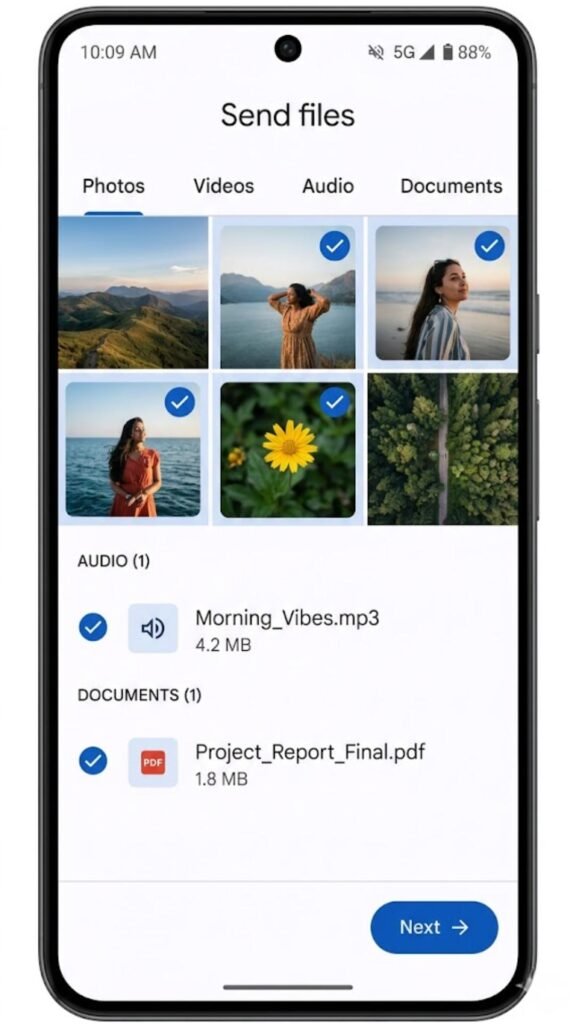
Photos, videos, audio files, and documents all transfer through Nearby Share at their original quality and file size. No compression, no resizing, no quality loss. This makes it particularly useful for sharing high-resolution photos directly from your camera roll to another phone without the quality reduction that messaging apps apply.
2. Links and URLs
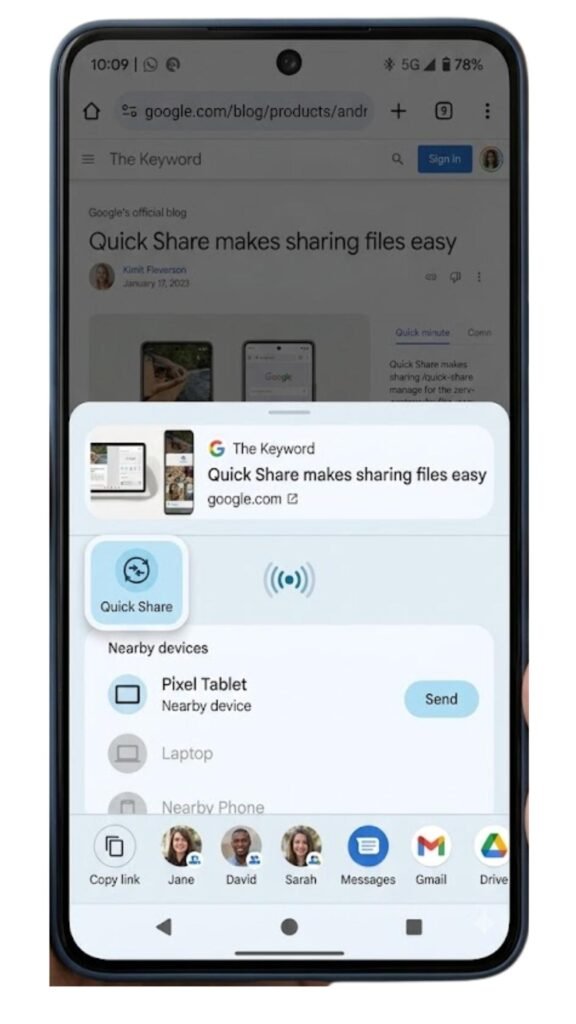
Open a web page in Chrome, tap the share button, and Nearby Share appears as an option. The recipient gets the exact URL directly in their browser without you needing to copy, paste, or message it. This is one of the most underused but genuinely convenient applications of Nearby Share for day-to-day use.
3. App Files
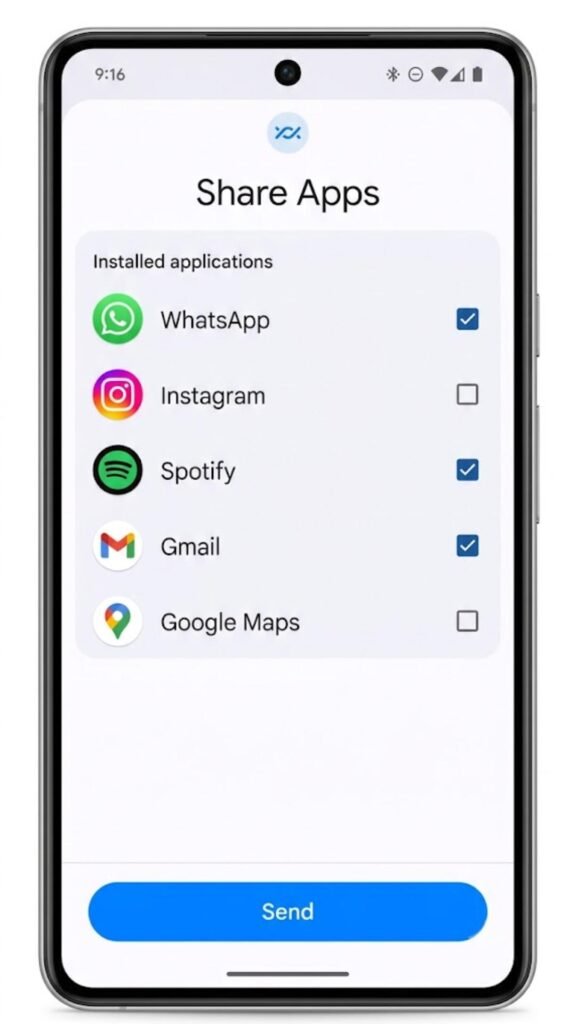
On supported devices and Android versions, Nearby Share can transfer installed app files directly between devices. This is useful in situations where downloading from the Play Store is slow or unavailable, such as areas with poor connectivity.
4. Contacts
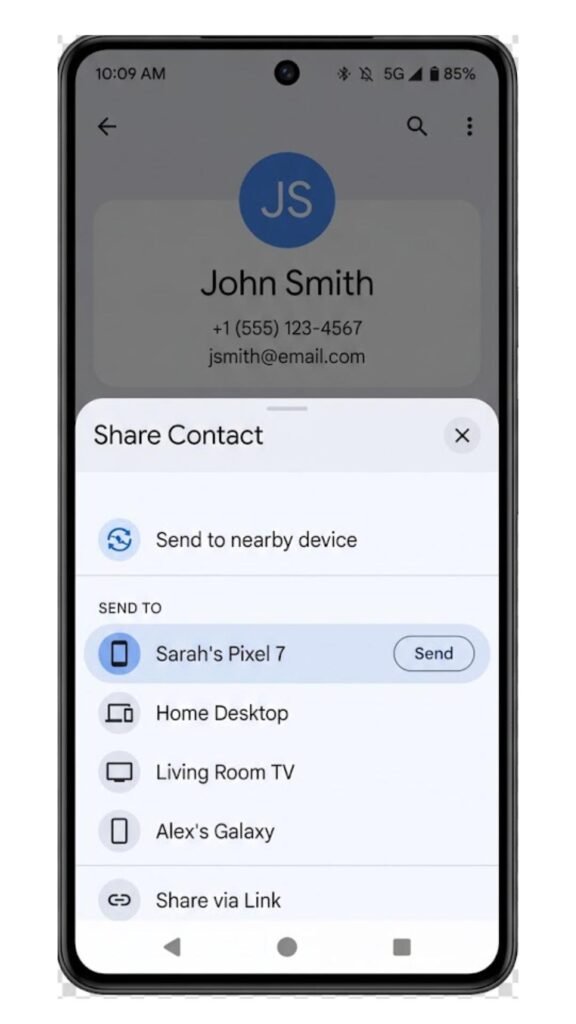
Sharing contact cards through Nearby Share works cleanly and quickly. Instead of reading out a phone number or finding someone in messaging apps, you share the contact directly and it appears in the recipient’s contacts app immediately.

Nearby Share vs AirDrop vs Other Transfer Methods
| Feature | Nearby Share | AirDrop | Bluetooth Transfer | WhatsApp/Telegram |
|---|---|---|---|---|
| Platform | Android, Windows | Apple devices only | Cross-platform | Cross-platform |
| Transfer Speed | Fast (Wi-Fi Direct) | Fast (Wi-Fi Direct) | Slow | Depends on connection |
| File Size Limit | No fixed limit | No fixed limit | Limited | 2GB (Telegram), 100MB (WhatsApp) |
| Quality Preservation | ✅ Full quality | ✅ Full quality | ✅ Full quality | ❌ Compressed |
| Internet Required | ❌ No | ❌ No | ❌ No | ✅ Yes |
| Discovery Method | Bluetooth + Wi-Fi | Bluetooth + Wi-Fi | Bluetooth | Contact-based |
| Cross-Platform | ✅ Android + Windows | ❌ Apple only | ✅ Yes | ✅ Yes |
| Ease of Use | ✅ Very easy | ✅ Very easy | ⚠️ Varies | ✅ Easy |
| Privacy Control | ✅ 4 visibility modes | ✅ 3 visibility modes | ⚠️ Limited | ✅ Contact-based |
Nearby Share sits comfortably alongside AirDrop in terms of capability and ease of use. The meaningful difference is platform reach — Nearby Share works across Android and Windows, making it useful in mixed-device environments that AirDrop cannot serve at all.
How to Use Nearby Share on Android
Accessing Nearby Share is straightforward once you know where it lives on your device.
Enabling Nearby Share
Go to Settings, then Connected Devices, then Connection Preferences, and select Nearby Share. Toggle it on and set your visibility preference. On some Android versions, Nearby Share appears directly in the quick settings panel — swipe down from the top of your screen and look for the Nearby Share tile.
Sending Files Through Nearby Share
Select the file, photo, link, or content you want to share. Tap the share button — the standard Android share icon. Nearby Share appears in the share sheet alongside other sharing options. Tap it and your device begins scanning for nearby recipients. When the recipient’s device name appears, tap it. The recipient sees a confirmation prompt and accepts the transfer.
Receiving Files Through Nearby Share
Ensure your visibility is set to a mode other than Hidden. When someone sends you a file, a notification appears on your screen showing the sender’s name and what they are sharing. Tap Accept and the transfer begins. Received files save to your Downloads folder by default.
Nearby Share on Windows
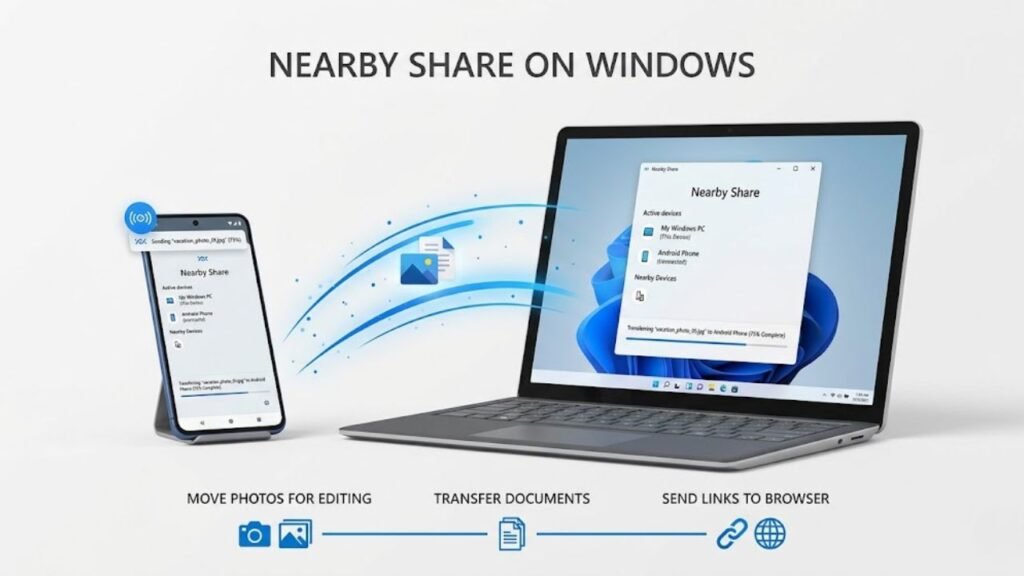
Google released a Windows application that extends Nearby Share to PCs running Windows 10 and above. Once installed and configured, your Android phone can send files directly to your Windows laptop or desktop using the same Nearby Share interface you use between Android devices.
This is particularly useful for moving photos from your phone to a computer for editing, transferring documents between devices, or sending links from your phone directly to a browser tab on your PC. The Windows app is available through Google’s official website and installs like any standard Windows application.
Common Mistakes People Make With Nearby Share
Leaving visibility set to Everyone permanently.
Nearby Share visibility set to Everyone means any Nearby Share user within range can see your device and attempt to send you files. For most everyday situations, Contacts or Your Devices is a more appropriate default that preserves convenience without unnecessary exposure.
Assuming both devices need to be on the same Wi-Fi network.
Nearby Share does not require a shared network connection. It establishes its own direct connection between devices using Bluetooth and Wi-Fi Direct. Being on the same network is neither required nor relevant to the feature working correctly.
Not checking the Downloads folder for received files.
Files received through Nearby Share save to the Downloads folder by default, not to your Gallery or Photos app automatically. Images and videos received via Nearby Share will not appear in your camera roll unless you move them or your file manager indexes that folder.
Disabling Bluetooth and wondering why Nearby Share won’t work.
Nearby Share uses Bluetooth for device discovery regardless of which transfer protocol it ultimately uses. Bluetooth must be enabled for Nearby Share to function, even if the actual file transfer happens over Wi-Fi Direct. Keeping Bluetooth on is a prerequisite.
Using messaging apps to transfer photos when Nearby Share is available.
Sending photos through WhatsApp or Messenger compresses them significantly. Using Nearby Share for photo transfers between nearby Android users preserves original quality and typically completes faster. This is one of the most common missed opportunities for users who have Nearby Share available but default to messaging apps out of habit.
Practical Tips to Get the Most From Nearby Share
Add the Nearby Share tile to your quick settings panel.
Pull down your notification shade, tap the edit icon, and drag the Nearby Share tile into your active quick settings. This makes it accessible with a single swipe rather than navigating through Settings every time you want to use it.
Set visibility to Your Devices for personal file transfers.
When moving files between your own phone, tablet, and Chromebook, set visibility to Your Devices. This keeps your device invisible to everyone else while staying instantly accessible to your own hardware.
Use Nearby Share instead of USB cables for quick phone-to-PC transfers.
The Windows app makes Nearby Share a genuine alternative to plugging in a cable for small to medium file transfers. For moving a batch of photos or a document to your PC, Nearby Share often completes the task faster than finding and connecting a cable.
Share links directly rather than copying and pasting.
When you want to send a web page to someone nearby, using Nearby Share from your browser is faster and more accurate than copying a URL and sending it through a messaging app. The recipient gets the exact URL without any intermediary steps.
Keep both devices unlocked during transfer.
Nearby Share transfers complete most reliably when both the sending and receiving device remain unlocked and with their screens active during the process. Screen timeout or auto-lock during a transfer can interrupt the connection and require restarting the share.
Frequently Asked Questions
What is Nearby Share on Android?
Nearby Share is Android’s built-in wireless file transfer feature that sends files, photos, links, and documents between nearby Android devices, Chromebooks, and Windows computers without using the internet or cables.
Does Nearby Share need internet to work?
No. Nearby Share works entirely without internet access. It uses Bluetooth for discovery and Wi-Fi Direct or Bluetooth for the actual transfer, creating a direct connection between devices.
Is Nearby Share the same as Quick Share?
They are related but distinct. Google rebranded Nearby Share to Quick Share in a joint effort with Samsung. The underlying functionality remains the same — the name change reflects a broader partnership to unify the feature across Android and Samsung devices.
How far apart can devices be for Nearby Share to work?
Nearby Share works reliably within approximately 30 centimetres to a few metres. Physical proximity is essential — it is designed for sharing between people in the same room, not across distances.
Can Nearby Share transfer files between Android and iPhone?
No. Nearby Share does not support iOS devices. It works between Android phones, Android tablets, Chromebooks, and Windows computers with the Google app installed.
Where do Nearby Share received files go on Android?
Files received through Nearby Share save to the Downloads folder on your device by default. Images and videos do not automatically appear in your Gallery app unless your device’s media scanner indexes the Downloads folder.
Conclusion
Nearby Share solves a problem that every Android user has encountered — needing to move a file, photo, or link to another nearby device quickly and without quality loss. The feature has matured into a genuinely reliable tool that handles most everyday transfer scenarios faster and more cleanly than the alternatives most people default to.
The extension to Windows makes Nearby Share more useful than it has ever been, covering the phone-to-computer transfer scenario that previously required a cable or a cloud workaround. For Android users who share files regularly between their own devices or with others nearby, Nearby Share removes friction at every step.
Set your visibility preference appropriately, add it to your quick settings, and use it the next time you would otherwise send a compressed photo through a messaging app. The difference in quality and speed makes the habit worth building.
