

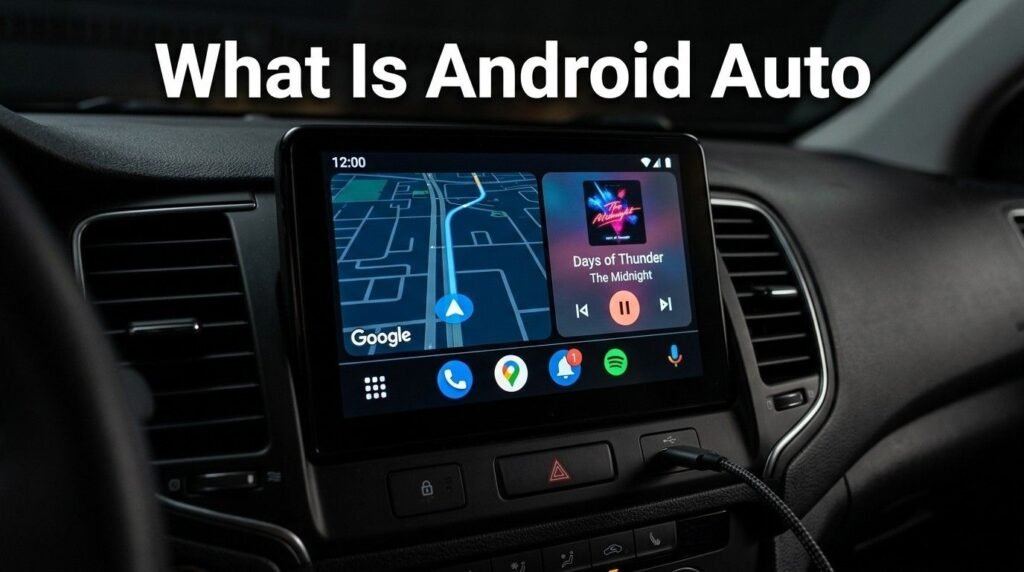
Android Auto is Google’s in-car software platform that mirrors a simplified version of your Android phone onto your car’s dashboard screen — or directly on your phone if your car doesn’t have a built-in display. It replaces your car’s default interface with a driver-focused layout designed specifically for use while driving.
The idea is straightforward. Instead of fumbling with your phone at traffic lights or squinting at a tiny notification, Android Auto puts navigation, calls, messages, and music in one clean, large-format interface — controlled by voice, touch, or your steering wheel buttons.
If you drive regularly and own an Android phone, understanding how Android Auto works can genuinely change how you experience every trip.
How Android Auto Works
Android Auto operates as a connection layer between your smartphone and your car. When you plug in your phone via USB — or connect wirelessly on supported devices — your car’s infotainment screen transforms into an Android Auto interface.
Your phone does all the processing. The car screen simply displays the output. This means your car doesn’t need to be particularly smart or new — it just needs to support Android Auto through its audio system.
The interface itself is intentionally minimal. Large icons, high-contrast text, and voice-first interaction are built into the design from the ground up. Google designed it specifically to reduce the amount of time your eyes leave the road.

Wired vs Wireless Android Auto
There are two ways to connect Android Auto to your vehicle.
Wired connection requires a USB cable between your phone and the car’s USB port. This is the most common setup and works with virtually all Android Auto compatible vehicles. It also charges your phone while connected.
Wireless Android Auto removes the cable entirely. Your phone connects via Wi-Fi and Bluetooth simultaneously. Once paired the first time, the connection is automatic every time you get in the car. Wireless support requires Android 11 or higher and a compatible car head unit, though some vehicles require a wireless Android Auto adapter if the head unit doesn’t natively support it.
What Android Auto Does on Your Phone Screen
If your car doesn’t have a touchscreen display, Android Auto can run directly on your phone. Called phone screen mode, it scales the interface down to your device and mounts on your dashboard using a phone holder. This gives older vehicles access to the same navigation, audio, and communication features without any hardware upgrade.
What Can You Do With Android Auto?
Android Auto covers the four main categories of things drivers actually need while on the road.
1. Navigation
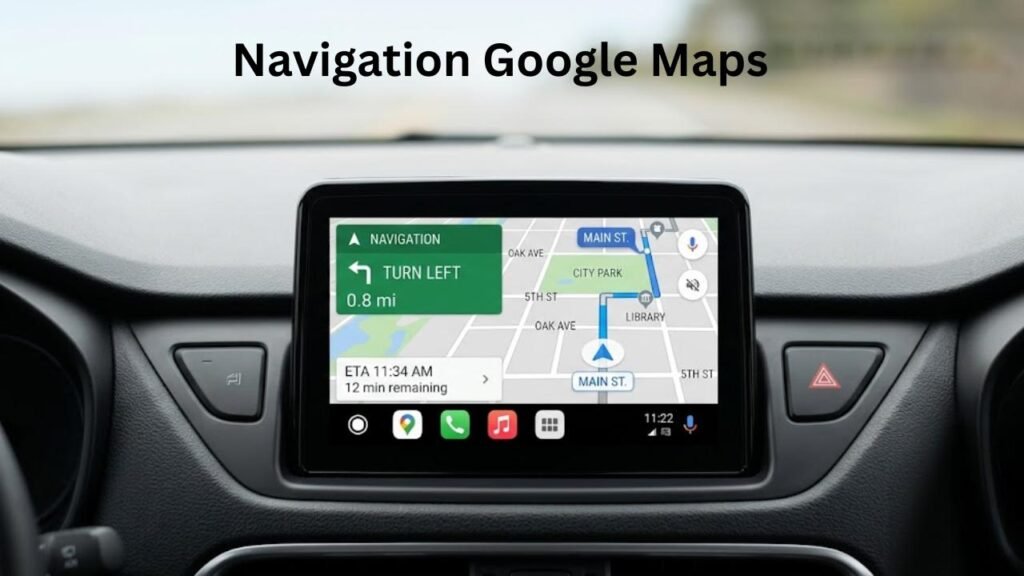
Google Maps is the default navigation app and integrates deeply with Android Auto. Turn-by-turn directions appear prominently, and you can ask Google Assistant to reroute you without touching the screen. Waze is also fully supported for those who prefer crowd-sourced traffic data.
2. Calls and Messages

Incoming calls appear on screen with one-tap answer or decline options. For messages, Android Auto reads them aloud through your car speakers and lets you reply using voice dictation — no typing required. WhatsApp, Telegram, and SMS all work within this framework.
3. Music and Audio

Spotify, YouTube Music, Google Podcasts, Audible, and dozens of other audio apps are optimized for Android Auto. The interface shows album art, playback controls, and browsing options in a format that’s easy to use at a glance.
4.Google Assistant
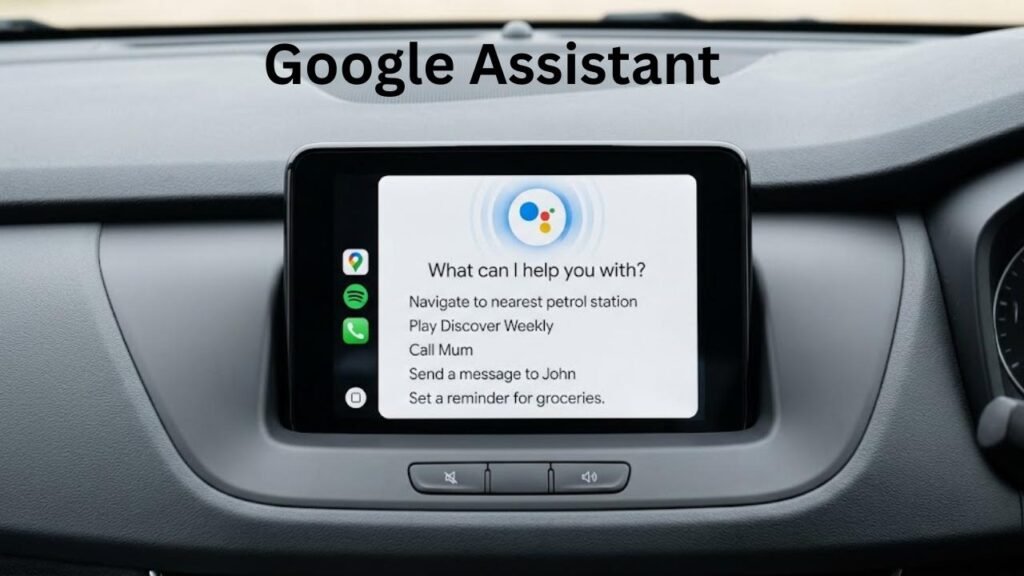
Voice commands power the entire experience. You can say “Hey Google, navigate to the nearest petrol station,” “Play my Discover Weekly,” or “Send a message to Mum” — all without touching anything. Google Assistant in Android Auto is faster and more responsive than the standard phone version in most scenarios.
Android Auto Compatibility: What You Need
| Requirement | Minimum Specification |
|---|---|
| Android Version | Android 6.0 (Marshmallow) or higher |
| Wireless Android Auto | Android 11 or higher |
| USB Cable (Wired) | USB-A to USB-C or Micro-USB depending on phone |
| Car Requirement | Android Auto-compatible head unit |
| App Required | Android Auto app (pre-installed on most phones) |
| Google Play Services | Must be up to date |
Most Android phones onwards are compatible. The Android Auto app comes pre-installed on many devices but is available free on the Google Play Store if not.
For vehicles, Android Auto support is now standard on most new cars from manufacturers including Toyota, Honda, Ford, Hyundai, Kia, Volkswagen, Mercedes-Benz, BMW, and many others. Third-party aftermarket head units from brands like Pioneer, Kenwood, and Sony also widely support it.
Android Auto vs Apple CarPlay
This comparison comes up constantly, and for good reason. Both platforms do essentially the same job — they project a simplified phone interface onto your car screen.
| Feature | Android Auto | Apple CarPlay |
|---|---|---|
| Platform | Android phones only | iPhones only |
| Default Navigation | Google Maps / Waze | Apple Maps / Google Maps |
| Voice Assistant | Google Assistant | Siri |
| Wireless Support | Android 11+ | iPhone 8 and later |
| Third-party App Support | Broader ecosystem | Growing but more restricted |
| Customisation | Slightly more flexible | More locked down |
Neither is objectively better — the right choice depends entirely on which phone you own. Android Auto has an edge in navigation accuracy through Google Maps and is generally more open to third-party app integration.

Common Mistakes People Make With Android Auto
Using a low-quality USB cable. A data-transfer cable is required for wired Android Auto — not just any charging cable. Many users plug in with a cheap charge-only cable and wonder why nothing happens. Always use a cable that supports data transfer.
Not updating the Android Auto app. Google regularly pushes interface updates and bug fixes through the Play Store. Running an outdated version causes connection drops, crashes, and missing features. Check for updates if you notice performance issues.
Forgetting to enable Developer Mode on older phones. On some older Android versions, Android Auto required a hidden developer mode to activate. This is less common now but worth checking if you’re on Android 9 or earlier.
Expecting every app to work. Android Auto only supports apps specifically optimised for the platform. Not every app on your phone will appear in the Android Auto interface — this is intentional for safety reasons, not a bug.
Pairing the wrong Bluetooth device. Wireless Android Auto uses Bluetooth for the initial handshake. If your car has multiple Bluetooth profiles or you’ve connected other devices, Android Auto may not connect automatically. Clearing old Bluetooth pairings often resolves this.
Practical Tips to Get the Most From Android Auto
Set your home and work addresses in Google Maps before driving. This makes “navigate home” voice commands instant and removes the need to type anything while in the car.
Enable automatic launch in settings. Go to Android Auto settings and turn on automatic launch so the interface opens the moment you plug in or connect wirelessly. Saves several taps every journey.
Use the dark theme for night driving. Android Auto supports a dark mode that reduces glare and is significantly easier on the eyes during evening drives. It can be set to switch automatically based on time of day.
Download offline maps for long trips. Google Maps offline areas work within Android Auto. If you’re heading into areas with poor mobile signal, download the relevant map region in advance.
Customise your launcher. The Android Auto home screen shows app shortcuts. You can reorder these in the settings to put your most-used apps — whether that’s Spotify, Waze, or WhatsApp front and centre.
Frequently Asked Questions
Does Android Auto work without an internet connection?
Core features like navigation still work with downloaded offline maps. However, real-time traffic, voice search, and streaming music require an active data connection.
Can I use Android Auto without a compatible car?
Yes. Android Auto runs directly on your phone screen if your car doesn’t have a compatible display. Mount your phone safely on the dashboard and the interface works the same way.
Is Android Auto free to use?
Completely free. There’s no subscription or payment involved. The app is free on the Play Store and all supported features cost nothing to use.
Why isn’t Android Auto showing on my car screen?
The most common causes are a charge-only USB cable, an outdated Android Auto app, or a car head unit that doesn’t support Android Auto. Check all three before assuming a hardware fault.
Which phones support wireless Android Auto?
Phones running Android 11 or higher with Wi-Fi and Bluetooth support are eligible. Most flagship and mid-range phones from 2021 onwards qualify. Your car also needs to support wireless Android Auto natively.
Can I use third-party navigation apps with Android Auto?
Yes. Waze and HERE WeGo are both fully supported alongside Google Maps. Not every navigation app works, but the most popular ones have Android Auto optimised versions available.
Conclusion
Android Auto is one of those features that sounds simple on paper but genuinely improves how you interact with your phone while driving. It removes the most dangerous habit in modern driving — picking up your phone — and replaces it with a voice-first, screen-forward experience built around actual road use.
The setup takes less than five minutes. The learning curve is minimal. And once you’ve used it on a regular commute, going back to a bare car screen or a phone mount feels like a downgrade.
If your car supports it and you’re on Android, there’s no good reason not to use it. For vehicles without built-in support, the phone screen mode removes that barrier entirely.
