

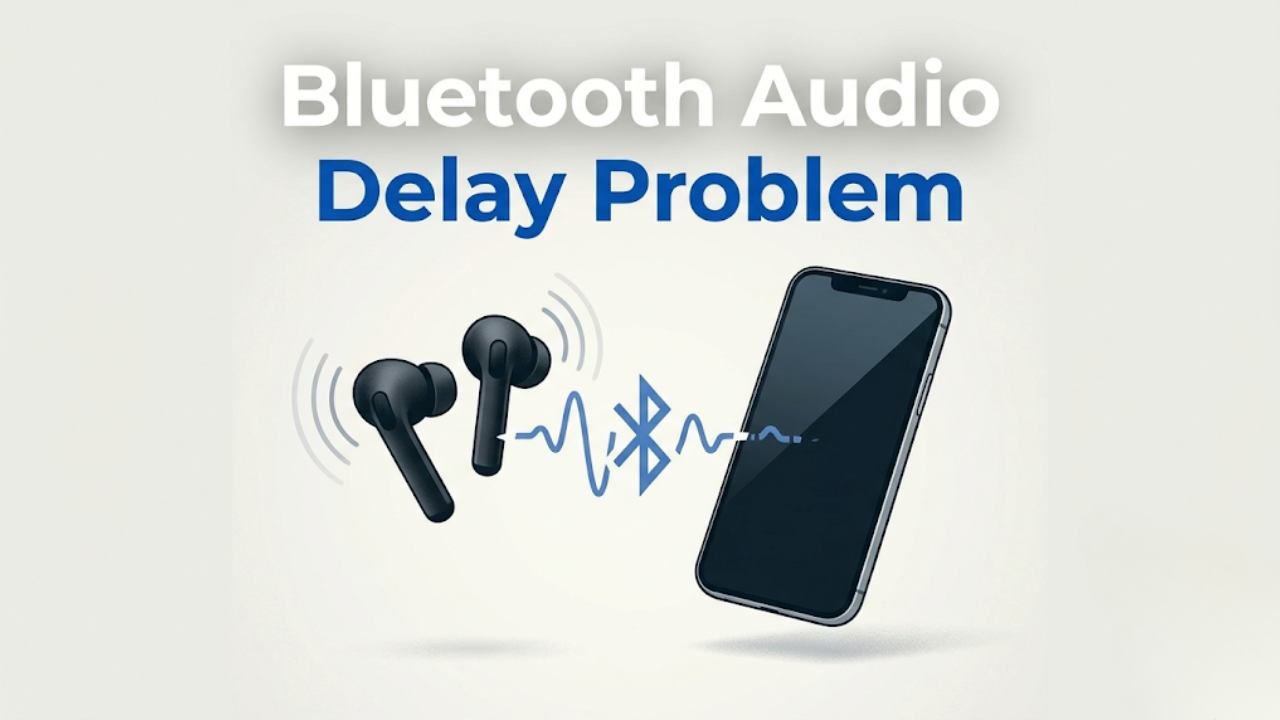
Bluetooth audio delay problem is the gap between what happens on your screen and what you hear through your wireless earbuds or headphones. You tap a key on your keyboard and hear the click half a second later. You watch a video and the words do not match the lips on screen. You play a game and the sound effects arrive noticeably after the action.
This delay is called audio latency, and it is one of the most frustrating aspects of wireless audio for many Android users. The good news is that the Bluetooth audio delay problem has identifiable causes and practical fixes — many of which you can apply in minutes.
This guide explains exactly why Bluetooth audio delay happens, which situations it affects most, and gives you eight fixes that address the android problem at its source.
What Causes the Bluetooth Audio Delay Problem?
The Bluetooth audio delay problem is not random. It happens because of specific technical factors in how wireless audio is transmitted, processed, and played back.
When you play audio through a wired connection, the signal travels almost instantaneously from your phone to the headphone driver. Bluetooth audio works differently. The audio signal must be:
- Encoded by your phone into a compressed digital format
- Transmitted wirelessly via Bluetooth radio signal
- Received by the earbuds or headphones
- Decoded back into audio
- Played through the driver

Each of these steps introduces a small delay. Together, they create total latency that ranges from as little as 40 milliseconds on the best codecs to over 300 milliseconds on older or mismatched setups.
| Bluetooth Codec | Typical Latency | Best For |
|---|---|---|
| SBC | 150–300ms | Basic audio streaming |
| AAC | 100–200ms | Apple devices, general music |
| aptX | 40–70ms | Music and general media |
| aptX Low Latency | 32–40ms | Gaming and video |
| LDAC | 80–200ms | High quality music |
| LC3 (Bluetooth LE) | Under 50ms | Latest devices |
The Bluetooth audio delay problem is most noticeable during video watching and gaming because those use cases require precise synchronization between audio and visual content. Music listening is less sensitive because there is no reference point to reveal the delay.
Why the Bluetooth Audio Delay Problem Is Worse in Some Situations
Video and Gaming vs Music
The Bluetooth audio delay problem feels different depending on what you are doing.
During music listening, a consistent 150ms delay is completely unnoticeable because there is nothing on screen to compare the audio against. The music sounds continuous and normal.
During video watching, the same 150ms delay is immediately obvious because the audio arrives after the lip movements, action sounds, and visual events it should accompany. The brain is highly sensitive to audio-visual synchronization and detects even small mismatches.
During gaming, the Bluetooth audio delay problem affects gameplay directly. Sound cues that inform reactions — enemy footsteps, gun shots, collision sounds — arrive after the visual event that triggered them. This makes audio-based gameplay information unreliable.
Distance and Interference
Bluetooth signal quality degrades with distance and physical obstacles. When signal quality drops, the receiver requests data retransmission, which adds additional delay on top of the baseline codec latency.
Walls, furniture, other wireless devices, and even the human body between the phone and the earbuds all weaken signal quality. Weaker signal means more retransmissions and a worse Bluetooth audio delay problem.
Multiple Paired Devices
When multiple Bluetooth devices are paired to your phone — even if only one is actively connected — the Bluetooth stack manages connection state for all of them simultaneously. This background management overhead can increase audio latency on the actively connected device.
Fix 1 — Unpair and Re-Pair the Bluetooth Device
The fastest starting fix for the Bluetooth audio delay problem is unpairing and repairing the audio device completely.
Over time, Bluetooth connection profiles accumulate outdated configuration data. A fresh pairing clears this data and establishes a clean connection with current settings.
How to unpair and re-pair:

- Open Settings → Bluetooth
- Find your audio device in the paired devices list
- Tap the settings icon or the device name
- Select Unpair or Forget
- Turn the audio device off and back on
- Put it into pairing mode
- Go back to Settings → Bluetooth → Pair New Device
- Select the device and complete pairing
After re-pairing, test the audio sync before continuing to other fixes.

Fix 2 — Change the Bluetooth Audio Codec
The Bluetooth audio codec is the most significant controllable factor in the Bluetooth audio delay problem. Changing from a high-latency codec like SBC to a low-latency codec like aptX Low Latency can reduce delay from over 200ms to under 40ms.
This setting is hidden inside Developer Options, which must be enabled first.
Enable Developer Options:
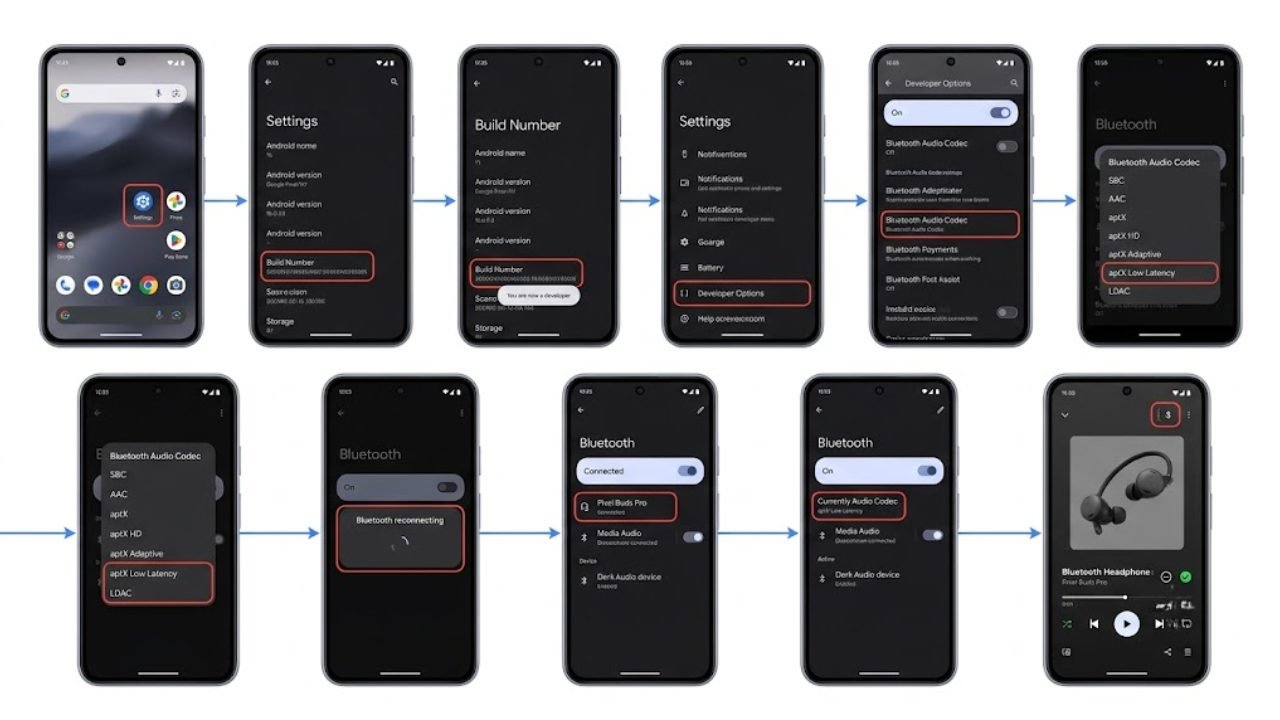
- Go to Settings → About Phone
- Find Build Number
- Tap Build Number seven times rapidly
- Enter your PIN if prompted
- Developer Options is now available in Settings or Settings → System
Change the Bluetooth codec:
- Go to Settings → Developer Options
- Scroll to find Bluetooth Audio Codec
- Tap it to see available options
- Select a lower-latency codec — try aptX, aptX Low Latency, or aptX HD if your device and earbuds support them
- The Bluetooth connection may briefly disconnect and reconnect as the codec changes
Important: Both your phone and your audio device must support the same codec for it to activate. If your earbuds only support SBC, selecting aptX will have no effect — the system will fall back to the highest codec both devices share.
Check your earbud manufacturer’s specifications to confirm which codecs they support before testing.
Fix 3 — Enable or Disable Absolute Bluetooth Volume
The Absolute Volume feature links your phone’s volume control directly to the volume of the connected Bluetooth device. On some Android and earbud combinations, this feature causes synchronization issues that contribute to the Bluetooth audio delay problem.
How to toggle Absolute Volume:
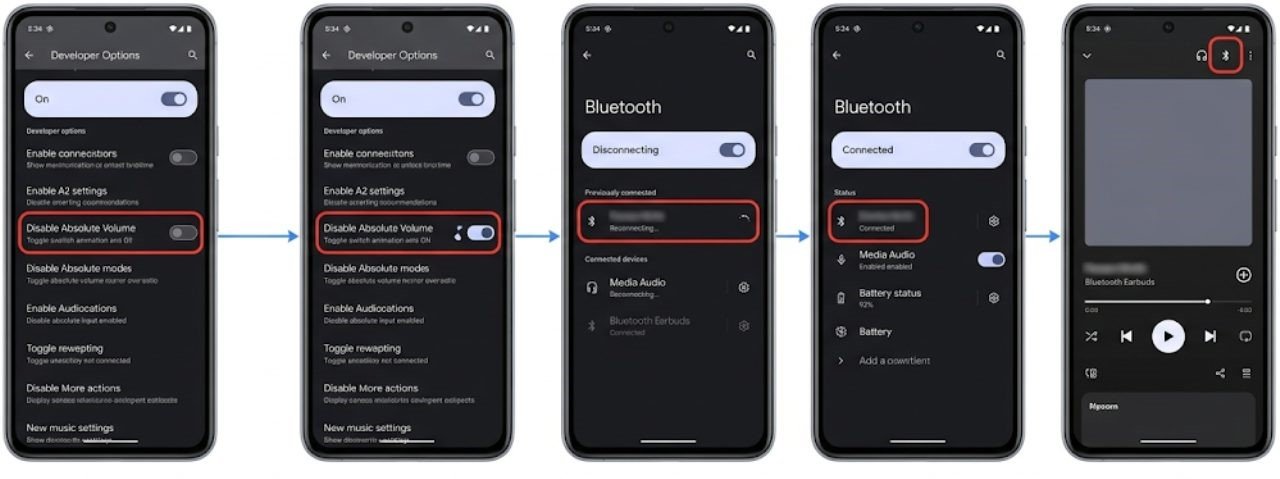
- Open Developer Options
- Find Disable Absolute Volume
- Toggle it on if it is currently off, or off if it is currently on
- Reconnect your Bluetooth device
- Test whether the delay improves
Try both states and keep the one that produces better audio synchronization on your specific device and earbuds combination.
Fix 4 — Reduce Distance and Remove Obstacles
Physical distance and obstacles between your phone and Bluetooth device directly worsen the Bluetooth audio delay problem by degrading signal quality.
Practical steps:
- Keep your phone within two to three metres of your earbuds during use
- Avoid placing your phone in a bag, drawer, or behind furniture while listening
- Keep the phone on the same side of your body as the primary earbud — many earbuds have one ear as the primary receiver
- Move away from areas with high wireless interference — busy offices, crowded public spaces, and areas near Wi-Fi routers all have elevated 2.4GHz interference that affects Bluetooth
Reducing distance and interference does not eliminate codec latency, but it prevents the additional retransmission delay that signal degradation adds on top of the baseline.
Fix 5 — Disconnect Other Bluetooth Devices
Having multiple Bluetooth devices connected simultaneously — or even just paired in an active state — can increase the Bluetooth audio delay problem on your primary audio device.
Each active Bluetooth connection consumes a portion of your phone’s Bluetooth bandwidth. When the bandwidth is shared across multiple connections, individual connections receive less consistent data throughput, which increases effective audio latency.
How to disconnect other Bluetooth devices:

- Open Settings → Bluetooth
- Review all connected devices
- Tap each non-essential device and select Disconnect
- Only keep your audio device connected during sensitive use cases like gaming or video watching
After disconnecting other devices, test whether the Bluetooth audio delay problem improves with your audio device as the sole active connection.
Fix 6 — Clear Bluetooth Cache
The Bluetooth system cache stores connection profiles, codec preferences, and device configuration data. Corrupted cache data causes inconsistent connection behavior that can manifest as the Bluetooth audio delay problem.
How to clear Bluetooth cache:
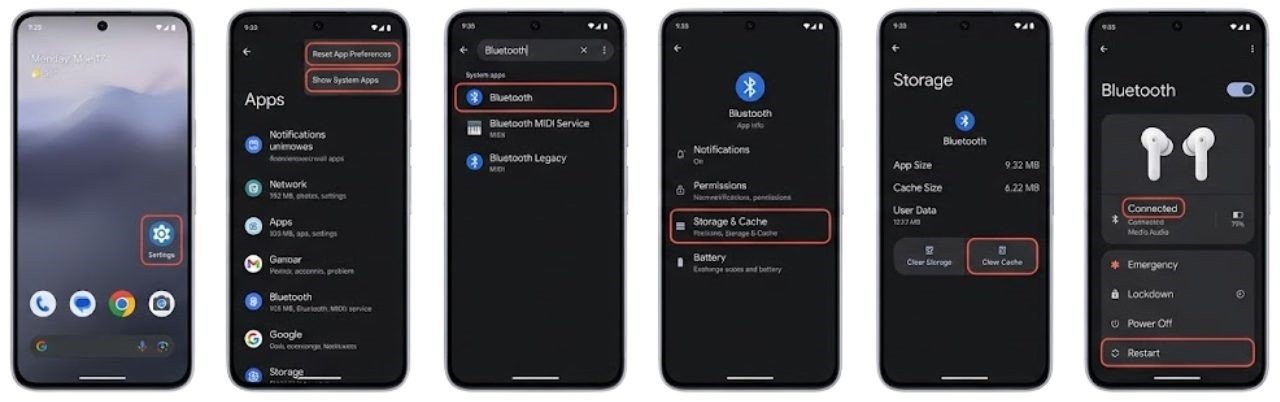
- Open Settings → Apps
- Tap the three-dot menu and select Show System Apps
- Find Bluetooth or Bluetooth MIDI Service in the list
- Tap Storage
- Tap Clear Cache
- Restart the device
- Reconnect your Bluetooth audio device and test
This does not delete your paired devices list or any user data. It only removes temporary Bluetooth system files that rebuild automatically.
Fix 7 — Use the Audio Sync Adjustment in Your Video App
For the specific case of Bluetooth audio delay problem during video watching, many video apps include a built-in audio sync offset setting that compensates for Bluetooth latency without requiring any system changes.
Apps with audio sync adjustment:

VLC Media Player:
Go to Playback → Audio Delay and adjust the delay offset in milliseconds until audio and video align. Try starting with -150ms and adjusting from there.
MX Player:
During playback, tap the screen to show controls, select the audio icon, and adjust the audio/video sync setting.
YouTube and streaming apps:
Most streaming apps do not include manual audio sync controls. For these, applying the codec change in Fix 2 and reducing distance in Fix 4 are the most effective approaches.
This fix does not reduce the actual Bluetooth audio delay problem — it compensates for it within the specific app. The delay itself remains, but the video playback is adjusted to match.
Fix 8 — Update Phone Software and Earbud Firmware
Outdated software on either the phone or the earbuds can cause or worsen the Bluetooth audio delay problem. Manufacturers release firmware updates specifically to address Bluetooth latency, codec stability, and connection reliability.
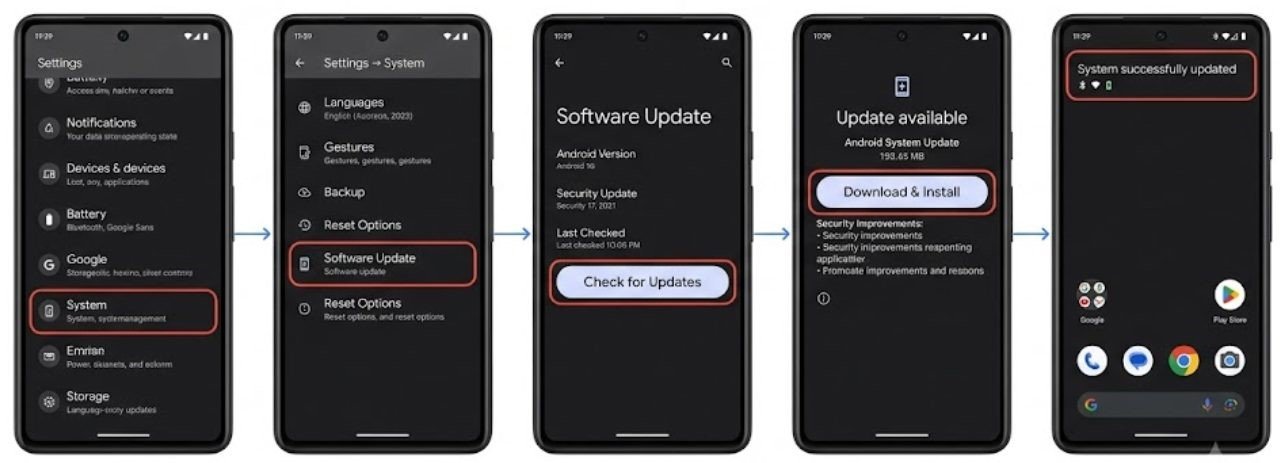
- Go to Settings → System → Software Update
- Tap Check for Updates
- Install any available update
Update your earbuds or headphones:
Most modern wireless audio devices update through a companion app from the manufacturer. Common companion apps include:
- Samsung Galaxy Wearable for Samsung earbuds
- Pixel Buds app for Google Pixel Buds
- Sony Headphones Connect for Sony headphones
- Bose Music for Bose earbuds
- JBL Headphones for JBL products
Open the companion app, navigate to the firmware or software section, and check for available updates. Install any pending updates and reconnect the earbuds to test whether the Bluetooth audio delay problem has improved.

Which Use Cases Need the Lowest Latency?
Understanding when the Bluetooth audio delay problem actually matters helps you prioritize which fixes to apply.
| Use Case | Latency Sensitivity | Recommended Fix Priority |
|---|---|---|
| Music listening | Low | Any codec sufficient |
| Podcast listening | Low | Any codec sufficient |
| Video watching | High | Fix 2, Fix 4, Fix 7 |
| Mobile gaming | Very high | Fix 2 (aptX LL), Fix 4, Fix 5 |
| Video calls | High | Fix 2, Fix 4 |
| Fitness tracking | Low | Any codec sufficient |
For gaming specifically, aptX Low Latency codec support in both the phone and earbuds is the single most impactful change available. Without codec support on both ends, the Bluetooth audio delay problem during gaming may not be fully resolvable through software changes alone.
If gaming with minimal audio delay is a priority and your current earbuds do not support aptX Low Latency or a comparable low-latency codec, this is a genuine hardware limitation of those earbuds rather than a fixable software problem.
FAQs
What causes the Bluetooth audio delay problem?
The Bluetooth audio delay problem is caused by the time required to encode, transmit, receive, and decode wireless audio. The codec used by your phone and earbuds determines the baseline delay. Signal quality, distance, and interference add additional latency on top of the codec baseline.
How do I fix Bluetooth audio delay on Android?
The most effective fix is changing the Bluetooth audio codec to aptX Low Latency through Developer Options. Both your phone and earbuds must support the same codec for it to activate. Reducing distance, disconnecting other Bluetooth devices, and clearing Bluetooth cache also help.
Does codec affect Bluetooth audio delay?
Yes significantly. SBC codec produces 150 to 300ms of delay. aptX Low Latency produces 32 to 40ms. Choosing a lower-latency codec supported by both your phone and audio device is the single most impactful change for reducing the Bluetooth audio delay problem.
Why is my Bluetooth audio out of sync with video?
Audio-video sync problems are a direct result of Bluetooth audio delay. The audio reaches your ears after the video frame it corresponds to has already displayed. Changing to a lower-latency codec or using an in-app audio sync offset setting in your video player resolves this.
Can I completely eliminate Bluetooth audio delay?
Bluetooth audio will always have some measurable latency due to the wireless transmission process. With aptX Low Latency codec and good signal conditions, the delay drops below 40ms — which is imperceptible to most users. Complete elimination is not achievable with current wireless technology, but it can be reduced to a level that does not affect practical use.
Final Thoughts
The Bluetooth audio delay problem is a real and measurable issue rooted in the physics of wireless audio transmission. It cannot be entirely eliminated, but it can be reduced to levels that make wireless audio genuinely practical for video watching and even gaming.
The most impactful single step is changing the Bluetooth audio codec through Developer Options. If both your phone and earbuds support aptX Low Latency or a similar low-latency codec, this change alone can reduce the delay from noticeable to imperceptible.
Combine that with keeping your phone close to your ears, disconnecting other Bluetooth devices during sensitive use, and keeping both device software and earbud firmware updated — and the Bluetooth audio delay problem becomes a background concern rather than a daily frustration.
If the delay remains significant after all fixes, the limiting factor is your earbuds’ codec support. Low-latency codec support is the most important specification to check when choosing wireless earbuds for gaming or video use.
