

Android screen flickering issue ranges from a minor annoyance to a genuinely disruptive problem that makes your phone difficult or impossible to use. The screen might flash rapidly, show a pulsing brightness, flicker only in certain apps, or produce horizontal lines that appear and disappear unpredictably.
Some flickering is caused by a simple software setting. Some is caused by a specific app. Some points to a hardware problem that needs professional attention. Knowing which category your flickering falls into determines how quickly and easily you can fix it.
This guide explains every common cause of the Android screen flickering issue, tells you how to identify which cause applies to your situation, and walks you through 9 fixes that resolve the Android problem in the vast majority of cases.
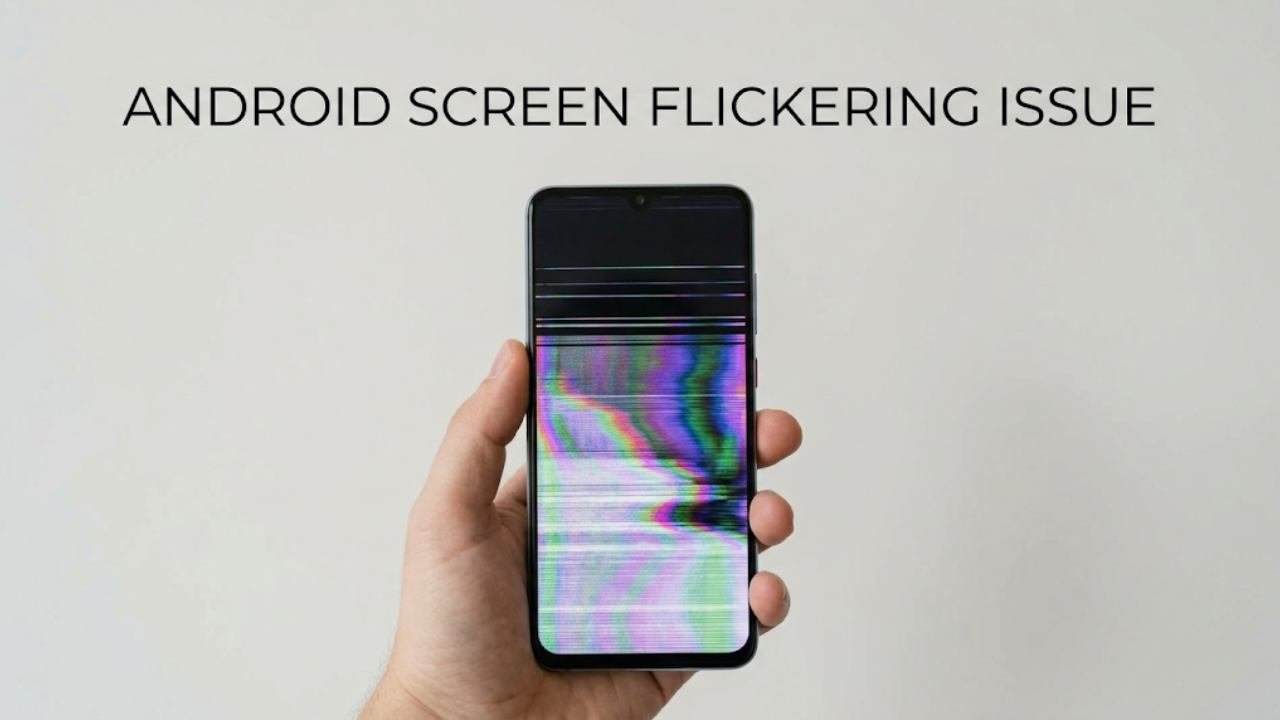
What Causes Android Screen Flickering?
The Android screen flickering issue can originate from several different sources. Identifying the right category saves significant time when troubleshooting.
| Cause | Type | How Common |
|---|---|---|
| Adaptive brightness malfunction | Software | Very common |
| App-specific rendering conflict | Software | Very common |
| Display driver bug after system update | Software | Common |
| High refresh rate instability | Software | Common |
| Corrupted system cache | Software | Common |
| Third-party app overlay conflict | Software | Common |
| Physical damage to display panel | Hardware | Moderate |
| Loose internal display connector | Hardware | Less common |
| Failing AMOLED panel | Hardware | Less common |
The most important early diagnostic step is determining whether the Android screen flickering issue appears in every situation or only in specific apps or brightness conditions. This distinction separates software causes from hardware causes and immediately narrows down the correct fix.

How to Identify Whether Your Flickering Is Software or Hardware
Before applying any fix, spend two minutes doing this simple diagnostic check.
Check 1 — Does flickering happen in all apps or just some?
If flickering only appears in specific apps, the cause is almost certainly software or app-specific. If it appears everywhere including the home screen and system settings, the cause is more likely a system-level software issue or hardware problem.
Check 2 — Does flickering change with brightness level?
If the flickering is worse at low brightness and better at high brightness, it is most likely related to how your display handles PWM dimming — a completely software-addressable issue.
Check 3 — Did flickering start after a specific event?
If it started immediately after a system update, an app installation, or a physical drop, that event is almost certainly the cause. Updates and app installations point to software. A drop points to hardware damage.
Check 4 — Does flickering appear in Safe Mode?
Booting into Safe Mode disables all third-party apps. If the Android screen flickering issue disappears in Safe Mode, a third-party app is responsible. If it continues in Safe Mode, the cause is system-level software or hardware.
Fix 1 — Restart the Device
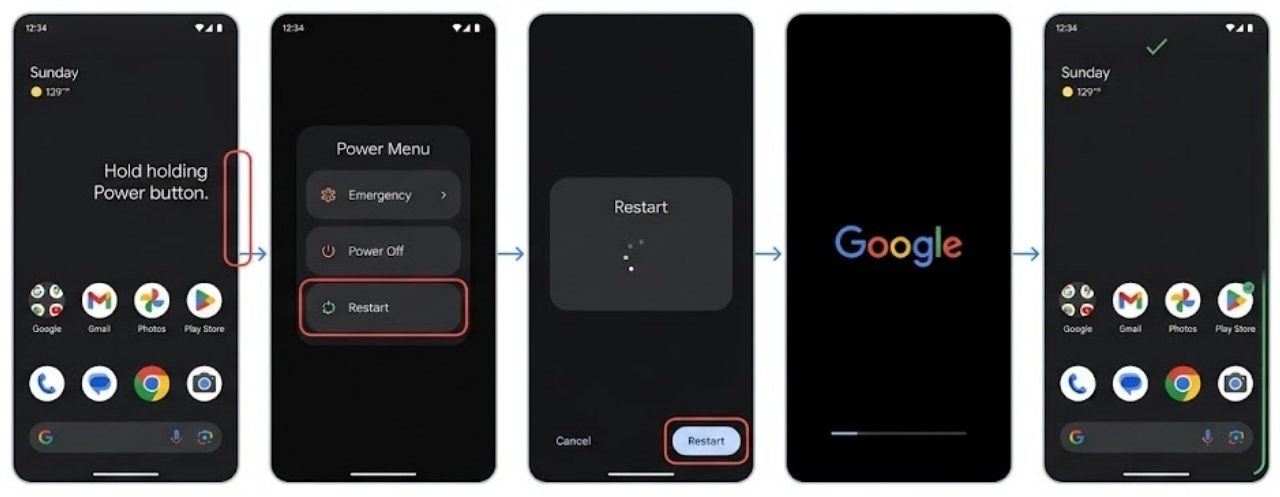
A full device restart is always the correct first step for any Android screen flickering issue.
Display drivers and graphics rendering processes run continuously in the background. A temporary software error in these processes causes flickering that disappears completely after a restart clears all active memory and restarts system processes from scratch.
Hold the Power button, select Restart, and allow the device to complete a full reboot. Wait for the phone to fully load, then observe whether the Android screen flickering issue returns under normal use.
If the flickering does not return after restarting, it was a temporary process error. If it returns within minutes or hours, continue to the next fixes.
Fix 2 — Disable Adaptive Brightness
Adaptive brightness is one of the most common hidden causes of the Android screen flickering issue. The feature continuously adjusts screen brightness based on the ambient light sensor reading. When the sensor malfunctions or receives inconsistent readings — near a lamp, in changing light conditions, or due to a sensor calibration issue — it causes the display to pulse or flicker as it rapidly adjusts up and down.
How to disable adaptive brightness:
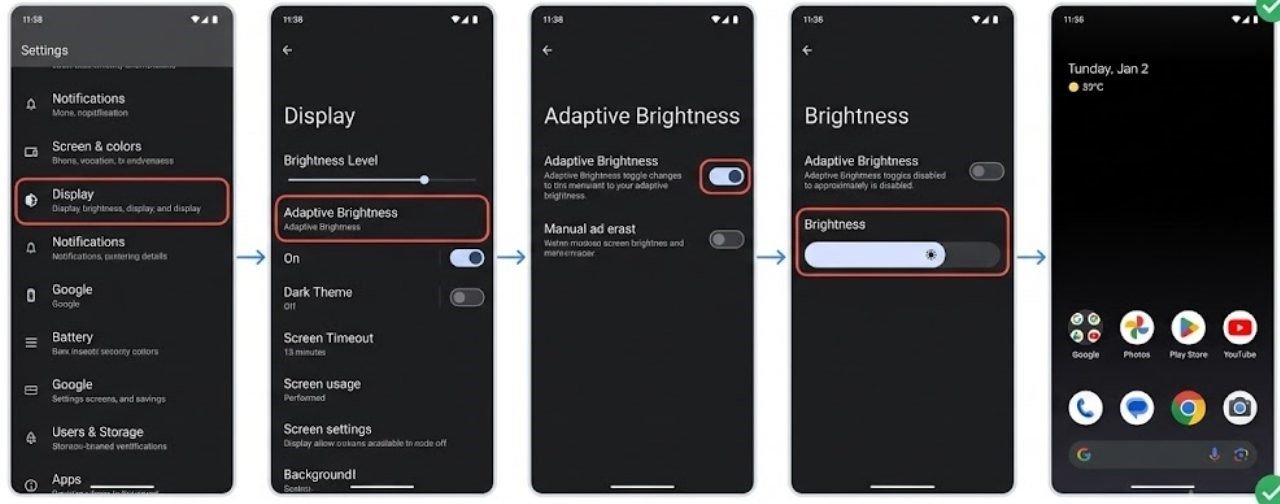
- Open Settings
- Tap Display
- Find Adaptive Brightness or Auto Brightness
- Toggle it Off
- Set brightness manually to a comfortable fixed level
After disabling adaptive brightness, use the phone for 15 to 20 minutes across different apps and conditions. If the Android screen flickering issue stops completely, adaptive brightness was the cause.
You can leave adaptive brightness disabled permanently if you prefer manual control, or try re-enabling it after a system update in case a software patch resolves the underlying sensor communication issue.
Fix 3 — Check and Adjust Refresh Rate Settings
High refresh rate displays — 90Hz, 120Hz, and 144Hz — occasionally cause an Android screen flickering issue when the system struggles to switch between refresh rates smoothly.
Modern smartphones use variable refresh rate technology that automatically adjusts between high and low rates depending on content. When this switching mechanism encounters a conflict — often in specific apps, during scrolling, or at certain brightness levels — visible flickering can result.
How to check and adjust refresh rate:
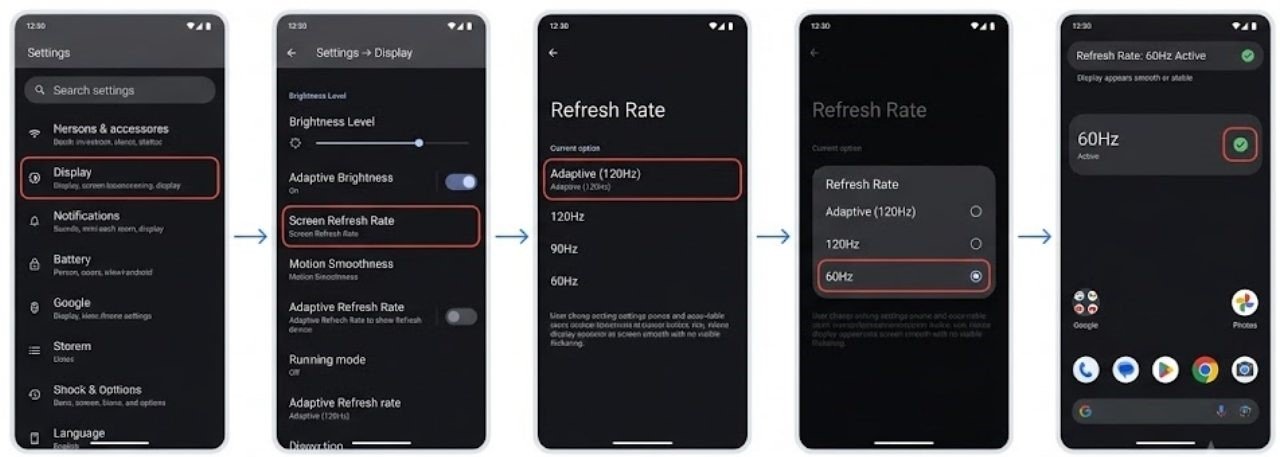
- Go to Settings → Display
- Look for Screen Refresh Rate, Motion Smoothness, or Adaptive Refresh Rate
- Try switching from Adaptive to a fixed rate — either 60Hz or the maximum rate your phone supports
- Test whether the flickering continues at the fixed rate
If the flickering stops at a fixed refresh rate, the adaptive switching process is causing the Android screen flickering issue. Running at a fixed 60Hz eliminates the problem while Adaptive mode issues are resolved through software updates.

Fix 4 — Identify and Remove the Problem App
If your diagnostic check showed that the Android screen flickering issue only appears in specific apps, a rendering conflict within that app is the cause.
Some apps use hardware acceleration or custom rendering layers that conflict with certain display drivers or Android versions. Others have bugs in specific versions that affect display rendering.
Step-by-step:
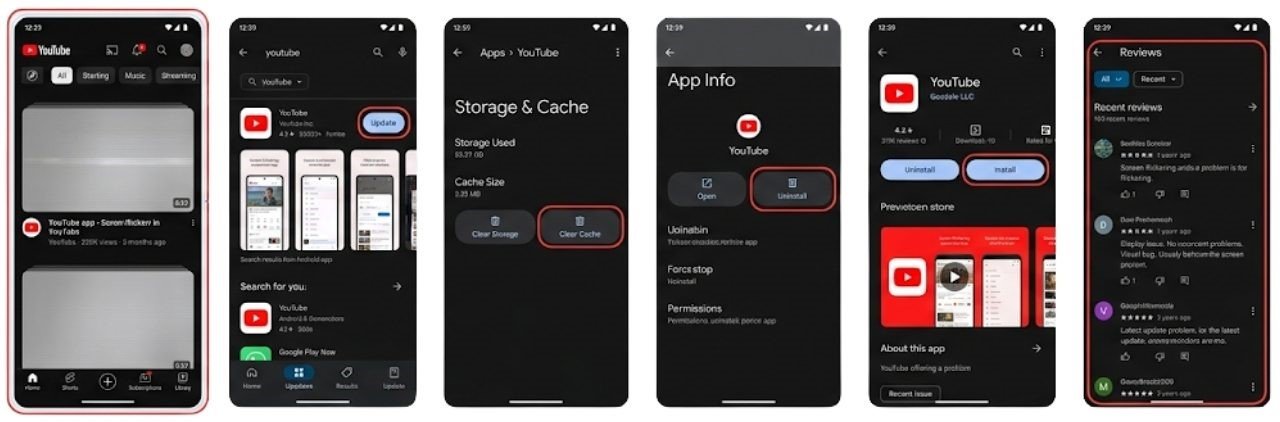
- Note exactly which app causes the flickering
- Open the Google Play Store and update the affected app
- If an update is not available, clear the app’s cache via Settings → Apps → Select App → Storage → Clear Cache
- Uninstall and reinstall the app
- Check the app’s Play Store reviews for recent reports of the same flickering problem from other users
If the flickering app cannot be updated and a fix is not available, disabling hardware acceleration for that specific app sometimes resolves the rendering conflict.
Disable hardware acceleration for a specific app:

- Enable Developer Options by going to Settings → About Phone and tapping Build Number seven times
- Open Developer Options
- Look for Disable HW overlays and toggle it on temporarily to test whether it affects the flickering
Note that disabling hardware acceleration globally affects all apps. This is a diagnostic tool rather than a permanent solution.
Fix 5 — Boot Into Safe Mode to Test
Safe Mode is the most reliable way to determine whether a third-party app is causing your Android screen flickering issue.
Safe Mode starts Android with only built-in system apps running. Every app you downloaded and installed yourself is temporarily disabled.
How to enter Safe Mode:
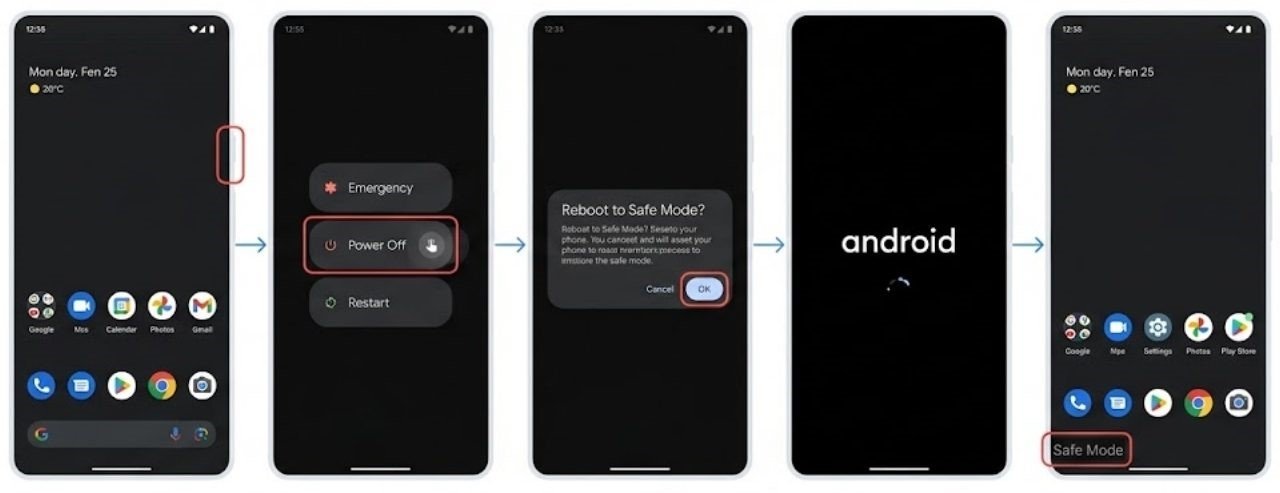
- Hold the Power button until the power menu appears
- Long-press the Power Off option until a Safe Mode prompt appears
- Tap OK to restart in Safe Mode
Use the phone normally in Safe Mode for 10 to 15 minutes. Navigate through your home screen, open system apps, and adjust brightness.
If flickering stops in Safe Mode: A third-party app is the cause. Restart normally and uninstall recently installed apps one by one, restarting between each removal, until the flickering stops.
If flickering continues in Safe Mode: The cause is either a system-level software issue or hardware. Continue to the next fixes.
Fix 6 — Clear the System Cache Partition
A corrupted system cache can cause graphical rendering problems including the Android screen flickering issue. The system cache stores temporary files that Android uses during boot and app loading. When these files become corrupted — often after a system update — display anomalies can result.
Clearing the cache partition removes all temporary system files without affecting personal data, apps, or settings.
How to clear the cache partition — Samsung:
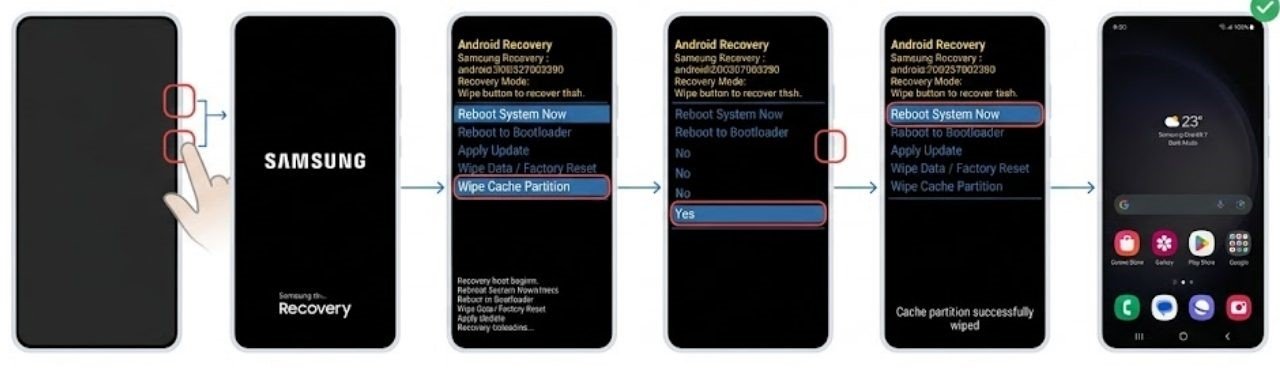
- Power off the device completely
- Hold Power + Volume Up simultaneously until the Samsung logo appears
- Release when the recovery menu loads
- Navigate to Wipe Cache Partition using Volume Down
- Select with the Power button
- Select Reboot System Now when complete
How to clear the cache partition — Google Pixel:
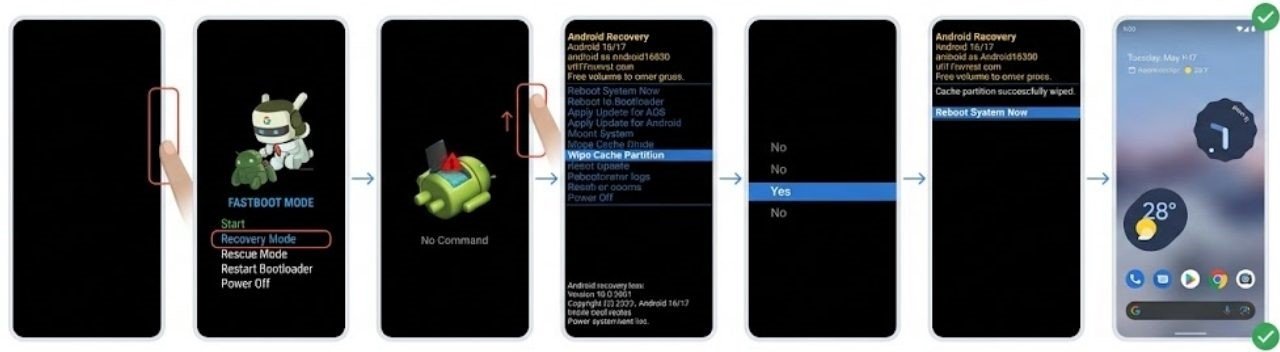
-
- Power off the device
- Hold Power + Volume Down to enter Fastboot mode
- Navigate to Recovery Mode and enter it
- When the Android logo appears, hold Power and briefly press Volume Up
- Navigate to Wipe Cache Partition and select it
- Reboot the system when complete
After the reboot, check whether the Android screen flickering issue has resolved before continuing to further fixes.
Fix 7 — Update or Roll Back Recent System Updates
System updates sometimes introduce display driver bugs that cause an Android screen flickering issue on specific device models. Conversely, a pending update may contain a fix for a flickering bug present in your current version.
Check for pending updates:
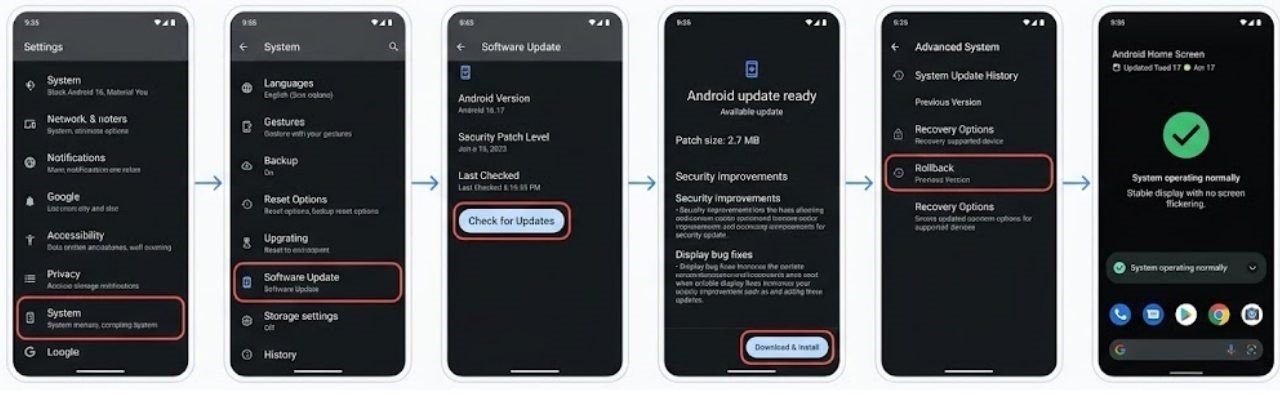
Go to Settings → System → Software Update → Check for Updates and install any available update. Manufacturers frequently release patch updates addressing display issues within days of widespread bug reports.
If flickering started immediately after a recent update:
Some manufacturers allow users to roll back to a previous system version through developer settings or by contacting manufacturer support. Check your specific manufacturer’s support page for rollback options if a recent update clearly caused the Android screen flickering issue.
Alternatively, wait for the next patch update — manufacturers typically release fixes for widespread display bugs quickly when they affect many users.
Fix 8 — Adjust Developer Options Settings
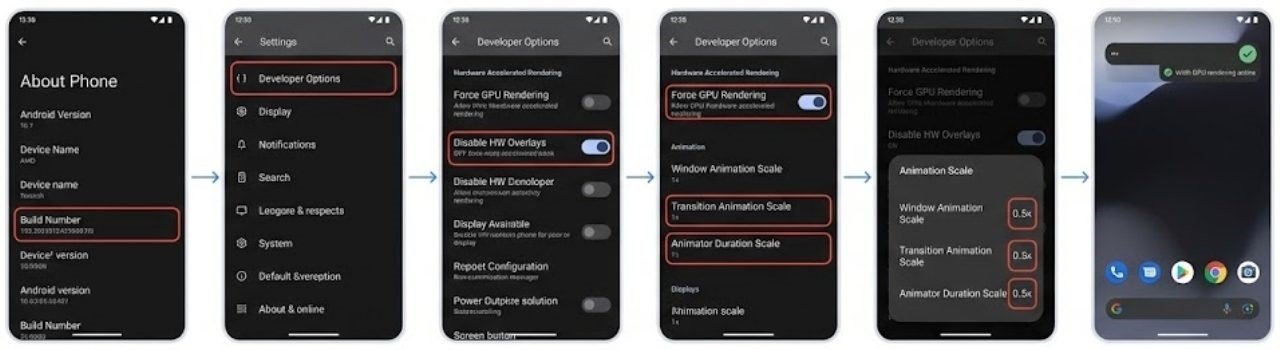
Developer Options contains several settings that directly affect display rendering. These are accessible after enabling Developer Options by tapping Build Number seven times in Settings → About Phone.
Settings to check and adjust in Developer Options:
Disable HW Overlays:
This forces Android to use the GPU for all screen compositing. Toggling this on sometimes resolves flickering caused by hardware overlay conflicts.
Force GPU Rendering:
Enabling this forces all apps to use the GPU for 2D rendering, which can resolve flickering in apps that use software rendering by default.
Animation Scales:
Set Window Animation Scale, Transition Animation Scale, and Animator Duration Scale all to 0.5x. Reduced animation scales sometimes eliminate flickering visible during screen transitions.
Test after each change to identify which setting affects the Android screen flickering issue on your specific device.
Fix 9 — Assess for Hardware Damage
If the Android screen flickering issue persists after every software fix has been applied, the problem may involve physical hardware.

Signs That Point to Hardware Causes
The following patterns suggest hardware rather than software is responsible:
- Flickering appears in Safe Mode and after a factory reset
- Flickering started immediately after the phone was dropped
- Flickering is accompanied by black spots, color bleed, or dead pixels
- Parts of the screen appear darker or brighter than the rest
- Pressure applied to the frame or back of the phone temporarily affects the flickering
Common Hardware Causes
Loose display connector: The ribbon cable connecting the display to the motherboard can become slightly loose from a drop or from repeated thermal expansion and contraction. A loose connector causes intermittent flickering that varies with physical position or pressure on the device.
Damaged AMOLED panel: Physical impact can damage the OLED panel beneath the cover glass even when the glass itself appears intact. A cracked or damaged panel causes progressive flickering that worsens over time.
Display driver chip failure: Rare but possible in older devices. The driver chip that controls the display panel can fail partially, causing persistent rendering issues that no software fix addresses.
If hardware damage is suspected, take the device to a certified repair technician for assessment. Do not attempt to open the device yourself, as this voids warranties and risks additional damage.
Tips to Prevent Android Screen Flickering in the Future
Once the flickering is resolved, a few habits reduce the likelihood of it recurring.
Install updates promptly: System updates frequently include display driver improvements and bug fixes. Staying current reduces the chance of accumulating software issues that cause flickering.
Be cautious with third-party apps that modify the display: Screen filter apps, blue light reduction apps, and display customization tools sometimes conflict with your device’s display drivers. Install these carefully and monitor for flickering after adding any new display-related app.
Use a protective case: Physical damage is a common cause of hardware-related flickering. A case with raised edges protects the screen during drops and reduces the risk of loose connector issues from impact.
Avoid extreme temperatures: Prolonged exposure to high heat or cold affects display panel performance. Keep your phone within normal operating temperature ranges for best display health.
FAQs
What causes Android screen flickering?
The Android screen flickering issue is most commonly caused by adaptive brightness malfunction, a third-party app rendering conflict, a display driver bug after a system update, or high refresh rate switching problems. Hardware damage from a drop is a less common but possible cause.
How do I know if my screen flickering is a software or hardware problem?
Boot into Safe Mode. If the Android screen flickering issue stops in Safe Mode, it is caused by a third-party app — a software problem. If it continues in Safe Mode and persists after a factory reset, the cause is likely hardware damage requiring professional assessment.
Does screen flickering mean my phone is damaged?
Not necessarily. Most Android screen flickering issues are software-related and fully fixable without any hardware repair. Only flickering that persists through all software fixes and began after physical damage should be treated as a potential hardware problem.
Can a system update cause screen flickering?
Yes. System updates sometimes introduce display driver bugs that cause flickering on specific device models. Checking for a subsequent patch update or rolling back to the previous version resolves update-related Android screen flickering issues in most cases.
Will a factory reset fix Android screen flickering?
A factory reset resolves Android screen flickering issues caused by system-level software corruption or persistent app conflicts. It does not fix hardware-caused flickering. Always try less destructive fixes first and only use factory reset as a last software resort before seeking professional hardware assessment.
Final Thoughts
The Android screen flickering issue is one of those problems that sounds serious but is usually fixable without professional help. The vast majority of flickering cases come down to adaptive brightness settings, a third-party app conflict, a display driver bug, or corrupted system cache — all of which have clear software fixes.
Work through the fixes systematically. Disable adaptive brightness and test. Boot into Safe Mode and test. Clear the system cache partition and test. Update the system and test. Each step eliminates a possible cause and moves you closer to a stable, flicker-free display.
Reserve the hardware assessment for situations where the flickering started after a drop, appears in Safe Mode, and persists after a factory reset. In those cases, professional diagnosis is the right next step.
With the right fix applied, your Android screen flickering issue will be fully resolved — and understanding what caused it helps you prevent it from recurring with better habits going forward.
