

Introduction
Android screen flickering issue is a frustrating problem that affects the display stability of your device, causing rapid brightness changes, flashing lines, or screen dimming. This issue can make your phone difficult to use and may indicate underlying software or hardware problems.
Whether the flickering happens occasionally or continuously, it is essential to diagnose the cause accurately. In most cases, the Android screen flickering issue is linked to software glitches, display settings, or app conflicts rather than serious hardware damage.
This comprehensive guide provides expert-level insights, practical solutions, and preventive strategies to resolve the Android screen flickering issue efficiently.
What Is Android Screen Flickering Issue?
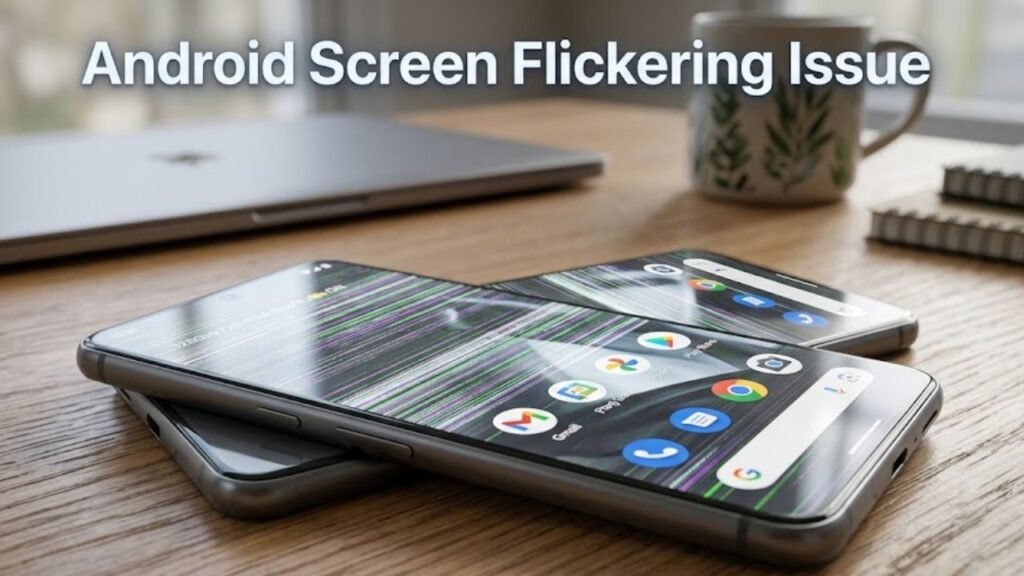
The Android screen flickering issue occurs when your device’s display rapidly changes brightness, flashes intermittently, or shows unstable visuals.
This can appear in different forms:
- Screen blinking on and off
- Brightness fluctuating automatically
- Horizontal or vertical lines appearing
- Partial screen flicker
Understanding the type of flickering helps in identifying the correct solution.
Common Causes of Android Screen Flickering Issue
1. Software Glitches
- Temporary system bugs
- Incomplete OS updates
2. Adaptive Brightness Settings
- Automatic brightness adjustments malfunction
- Sensor-related inconsistencies
3. Faulty Apps
- Incompatible or poorly optimized apps
- Background processes interfering with display
4. Display Driver Issues
- Outdated or corrupted display drivers
- GPU rendering problems
5. Hardware Damage
- Loose display connectors
- Screen or motherboard issues
6. Overheating
- Excessive heat affecting display performance
- GPU throttling
Quick Diagnosis Table
| Issue Type | Difficulty | Risk Level | Recommended Solution |
|---|---|---|---|
| Minor glitch | Easy | Low | Restart device |
| Brightness setting issue | Easy | Low | Disable adaptive brightness |
| App conflict | Medium | Low | Safe Mode |
| Software corruption | Medium | Medium | Reset or update system |
| Hardware damage | Advanced | High | Professional repair |
10 Proven Fixes for Android Screen Flickering Issue
1. Restart Your Device
A restart clears temporary glitches affecting display behavior.
Steps:
- Press and hold Power button
- Tap Restart
- Wait for reboot
2. Disable Adaptive Brightness
Adaptive brightness often causes flickering.
Steps:
- Go to Settings → Display
- Turn off Adaptive Brightness
3. Adjust Screen Brightness Manually
Set brightness to a stable level.
- Avoid extremely low brightness
- Maintain moderate brightness settings
4. Boot into Safe Mode
Safe Mode helps detect problematic apps.
Steps:
- Press and hold Power button
- Tap and hold Power Off
- Select Safe Mode
If flickering stops, uninstall recently installed apps.
5. Clear Cache Partition
Corrupted cache may affect display performance.
Steps:
- Turn off phone
- Enter Recovery Mode
- Select Wipe Cache Partition
6. Update Android System
Outdated software may cause display instability.
Steps:
- Go to Settings → System → Software Update
- Install latest updates
7. Enable/Disable Hardware Overlays
This setting can fix GPU rendering issues.
Steps:
- Enable Developer Options
- Toggle Disable HW Overlays
8. Check for Overheating
Overheating can trigger flickering.
Solutions:
- Remove phone case
- Avoid heavy apps temporarily
- Let device cool down
9. Perform Factory Reset
If Android screen flickering issue persists, reset the device.
Steps:
- Backup your data
- Go to Settings → System → Reset
- Select Factory Reset
10. Inspect Hardware Components
If all software fixes fail, hardware may be the cause.
Possible issues:
- Loose display cable
- Damaged screen
- Faulty GPU
Seek professional repair in such cases.
Detailed Comparison of Fixes
| Fix Method | Data Loss | Effectiveness | Best For |
|---|---|---|---|
| Restart Device | No | Medium | Temporary glitches |
| Disable Brightness | No | High | Sensor-related issues |
| Safe Mode | No | High | App conflicts |
| Cache Clearing | No | Medium | Minor corruption |
| System Update | No | High | Software bugs |
| Factory Reset | Yes | Very High | Severe issues |
Practical Tips to Prevent Android Screen Flickering Issue
Best Practices:
- Keep your Android OS updated
- Avoid installing untrusted apps
- Maintain optimal brightness settings
- Prevent overheating by limiting heavy usage
- Regularly clear cache
Signs That Indicate a Serious Flickering Problem
Recognizing early warning signs helps prevent major issues.
Watch for:
- Persistent flickering even after restart
- Screen flicker during boot
- Touch response issues
- Visible display damage
These signs may indicate hardware failure.
Advanced Troubleshooting Methods
Use Developer Options
Adjust GPU rendering settings to stabilize display.
Reinstall Firmware
Install fresh firmware to eliminate system corruption.
Third-Party Diagnostic Apps
Use trusted tools to analyze display performance.
FAQs About Android Screen Flickering Issue
Why is my Android screen flickering suddenly?
It is usually caused by software glitches, brightness settings, or app conflicts.
Can screen flickering be fixed without replacing the screen?
Yes, most issues are software-related and can be resolved without hardware replacement.
Does overheating cause screen flickering?
Yes, excessive heat can affect GPU performance and cause flickering.
Is factory reset necessary to fix flickering?
Only as a last resort if other solutions fail.
How do I know if it’s a hardware issue?
If flickering continues after reset or appears during boot, it is likely hardware-related.
Conclusion
Android screen flickering issue can significantly impact usability, but it is often manageable with the right troubleshooting approach. In most cases, the problem originates from software glitches, display settings, or app conflicts rather than hardware damage.
By following the step-by-step solutions outlined in this guide—from basic fixes like restarting your device to advanced methods like firmware reinstallation—you can effectively resolve the issue and restore display stability.
Preventive measures such as maintaining system updates, managing brightness settings, and avoiding overheating play a crucial role in ensuring long-term device performance.
If the problem persists despite all efforts, professional diagnosis is recommended to address potential hardware concerns. With proper care and timely action, you can keep your Android device functioning smoothly and efficiently.
