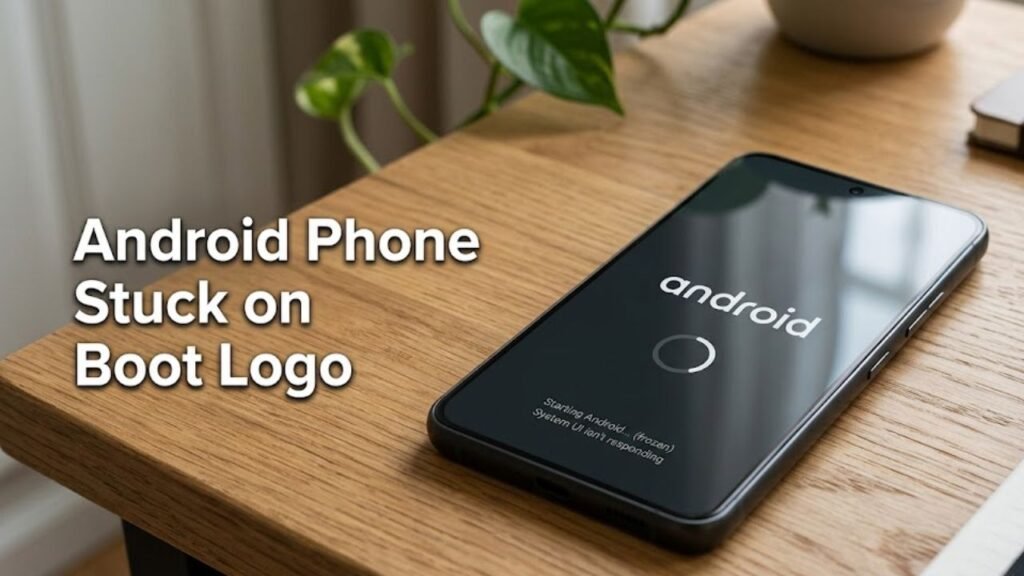
Android phone stuck on boot logo is one of the most alarming problems a smartphone user can experience. You press the power button, the manufacturer logo appears on screen, and then nothing else happens. The phone does not load your home screen. It just sits there with the logo displayed, sometimes for minutes, sometimes indefinitely.

This situation feels serious — and it can be — but in most cases it is fixable without professional help and without losing your personal data.

This guide explains exactly why an Android phone gets stuck on the boot logo, walks through every fix from the simplest to the most advanced, and tells you clearly when the Android problem requires professional assessment.


What Does Stuck on Boot Logo Actually Mean?

When your Android phone is stuck on boot logo, it means the device has started the power-on sequence but cannot complete it.

The boot process has several stages. First the hardware initializes, then the bootloader runs, then the Android kernel loads, and finally the system starts all the apps and services needed to reach your home screen. The manufacturer logo appears during the early stages of this process.

If the phone stops at the logo and cannot move forward, something interrupted or corrupted one of the later boot stages. The phone is not completely dead — the hardware is functioning enough to display the logo — but the software cannot complete its startup sequence.

Understanding this distinction is important because it tells you the problem is almost always software-related rather than hardware failure, which means it is very often fixable at home.


Common Causes of Android Phone Stuck on Boot Logo

Knowing what caused the problem helps you apply the right fix first rather than working through every option blindly.

Cause How Likely
Interrupted system update Very common
Corrupted system files Very common
Recently installed app causing conflict Common
Low battery during shutdown or restart Common
Corrupted cache partition Common
Failed or incompatible custom ROM Less common
Hardware failure (storage chip) Rare

The most frequent cause by far is an interrupted or failed system update. If your Android phone was updating when the battery died, the phone was restarted mid-update, or the update file was corrupted during download, the system files may be in an incomplete state that prevents the phone from booting fully.


Fix 1 — Force Restart the Device

Before trying anything else, attempt a force restart. Sometimes an Android phone stuck on boot logo is experiencing a temporary software freeze rather than a genuine boot failure, and a force restart clears it immediately.

Fix 1 — Force Restart the Device

How to force restart most Android phones:

  • Samsung: Hold the Power and Volume Down buttons simultaneously for 10 to 15 seconds until the screen goes dark and the phone restarts
  • Google Pixel: Hold the Power button for 30 seconds
  • OnePlus: Hold the Power button for 10 to 15 seconds
  • Xiaomi: Hold the Power button for 10 to 15 seconds

Release the buttons when the screen goes completely dark. Allow the phone to restart normally and wait at least three minutes before concluding that it is still stuck on the boot logo.

This fix works in a meaningful number of cases where the boot sequence froze rather than genuinely failed. Always try this first.


Fix 2 — Charge the Battery Before Attempting Fixes

Fix 2 — Charge the Battery Before Attempting Fixes

If your phone battery was critically low or completely dead before the phone got stuck on the boot logo, insufficient power may be preventing the boot sequence from completing.

Connect the phone to a charger using the original cable and adapter. Allow it to charge for at least 30 minutes without attempting to power it on.

After 30 minutes, attempt a normal startup. If the phone was stuck on boot logo due to insufficient battery power during a previous shutdown or restart, a proper charge often resolves the problem completely.

This is particularly relevant if the phone shut down unexpectedly during a system update due to low battery — a very common cause of boot logo issues.


Fix 3 — Boot Into Safe Mode

Fix 3 — Boot Into Safe Mode

Safe Mode starts Android with only the core system apps running. All third-party apps you have installed are temporarily disabled.

If a recently installed app is causing your Android phone to get stuck on the boot logo, Safe Mode bypasses that app and allows the phone to start normally.

How to boot into Safe Mode:

  • Most Android phones: Hold the Power button until the power menu appears, then long-press the Power Off option until a Safe Mode prompt appears. Tap OK
  • Samsung alternative: Hold Power + Volume Down to force restart, then immediately hold Volume Down after the logo appears until the phone fully boots

If the phone boots successfully in Safe Mode, a third-party app is the cause. Uninstall recently installed apps one by one, restarting normally after each removal, until the phone boots without getting stuck on the logo.


Fix 4 — Clear the Cache Partition

Fix 4 — Clear the Cache Partition

The cache partition stores temporary system files that Android uses to speed up boot processes and app loading. If this cache becomes corrupted — which commonly happens after a failed system update — it can cause an Android phone stuck on boot logo.

Clearing the cache partition removes all temporary system files without touching your personal data, photos, apps, or settings.

How to clear the cache partitionSamsung:

  1. Power off the device completely by holding Power and Volume Down until it shuts off
  2. Hold Power + Volume Up simultaneously until the Samsung logo appears
  3. Release both buttons when the Android recovery menu appears
  4. Use Volume Down to navigate to Wipe Cache Partition
  5. Press Power to select it
  6. Confirm with Power when prompted
  7. Select Reboot System Now when complete

How to clear the cache partition — Google Pixel:

  1. Power off the device
  2. Hold Power + Volume Down to enter Fastboot mode
  3. Use Volume buttons to navigate to Recovery Mode
  4. Press Power to enter Recovery
  5. When the Android logo with an exclamation mark appears, hold Power and briefly press Volume Up
  6. Navigate to Wipe Cache Partition and select it with Power
  7. Select Reboot System Now when complete

How to clear the cache partition — OnePlus and Xiaomi:

The process is similar across most Android devices. Hold Power + Volume Up (or Power + Volume Down on some models) when the phone is completely off to access the recovery menu, navigate to Wipe Cache Partition, and confirm.

Allow the phone to reboot after clearing the cache partition. This fix resolves a significant number of Android phone stuck on boot logo cases caused by corrupted temporary system files.


Fix 5 — Remove the SD Card

An incompatible, corrupted, or failing SD card can prevent Android from completing its boot sequence on devices that support external storage.

Fix 5 — Remove the SD Card

If your phone has an SD card slot, power the device off completely using a force restart, then remove the SD card from the tray.

Attempt to start the phone without the SD card. If the phone boots normally without it, the SD card was causing the problem. The card may need reformatting or replacement.

This fix is straightforward and risk-free, making it worth trying early in the troubleshooting process if your device uses an SD card.


Fix 6 — Use Android Recovery Mode to Factory Reset

If clearing the cache partition did not resolve the Android phone stuck on boot logo problem, a factory reset through Recovery Mode is the next step.

Fix 6 — Use Android Recovery Mode to Factory Reset

Important warning: A factory reset erases all personal data on the device — apps, photos, contacts, messages, and settings. Only proceed with this fix if you have a backup of your important data or if you have exhausted all other options.

How to factory reset through Recovery Mode:

  1. Power off the device completely
  2. Enter Recovery Mode using the button combination for your device (as described in Fix 4)
  3. Navigate to Wipe Data / Factory Reset using the Volume buttons
  4. Select it with the Power button
  5. Confirm the reset when prompted
  6. Wait for the process to complete — this takes several minutes
  7. Select Reboot System Now when finished

After a factory reset, the phone returns to its original out-of-box state. If the Android phone stuck on boot logo problem was caused by software corruption, the reset resolves it in most cases.


Fix 7 — Flash the Stock Firmware

If a factory reset does not resolve an Android phone stuck on boot logo, the Android firmware itself may be corrupted beyond what a standard reset can repair.

Fix 7 — Flash the Stock Firmware

Flashing stock firmware reinstalls the complete official Android software for your specific device model, replacing any corrupted system files entirely.

This process varies significantly by manufacturer and device model:

  • Samsung: Use Odin software on a Windows computer with the official firmware for your exact device model
  • Google Pixel: Use the Android Flash Tool available through Google’s official developer pages with a Chrome browser
  • Xiaomi: Use the MiFlash Tool with the official MIUI firmware for your device
  • OnePlus: Use MSMDownloadTool or the OnePlus official flash guide for your specific model

General requirements for firmware flashing:

  • A Windows or Mac computer
  • A USB cable
  • The official firmware file for your exact device model and region
  • The manufacturer’s official flashing tool

Follow the manufacturer’s specific instructions precisely. Flashing incorrect firmware for a different model or region can cause additional problems. When done correctly with official firmware, this process resolves Android phone stuck on boot logo problems caused by severe firmware corruption.


Fix 8 — Seek Professional Repair Assessment

If you have worked through every fix above and your Android phone is still stuck on boot logo, the problem may involve hardware rather than software.

Hardware causes of boot logo issues are less common but do occur. A failing internal storage chip, damaged motherboard components, or physical damage from a previous drop can prevent the boot sequence from completing regardless of software fixes.

Signs that suggest hardware involvement include:

  • The phone gets stuck on the boot logo even after firmware flashing
  • The phone was recently dropped, exposed to water, or subjected to physical damage before the problem began
  • Recovery Mode cannot be accessed at all
  • The phone makes unusual sounds or shows heat from unusual locations during boot attempts

Take the device to a certified repair technician for professional assessment. They can diagnose whether the storage, motherboard, or another component is failing and advise on repair or replacement options.


How to Prevent Android Phone Stuck on Boot Logo

Once your phone is working again, a few habits significantly reduce the risk of encountering an Android phone stuck on boot logo in the future.

Never interrupt a system update
Always allow system updates to complete fully. Keep the phone connected to a charger during updates and never force restart the device while an update is in progress.

Charge above 50 percent before updating
A system update that fails due to battery depletion during installation is one of the most common causes of boot logo issues. Always update with at least 50 percent charge, and connect to a charger to be safe.

Back up your phone regularly
Regular backups through Google Account backup, Samsung Cloud, or a computer backup ensure that a factory reset — if ever needed — does not result in permanent data loss.

Be cautious with custom ROMs
Installing unofficial Android versions carries a significant risk of boot failure if the installation goes wrong. Only attempt custom ROM installation if you fully understand the process and accept the risks involved.


FAQs

Why is my Android phone stuck on the boot logo?
An Android phone stuck on boot logo is usually caused by a failed or interrupted system update, corrupted system files, or a recently installed app creating a conflict during startup. A force restart or cache partition wipe resolves most cases.

Will fixing a boot loop delete my data?
A force restart and cache partition wipe do not delete personal data. A factory reset does erase all data. Always try the non-destructive fixes first and only proceed to factory reset as a last resort before seeking professional help.

How long should I wait on the boot logo before troubleshooting?
If your Android phone is stuck on the boot logo for more than five minutes with no progress, the boot sequence has genuinely failed rather than simply being slow. Begin troubleshooting at that point rather than waiting longer.

Can a bad SD card cause an Android phone to get stuck on the boot logo?
Yes. A corrupted or failing SD card can prevent Android from completing its boot sequence. Removing the SD card and attempting to boot without it is a quick and safe diagnostic step.

Is an Android phone stuck on the boot logo always fixable?
Software-caused boot logo issues are fixable in the vast majority of cases through the steps in this guide. Hardware-caused boot failures require professional assessment and may not be cost-effective to repair depending on the device age and damage severity.


Final Thoughts

An Android phone stuck on boot logo is a stressful experience, but it is important to approach it systematically rather than panicking. In most cases, the phone is recoverable without professional help and without losing personal data.

Always start with the simplest fixes. A force restart resolves temporary boot freezes. Charging the battery resolves power-related boot failures. Safe Mode identifies app conflicts. Clearing the cache partition addresses corrupted temporary files. Each step eliminates a possible cause and moves you closer to a working phone.

Factory reset and firmware flashing are more involved but highly effective for genuine software corruption. Hardware failure is the least common cause and the only scenario that genuinely requires professional intervention.

Work through the fixes in order, give each one a fair chance to work, and your Android phone stuck on boot logo will be back to normal in the majority of cases before you reach the more advanced steps.

Amazing Offer Available
Lucky Sharma
Lucky is Senior Editor at TheAndroidPortal & an expert in mobile technology with over 10 years of experience in the industry. He holds a Bachelor's degree in Computer Science from MIT and a Master's degree in Mobile Application Development from Stanford University.