

Introduction
Android phone freezing randomly is a frustrating issue that disrupts everyday use, causing apps to become unresponsive, screens to lock up, and the entire device to slow down unexpectedly. This problem can occur at any time—while browsing, gaming, or even during basic tasks like messaging.
Although it may feel like a serious hardware failure, most cases of Android phone freezing randomly are caused by manageable software issues such as overloaded memory, app conflicts, or system glitches. Identifying the root cause is key to applying the correct fix.
In this comprehensive guide, you will learn the causes, step-by-step solutions, and preventive strategies to eliminate freezing issues and restore your device’s performance.
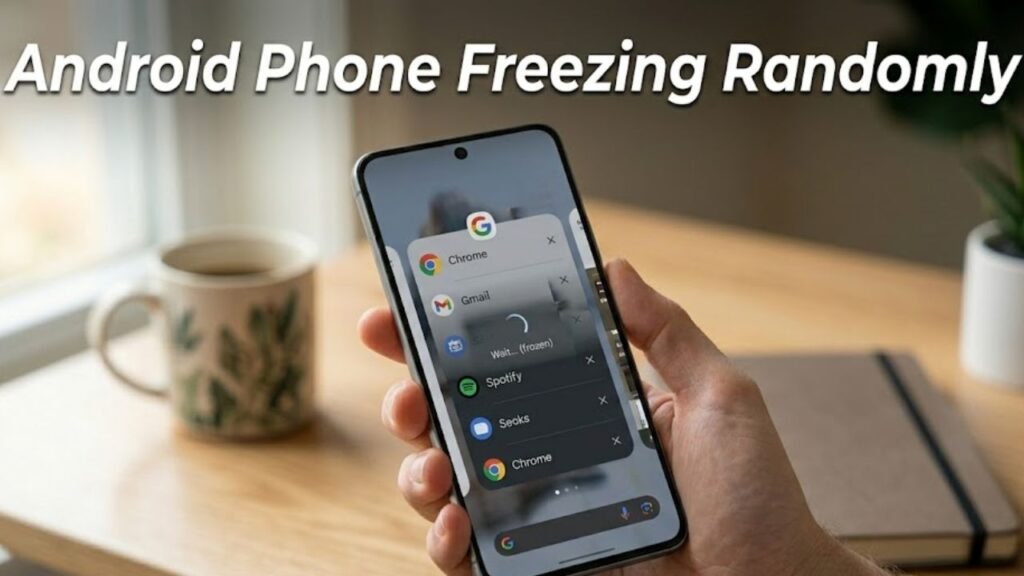
What Does Android Phone Freezing Randomly Mean?
When an Android phone freezes randomly, it temporarily stops responding to touch or input.
Common symptoms include:
- Screen becoming unresponsive
- Apps freezing or crashing
- Delayed system navigation
- Forced restarts required
This indicates that the system is struggling to manage resources efficiently.
Common Causes of Android Phone Freezing Randomly
1. Low RAM or Memory Overload
- Too many apps running simultaneously
- Background processes consuming memory
2. Insufficient Storage Space
- Nearly full storage affecting system performance
- Limited space for temporary files
3. Software Bugs or Glitches
- Errors after system updates
- Temporary OS instability
4. Outdated Software
- Lack of performance optimizations
- Compatibility issues
5. Overheating
- High temperatures slowing CPU performance
- Thermal throttling
6. Faulty or Heavy Apps
- Poorly optimized apps
- Resource-intensive applications
Quick Diagnosis Table
| Issue Type | Difficulty | Risk Level | Recommended Fix |
|---|---|---|---|
| Memory overload | Easy | Low | Close apps |
| Storage issue | Easy | Low | Free storage |
| Software glitch | Easy | Low | Restart device |
| System bug | Medium | Medium | Update/reset system |
| Hardware limitation | Advanced | High | Repair or upgrade |
12 Proven Fixes for Android Phone Freezing Randomly
1. Restart Your Device
Restarting clears temporary system issues.
Steps:
- Press and hold Power button
- Tap Restart
2. Close Background Apps
Too many apps can overload memory.
Steps:
- Open Recent Apps
- Close unused applications
3. Free Up Storage Space
Low storage can cause freezing.
Steps:
- Go to Settings → Storage
- Delete unnecessary files
4. Clear Cache Data
Cache buildup can slow performance.
Steps:
- Go to Settings → Apps
- Select apps → Clear Cache
5. Update Android System
Updates fix bugs and improve stability.
Steps:
- Go to Settings → Software Update
- Install updates
6. Uninstall Problematic Apps
Certain apps may cause freezing.
- Remove recently installed apps
- Avoid heavy or untrusted apps
7. Boot into Safe Mode
Safe Mode helps identify app conflicts.
Steps:
- Press and hold Power button
- Tap and hold Power Off
- Select Safe Mode
8. Disable Animations
Reducing animations improves responsiveness.
Steps:
- Enable Developer Options
- Reduce animation scale
9. Check for Overheating
Overheating can cause freezing.
Solutions:
- Remove phone case
- Avoid heavy apps temporarily
- Allow device to cool
10. Scan for Malware
Malicious apps can slow down your phone.
- Use trusted antivirus app
- Remove detected threats
11. Reset App Preferences
Restores default app settings.
Steps:
- Go to Settings → Apps
- Tap Reset App Preferences
12. Factory Reset (Last Resort)
If Android phone freezing randomly persists:
Steps:
- Backup your data
- Go to Settings → System → Reset
- Select Factory Reset
Detailed Comparison of Fixes
| Solution | Data Loss | Effectiveness | Best For |
|---|---|---|---|
| Restart Device | No | Medium | Temporary freezes |
| Clear Cache | No | High | Performance issues |
| Free Storage | No | High | Storage-related freezing |
| Update System | No | High | Software bugs |
| Factory Reset | Yes | Very High | Severe freezing |
Practical Tips to Prevent Freezing Issues
Best Practices:
- Keep your device updated
- Maintain at least 20% free storage
- Limit background apps
- Avoid installing untrusted apps
- Restart your phone regularly
Signs of Serious Performance Problems
Watch for:
- Frequent freezing across all apps
- Device overheating constantly
- Lag even after reset
- Random shutdowns
These may indicate hardware issues.
Advanced Troubleshooting Methods
Use Performance Mode
Boosts system resources for smoother performance.
Optimize RAM Usage
Close unnecessary apps and services.
Install Custom ROM (Advanced)
Advanced users can improve performance with optimized firmware.
FAQs About Android Phone Freezing Randomly
Why is my Android phone freezing randomly?
It is usually caused by low memory, storage issues, or software glitches.
How do I fix freezing without losing data?
Restart your device, clear cache, and free up storage.
Does overheating cause freezing?
Yes, high temperatures can reduce CPU performance and cause freezing.
Should I factory reset my phone?
Only if other solutions fail.
Is freezing a hardware issue?
Not always, but persistent freezing may indicate hardware problems.
Conclusion
Android phone freezing randomly is a common issue that can significantly impact usability, but it is often fixable with the right approach. Most cases are caused by software-related factors such as memory overload, storage limitations, or app conflicts.
By following the structured solutions outlined in this guide—from basic fixes like restarting your device to advanced methods like factory reset—you can restore smooth and responsive performance.
Preventive measures such as managing storage, limiting background activity, and keeping your device updated are essential for long-term stability.
If the issue persists despite all troubleshooting efforts, professional evaluation may be necessary to address potential hardware concerns. With proper optimization, your Android device can continue to operate efficiently and reliably.
