

Android camera app keeps crashing at the worst possible moments — during family events, while trying to capture something important, or right when you need a quick photo. The app opens for a second, then closes itself, or it does not open at all and immediately throws a crash error.
This is one of the most common Android problems users search for fixes on, and the good news is that most camera app crashes are caused by software issues that are completely fixable without professional help.
This guide explains every common reason the Android camera app keeps crashing, gives you a clear set of fixes to work through in order, and tells you when the problem needs a different type of solution.
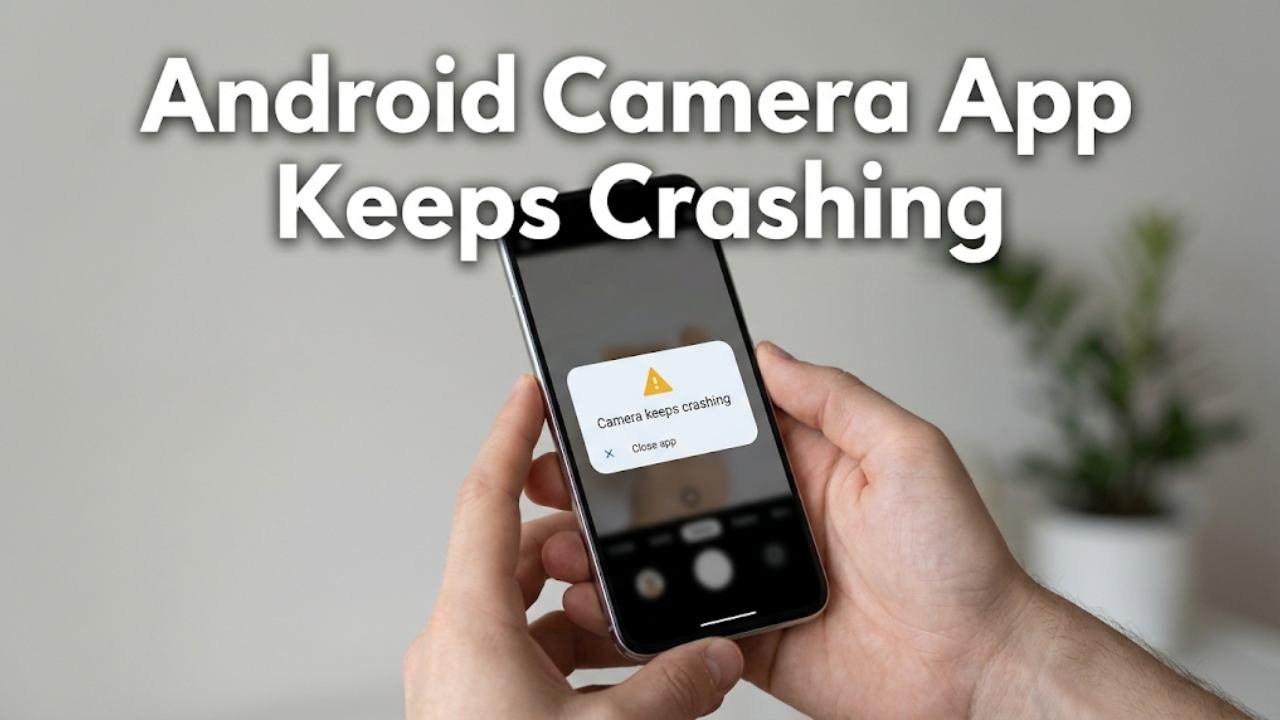
Why the Android Camera App Keeps Crashing
Understanding what causes camera app crashes helps you identify the right fix faster.
| Cause | How Common |
|---|---|
| Corrupted camera app cache | Very common |
| Insufficient storage space | Very common |
| Conflicting third-party camera app | Common |
| Camera permissions revoked or corrupted | Common |
| System update conflict | Common |
| Google Play Services issue | Common |
| Corrupted app data | Moderate |
| Hardware camera module fault | Less common |
The camera app is one of the most resource-intensive apps on your phone. It accesses the camera hardware, storage, GPS for location tagging, and microphone simultaneously. Any conflict in accessing these resources can cause the Android camera app to keep crashing.

Quick Diagnostic — When Does the Camera Crash?
Before starting fixes, note exactly when the Android camera app keeps crashing. This narrows down the cause immediately.
Camera crashes immediately on opening: Usually caused by corrupted cache, storage permissions, or storage space issues.
Camera opens but crashes when taking a photo: Often a storage issue — there is no room to save the photo — or a conflict with the save location setting.
Camera crashes only in video mode: Typically a storage space or encoding issue rather than a general camera problem.
Camera crashes only when using a specific feature: Portrait mode, night mode, or zoom crashes usually indicate a conflict with that specific processing module.
Camera crashes after a system update: Almost certainly a software compatibility issue between the updated system and the camera app version.
Fix 1 — Force Stop and Reopen the Camera App
When the Android camera app keeps crashing, force stopping it clears its current active state and gives it a completely fresh start.
This is different from simply closing and reopening the app. Force stopping terminates all background processes the camera was running, not just the foreground interface.
How to force stop:
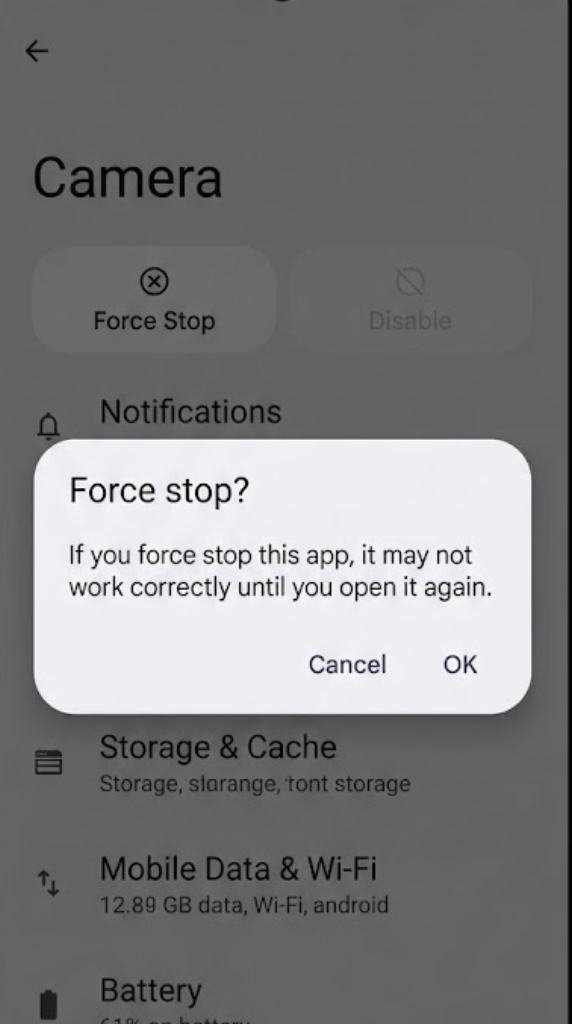
- Open Settings
- Tap Apps or Application Manager
- Find and tap Camera
- Tap Force Stop
- Confirm when prompted
- Wait 10 seconds
- Open the camera app again normally
If a temporary process conflict was causing the Android camera app to keep crashing, force stopping and reopening it resolves the issue immediately.
Fix 2 — Clear the Camera App Cache
A corrupted camera cache is the single most common cause of repeated camera app crashes on Android. The camera stores temporary data including recent settings, filter previews, and processing files in its cache. When this data becomes corrupted, the app crashes every time it tries to access those files.
Clearing the cache removes all temporary data. The camera rebuilds it cleanly the next time you open the app. This does not delete any photos or videos.
How to clear camera cache:
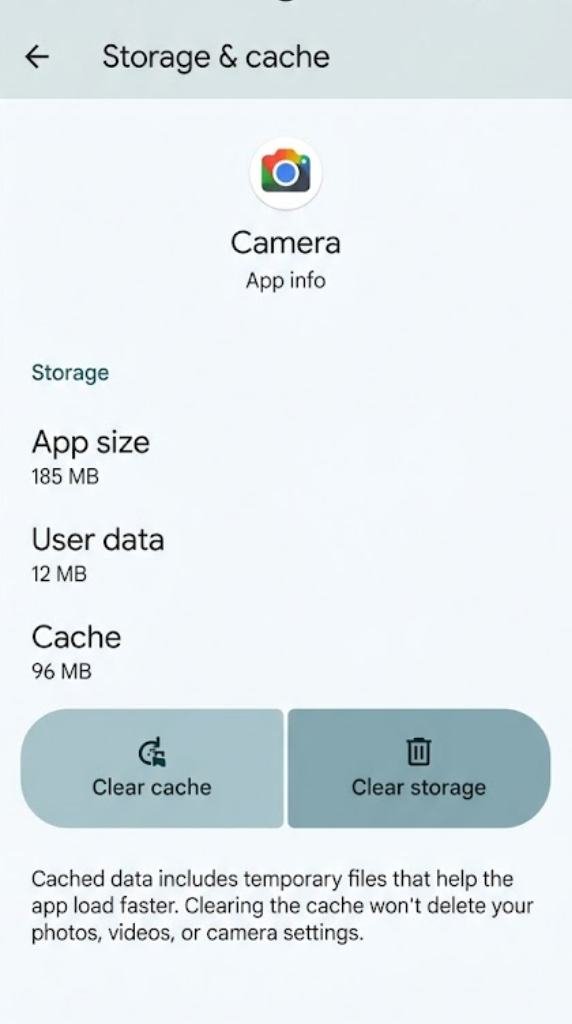
- Open Settings
- Tap Apps
- Find and tap Camera
- Select Storage
- Tap Clear Cache
- Open the camera app and test
This fix resolves the Android camera app keeps crashing problem in a significant number of cases. Always try this before any more involved solutions.
![How to Clear Camera Cache on Android [FULL GUIDE]](https://i.ytimg.com/vi/qegC8W04jfM/hqdefault.jpg)
Fix 3 — Free Up Storage Space
The camera app crashes when there is not enough free storage to save photos and videos or to create the temporary working files it needs during processing.
Modern camera apps — especially those with AI processing, portrait mode, or RAW capture — need substantial temporary working space even before saving the final image. When available storage drops below a functional threshold, the camera cannot complete its processing pipeline and crashes.
Check your storage:
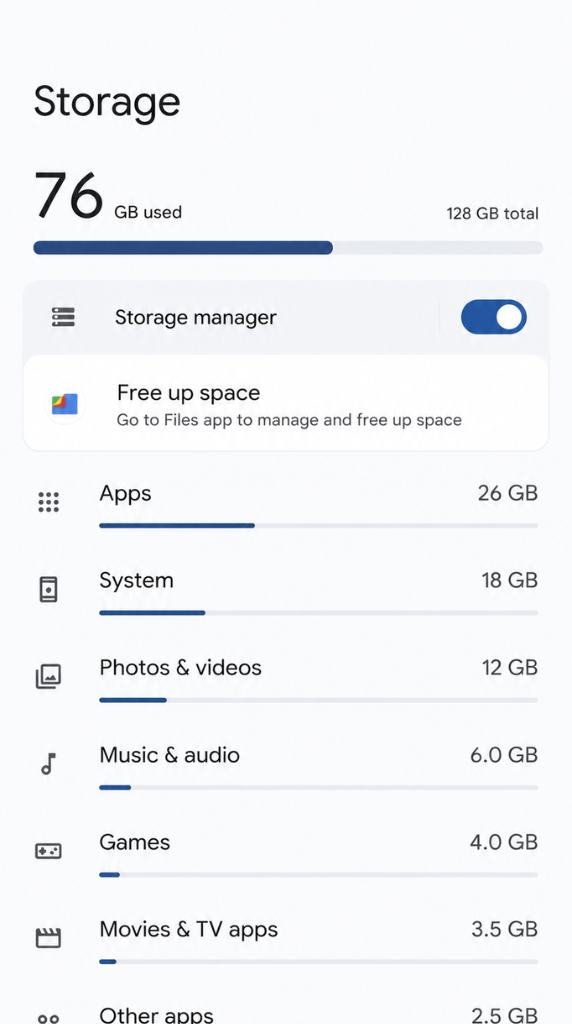
Go to Settings → Storage and check available free space. If less than 1 GB is free, storage is likely contributing to or directly causing the Android camera app to keep crashing.
Free up storage quickly:
- Delete apps you no longer use along with their data
- Clear large caches from social media and streaming apps
- Remove downloaded videos, podcasts, and offline content
- Transfer photos and videos to Google Photos and remove local copies using Free Up Space
- Delete files from the Downloads folder that are no longer needed
After freeing at least 2 to 3 GB of storage, reopen the camera app and test whether crashes continue.
Fix 4 — Check and Reset Camera Permissions
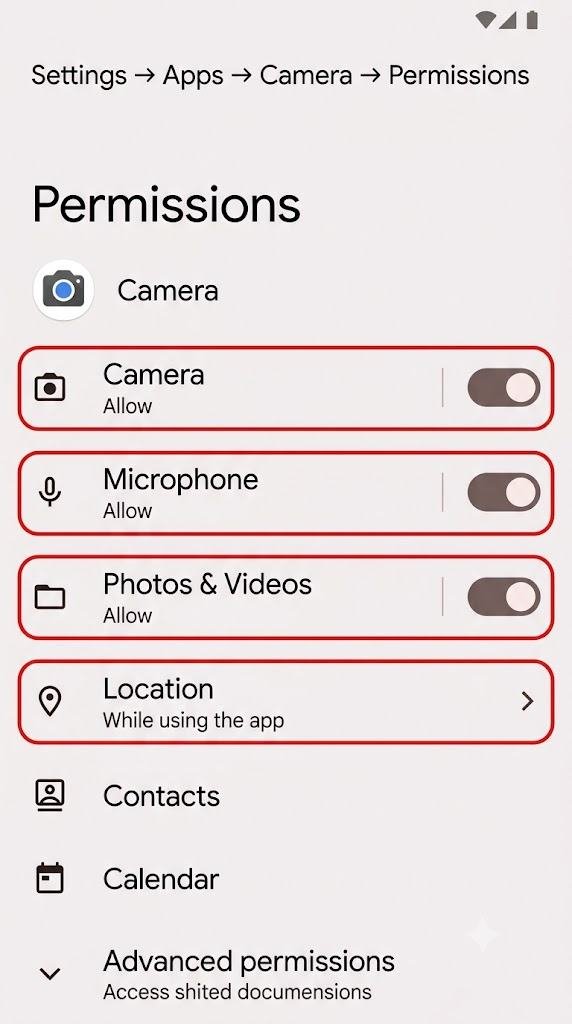
The camera app requires access to several system resources to function. If any critical permission was revoked — accidentally or by a system update resetting permissions — the Android camera app keeps crashing because it cannot access the hardware or storage it needs.
Permissions the camera app typically requires:
| Permission | Why It Is Needed |
|---|---|
| Camera | Access to the camera hardware |
| Microphone | Recording audio in video mode |
| Storage | Saving photos and videos |
| Location | Adding GPS coordinates to photos |
How to check and reset camera permissions:
- Open Settings
- Tap Apps
- Find and tap Camera
- Select Permissions
- Ensure Camera, Microphone, and Storage are set to Allow
- Location can be set to While Using App or Ask Every Time
After confirming all permissions are correctly set, open the camera app and test. If the Android camera app keeps crashing only in video mode, pay particular attention to microphone permission — that is the most common permission-related video crash cause.
Fix 5 — Clear Camera App Data
If clearing the cache did not resolve the problem, clearing the full app data resets the camera to a completely clean state.
Camera app data includes saved settings, mode preferences, filter configurations, and locally stored processing profiles. Corrupted data files within this storage cause persistent crashes that cache clearing alone cannot fix.
Important: Clearing camera app data resets all your camera settings including grid lines, aspect ratio preferences, shooting modes, and any custom configurations. You will need to reconfigure your preferred settings after this step.
How to clear camera data:
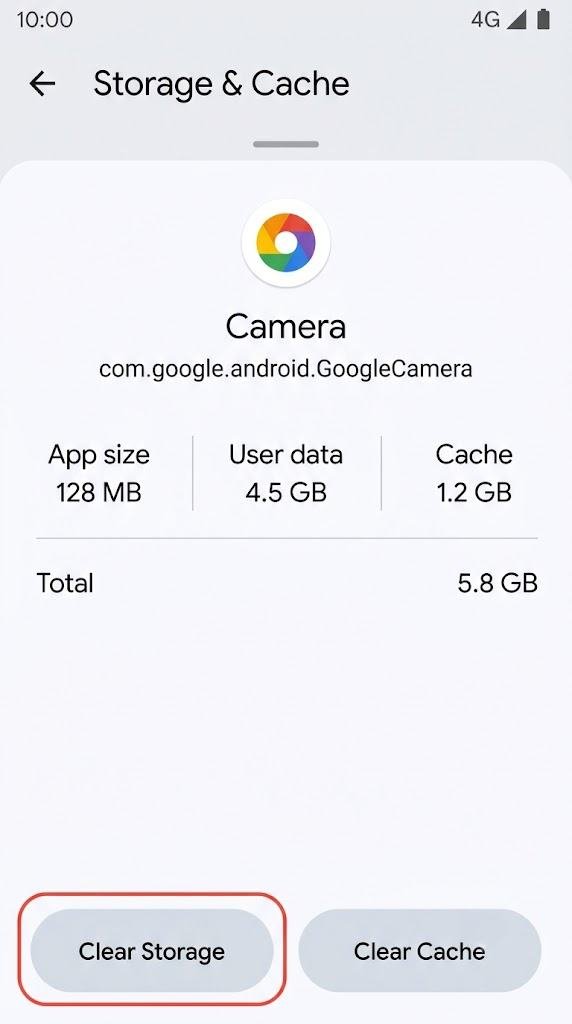
- Go to Settings → Apps
- Find and tap Camera
- Select Storage
- Tap Clear Data
- Confirm when prompted
- Open the camera app — it will launch in its default state
After clearing data, the Android camera app keeps crashing problem caused by corrupted settings or configuration files is fully resolved in most cases.
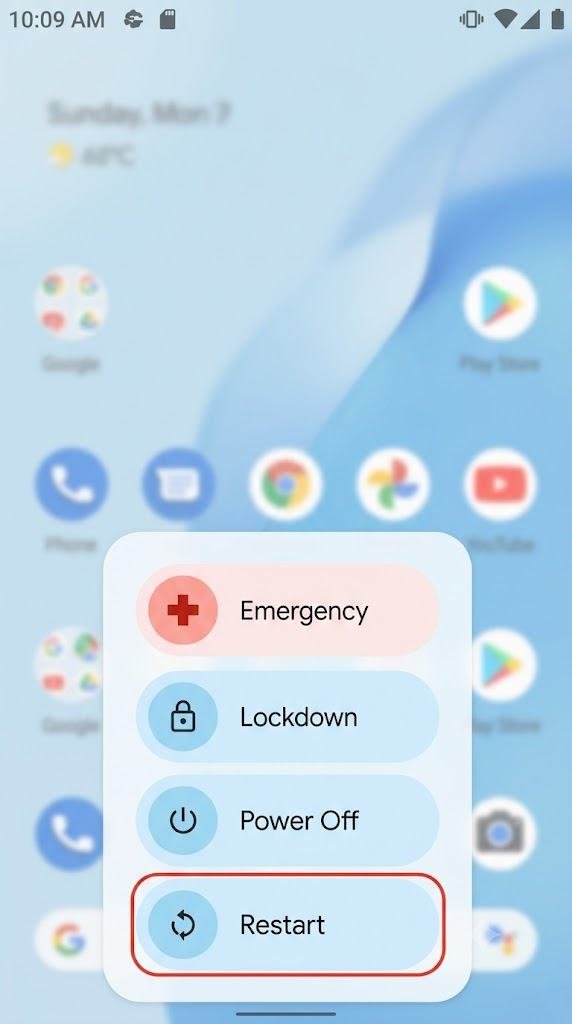
Fix 6 — Restart the Device
A full device restart resets all system processes including the camera hardware drivers and the memory management system that allocates resources to the camera app.
When multiple apps have been running for extended periods without a restart, memory fragmentation and resource allocation conflicts accumulate. The camera is particularly sensitive to these issues because it needs large continuous blocks of memory for image processing.
Hold the Power button and select Restart. After the device fully loads, open the camera app before opening any other apps and test whether the Android camera app keeps crashing continues.
Testing the camera immediately after a fresh restart — before other apps have loaded into memory — helps confirm whether memory pressure from other running apps is contributing to the crash.
Fix 7 — Check for Conflicting Third-Party Camera Apps
Third-party camera apps sometimes claim exclusive access to camera hardware resources. When a third-party camera app is running in the background or has claimed a hardware lock on the camera module, the default camera app cannot access the hardware and crashes immediately on opening.
How to identify and resolve camera app conflicts:
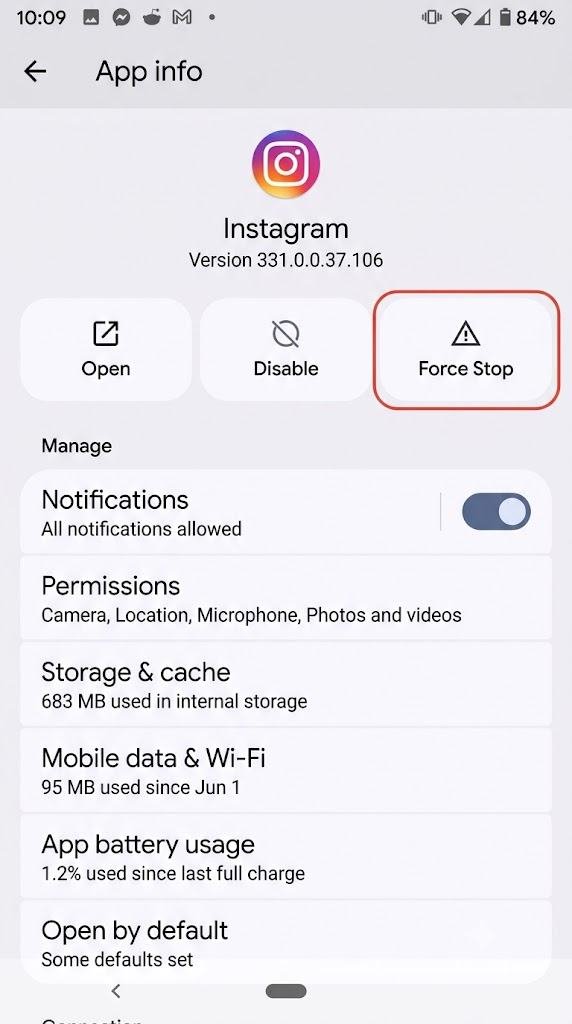
- Force stop all third-party camera apps currently installed — go to Settings → Apps and force stop any camera, scanner, QR code reader, or video calling app that uses the camera
- Restart the device
- Open only the default camera app before any other apps
- Test whether the Android camera app keeps crashing
If the default camera works after force stopping third-party apps, the conflict is confirmed. Check which app was the culprit by opening them one at a time after the default camera is working, identifying the specific app that causes the crash to reappear.
Apps that commonly conflict with the default camera include:
- Instagram and Snapchat when left running in background
- QR code scanner apps
- Video conferencing apps like Zoom or Teams
- Third-party camera apps with custom hardware access modes
Fix 8 — Update the Camera App and System Software
An outdated camera app version is incompatible with the current Android system version on your device. When the system updates but the camera app does not, or vice versa, the mismatch causes the Android camera app to keep crashing due to API and hardware access incompatibilities.
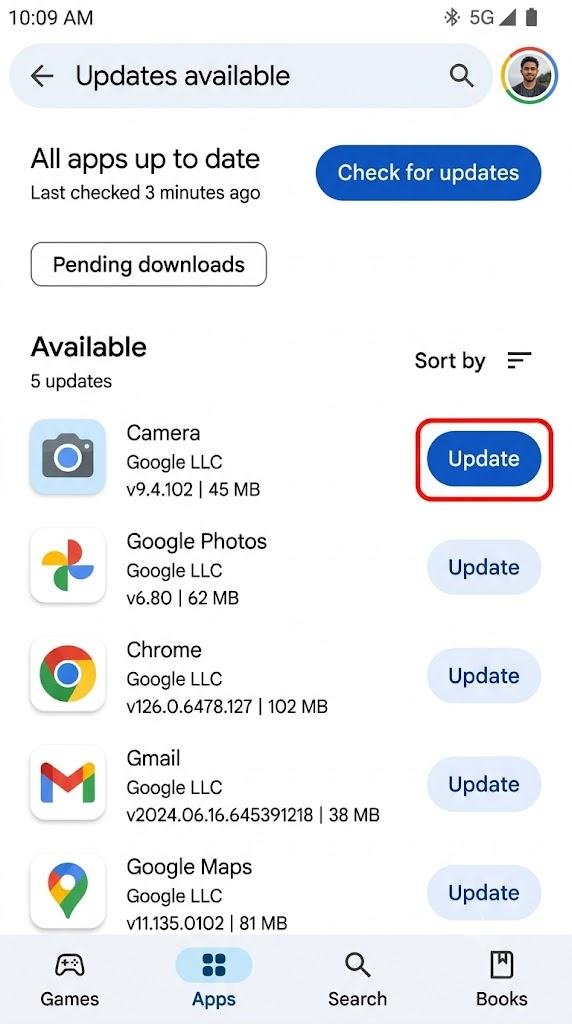
- Open the Google Play Store
- Tap your profile icon
- Select Manage Apps and Device
- Find the Camera app in the list and tap Update if available
Update the system software:
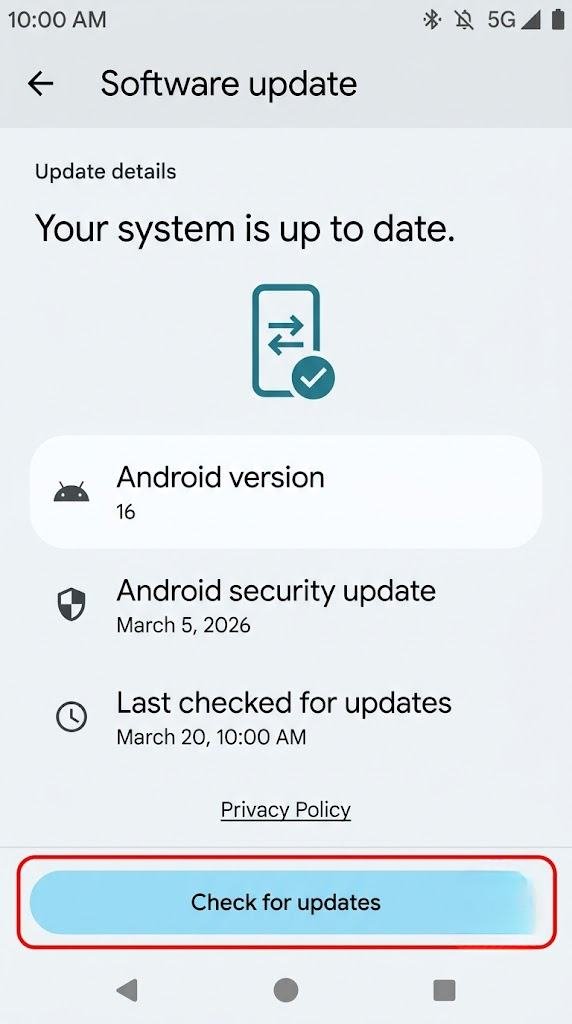
- Go to Settings → System → Software Update
- Tap Check for Updates
- Install any available update
If the Android camera app keeps crashing started immediately after a system update, a camera app update that addresses the new system compatibility is typically released within days by the manufacturer. Installing it resolves the incompatibility.
Fix 9 — Boot Into Safe Mode to Test
Safe Mode disables all third-party apps and runs Android with only built-in system apps. Testing the camera in Safe Mode determines definitively whether a third-party app is causing the crash.
How to boot into Safe Mode:
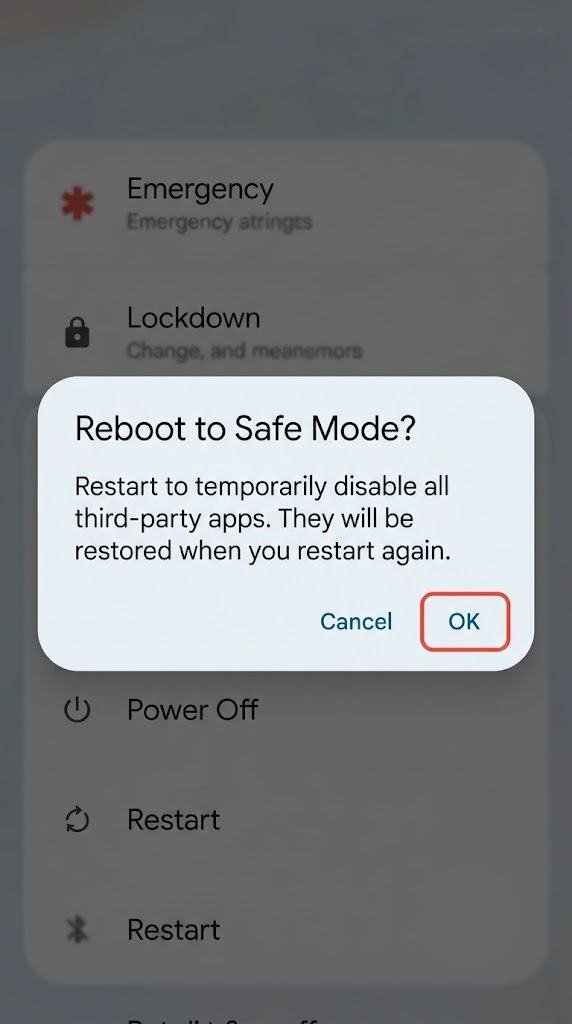
- Hold the Power button until the power menu appears
- Long-press the Power Off option until the Safe Mode prompt appears
- Tap OK
In Safe Mode, open the default camera app and test all shooting modes — photo, video, portrait, and any other modes your phone supports.
If the camera works in Safe Mode: A third-party app is causing the Android camera app to keep crashing when running normally. Restart and uninstall recently added apps one by one, testing the camera after each removal until you identify the problematic app.
If the camera still crashes in Safe Mode: The problem is system-level software or hardware. Proceed to the advanced steps below.
Advanced Fix — Factory Reset as Last Resort
If every fix above has been applied and the Android camera app keeps crashing in Safe Mode with no improvement, a factory reset removes all potential software corruption.
Before factory resetting:
- Back up all photos and videos to Google Photos or a computer
- Note your app list so you can reinstall them after the reset
- Ensure your Google account backup is up to date
Go to Settings → General Management → Reset → Factory Data Reset and follow the prompts. After the reset, set up the phone and test the camera app before installing any other apps to confirm the software issue is resolved.
If the camera still crashes after a factory reset, the camera hardware module itself may be failing. In this case, professional assessment and likely hardware repair or replacement is required.
When the Android Camera App Keeps Crashing Is a Hardware Problem
Hardware camera failures are less common than software causes but do occur. Signs that point to a hardware problem include:
- Camera crashes on every mode in Safe Mode after a factory reset
- Camera shows a black screen or distorted image before crashing
- Physical damage or moisture exposure preceded the camera problem
- The front camera works but the rear camera crashes, or vice versa
- The phone overheats during camera use before crashing
If hardware failure is suspected, take the device to a certified repair technician. Camera module replacements are relatively straightforward for experienced technicians and restore full functionality in most cases.
FAQs
Why does my Android camera app keep crashing?
The Android camera app keeps crashing most commonly because of corrupted cache, insufficient storage space, revoked app permissions, or a conflict with a recently updated system or third-party app. Clearing the camera cache and checking storage space resolves the majority of cases.
Will clearing camera data delete my photos?
No. Clearing camera app data only resets the app’s internal settings and configuration files. Your photos and videos are stored in your phone’s gallery or Google Photos and are completely unaffected by clearing camera data.
Why did my camera start crashing after a system update?
System updates sometimes introduce compatibility changes that conflict with the camera app version currently installed. Updating the camera app through the Play Store or waiting for a manufacturer patch update typically resolves post-update crashes within days.
Can low storage cause camera app crashes?
Yes. The camera needs free storage not just to save photos but also to create temporary processing files during shooting. When storage drops critically low, the camera cannot complete its processing pipeline and crashes. Freeing 2 to 3 GB of storage often resolves the issue immediately.
How do I know if my camera crash is a hardware problem?
If the Android camera app keeps crashing in Safe Mode and after a factory reset, and the problem started after physical damage or the camera shows a black screen rather than a live image, the camera hardware module likely needs professional assessment and repair.
Final Thoughts
When the Android camera app keeps crashing, the problem is almost always software-related and fixable at home. Corrupted cache, storage issues, permission conflicts, and app compatibility mismatches are the causes behind the vast majority of camera crashes — and every one of these has a clear, practical fix.
Start with the simplest steps. Clear the cache, check storage space, verify permissions, and force stop conflicting apps. These four actions resolve most camera crashes within minutes.
Work through the remaining fixes — clearing app data, restarting the device, checking for updates, and testing in Safe Mode — if the initial steps do not fully resolve the problem.
Reserve factory reset for genuine last-resort situations, and only consider hardware repair if the camera continues crashing after a clean factory reset with no third-party apps installed.
With the right fix applied, the Android camera app keeps crashing problem will be fully resolved, and you will be capturing photos and videos without interruption.
