

Introduction
Android keyboard not showing is a frustrating issue that prevents users from typing messages, searching online, or entering essential information. When the keyboard fails to appear, it disrupts basic functionality and makes your device difficult to use.
This problem can occur suddenly due to software glitches, app conflicts, or incorrect system settings. While it may seem like a major malfunction, most cases of Android keyboard not showing are easy to fix with the right troubleshooting steps.
In this comprehensive guide, you will learn the causes, proven solutions, and preventive strategies to restore your keyboard and ensure smooth typing performance.
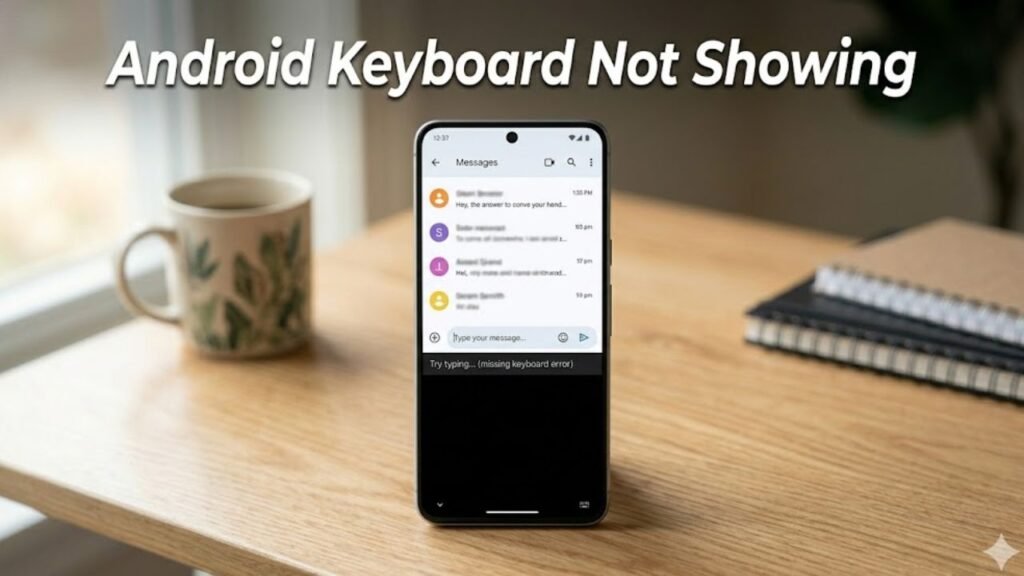
What Does Android Keyboard Not Showing Mean?
When the Android keyboard does not appear, the input method fails to activate when you tap on a text field.
You may experience:
- No keyboard popup when typing
- Keyboard disappearing suddenly
- Delayed or unresponsive input
- Blank screen instead of keyboard
This indicates an issue with the input method service or system processes.
Common Causes of Android Keyboard Not Showing
1. Software Glitches
- Temporary bugs in the system
- System UI issues
2. Disabled Keyboard App
- Default keyboard accidentally disabled
- Input method turned off
3. Corrupted Cache or Data
- Damaged temporary files
- App malfunction
4. Outdated Keyboard App
- Compatibility issues with system updates
5. Third-Party App Conflicts
- Apps interfering with keyboard function
6. Insufficient System Resources
- Low RAM or storage affecting performance
Quick Diagnosis Table
| Issue Type | Difficulty | Risk Level | Recommended Fix |
|---|---|---|---|
| Minor glitch | Easy | Low | Restart device |
| Disabled keyboard | Easy | Low | Enable keyboard |
| Cache corruption | Easy | Low | Clear cache/data |
| App conflict | Medium | Low | Safe Mode |
| System bug | Medium | Medium | Update/reset |
11 Proven Fixes for Android Keyboard Not Showing
1. Restart Your Device
Restarting clears temporary system issues.
Steps:
- Press and hold Power button
- Tap Restart
2. Enable Your Keyboard App
Ensure your keyboard is enabled.
Steps:
- Go to Settings → System → Languages & Input
- Tap Virtual Keyboard
- Enable your keyboard
3. Set Default Keyboard
Sometimes no default keyboard is selected.
Steps:
- Go to Settings → Languages & Input
- Select Default Keyboard
- Choose your preferred keyboard
4. Clear Keyboard App Cache
Cache corruption can prevent keyboard display.
Steps:
- Go to Settings → Apps
- Select Keyboard app (e.g., Gboard)
- Tap Storage → Clear Cache
5. Clear Keyboard App Data
If cache clearing doesn’t work:
Steps:
- Open Settings → Apps → Keyboard
- Tap Storage → Clear Data
6. Update Keyboard App
Outdated apps may cause compatibility issues.
Steps:
- Open Google Play Store
- Search keyboard app
- Tap Update
7. Update Android System
System updates fix bugs affecting input methods.
Steps:
- Go to Settings → Software Update
- Install updates
8. Free Up Storage Space
Low storage can affect system performance.
Steps:
- Go to Settings → Storage
- Delete unnecessary files
9. Boot into Safe Mode
Safe Mode helps identify conflicting apps.
Steps:
- Press and hold Power button
- Tap and hold Power Off
- Select Safe Mode
If keyboard works, uninstall recent apps.
10. Reset App Preferences
Restores default app settings.
Steps:
- Go to Settings → Apps
- Tap Reset App Preferences
11. Factory Reset (Last Resort)
If Android keyboard not showing persists:
Steps:
- Backup your data
- Go to Settings → System → Reset
- Select Factory Reset
Detailed Comparison of Fixes
| Solution | Data Loss | Effectiveness | Best For |
|---|---|---|---|
| Restart Device | No | Medium | Temporary glitches |
| Enable Keyboard | No | High | Disabled input method |
| Clear Cache | No | High | Minor issues |
| Update Apps/System | No | High | Software bugs |
| Factory Reset | Yes | Very High | Severe issues |
Practical Tips to Prevent Keyboard Issues
Best Practices:
- Keep your keyboard app updated
- Avoid installing untrusted apps
- Regularly clear cache
- Maintain sufficient storage
- Restart your device periodically
Signs of Serious Keyboard Problems
Watch for:
- Keyboard not working across all apps
- Input lag or freezing
- Frequent crashes of keyboard app
- Issues even after reset
These may indicate deeper system issues.
Advanced Troubleshooting Methods
Reinstall Keyboard App
Uninstall and reinstall for a fresh setup.
Use Alternative Keyboard
Test with another keyboard app.
Check Accessibility Settings
Some settings may interfere with input methods.
FAQs About Android Keyboard Not Showing
Why is my Android keyboard not showing?
It is usually caused by disabled keyboard settings, cache issues, or software glitches.
How do I fix keyboard not appearing on Android?
Restart your device, enable the keyboard, and clear cache or data.
Can apps cause keyboard issues?
Yes, third-party apps can interfere with keyboard functionality.
Is it safe to clear keyboard data?
Yes, but it may reset your preferences.
What should I do if nothing works?
Perform a factory reset or seek professional help.
Conclusion
Android keyboard not showing is a disruptive issue that affects basic phone functionality, but it is usually easy to resolve. Most cases are caused by software glitches, disabled settings, or minor app conflicts that can be fixed with simple troubleshooting steps.
By following the structured solutions in this guide—from enabling your keyboard to clearing cache and updating software—you can quickly restore typing functionality. Advanced options like Safe Mode and factory reset provide additional support for persistent problems.
Preventive measures such as maintaining system updates, managing storage, and avoiding conflicting apps will help ensure long-term stability.
With the right approach, you can eliminate keyboard issues and enjoy a smooth, uninterrupted typing experience on your Android device.
