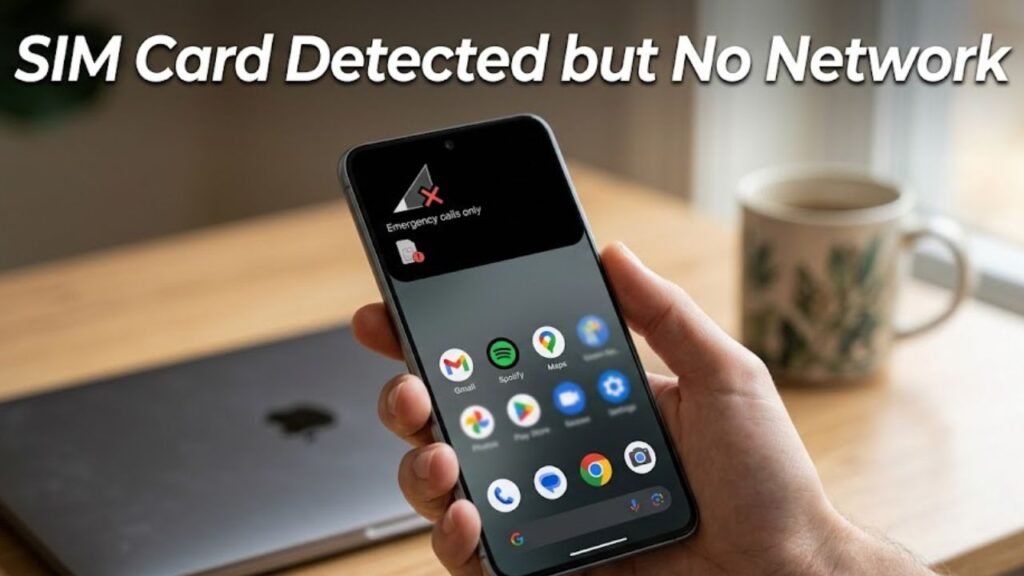
SIM card detected but no network is one of the most frustrating connectivity problems an Android user can face. Your phone recognizes the SIM card is present — it shows your carrier name or the SIM slot is acknowledged — but the signal bars remain empty and you cannot make calls, send texts, or use mobile data.

The important thing to understand immediately is that this android problem is almost always a network registration issue rather than a hardware failure. Your SIM card is not necessarily damaged, and your phone is not necessarily broken. Something is preventing the device from completing its registration with the mobile network.

This guide explains exactly why the SIM card detected but no network problem occurs, walks through every fix from simplest to most thorough, and tells you clearly when the issue requires carrier or professional attention.

SIM Card Detected but No Network - Complete Fix Guide


Understanding Why SIM Card Detected but No Network Happens

When your phone detects a SIM card but cannot find a network, the problem sits somewhere in the chain between your SIM card and the mobile network towers.

Here is how that chain works:

  1. Your phone reads the SIM card and confirms it is valid
  2. The phone searches for available network towers from your carrier
  3. The phone sends a registration request to the network
  4. The network accepts the registration and assigns signal
  5. The signal bars appear and connectivity begins

When SIM card detected but no network occurs, something breaks in steps two, three, or four. The SIM is read correctly — which is why it shows as detected — but the registration process fails or the network towers cannot be reached.

Cause How Common
Temporary network registration glitch Very common
Airplane mode residual state Common
Incorrect network selection setting Common
Dirty or misaligned SIM card contacts Common
Network outage in your area Common
SIM card expired or account suspended Moderate
Incorrect APN settings Moderate
SIM card damaged or failing Less common
Phone modem firmware issue Less common

Fix 1 — Toggle Airplane Mode On and Off

The fastest fix for SIM card detected but no network is toggling airplane mode on and off. This forces your phone to disconnect from all networks completely and then reconnect from scratch.

When the phone reconnects, it sends a fresh network registration request to your carrier’s towers. This clears most temporary registration failures that cause the SIM card detected but no network problem.

How to do it:

Toggle Airplane Mode On and Off

  1. Pull down the notification shade from the top of your screen
  2. Tap the Airplane Mode icon to enable it
  3. Wait a full 30 seconds — do not rush this step
  4. Tap Airplane Mode again to disable it
  5. Wait up to 60 seconds for the phone to search for and register with the network

Watch the signal bars in the top right corner of your screen. If they begin filling in after toggling airplane mode, the fix worked. If the bars remain empty after 60 seconds, continue to the next fix.


Fix 2 — Restart the Device Completely

Restart the Device Completely

A full device restart goes further than toggling airplane mode by restarting the entire modem firmware alongside the Android system.

The radio modem — the component responsible for cellular communication — has its own software that can develop temporary errors. A restart resets the modem alongside the rest of the phone, giving the network registration process a completely fresh start.

Hold the Power button and select Restart. Allow the phone to complete the full restart cycle. After the phone fully loads, wait up to two minutes for it to locate and register with the network before concluding that the SIM card detected but no network problem persists.


Fix 3 — Check Network Selection Settings

Android can search for networks in two modes — automatic and manual. If your phone is set to manual network selection and the selected network is no longer available in your area, it will show SIM card detected but no network because it is locked onto a specific carrier that it cannot find.

This situation commonly occurs after traveling, after a carrier changes its network infrastructure, or if network selection was accidentally switched to manual mode.

How to check and reset network selection:

Check Network Selection Settings

  1. Open Settings
  2. Tap Connections or Network and Internet
  3. Select Mobile Networks or Cellular Networks
  4. Tap Network Operators or Network Selection
  5. Tap Search Automatically or Select Automatically
  6. Wait for the phone to search for available networks
  7. Allow it to connect to your carrier automatically

If your phone was on manual selection and locked to an unavailable network, switching back to automatic immediately resolves the SIM card detected but no network problem.


Fix 4 — Remove, Clean, and Reinsert the SIM Card

Physical contact issues between the SIM card and the SIM tray are a common and easily overlooked cause of the SIM card detected but no network problem.

Dust, pocket lint, moisture residue, and natural oils from handling can coat the gold contacts on the SIM card surface and reduce the quality of the electrical connection. The phone may still read the SIM card’s basic identity — which is why it shows as detected — but the connection quality is not reliable enough to maintain network registration.

How to clean and reseat the SIM card:

Remove, Clean, and Reinsert the SIM Card

  1. Power off the phone completely before removing the SIM
  2. Use the SIM ejector tool or a straightened paperclip to open the SIM tray
  3. Remove the SIM card carefully from the tray
  4. Inspect the gold contacts on the SIM card for dirt, moisture, or corrosion
  5. Clean the contacts gently using a dry, lint-free cloth or a very slightly dampened cotton swab — allow it to dry completely if moisture was used
  6. Inspect the SIM tray contacts inside the phone for debris
  7. Reinsert the SIM card firmly, ensuring it sits flat and correctly in the tray
  8. Power the phone back on and wait for network registration

In many cases of SIM card detected but no network caused by contact issues, this simple cleaning and reseating resolves the problem entirely.


Fix 5 — Test the SIM Card in Another Phone

Testing the SIM card in a different phone is the most efficient diagnostic step to determine whether the problem lies with the SIM card or with your phone’s modem hardware.

How to test:

Test the SIM Card in Another Phone

  1. Power off both phones
  2. Remove your SIM card from your current device
  3. Insert it into the secondary phone — ensure it is the correct SIM size or use an adapter
  4. Power on the secondary phone and wait for network registration

If the SIM card connects to the network in the other phone: Your SIM card is working correctly. The problem is with your original phone’s modem, settings, or firmware. Continue to the remaining fixes focusing on your phone.

If the SIM card also shows no network in the other phone: The problem is with the SIM card itself — it may be damaged, expired, or associated with a suspended account. Contact your carrier for a SIM replacement.

This single test eliminates half of all possible causes and points you clearly toward the correct solution.


Fix 6 — Check Your Account Status With Your Carrier

A SIM card from a suspended or expired account is detected by the phone but cannot register on the network. From the phone’s perspective, the SIM is present and readable — but the carrier’s system refuses the registration request because the account is not active.

Common account-related causes include:

Check Your Account Status With Your Carrier

  • Unpaid bill resulting in service suspension
  • Account closure
  • SIM card expired and requiring replacement
  • Number ported away from the carrier without completing the process
  • Fraud alert or security hold placed on the account

Contact your carrier’s customer service by calling from a different phone, using their website, or visiting a store. Ask them to confirm whether your account is active and whether your SIM card’s ICCID number is registered and valid on their system.

If the account is suspended, resolving the billing issue or reactivating the account restores network access immediately without any changes needed on the phone itself.


Fix 7 — Check and Reset APN Settings

APN stands for Access Point Name. These settings tell your phone how to connect to your carrier’s data network. While incorrect APN settings primarily affect mobile data rather than basic voice and SMS registration, some carrier networks require correct APN settings for full network registration to complete.

If your APN settings were corrupted by a system update, a manual change, or a SIM swap, it can contribute to SIM card detected but no network problems.

How to check APN settings:

Check and Reset APN Settings

  1. Go to Settings → Connections or Network and Internet
  2. Tap Mobile Networks
  3. Select Access Point Names
  4. Check whether the listed APN matches your carrier’s required settings

How to reset APN to default:

  1. In the APN settings screen, tap the three-dot menu in the top right
  2. Select Reset to Default or Restore Default Settings
  3. Restart the device

If reset to default is not available, contact your carrier for the correct APN settings and enter them manually. Your carrier’s website or customer service can provide the exact APN, username, password, and MCC/MNC values required.


Fix 8 — Update the Phone’s Software and Radio Firmware

The radio firmware — the software that controls your phone’s modem and cellular communication hardware — receives updates through standard system updates. An outdated or buggy radio firmware version can cause persistent SIM card detected but no network problems that software-only fixes cannot address.

How to check for updates:

Update the Phone's Software and Radio Firmware

  1. Go to Settings → System → Software Update
  2. Tap Check for Updates
  3. If an update is available, download and install it
  4. Allow the phone to restart after installation

System updates frequently include radio firmware improvements alongside Android feature updates. Installing a pending update resolves modem-related network registration issues that have no other software fix.

After updating, restart the device once more and check whether the SIM card detected but no network problem has cleared.


When to Contact Your Carrier or Seek Professional Help

Most SIM card detected but no network cases resolve through the fixes above. However, there are specific situations where the problem requires outside help.

Contact your carrier when:

  • The SIM card does not connect in any phone you test it in
  • Your account shows as active but service is still not working
  • You recently changed phones or plans and network never activated
  • You were traveling internationally and network stopped working after returning

Seek professional device repair when:

  • The SIM card works in other phones but never connects in yours
  • The phone shows no network after all fixes including a factory reset
  • The phone was dropped or exposed to water before the problem started
  • The SIM tray mechanism is damaged or the SIM slot has visible damage

A certified repair technician can test the modem hardware directly and determine whether the phone’s cellular antenna, modem chip, or SIM slot requires physical repair.


FAQs

Why does my phone say SIM card detected but no network?
SIM card detected but no network means your phone can read the SIM but cannot complete registration with your carrier’s towers. This is usually caused by a temporary network glitch, incorrect network selection settings, a dirty SIM contact, an account issue, or a modem firmware problem.

Does toggling airplane mode fix no network issues?
Yes, in many cases. Toggling airplane mode off and on forces the phone to send a fresh network registration request to your carrier’s towers, which clears most temporary registration failures that cause SIM card detected but no network.

How do I know if my SIM card is damaged?
Test the SIM card in a different phone. If it also fails to connect in another device, the SIM card itself is the problem and needs replacement from your carrier. If it connects normally in another phone, your original device’s modem or settings are the issue.

Can a system update cause SIM card detected but no network?
Yes. System updates sometimes include radio firmware changes that temporarily disrupt network registration. Checking for a subsequent patch update or performing the network selection and APN reset steps typically resolves update-related network issues.

Will a factory reset fix SIM card detected but no network?
A factory reset resolves software configuration issues that cause persistent SIM card detected but no network problems. It is a last-resort software fix. If the problem continues after a factory reset with a SIM card that works in other phones, professional hardware assessment is needed.


Final Thoughts

SIM card detected but no network is a problem that looks serious but is fixable in most cases without replacing anything or visiting a repair shop. The key is working through the causes systematically — from the simplest temporary fixes to the more specific configuration and account checks.

Toggling airplane mode and restarting the device resolves the majority of temporary registration failures immediately. Checking network selection, cleaning the SIM contacts, and verifying account status cover the next most common causes. APN reset and software updates address the remaining software-level issues.

Use the SIM card test in another phone as your critical diagnostic checkpoint. That single step tells you definitively whether the problem is the SIM card, your carrier account, or your specific device — and that information makes every subsequent step faster and more targeted.

If SIM card detected but no network persists after working through all 8 fixes and your SIM card works in another phone, professional modem assessment is the correct next step rather than continuing to troubleshoot software solutions for what has become a hardware problem.

Amazing Offer Available
Lucky Sharma
Lucky is Senior Editor at TheAndroidPortal & an expert in mobile technology with over 10 years of experience in the industry. He holds a Bachelor's degree in Computer Science from MIT and a Master's degree in Mobile Application Development from Stanford University.