

Android System WebView is a core system component installed on every Android device that allows apps to display web content directly within their own interface — without opening a separate browser. When you tap a link inside Gmail, a social media app, or a banking application and a web page loads inside that same app rather than launching Chrome, this is the engine making that happen.
This is not an app you interact with directly. It has no icon, no settings screen you open manually, and no visible interface of its own. It operates entirely in the background, functioning as an embedded browser engine that other apps call upon whenever they need to render HTML, CSS, JavaScript, or any other web-based content.
This is built on the Chromium open-source project — the same foundation that powers Google Chrome. This means the web content you see inside apps is rendered by a browser-grade engine, capable of handling modern web standards, complex JavaScript, and interactive web applications. Understanding what Android System WebView does — and what happens when it malfunctions — helps you manage your device more confidently.
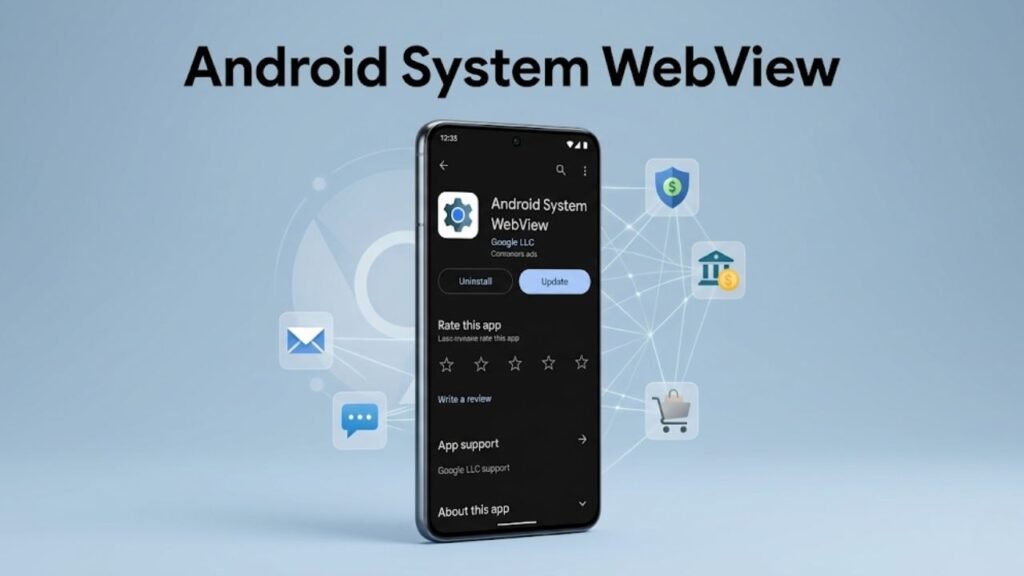
What Android System WebView Actually Does
Android System WebView functions as a shared rendering engine that app developers use instead of building their own browser from scratch. Rather than every app independently implementing web content display, they all draw from Android System WebView as a centralised, maintained component.
This approach benefits both developers and users. Developers get a reliable, standards-compliant web rendering engine without building one themselves. Users get consistent web content display across apps, with security updates delivered through a single component rather than requiring updates to every individual app separately.
How Android System WebView Works Inside Apps
When an app needs to display web content, it creates a WebView instance — essentially calling Android System WebView to render a specific piece of web content within a defined area of the app’s screen. The app controls how much of its screen the WebView occupies, what URL it loads, and what interactions are permitted. Android System WebView handles everything else: fetching content, parsing HTML, executing JavaScript, rendering layout, and managing the visual output.
This is why the same news article or web-based form can look and behave consistently whether you access it through an app’s built-in browser or through Chrome directly — both are built on the same Chromium rendering engine.
Android System WebView and Security Updates
One of the most important functions of Android System WebView is delivering security patches to the web rendering layer across all apps simultaneously. Because it updates independently through the Google Play Store, Google can push critical security fixes to Android System WebView without waiting for a full Android OS update from device manufacturers.
This was a deliberate architectural decision. Web security vulnerabilities are discovered and patched regularly. Having Android System WebView update independently means those patches reach your device and every app that uses it far faster than they would if they were bundled into full system updates.
Which Apps Use Android System WebView
The range of apps that depend on Android System WebView is broader than most users realise. Any app that displays web content inline — rather than redirecting to Chrome — is using it.
Common App Categories That Rely on Android System WebView
Email apps use Android System WebView to render HTML emails. The formatted newsletters, clickable banners, and embedded images in email messages you receive are displayed through Android System WebView inside your mail app.
Social media apps load web-based articles, external links, and embedded content through Android System WebView rather than switching to Chrome every time you tap a link inside the app.
Banking and finance apps frequently use Android System WebView to display terms, disclosures, web-based authentication pages, and account management interfaces built as web applications within the app wrapper.
Shopping apps render product pages, promotional content, and checkout flows using Android System WebView when those elements are built as web content rather than native app screens.
Government and utility apps often use web-based interfaces extensively and depend heavily on Android System WebView to display those interfaces correctly within the app experience.
Android System WebView vs Google Chrome: Key Differences
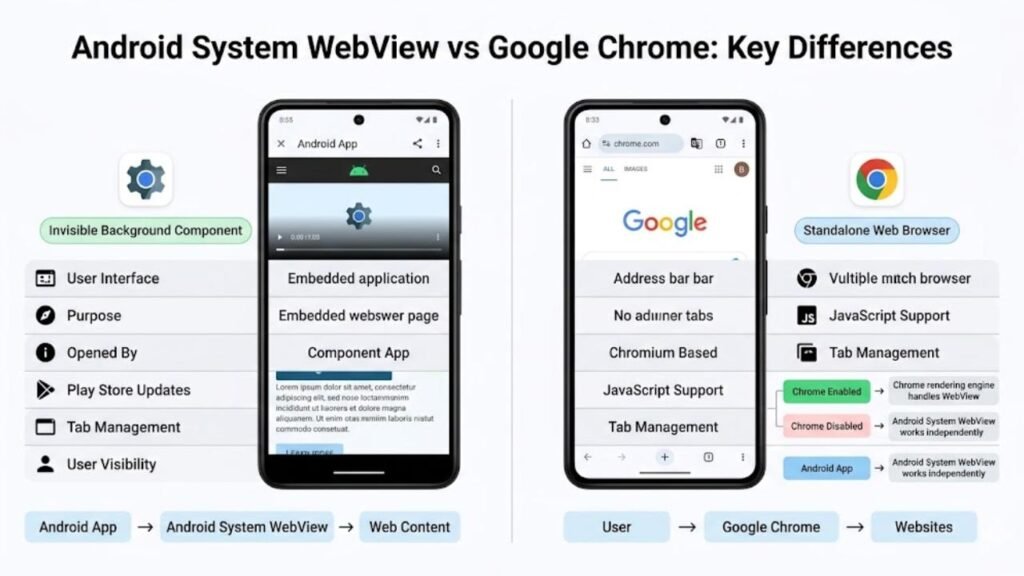
| Feature | Android System WebView | Google Chrome |
|---|---|---|
| User Interface | None — invisible component | Full browser with address bar, tabs, bookmarks |
| Purpose | Renders web content inside other apps | Standalone web browsing |
| Opened By | Other apps automatically | User directly |
| Chromium Based | ✅ Yes | ✅ Yes |
| Updates Via | Google Play Store | Google Play Store |
| Can Be Disabled | ✅ On some Android versions | ❌ Default browser cannot be removed |
| Handles Cookies | Per-app context | Shared browser cookies |
| JavaScript Support | ✅ Full | ✅ Full |
| Tab Management | ❌ No | ✅ Yes |
| User Visible | ❌ Never directly | ✅ Always |
On devices running Android 7 and above, Chrome handles Android System WebView rendering when Chrome is installed and enabled. In this configuration, a separate Android System WebView process runs through Chrome rather than as a completely independent component. On devices without Chrome — or when Chrome is disabled — Android System WebView operates as a standalone engine.
What Happens When Android System WebView Has a Problem
The most widely reported issue with Android System WebView occurred when a faulty update caused apps across millions of Android devices to crash immediately upon opening. This incident demonstrated clearly how central this is to the functioning of everyday apps — when it breaks, the impact is felt across the entire device, not just in a single application.
Apps Crashing After an Android System WebView Update
When Android System WebView receives a corrupted or incompatible update, apps that rely on it can fail to launch. The crash typically happens at the moment the app attempts to initialise a WebView instance. From the user’s perspective, the app opens and immediately closes — sometimes without any error message explaining why.
The fix in this scenario is straightforward: update through the Google Play Store to the latest stable version, or temporarily uninstall
to revert to the previous working version while a fix is deployed. Google typically responds to these incidents quickly because the impact scale is significant.
Outdated Android System WebView Causing Display Issues
An outdated Android System WebView can cause web content inside apps to display incorrectly — broken layouts, missing images, non-functional interactive elements, or pages that fail to load entirely. Modern web content is written to current standards, and an old rendering engine may not support the features those pages rely on.
Keeping Android System WebView updated ensures apps continue to display web content correctly as the web itself evolves.
Common Mistakes People Make About Android System WebView
Disabling it to improve performance.
Some users disable Android System WebView through Settings in an attempt to free up resources. This causes apps that depend on it to malfunction or crash. The performance overhead of Android System WebView is minimal — the disruption caused by disabling it far outweighs any perceived benefit.
Ignoring update notifications for Android System WebView.
This updates carry security patches and compatibility improvements that affect every app on your device. Delaying or dismissing these updates leaves your apps running on an older, potentially vulnerable rendering engine. Treat updates with the same priority as other system updates.
Assuming app crashes are caused by the app itself.
When multiple apps start crashing simultaneously, the common factor is often a recently updated or corrupted Android System WebView rather than individual app problems. If several different apps crash at the same time after no other changes to your device.
Trying to replace it with a third-party alternative.
This is a system-integrated component that other apps call through specific Android APIs. There is no meaningful third-party replacement that integrates at the same level. Attempting to replace it through unofficial means risks system instability without delivering any real benefit.
Not knowing how to fix it when something goes wrong.
Many users who encounter Android System WebView-related crashes do not know what to check. The fix is almost always either updating the component through the Play Store, clearing its cache through Settings, or temporarily rolling back a bad update. Knowing this saves significant troubleshooting time.
Practical Tips for Managing Android System WebView
Keep Android System WebView updated through the Play Store.
Open the Play Store, search for Android System WebView, and ensure auto-updates are enabled. This is the single most effective thing you can do to keep the component functioning correctly and securely across all your apps.
Clear the cache if apps display web content incorrectly.
Go to Settings, then Apps, find Android System WebView, and tap Storage. Clearing the cache removes temporary data that may be causing rendering issues. This does not delete any personal data and takes effect immediately.
Check Android System WebView first when multiple apps crash.
If three or more different apps start crashing simultaneously with no obvious cause, open the Play Store and check whether Android System WebView has a recent update pending or whether an update was recently applied. This is the most common cause of sudden multi-app crashes on Android.
Do not disable Android System WebView unless instructed by official support.
There are very few legitimate reasons to disable Android System WebView. If official guidance from Google or your device manufacturer instructs you to disable it temporarily as part of a troubleshooting step, follow that guidance. In all other situations, leave it enabled and updated.
Roll back updates if a new version causes problems.
If apps begin crashing immediately after an Android System WebView update, go to Settings, then Apps, find Android System WebView, and tap the three-dot menu. Select Uninstall Updates to revert to the previous version while the issue resolves. Re-enable auto-updates once a stable version is available.
Frequently Asked Questions
What is Android System WebView?
This is a built-in Android component that allows apps to display web content — web pages, HTML emails, online forms — directly within their own interface without opening a separate browser.
Should I keep Android System WebView updated?
Yes. Updates to Android System WebView deliver security patches and compatibility improvements that affect every app on your device that displays web content. Keeping it updated is essential for both security and app functionality.
Can I delete Android System WebView?
On most Android devices, Android System WebView cannot be fully uninstalled as it is a protected system component. On some Android versions you can disable it, but doing so causes apps that depend on it to malfunction.
Why are my apps crashing after an Android System WebView update?
A faulty update to Android System WebView can cause dependent apps to crash. The fix is to update Android System WebView to the latest available version through the Play Store, or temporarily uninstall updates to revert to the previous stable version.
Is Android System WebView the same as Chrome?
No, but they share the same Chromium foundation. Chrome is a full standalone browser. Android System WebView is an invisible rendering engine that other apps use to display web content internally. On Android 7 and above, Chrome handles WebView rendering when installed.
Does Android System WebView drain battery?
Android System WebView itself consumes minimal battery. Any battery usage attributed to it is typically tied to the web content it is rendering on behalf of other apps — complex JavaScript-heavy pages consume more resources than simple web content regardless of the rendering engine.
Conclusion
Android System WebView is one of those components that only attracts attention when something goes wrong — and that is actually a sign it is doing its job correctly the rest of the time. It handles web content rendering across hundreds of apps on your device without ever demanding your attention, credit, or configuration.
The most important things to understand about Android System WebView are straightforward. Keep it updated because its updates carry security patches that protect every app using it. Know that simultaneous app crashes often trace back to it rather than the individual apps themselves. And understand that disabling it is never a productivity improvement — it is a path to a less functional device.
For a component most Android users have never deliberately opened, Android System WebView has an outsized influence on the quality and security of the everyday app experience. Knowing what it is and how to manage it puts you in a better position the next time something unexpected happens on your device.
