

Introduction
SIM card detected but no network is a frustrating issue that prevents your phone from making calls, sending texts, or using mobile data—even though the SIM card is recognized by the device. This problem often appears suddenly and can disrupt both personal and professional communication.
While it may seem like a serious network failure, the issue is usually caused by minor software glitches, incorrect settings, or temporary carrier problems. In most cases, you can resolve the “SIM card detected but no network” error with simple troubleshooting steps.
This in-depth guide explains the causes, solutions, and preventive strategies to restore your network connection quickly and reliably.
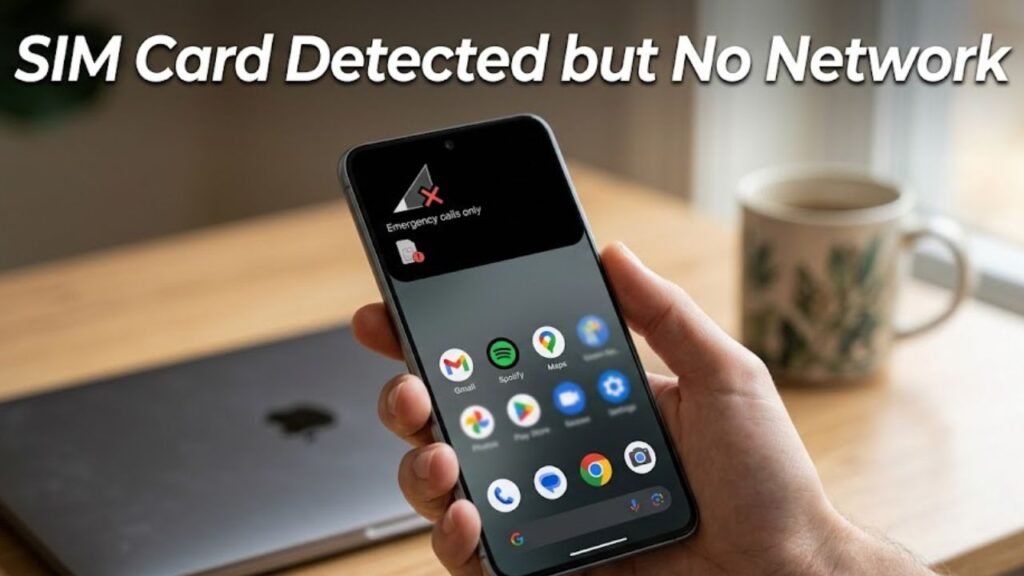
What Does SIM Card Detected but No Network Mean?
When your device shows “SIM card detected but no network,” it means the phone can read the SIM card but cannot connect to the cellular network provider.
You may notice:
- No signal bars
- “No Service” or “Emergency Calls Only”
- Inability to use mobile data
- Failed outgoing or incoming calls
This indicates a communication issue between your device and the carrier network.
Common Causes of SIM Card Detected but No Network
1. Network Coverage Issues
- Weak or no signal in your area
- Temporary tower outages
2. Incorrect Network Settings
- Wrong network mode selected
- Disabled mobile network
3. SIM Card Problems
- Damaged or improperly inserted SIM
- Expired or deactivated SIM
4. Software Glitches
- Temporary bugs in the operating system
- Failed updates
5. Carrier Restrictions
- Account suspension
- Network compatibility issues
6. Airplane Mode Enabled
- Accidental activation disables network
Quick Diagnosis Table
| Issue Type | Difficulty | Risk Level | Recommended Fix |
|---|---|---|---|
| Signal problem | Easy | Low | Move location |
| Settings issue | Easy | Low | Adjust network settings |
| SIM card issue | Medium | Low | Reinsert or replace SIM |
| Software glitch | Medium | Low | Restart device |
| Carrier issue | Medium | Medium | Contact provider |
| Hardware problem | Advanced | High | Professional repair |
10 Proven Fixes for SIM Card Detected but No Network
1. Restart Your Phone
A simple restart refreshes network connections.
Steps:
- Press and hold Power button
- Tap Restart
- Wait for the device to reconnect
2. Toggle Airplane Mode
This resets network signals.
Steps:
- Turn on Airplane Mode
- Wait 30 seconds
- Turn it off
3. Check Network Coverage
Ensure you are within a coverage area.
- Move to an open space
- Avoid underground or enclosed areas
4. Reinsert the SIM Card
Improper SIM placement can cause connection issues.
Steps:
- Turn off the phone
- Remove SIM card
- Clean gently
- Reinsert properly
5. Select Network Manually
Automatic selection may fail.
Steps:
- Go to Settings → Mobile Network
- Tap Network Operators
- Select your carrier manually
6. Change Network Mode
Switch between network types.
Steps:
- Go to Settings → Mobile Network
- Select Preferred Network Type
- Choose LTE/3G/2G Auto
7. Reset Network Settings
This clears incorrect configurations.
Steps:
- Go to Settings → System → Reset
- Tap Reset Network Settings
Note: Wi-Fi and Bluetooth settings will also reset.
8. Update Software
Outdated software can affect connectivity.
Steps:
- Go to Settings → Software Update
- Install latest updates
9. Test SIM in Another Device
Check if the SIM is working.
- Insert SIM into another phone
- If no network, SIM may be faulty
10. Contact Your Carrier
If all else fails, the issue may be with your provider.
Possible reasons:
- Account suspension
- SIM deactivation
- Network outage
Detailed Comparison of Solutions
| Solution | Data Loss | Effectiveness | Best Use Case |
|---|---|---|---|
| Restart Device | No | Medium | Temporary glitches |
| Airplane Mode Toggle | No | High | Signal reset |
| Reinsert SIM | No | High | SIM detection issues |
| Manual Network Selection | No | High | Network mismatch |
| Reset Network Settings | Yes | Very High | Persistent issues |
Practical Tips to Prevent SIM Card Detected but No Network
Best Practices:
- Keep your device updated
- Avoid removing SIM frequently
- Use original SIM tray tools
- Monitor signal strength regularly
- Maintain active carrier plan
Signs of Serious Network Problems
Watch for:
- No signal even in strong coverage areas
- Frequent signal drops
- SIM not working in multiple devices
- Persistent “Emergency Calls Only”
These signs may indicate hardware or carrier-level issues.
Advanced Troubleshooting Methods
Update APN Settings
Correct APN ensures proper network access.
Check IMEI Status
Invalid IMEI can block network connectivity.
Factory Reset
Use as a last resort if all fixes fail.
FAQs About SIM Card Detected but No Network
Why is my SIM card detected but no network on my phone?
It is usually due to network settings issues, SIM problems, or temporary carrier outages.
Can a damaged SIM cause no network?
Yes, a faulty or worn-out SIM can prevent network connection.
Does resetting network settings fix the issue?
Yes, it often resolves configuration-related problems.
Why does my phone show emergency calls only?
This happens when your phone cannot connect to your carrier but can access emergency networks.
Should I replace my SIM card?
If the SIM does not work in other devices, replacement is recommended.
Conclusion
SIM card detected but no network is a common yet manageable issue that can interrupt essential communication. While it may initially seem like a serious problem, most cases are caused by simple factors such as incorrect settings, weak signals, or minor software glitches.
By following the structured troubleshooting steps outlined in this guide—from restarting your device to resetting network settings—you can restore connectivity quickly and effectively. Advanced solutions and carrier support provide additional options for persistent issues.
Maintaining proper device care, updating software regularly, and ensuring your SIM card is in good condition can prevent this issue from recurring. With the right approach, you can keep your mobile network stable, reliable, and fully functional at all times.
