

Introduction
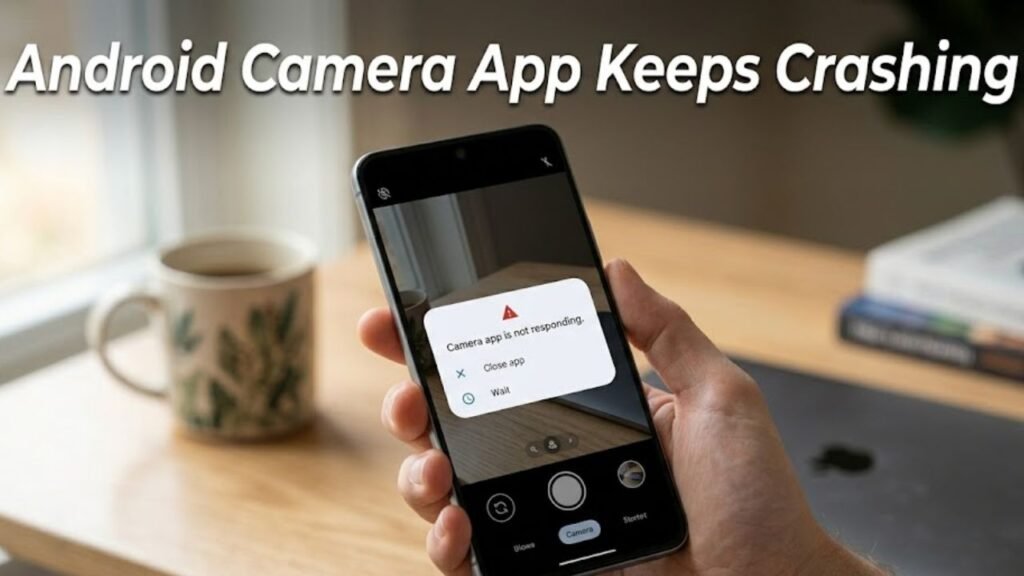
Android camera app keeps crashing is a common issue that can prevent users from capturing photos or recording videos when needed most. Whether the app closes suddenly, freezes, or displays error messages, the problem can significantly affect your device’s usability.
This issue is typically caused by software glitches, corrupted cache files, insufficient storage, or app conflicts. Fortunately, in most cases, you can resolve the “Android camera app keeps crashing” problem with structured troubleshooting methods—without requiring professional repair.
This comprehensive guide explores the causes, step-by-step solutions, and preventive strategies to help you restore your camera functionality efficiently.
What Does Android Camera App Keeps Crashing Mean?
When the Android camera app keeps crashing, it means the application fails to open or closes unexpectedly during use.
You may experience:
- App closing immediately after launch
- Black screen when opening the camera
- Error messages like “Camera keeps stopping”
- Freezing during photo or video capture
This indicates instability within the camera software or its interaction with system resources.
Common Causes of Android Camera App Keeps Crashing
1. Corrupted Cache or Data
- Temporary files become damaged
- Cache overload causes instability
2. Insufficient Storage Space
- Lack of storage prevents camera operation
- Media files cannot be saved
3. Software Bugs
- Outdated Android version
- System glitches after updates
4. App Conflicts
- Third-party apps interfering with camera access
- Background apps using camera resources
5. Hardware Issues
- Faulty camera sensor
- Loose internal connections
6. Permissions Problems
- Camera permissions disabled
- Restricted access by system settings
Quick Troubleshooting Overview
| Issue Type | Difficulty | Risk Level | Recommended Fix |
|---|---|---|---|
| Minor glitch | Easy | Low | Restart device |
| Cache corruption | Easy | Low | Clear cache/data |
| Storage issue | Easy | Low | Free up space |
| App conflict | Medium | Low | Safe Mode |
| System bug | Medium | Medium | Update or reset |
| Hardware problem | Advanced | High | Professional repair |
11 Proven Fixes for Android Camera App Keeps Crashing
1. Restart Your Device
A restart clears temporary system issues.
Steps:
- Press and hold Power button
- Tap Restart
- Wait for reboot
2. Clear Camera App Cache
Cache corruption is a common cause.
Steps:
- Go to Settings → Apps
- Select Camera
- Tap Storage → Clear Cache
3. Clear Camera App Data
If cache clearing fails, reset app data.
Steps:
- Open Settings → Apps → Camera
- Tap Storage → Clear Data
Note: This resets camera settings.
4. Check Storage Space
Low storage can cause the Android camera app keeps crashing issue.
Steps:
- Go to Settings → Storage
- Delete unnecessary files
5. Update the Camera App
Outdated apps may crash frequently.
Steps:
- Open Google Play Store
- Search Camera app
- Tap Update
6. Update Android System
System updates fix bugs affecting camera performance.
Steps:
- Go to Settings → System → Software Update
- Install updates
7. Check App Permissions
Ensure camera access is enabled.
Steps:
- Go to Settings → Apps → Camera
- Tap Permissions
- Enable Camera access
8. Boot into Safe Mode
Safe Mode helps identify conflicting apps.
Steps:
- Press and hold Power button
- Tap and hold Power Off
- Select Safe Mode
If the camera works, uninstall recent apps.
9. Reset App Preferences
This restores default settings.
Steps:
- Go to Settings → Apps
- Tap Reset App Preferences
10. Use a Third-Party Camera App
Testing another app can help identify the issue.
- Download a trusted camera app
- Check if the problem persists
11. Factory Reset (Last Resort)
If Android camera app keeps crashing continuously, perform a reset.
Steps:
- Backup your data
- Go to Settings → System → Reset
- Select Factory Reset
Detailed Comparison Table
| Solution | Data Loss | Effectiveness | Best For |
|---|---|---|---|
| Restart Device | No | Medium | Temporary glitches |
| Clear Cache | No | High | Minor issues |
| Clear Data | No | High | Persistent app errors |
| Update System | No | High | Software bugs |
| Safe Mode | No | Medium | App conflicts |
| Factory Reset | Yes | Very High | Severe issues |
Practical Tips to Prevent Camera Crashes
Best Practices:
- Keep your device updated
- Regularly clear cache
- Avoid installing untrusted apps
- Maintain sufficient storage
- Close unused background apps
Signs of Serious Camera Problems
Watch for:
- Camera not opening at all
- Blurry or distorted images
- Clicking sounds from camera module
- Black screen even after reset
These may indicate hardware failure.
Advanced Troubleshooting Methods
Reinstall Firmware
Install official firmware to fix deep system issues.
Use Diagnostic Tools
Test camera hardware using built-in diagnostic apps.
Check for Malware
Scan device for malicious apps affecting performance.
FAQs About Android Camera App Keeps Crashing
Why does my Android camera app keep crashing?
It is usually caused by cache corruption, low storage, or software bugs.
Can I fix camera crashes without resetting my phone?
Yes, clearing cache, updating apps, and checking permissions often resolve the issue.
Does low storage cause camera crashes?
Yes, insufficient storage prevents the camera from saving media files.
Is it a hardware issue if the camera shows a black screen?
Not always, but persistent black screens may indicate hardware problems.
Should I use third-party camera apps?
Yes, they can help determine whether the issue is app-specific or system-wide.
Conclusion
Android camera app keeps crashing is a disruptive issue, but it is rarely permanent. Most cases are caused by software-related factors such as corrupted cache, outdated apps, or insufficient storage, all of which can be resolved with simple troubleshooting steps.
By following the structured solutions outlined in this guide—from basic fixes like restarting your device to advanced methods like factory reset—you can restore your camera functionality effectively.
Preventive measures such as keeping your device updated, managing storage, and avoiding conflicting apps play a crucial role in ensuring smooth camera performance.
If the issue persists despite all efforts, professional assistance may be required to address potential hardware concerns. With the right approach, you can ensure your Android camera remains reliable and ready whenever you need it.
