

Introduction
USB-C Alternate Mode Explained is essential for understanding how a single USB-C port can do far more than just charging and data transfer. Modern devices use USB-C not only for power delivery but also to transmit video, audio, and other signals through the same connector.
This versatility is made possible by Alternate Mode (Alt Mode), a feature that allows USB-C ports to carry non-USB signals such as HDMI or DisplayPort. As laptops, smartphones, and tablets increasingly rely on USB-C, knowing how Alternate Mode works helps users unlock the full potential of their devices.
What Is USB-C Alternate Mode?
USB-C Alternate Mode is a feature that enables a USB-C port to transmit signals other than standard USB data.
Key Definition
Alternate Mode allows USB-C cables and ports to carry protocols like:
- DisplayPort
- HDMI
- Thunderbolt
- VGA (less common)
Why It Exists
USB-C is designed as a universal connector. Alternate Mode expands its functionality beyond traditional USB roles.
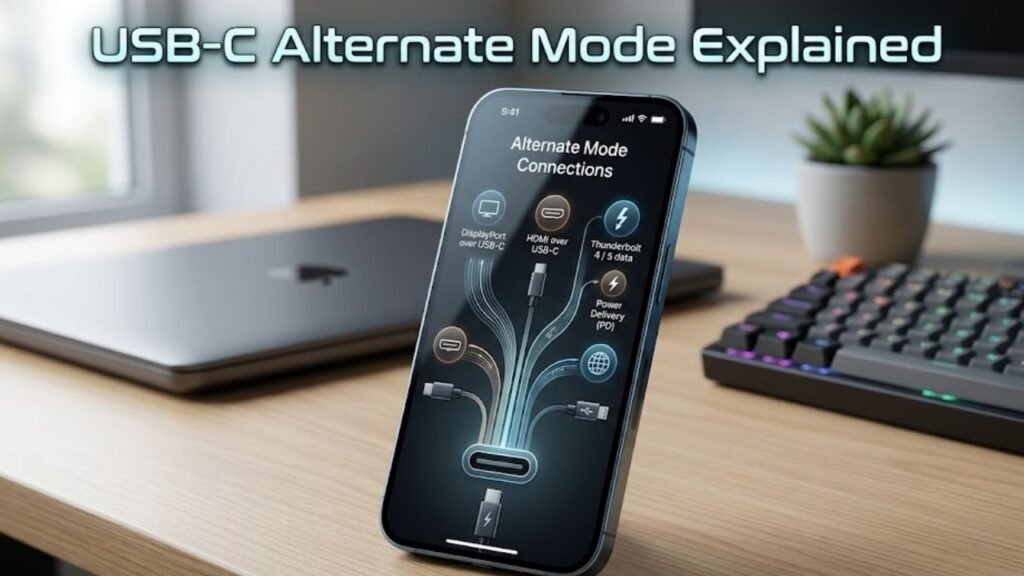
How USB-C Alternate Mode Works
USB-C Alternate Mode Explained requires understanding how the USB-C connector reallocates its pins.
Pin Reconfiguration
USB-C has multiple high-speed data lanes. In Alternate Mode:
- Some lanes are reassigned for video or other signals
- USB data may be reduced or disabled depending on configuration
Dynamic Negotiation
Devices communicate to determine:
- Supported Alt Mode
- Required bandwidth
- Power delivery needs
Types of USB-C Alternate Modes
DisplayPort Alternate Mode
- Most widely used Alt Mode
- Supports high-resolution displays (4K, 8K)
- Common in laptops and smartphones
HDMI Alternate Mode
- Enables direct HDMI output
- Less common than DisplayPort Alt Mode
Thunderbolt Alternate Mode
- Combines data, video, and power
- Extremely high bandwidth
- Used in premium devices
MHL (Mobile High-Definition Link)
- Older standard
- Mostly replaced by DisplayPort Alt Mode
USB-C Alternate Mode Comparison Table
| Alt Mode Type | Use Case | Bandwidth | Common Devices |
|---|---|---|---|
| DisplayPort | External displays | High | Laptops, phones |
| HDMI | TVs and monitors | Moderate | Media devices |
| Thunderbolt | High-speed data/video | Very High | Premium laptops |
| MHL | Mobile display | Low | Older smartphones |
USB-C Alternate Mode vs Standard USB
Standard USB Functionality
- Data transfer
- Charging
Alternate Mode Functionality
- Video output
- Audio transmission
- Advanced connectivity
Key Insight
USB-C Alternate Mode transforms a simple port into a multi-purpose interface.
Benefits of USB-C Alternate Mode
1. Single Cable Solution
One cable can handle power, data, and video.
2. Reduced Port Dependency
Devices need fewer physical ports.
3. High-Resolution Output
Supports 4K and even 8K displays.
4. Improved Portability
Slim devices benefit from fewer connectors.
Limitations of USB-C Alternate Mode
Compatibility Issues
Not all USB-C ports support Alternate Mode.
Cable Requirements
Specialized cables may be required for certain modes.
Bandwidth Sharing
Using Alt Mode may reduce USB data speed.
Devices That Support USB-C Alternate Mode
Laptops
Most modern laptops support DisplayPort Alt Mode.
Smartphones
Flagship smartphones often support video output via USB-C.
Tablets
Used for connecting to external displays.
Monitors and Docks
USB-C monitors use Alt Mode for video and power delivery.
How to Check If Your Device Supports Alt Mode
1. Check Specifications
Look for:
- “DisplayPort Alt Mode”
- “USB-C video output”
2. Look for Icons
Ports may have a DisplayPort or Thunderbolt symbol.
3. Manufacturer Documentation
Official specs provide accurate details.
USB-C Cables and Alt Mode Compatibility
Types of USB-C Cables
- Passive cables
- Active cables
- Thunderbolt-certified cables
Key Considerations
- Cable must support required bandwidth
- Not all cables support video output
Practical Use Cases of USB-C Alternate Mode
Connecting to External Monitors
Use USB-C to DisplayPort or HDMI adapters.
Docking Stations
Single cable connects to multiple peripherals.
Presentation Setup
Connect smartphones or laptops to projectors.
USB-C Alternate Mode in Smartphones
Desktop Mode
Some smartphones support desktop-like interfaces when connected to monitors.
Media Streaming
Directly stream content to larger screens.
Advantages for Professionals and Gamers
For Professionals
- Multi-monitor setups
- Simplified workspace
For Gamers
- External display support
- Reduced cable clutter
Common Issues with USB-C Alternate Mode
No Display Output
- Device may not support Alt Mode
- Cable may be incompatible
Reduced Performance
- Bandwidth limitations
- Incorrect adapter usage
Practical Tips for Using USB-C Alternate Mode
1. Use Certified Cables
Ensure compatibility and performance.
2. Verify Device Support
Check specifications before purchasing adapters.
3. Choose Quality Adapters
Low-quality adapters may fail.
4. Optimize Setup
Use compatible monitors and accessories.
5. Keep Firmware Updated
Updates improve compatibility.
Future of USB-C Alternate Mode
Higher Bandwidth Standards
Future versions will support higher resolutions and faster data.
Wider Adoption
More devices will integrate Alt Mode capabilities.
Improved Compatibility
Standardization will reduce confusion.
Common Myths About USB-C Alternate Mode
Myth 1: All USB-C Ports Support Video
Reality: Only ports with Alt Mode support video output.
Myth 2: Any USB-C Cable Works
Reality: Cable quality and specifications matter.
Myth 3: Alt Mode Replaces USB
Reality: It complements standard USB functionality.
FAQs
1. What is USB-C Alternate Mode?
It allows USB-C ports to carry non-USB signals like video and audio.
2. Does every USB-C port support Alt Mode?
No, support depends on the device.
3. Can I connect my phone to a monitor using USB-C?
Yes, if it supports DisplayPort Alt Mode.
4. Do I need a special cable?
Yes, compatible cables are required for video output.
5. What is the most common Alt Mode?
DisplayPort Alternate Mode is the most widely used.
Conclusion
USB-C Alternate Mode Explained reveals how modern devices leverage a single connector to deliver unmatched versatility. By enabling video, audio, and high-speed data transmission through one port, Alternate Mode simplifies connectivity and enhances user experience.
From connecting laptops to external displays to enabling smartphone desktop modes, USB-C Alt Mode has become a cornerstone of modern computing. However, understanding compatibility, cable requirements, and device support is essential to fully utilize its capabilities.
As technology evolves, USB-C Alternate Mode will continue to expand, offering faster speeds, broader compatibility, and even greater functionality—making it a vital feature for both everyday users and professionals.
