

Background running apps Samsung Galaxy users deal with every day are responsible for more battery drain, performance slowdowns, and unexpected mobile data usage than most people realise. Every time you press the home button or switch to another app, you assume the previous app has stopped. In reality, most of them keep running — syncing, refreshing, tracking, and consuming your phone’s resources without any visible indication.
Background running apps Samsung Galaxy devices carry include both the apps you deliberately installed and pre-loaded system applications that operate on their own schedules. The cumulative effect of ten to twenty apps doing this simultaneously is a phone that feels slower than it should, a battery that does not last through the day, and a data allowance that disappears faster than your usage seems to justify.
Samsung’s One UI gives you more control over background running apps Samsung Galaxy phones carry than most users ever explore. This guide covers seven specific methods — each targeting a different layer of background activity — so you can apply exactly the level of control your situation requires.

Why Background Running Apps Samsung Galaxy Drain Resources
Understanding how background running apps Samsung Galaxy devices manage helps you make smarter decisions about which methods to apply. Android does not immediately kill apps when you leave them — this is intentional. The system keeps recently used apps in memory so they relaunch quickly when you return to them.
The problem starts when apps go beyond passive memory residence and actively execute background tasks. Location tracking, cloud syncing, content pre-loading, push notification polling, and analytics reporting all qualify as active background processes. Background running apps Samsung Galaxy phones manage in this way consume CPU cycles, keep the radio active, and draw continuous battery power regardless of whether you are using the phone at all.
Samsung’s One UI layers additional management on top of stock Android, including Adaptive Battery, sleeping app categories, and background data controls. These tools work well automatically for most users — but manual configuration through the methods below gives you significantly more precision.

Method 1: Configure Sleeping Apps in Battery Settings

Samsung’s Battery and Device Care section provides the most direct control over background running apps Samsung Galaxy phones carry through its sleeping app system.
Setting Up Sleeping and Deep Sleeping Apps
Open Settings and go to Battery and Device Care, then Battery, then Background Usage Limits. You see three categories that directly manage background running apps Samsung Galaxy devices handle.
Sleeping Apps limits background activity for apps you use infrequently. These apps are restricted from freely running background processes but can still deliver notifications with some latency. Samsung adds apps here automatically based on your usage patterns, or you can add them manually by tapping the plus icon.
Deep Sleeping Apps applies the strictest available restriction. Apps placed here cannot execute background processes at all — they become active only when you open them directly. Notifications do not arrive from deep sleeping apps until you launch the app. Use this category for apps you want to keep installed but have no need to hear from between sessions.
Never Sleeping Apps exempts specific apps from all background restrictions. Essential messaging apps, email clients, and any service that needs real-time notification delivery should be placed here. This ensures Samsung background management system does not accidentally restrict apps that genuinely need background access.
Method 2: Restrict Background Data Usage Per App

Background running apps Samsung Galaxy phones carry consume mobile data for tasks that benefit the app rather than you — library syncing, pre-caching content, uploading usage data. Restricting background data access forces these processes to wait until you actively use the app.
Applying Background Data Restrictions
Go to Settings, then Apps. Select the specific app you want to restrict. Tap Mobile Data and toggle off Allow Background Data Usage. This app can no longer use your mobile data connection for background processes, though Wi-Fi behaviour may remain unchanged depending on your configuration.
For a network-wide approach, go to Settings, Connections, Data Usage, Mobile Data Usage, tap the three-dot menu, and select Restrict Background Data. This applies across all apps and is particularly useful when approaching your monthly data limit.
Method 3: Force Stop Apps That Ignore Background Limits
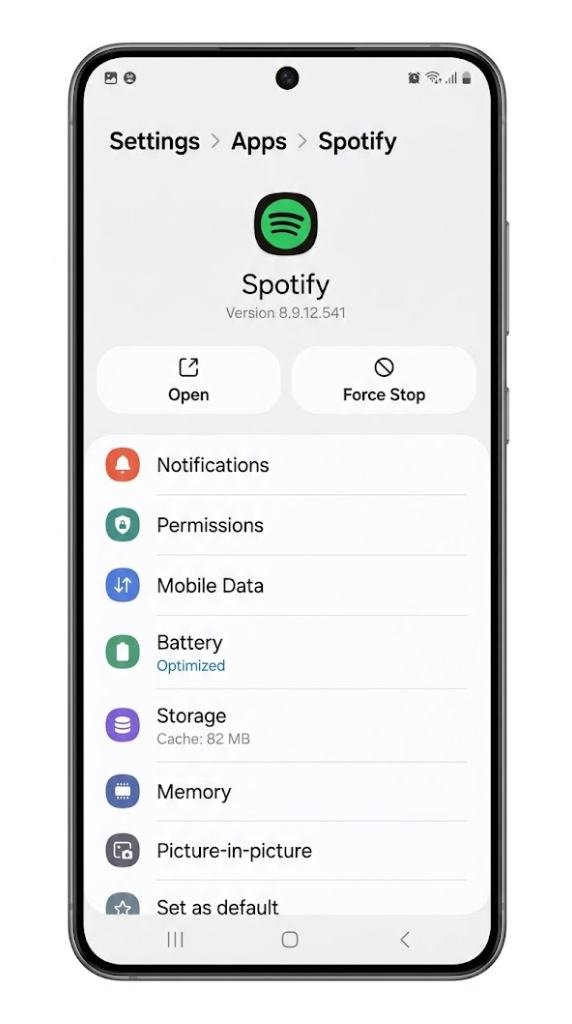
Some background running apps Samsung Galaxy devices carry are persistent enough to restart background processes quickly after being restricted by automatic systems. Force Stop provides an immediate manual termination of all processes for a specific app.
How to Force Stop on Samsung Galaxy
Go to Settings, then Apps. Find and select the app in question. Tap Force Stop at the top of the screen. All background processes for that app terminate immediately. The app only restarts when you open it manually or when a system trigger — such as a push notification from its server — causes it to relaunch.
Force Stop is not a permanent fix for persistent background running apps Samsung Galaxy devices struggle with, but it works effectively as an on-demand tool when a specific app is consuming disproportionate resources at a given moment.
Method 4: Review and Revoke Unnecessary App Permissions
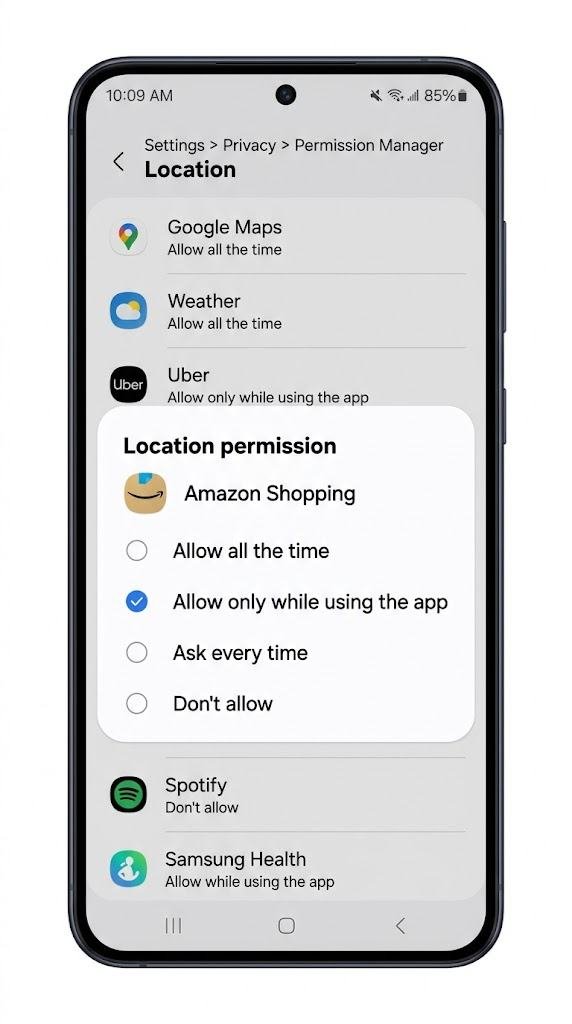
Background running apps Samsung Galaxy phones carry often justify their background activity through permissions — particularly location access set to Allow All the Time. Revoking permissions that apps do not genuinely need removes the technical basis for their background operation.
Auditing Permissions on Samsung Galaxy
Go to Settings, then Privacy, then Permission Manager. Focus particularly on Location. Tap Location and review which apps show Allow All the Time status. For each app that does not require continuous background location — such as a shopping app, a utility, or a game — change the setting to Allow Only While Using App.
Repeat this audit for Microphone and Physical Activity permissions. Background running apps Samsung Galaxy devices give access to these sensors can continue running background processes tied to that sensor access even when you are not using the app. Limiting permissions to While Using App removes the trigger.
Method 5: Disable Specific App Auto-Launch Behaviours

Some background running apps Samsung Galaxy phones carry are configured to launch automatically on specific triggers — device startup, network connection, or other app launches. Samsung’s One UI does not always surface this clearly, but you can address it through battery settings and the sleeping app configuration.
Using Adaptive Battery to Control Auto-Launch
Go to Settings, Battery and Device Care, Battery, then More Battery Settings. Ensure Adaptive Battery is enabled. Also enable Put Unused Apps to Sleep — this automatically adds apps that have not been actively used for a set period to the sleeping apps list, preventing them from continuing to auto-launch in the background without your explicit use.
Review the Sleeping Apps list periodically and move apps you genuinely never use to Deep Sleeping Apps for stricter control over background running apps Samsung Galaxy devices allow to auto-launch.
Method 6: Use Developer Options to Set a Background Process Limit

Developer Options on Samsung Galaxy phones include a setting that places a hard ceiling on the total number of background processes the system allows simultaneously. This is the most aggressive method for controlling background running apps Samsung Galaxy devices manage and produces the most dramatic results.
Enabling Developer Options on Samsung Galaxy
Go to Settings, About Phone, Software Information. Tap Build Number seven times consecutively. A confirmation message appears when Developer Mode is activated. Return to the main Settings menu and tap Developer Options near the bottom.
Inside Developer Options, scroll to find Background Process Limit. Tap it and set a limit — starting with 3 or 4 background processes is a reasonable balance. This does not affect apps you are actively using — it limits only the total number of background running apps Samsung Galaxy allows to operate simultaneously when you are not directly using them.
Method 7: Optimise Individual Apps Through Device Care

Samsung’s Device Care section includes an Optimise Now function that performs a one-tap cleanup of background running apps Samsung Galaxy has identified as unnecessary at that moment. While not a substitute for the individual configurations above, it provides a quick reset when your phone feels sluggish.
Using Optimise Now Effectively
Open Settings and go to Battery and Device Care. Tap Optimise Now. Samsung performs a scan and terminates background running apps Samsung Galaxy identifies as consuming resources unnecessarily, clears temporary cache files, and applies any pending optimisation recommendations. Use this weekly or whenever performance feels noticeably slower than usual.
Background App Control Methods: Quick Reference
| Method | Effort | Effect | Best For |
|---|---|---|---|
| Sleeping Apps Setup | Low | High | General background control |
| Deep Sleeping Apps | Low | Very High | Rarely used apps |
| Background Data Restriction | Low | Medium | Data usage reduction |
| Force Stop | Low | Temporary | Immediate resource release |
| Permission Revocation | Medium | High | Location and sensor overuse |
| Developer Process Limit | Medium | Very High | Aggressive restriction |
| Optimise Now | Very Low | Moderate | Quick weekly maintenance |
| Never Sleeping Exemption | Low | Protective | Essential app protection |
Frequently Asked Questions
What are background running apps on Samsung Galaxy?
Background running apps Samsung Galaxy devices carry are applications that continue executing processes — syncing, tracking, refreshing — even when you are not actively using them, consuming battery, RAM, and mobile data in the process.
Does clearing recent apps stop background activity?
Not reliably. Many background running apps Samsung Galaxy systems manage restart background processes shortly after being dismissed. Battery optimisation settings and sleeping app configurations provide more effective long-term control.
Will stopping background apps break my notifications?
Apps placed in Deep Sleeping Apps do not deliver notifications until opened. Always Sleeping Apps receive delayed notifications. Place essential communication apps in Never Sleeping Apps to protect their notification delivery while restricting everything else.
Which Samsung Galaxy apps consume the most background resources?
Go to Settings, Battery and Device Care, Battery, to see a breakdown by app. Social media apps, navigation apps with continuous location access, and cloud storage apps are among the most frequent heavy consumers of background resources.
Is it safe to enable the Developer Options background process limit?
Yes, it is safe. Setting a background process limit through Developer Options may cause some apps to reload when you return to them, but it does not damage the system or cause data loss. Start with a limit of 3 processes and adjust based on your experience.
How often should I optimise background apps on Samsung Galaxy?
Using Optimise Now weekly covers routine maintenance. The sleeping app configuration and permission settings you apply manually continue working without repeated intervention — set them once and they remain active.
Conclusion
Background running apps Samsung Galaxy users deal with do not require aggressive manual management every day — they require the right configuration applied once, working continuously in the background. The sleeping app system handles the bulk of automatic control. Permission revocation removes the triggers that justify unnecessary background access. Developer Options provides a hard limit for the most persistent cases.
The practical starting point for most Samsung Galaxy users is this: configure sleeping and deep sleeping apps for everything you use rarely, add essential apps to the Never Sleeping category, revoke All the Time location access from apps that do not need it, and run Optimise Now weekly. That combination covers the majority of background running apps Samsung Galaxy devices carry without requiring ongoing attention.
Background activity is a fundamental part of how Android works — the goal is not eliminating it but ensuring only the apps with legitimate reasons to operate in the background are actually doing so. Everything else should wait until you open it.
