

Introduction
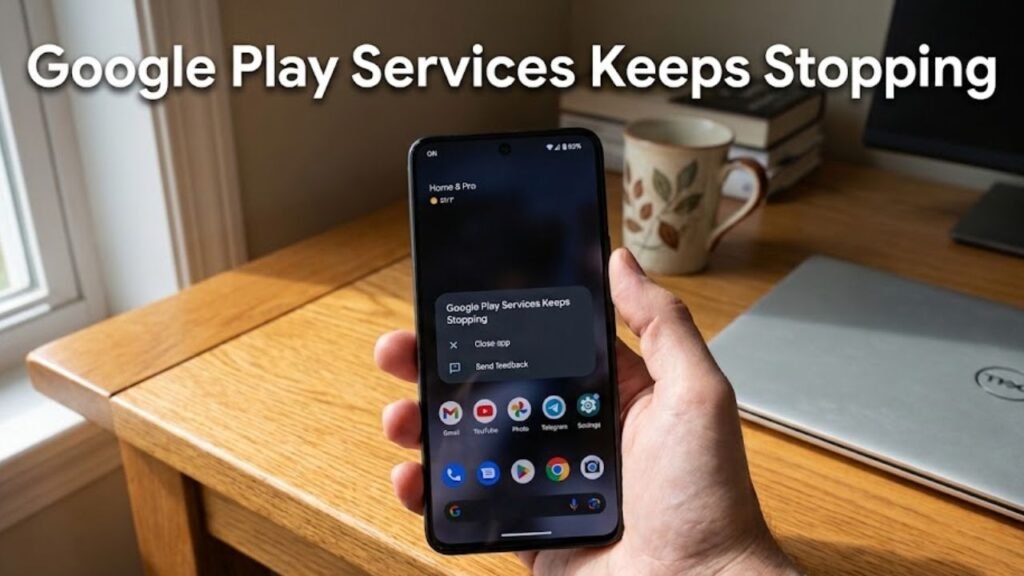
Google Play Services keeps stopping is a common Android error that can disrupt essential functions such as app syncing, notifications, location services, and account authentication. When this issue occurs, users typically encounter repeated pop-up messages, app crashes, or system instability.
Because Google Play Services operates in the background and supports core Android processes, any malfunction can affect multiple apps simultaneously. Fortunately, this issue is usually software-related and can be resolved with a series of structured troubleshooting steps.
In this detailed guide, you’ll learn the causes, step-by-step fixes, and preventive strategies to resolve the “Google Play Services keeps stopping” error effectively..
What Is Google Play Services and Why It Matters?
Google Play Services is a system-level component that enables communication between your Android operating system and Google apps.
Key Functions:
- Synchronizes Google account data
- Manages app updates and permissions
- Supports location services and APIs
- Enables push notifications
When Google Play Services keeps stopping, these functions are interrupted, leading to broader system issues.
Common Causes of Google Play Services Keeps Stopping
Understanding the root cause helps you apply the right fix quickly.
1. Corrupted Cache or Data
- Temporary files become damaged
- Cache overload leads to crashes
2. Outdated Google Play Services
- Compatibility issues with newer apps
- Missing critical updates
3. Android System Bugs
- Software glitches after updates
- OS incompatibility
4. Incorrect Date and Time Settings
- Sync errors with Google servers
- Authentication failures
5. Conflicting Apps
- Third-party apps interfering with system processes
- Background services causing instability
6. Insufficient Storage Space
- Limited storage affecting system operations
- Failure to update or sync
Quick Troubleshooting Overview
| Problem Cause | Difficulty | Risk Level | Recommended Fix |
|---|---|---|---|
| Cache corruption | Easy | Low | Clear cache and data |
| Outdated services | Easy | Low | Update Google Play Services |
| System glitch | Easy | Low | Restart device |
| App conflict | Medium | Low | Safe Mode troubleshooting |
| Software bug | Medium | Medium | Factory reset |
| Deep system issue | Advanced | High | Firmware reinstall |
11 Proven Fixes for Google Play Services Keeps Stopping
1. Restart Your Android Device
A simple restart can fix temporary glitches.
Steps:
- Press and hold the Power button
- Tap Restart
- Wait for the system to reboot
2. Clear Cache of Google Play Services
Cache corruption is a leading cause.
Steps:
- Go to Settings
- Tap Apps → Google Play Services
- Select Storage
- Tap Clear Cache
3. Clear Data of Google Play Services
If clearing cache doesn’t work, clear data.
Steps:
- Open Settings → Apps
- Select Google Play Services
- Tap Storage → Clear Data
Note: This may reset some preferences but won’t delete personal data.
4. Update Google Play Services
Outdated versions often cause crashes.
Steps:
- Open Google Play Store
- Search Google Play Services
- Tap Update (if available)
5. Update Google Play Store
Play Services and Play Store work together.
Steps:
- Open Play Store
- Go to Settings → About
- Tap Update Play Store
6. Check Date and Time Settings
Incorrect settings can disrupt synchronization.
Steps:
- Go to Settings → System → Date & Time
- Enable Automatic Date & Time
7. Free Up Storage Space
Low storage can cause system instability.
Tips:
- Delete unused apps
- Clear large files
- Use storage management tools
8. Uninstall Updates for Google Play Services
Sometimes recent updates introduce bugs.
Steps:
- Go to Settings → Apps
- Select Google Play Services
- Tap Uninstall Updates
The system will revert to a stable version.
9. Boot into Safe Mode
Safe Mode helps identify problematic apps.
Steps:
- Press and hold Power button
- Tap and hold Power Off
- Select Safe Mode
If the error disappears, uninstall recently added apps.
10. Reset App Preferences
This resets all app settings without deleting data.
Steps:
- Go to Settings → Apps
- Tap Reset App Preferences
11. Factory Reset (Last Resort)
If Google Play Services keeps stopping persistently, a factory reset may be required.
Steps:
- Backup your data
- Go to Settings → System → Reset
- Select Factory Data Reset
Useful Comparison Table of Fixes
| Solution | Data Loss | Effectiveness | Recommended For |
|---|---|---|---|
| Restart Device | No | Medium | Minor glitches |
| Clear Cache | No | High | Cache-related issues |
| Clear Data | No | High | Persistent errors |
| Update Services | No | High | Outdated apps |
| Safe Mode | No | Medium | App conflicts |
| Factory Reset | Yes | Very High | Severe system problems |
Practical Tips to Prevent Google Play Services Errors
Best Practices:
- Keep your Android system updated
- Regularly clear cache files
- Avoid installing apps from unknown sources
- Maintain at least 20% free storage
- Monitor app permissions and background usage
Signs That Indicate Google Play Services Issues
Recognizing early signs can prevent bigger problems.
Warning Indicators:
- Frequent error pop-ups
- Apps crashing unexpectedly
- Delayed notifications
- Sync failures with Google account
Advanced Solutions for Persistent Issues
Reinstall Google Account
- Remove and re-add your Google account
- Fixes sync-related issues
Use ADB Tools
- Advanced users can troubleshoot via command-line tools
Install Firmware Manually
- Flash official ROM to resolve deep system issues
FAQs About Google Play Services Keeps Stopping
Why does Google Play Services keep stopping on my phone?
It is usually caused by corrupted cache, outdated software, or conflicting apps.
Is it safe to clear Google Play Services data?
Yes, it is safe. It may reset preferences but will not delete personal data.
Can I disable Google Play Services?
No, it is a core system component required for Android functionality.
How do I fix Google Play Services keeps stopping permanently?
Follow all troubleshooting steps, starting with cache clearing and ending with factory reset if necessary.
Does low storage cause Google Play Services errors?
Yes, insufficient storage can disrupt background processes and updates.
Conclusion
Google Play Services keeps stopping is a disruptive issue, but it is rarely permanent. In most cases, the problem stems from cache corruption, outdated software, or minor system glitches that can be resolved with basic troubleshooting.
By following the structured fixes outlined in this guide—from restarting your device to clearing cache and updating services—you can restore normal functionality quickly and efficiently. Advanced solutions like Safe Mode and factory reset provide additional support for persistent problems.
Maintaining your device with regular updates, proper storage management, and cautious app installation habits will significantly reduce the chances of encountering this issue again.
With the right approach, you can ensure that your Android device remains stable, responsive, and fully functional at all times.
