

Introduction
Android Install Unknown Apps Security is a critical aspect of mobile safety that every Android user must understand. While the Google Play Store provides a secure and verified environment for downloading apps, Android also allows users to install applications from external sources—commonly known as sideloading.
Although this flexibility offers convenience and access to a wider range of apps, it also introduces significant security risks. Malicious APK files, spyware, and unauthorized software can easily infiltrate devices if proper precautions are not taken.
In this comprehensive guide, we will explore Android Install Unknown Apps Security in detail, including how it works, associated risks, built-in protections, and best practices to stay secure.
What Is Android Install Unknown Apps Security?
Android Install Unknown Apps Security refers to the system mechanisms that control and secure the installation of apps from sources outside the official app store.
Instead of allowing unrestricted installations, Android requires explicit user permission for each app that attempts to install APK files.
Core Objectives
- Prevent unauthorized app installations
- Protect users from malicious software
- Provide granular control over app sources
- Enhance device security
This system ensures that users remain in control of what gets installed on their devices.
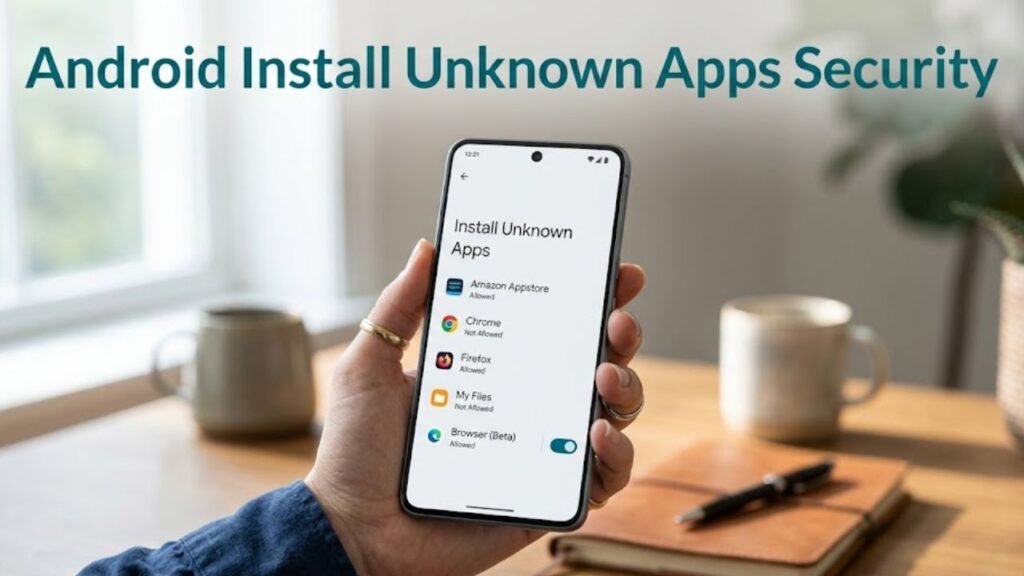
Why Android Install Unknown Apps Security Matters
Understanding Android Install Unknown Apps Security is essential for maintaining device integrity.
Key Benefits
- Reduces malware risks
- Prevents unauthorized installations
- Protects sensitive data
- Enhances user awareness
Without these safeguards, devices would be highly vulnerable to threats.
How Android Install Unknown Apps Security Works
Android Install Unknown Apps Security operates through permission-based controls.
Step-by-Step Process
- User downloads an APK file
- System blocks installation by default
- User is prompted to allow installation from a specific app
- Permission is granted per app (e.g., browser, file manager)
- Installation proceeds securely
This ensures controlled and transparent app installation.
Evolution of Unknown App Installation in Android
Android has significantly improved installation security over time.
Before Android 8.0
- Single global setting for unknown sources
- Less control and higher risk
Android 8.0 and Above
- Per-app installation permissions
- Improved security and transparency
This shift greatly reduced the risk of malicious installations.
Common Risks of Installing Unknown Apps
Sideloading apps can expose users to serious threats.
Major Risks
- Malware and viruses
- Spyware and data theft
- Fake or modified apps
- Unauthorized background activity
Hidden Threats
- Apps requesting excessive permissions
- Embedded malicious code
Types of Sources for Unknown Apps
Understanding sources helps explain Android Install Unknown Apps Security.
Common Sources
- Third-party app stores
- APK download websites
- File sharing platforms
- Direct transfers (Bluetooth, Nearby Share)
Not all sources are trustworthy.
Security Features in Android for Unknown Apps
Android includes multiple safeguards.
1. Per-App Permission Control
Users must allow installation for each app individually.
2. Google Play Protect Integration
Scans apps for malware.
3. Installation Warnings
Alerts users about potential risks.
4. Permission Review
Apps must request access to sensitive data.
Unknown Apps vs Play Store Apps
Comparison Table
| Feature | Unknown Apps | Play Store Apps |
|---|---|---|
| Verification | Limited | Strict |
| Security Checks | Minimal | Extensive |
| Risk Level | High | Low |
| Updates | Manual | Automatic |
| User Trust | Variable | High |
Play Store apps are generally safer due to rigorous checks.
How to Enable Install Unknown Apps Safely
If needed, enabling this feature should be done carefully.
Steps
- Go to Settings
- Open Apps & Notifications
- Select Special App Access
- Tap Install Unknown Apps
- Choose a trusted app (e.g., browser)
- Enable permission
Best Practices for Safe Installation
To maximize Android Install Unknown Apps Security, follow these tips.
1. Use Trusted Sources Only
Download APKs from reputable websites.
2. Verify App Authenticity
Check developer information and reviews.
3. Scan APK Files
Use security tools before installation.
4. Limit Permissions
Grant only necessary access.
5. Disable Permission After Use
Turn off “Install Unknown Apps” once done.
Signs of a Malicious APK
Recognizing threats is essential.
Warning Signs
- Unusual permission requests
- Poor app reviews
- Suspicious file size
- Frequent pop-ups after installation
Impact on Device Performance
Installing unknown apps can affect performance.
Potential Effects
- Battery drain
- Slow performance
- Increased data usage
- Background activity
Role of Google Play Protect
Google Play Protect enhances Android Install Unknown Apps Security.
Key Functions
- Scans installed apps
- Detects harmful behavior
- Removes malicious apps
Common Issues and Troubleshooting
Users may face installation issues.
Common Problems
- Installation blocked
- App not installing
- Security warnings
Solutions
- Check permissions
- Enable unknown app installation
- Verify APK compatibility
Best Practices for Developers
Developers distributing APKs must ensure security.
Key Recommendations
- Sign APKs properly
- Provide secure download links
- Avoid unnecessary permissions
- Maintain transparency
Advanced Security Features
Modern Android versions include additional protections.
1. Verified App Signing
Ensures authenticity of apps.
2. Runtime Permissions
Controls access to sensitive data.
3. Scoped Storage
Limits file access for apps.
Use Cases of Installing Unknown Apps
Understanding real-world scenarios helps explain Android Install Unknown Apps Security.
Examples
- Installing beta versions of apps
- Accessing region-restricted apps
- Using open-source applications
Actionable Checklist
Use this checklist to stay secure:
- Enable unknown app installation only when needed
- Download from trusted sources
- Scan APK files
- Review permissions carefully
- Disable installation access after use
FAQs: Android Install Unknown Apps Security
What is Android Install Unknown Apps Security?
It is a system that controls and secures app installations from external sources.
Is it safe to install unknown apps?
It can be safe if done carefully using trusted sources.
Why is installation blocked?
Android blocks unknown apps by default for security.
Can I disable this feature?
Yes, you can enable or disable it per app.
What is sideloading?
Installing apps from sources outside the Play Store.
Does Play Protect scan unknown apps?
Yes, it scans apps for potential threats.
Conclusion
Understanding Android Install Unknown Apps Security is essential for safely navigating the flexibility that Android offers. While sideloading apps can provide access to unique tools and features, it also introduces potential risks that must be managed carefully.
Android’s modern security framework—featuring per-app permissions, Play Protect scanning, and installation warnings—provides strong safeguards against malicious software. However, user awareness remains the most important factor in maintaining device security.
By following best practices, verifying sources, and staying cautious, users can enjoy the benefits of installing unknown apps without compromising their safety.
