

Introduction
Android phone stuck on boot logo is a frustrating issue that prevents your device from starting properly. Instead of loading into the home screen, the phone freezes on the manufacturer’s logo or enters a continuous boot loop.
This problem can affect any Android device, regardless of brand or model, and is often caused by software glitches, corrupted system files, or failed updates. While it may seem serious, the good news is that most cases can be resolved with the right troubleshooting steps—without requiring professional repair.
In this comprehensive guide, you’ll learn the causes, solutions, and preventive measures to fix an Android phone stuck on boot logo effectively.
What Does “Android Phone Stuck on Boot Logo” Mean?
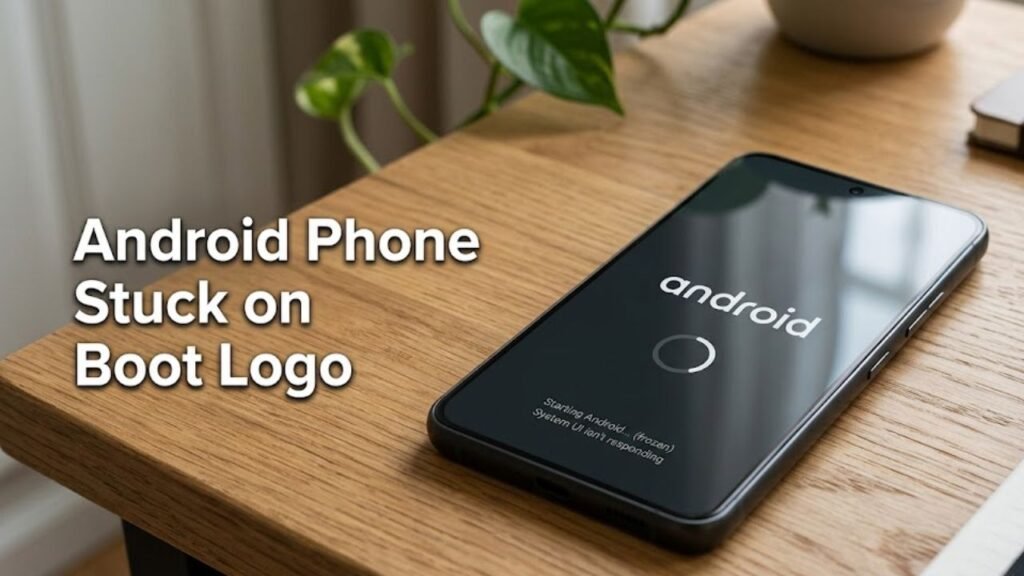
When an Android phone is stuck on boot logo, it means the device fails to complete the startup process. Instead of loading the operating system, it freezes at the initial screen displaying the brand logo.
This condition is often referred to as a boot loop, where the phone repeatedly tries to restart but never fully boots.
Common Causes of Android Phone Stuck on Boot Logo
Understanding the root cause is essential for choosing the correct fix.
1. Failed Software Updates
- Interrupted updates can corrupt system files
- Incompatible firmware installation
2. Corrupted System Files
- Damaged OS files due to malware or crashes
- Incomplete installations
3. Faulty Apps or Modifications
- Recently installed apps causing conflict
- Rooting or custom ROM installation errors
4. Insufficient Storage
- Lack of storage can prevent proper booting
- Cache overload issues
5. Hardware Problems
- Damaged internal components
- Battery or motherboard issues
Quick Troubleshooting Overview
| Issue Type | Difficulty Level | Risk Level | Solution Approach |
|---|---|---|---|
| Minor software glitch | Easy | Low | Restart or Safe Mode |
| Cache corruption | Medium | Low | Clear cache partition |
| System crash | Medium | Medium | Factory reset |
| Firmware issue | Advanced | High | Reinstall firmware |
| Hardware failure | Advanced | High | Professional repair |
9 Proven Fixes for Android Phone Stuck on Boot Logo
1. Force Restart Your Device
A force restart can resolve temporary system glitches.
Steps:
- Press and hold the Power button for 10–20 seconds
- Wait for the phone to reboot
Tip: Some devices require pressing Power + Volume Down simultaneously.
2. Remove Battery (If Applicable)
If your device has a removable battery:
- Turn off the phone
- Remove the battery
- Wait 30 seconds
- Reinsert and restart
This resets the hardware and clears temporary faults.
3. Boot into Safe Mode
Safe Mode disables third-party apps.
Steps:
- Press and hold Power button
- Tap and hold “Power Off”
- Select Safe Mode
If your phone boots normally, a third-party app is likely the cause.
4. Clear Cache Partition
Cache files can become corrupted and block startup.
Steps:
- Turn off your phone
- Press Power + Volume Up (or device-specific combo)
- Enter Recovery Mode
- Select Wipe Cache Partition
Important: This will not delete personal data.
5. Perform a Factory Reset
If the issue persists, a factory reset may be necessary.
Steps:
- Enter Recovery Mode
- Select Wipe Data/Factory Reset
- Confirm action
Warning: This will erase all data on your device.
6. Remove External Storage
External SD cards can sometimes interfere with booting.
- Power off the device
- Remove SD card
- Restart the phone
If the device boots normally, the SD card may be corrupted.
7. Charge Your Phone Fully
Low battery levels can interrupt boot processes.
- Plug your phone into a charger
- Wait at least 30 minutes
- Attempt restart
8. Reinstall Firmware (Advanced Method)
If your Android phone is stuck on boot logo due to system corruption, reinstalling firmware is a reliable fix.
Requirements:
- Computer
- USB cable
- Official firmware file
Steps:
- Download firmware for your device
- Use flashing tools (like Odin or Fastboot)
- Install firmware
Note: This process varies by manufacturer and requires caution.
9. Seek Professional Repair
If none of the above solutions work, hardware damage may be the cause.
Possible issues:
- Faulty motherboard
- Damaged storage chip
- Power circuit failure
Visit an authorized service center for diagnosis.
How to Prevent Android Phone Stuck on Boot Logo
Prevention is always better than repair.
Best Practices:
- Avoid interrupting system updates
- Install apps from trusted sources only
- Keep sufficient storage space
- Regularly clear cache
- Avoid rooting unless necessary
Signs You May Face Boot Logo Issues Soon
Watch out for these warning signs:
- Frequent app crashes
- Slow performance
- Random restarts
- Overheating issues
Early action can prevent major failures.
Advanced Tips for Power Users
Use ADB Commands
Advanced users can use Android Debug Bridge to fix boot issues.
Custom Recovery Tools
Tools like TWRP can help install fresh ROMs.
Backup Regularly
Always maintain backups to avoid data loss during fixes.
FAQs About Android Phone Stuck on Boot Logo
Why is my Android phone stuck on boot logo after update?
A failed or interrupted update can corrupt system files, preventing proper booting.
Can I fix boot loop without losing data?
Yes, methods like clearing cache or Safe Mode can resolve issues without data loss.
How long should I wait before fixing boot logo issue?
If your phone is stuck for more than 5 minutes, troubleshooting is recommended.
Is factory reset the only solution?
No, it is a last resort. Try simpler fixes first.
Can a virus cause boot loop issues?
Yes, malicious apps can damage system files and cause boot problems.
Conclusion
Android phone stuck on boot logo is a common yet solvable issue that can disrupt your daily routine. While the problem may seem severe at first, most cases stem from software-related glitches that can be fixed with simple troubleshooting steps.
From force restarting your device to clearing cache partitions and reinstalling firmware, each solution plays a crucial role in resolving the issue efficiently. The key is to follow a structured approach—starting with basic fixes before moving to advanced methods.
By understanding the causes and applying the right solutions, you can restore your device without unnecessary stress or expense. Additionally, adopting preventive practices ensures that your Android phone continues to run smoothly in the future.
If all else fails, professional assistance remains a reliable option to bring your device back to life.
